
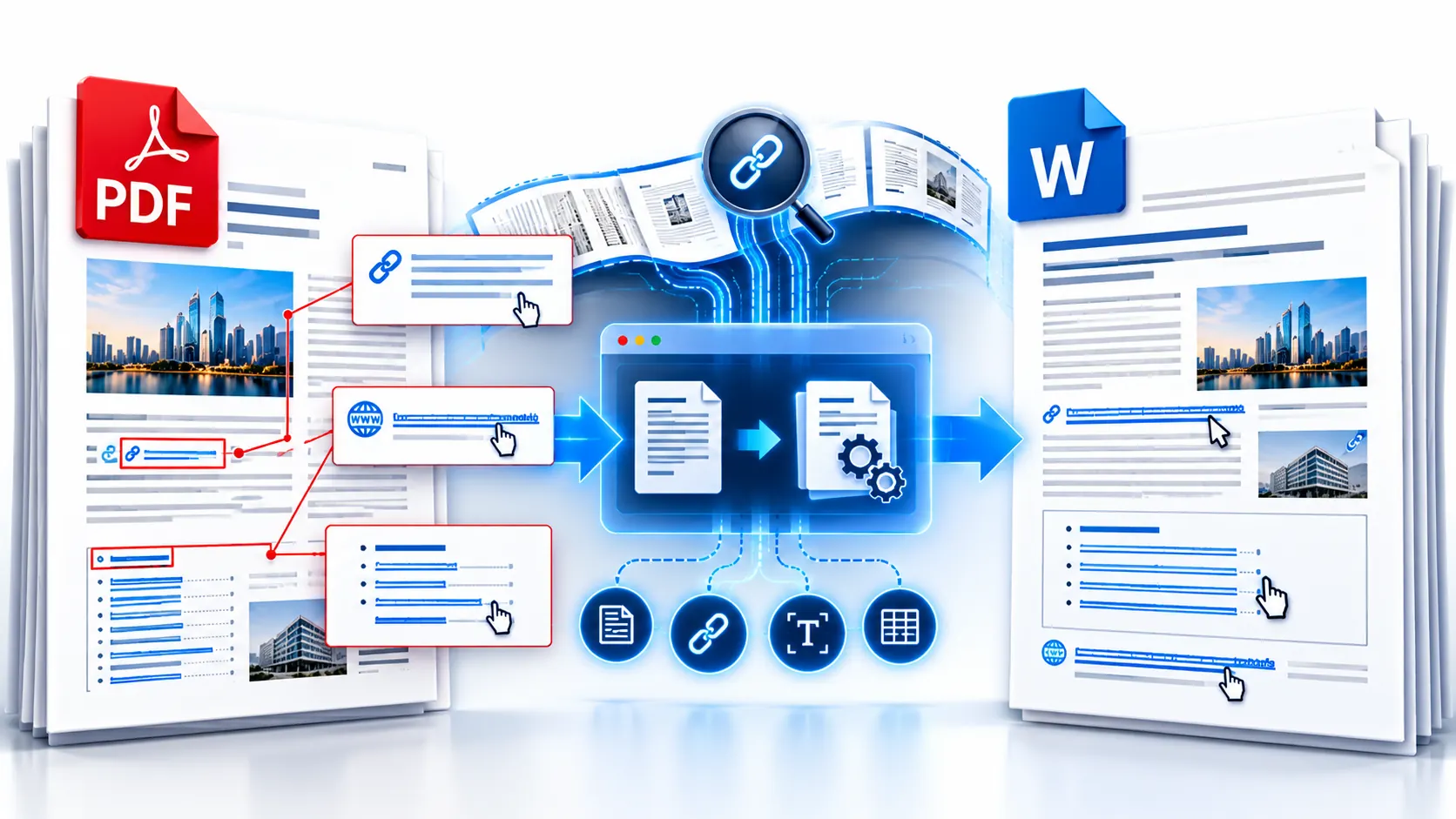
Converting a PDF to Word can give you editable text, but hyperlinks are a separate part of the conversion problem. A URL that looks clickable in the original PDF may not remain an active hyperlink in the resulting Word document.
The safest approach is to treat hyperlink preservation as something you need to verify after conversion, rather than assuming every PDF-to-Word converter will reproduce every link exactly.
For a browser-based conversion workflow, you can use the PKCapra PDF to Word Converter to create an editable DOCX file, then check the hyperlinks in Microsoft Word or another compatible editor.
Why PDF Hyperlinks Sometimes Disappear During Conversion
A PDF is not simply a Word document saved with a different file extension.
PDFs can contain text, graphics, images, forms, link annotations, destinations, and other document elements. A hyperlink may therefore exist as an interactive PDF link rather than simply being ordinary text containing a visible URL.
When the PDF is converted into DOCX, the converter has to interpret the PDF’s structure and reconstruct editable Word content.
That reconstruction can affect hyperlinks.
For example, a PDF may contain:
- Visible text such as
Visit our website - A clickable link attached to that text
- A visible URL such as
https://example.com - An internal link to another location in the PDF
- A table of contents entry pointing to a page
- An email address with a mailto link
- A link annotation positioned over an image or graphic
These are not necessarily equivalent from a conversion perspective.
A converter may successfully extract the visible text while failing to reproduce the interactive link attached to it.
Does PDF to Word Always Preserve Hyperlinks?
No. You should not assume that every hyperlink in a PDF will remain active after conversion.
The result depends on how the original PDF was created, how its links are represented, and how the conversion process reconstructs the Word document.
Adobe’s PDF documentation describes links as annotations associated with regions of a PDF page. That means the clickable behavior can exist separately from the visible text itself.
This distinction is important when converting PDF content into an editable document.
The PKCapra PDF to Word Converter currently focuses on extracting PDF content into an editable DOCX document. Its documented functionality includes selectable-page conversion, text extraction, optional line-break preservation, and OCR for scanned pages. It does not promise pixel-perfect reproduction of every PDF element, so hyperlinks should be treated as something to verify after conversion.
How to Convert PDF to Word and Check Your Hyperlinks
The simplest workflow is:
- Open the PDF-to-Word converter.
- Select your PDF.
- Choose the pages you need.
- Select the appropriate text options.
- Convert the PDF to DOCX.
- Open the resulting Word document.
- Test the hyperlinks.
- Repair any links that were not preserved correctly.
Step 1: Select the PDF
Open the PKCapra PDF to Word Converter and select the PDF you want to convert.
PKCapra processes the selected PDF directly in the browser rather than uploading it to a PKCapra conversion server.
Step 2: Choose the Pages You Need
You do not necessarily have to convert the entire PDF.
You can specify individual pages or ranges, such as:
1-358-101-3, 5, 8-10
If your document contains a large number of pages but only a few pages contain the links you need, converting only those pages can make the workflow easier to review.
Step 3: Choose Your Conversion Options
PKCapra provides options for:
- Keeping PDF line breaks
- Using OCR for scanned PDFs
- Selecting specific pages
For a normal text-based PDF, OCR may not be necessary.
If the PDF is scanned or contains image-only pages, OCR can help turn visible characters into editable text. However, OCR recognition of a URL does not automatically mean that the resulting text will have the same clickable hyperlink behavior as the original PDF.
Step 4: Convert the PDF to DOCX
Start the conversion and wait for the browser-based process to finish.
The result is an editable DOCX document.
At this point, do not immediately assume the conversion is complete.
The next step is important.
Step 5: Test the Hyperlinks in Word
Open the generated DOCX file in Microsoft Word or another compatible Word editor.
Check several different types of links.
For example:
- External website links
- Email links
- Table of contents links
- Internal document links
- Links attached to descriptive text
- URLs displayed as plain text
- Links attached to images or graphics
Test both the appearance and behavior of the links.
A URL may be visible but not clickable.
A descriptive phrase such as Visit our website may remain in the document while its underlying hyperlink has disappeared.
That is why simply searching for https:// is not enough to verify hyperlink preservation.
How to Tell Whether a Link Is Actually Active
A hyperlink is not necessarily active just because it looks like a URL.
In Word, you can select or right-click a suspected hyperlink and inspect its link information.
Microsoft Word supports hyperlinks to web addresses, email addresses, files, and specific locations within a document.
If the text is supposed to link to a website, verify that the destination address is actually present.
For example:
Visible text:
Visit PKCapra
Expected destination:
If the text exists but there is no hyperlink destination associated with it, the conversion preserved the words but not the interactive link.
How to Fix a Missing Hyperlink in Word
If a hyperlink was lost during conversion, you can recreate it directly in Word.
Recreate a Web Link
Select the text that should be clickable.
Then use Word’s link command and enter the destination URL.
For example:
Display text:Visit our website
Link destination:https://example.com
You can also make the URL itself clickable.
Microsoft Word supports creating and editing hyperlinks to web pages and other destinations.
Fix a URL That Became Plain Text
Sometimes a converted document contains:
but Word does not treat it as an active link.
Try placing the cursor at the end of the URL and pressing Space or Enter. Word can automatically recognize web addresses as hyperlinks.
If that does not happen, select the text and manually insert the hyperlink.
Fix a Descriptive Link
Descriptive links require special attention.
For example, the PDF might contain:
Download the annual report
with the actual destination hidden behind the text.
After conversion, the phrase may remain while the destination disappears.
In this situation, you need to know the original destination URL before recreating the link.
How to Preserve Table of Contents Links
Tables of contents require more than checking visible URLs.
A PDF table of contents may contain links that jump to specific pages or destinations within the PDF.
For example:
- Introduction → Page 3
- Chapter 1 → Page 7
- Chapter 2 → Page 19
- Appendix → Page 84
After conversion, the visible table of contents may still exist, but its interactive navigation may not.
This is one reason you should test internal document navigation separately from external website links.
If internal links are important, compare the converted Word document with the original PDF before distributing it.
How to Preserve Links in a Scanned PDF
Scanned PDFs create an additional problem.
A scanned document may contain page images rather than machine-readable text.
In that situation, OCR is needed to recognize the words.
The PKCapra OCR PDF tool can be useful when your source document needs OCR before or alongside your document workflow.
However, OCR primarily addresses text recognition.
It should not be treated as a guarantee that the interactive hyperlink structure of the original PDF will be reconstructed.
For scanned documents, check both:
- Whether the text was recognized correctly.
- Whether important links are actually active.
This distinction is especially important for scanned manuals, archived reports, forms, and documents containing printed URLs.
Why Visible URLs Are Easier to Recover
There is an important difference between these two examples.
Example 1: Visible URL
Even if the hyperlink itself is lost, the destination may still be visible as text.
That gives you something you can copy or use to recreate the hyperlink.
Example 2: Hidden Destination
Download the file
The visible text does not reveal the destination.
If the hyperlink disappears during conversion, you may need to return to the original PDF to identify where the link pointed.
This is why documents containing many descriptive hyperlinks should always be checked carefully after conversion.
What About Email Links?
Email links can also require verification.
A PDF may contain text such as:
Contact us
with an email destination behind it.
After conversion, the visible text may remain while the email action disappears.
Check important email links individually, especially in:
- Contact pages
- Business forms
- Company brochures
- Marketing documents
- Digital reports
- Sales documents
If necessary, recreate the email hyperlink in Word.
What About Links Inside Images?
A PDF can contain a clickable area associated with an image or graphic.
For example, a company logo might link to a website.
A converted Word document may retain the image while losing its interactive destination.
This is another example of why visual similarity does not necessarily mean functional equivalence.
If an image is supposed to be clickable, test it directly.
How to Test a Converted Word Document Before Sharing It
For important documents, use a structured hyperlink check.
External Link Check
Click several external links and confirm that they open the intended destinations.
Internal Link Check
Test table of contents entries, cross-references, and navigation links.
Email Link Check
Verify that email links open the expected mail application or destination.
Image Link Check
Click linked logos, buttons, icons, and graphics.
Visible URL Check
Search for URLs and confirm that important addresses have not been changed or broken.
Destination Check
Do not only check whether something is clickable.
Confirm that the destination itself is correct.
A clickable link pointing to the wrong page is still a broken conversion result.
Common Reasons PDF Links Break After Conversion
Several situations can make hyperlink preservation more difficult.
The PDF Was Created From Scanned Pages
There may be little or no machine-readable text in the source.
OCR can recognize the text, but link reconstruction is a separate issue.
The Link Is Attached to a Text Fragment
The visible words may be extracted while the interactive link annotation is not.
The Link Is Attached to an Image
The image can survive while its clickable behavior does not.
The PDF Uses Internal Destinations
Table of contents and navigation links can depend on PDF-specific destinations rather than ordinary web URLs.
The Document Uses Complex Layouts
Columns, tables, positioned elements, fonts, images, and other complex structures can require additional correction after conversion.
The Source PDF Contains Damaged or Unusual Structures
A converter may have difficulty reconstructing every element of a PDF that was generated by unusual software or contains malformed structures.
Does Keeping PDF Line Breaks Preserve Hyperlinks?
No.
The Keep PDF line breaks option and hyperlink preservation are different concerns.
Keeping line breaks controls how extracted text lines are represented in the resulting Word document.
It does not mean that every interactive PDF link will automatically be recreated.
Use the option when preserving extracted line structure is useful, but still test hyperlinks separately.
Should You Convert the Entire PDF?
Not always.
If you only need a few pages, selecting those pages can reduce the amount of content that needs to be reviewed.
This is especially useful for:
- Large reports
- Manuals
- Research documents
- Contracts
- Archived documents
- Books
- Long business documents
Convert the relevant pages, then concentrate your quality check on the resulting DOCX.
Best Workflow for PDF-to-Word Documents With Important Links
If hyperlinks are important to the final document, use this workflow:
Original PDF
↓
Check important links
↓
Convert PDF to DOCX
↓
Open the Word document
↓
Check external URLs
↓
Check internal navigation
↓
Check email links
↓
Check image links
↓
Repair missing links
↓
Save the final DOCX
This approach is more reliable than assuming that a visually similar Word document is functionally identical to the PDF.
When You Should Keep the Original PDF
Always keep the original PDF when the document contains important links.
The PDF should remain your reference copy because it provides the original version against which you can compare:
- Text
- URLs
- Table of contents
- Internal navigation
- Images
- Page structure
- Link destinations
The converted Word file is an editable working version, not necessarily a perfect structural replica of the PDF.
PDF to Word Hyperlink Checklist
Before you distribute the converted Word document, check:
- Important website links still work
- URLs point to the correct destinations
- Table of contents links work
- Internal navigation links work
- Email links work
- Links attached to images still work
- Visible URLs were not accidentally changed
- Scanned pages were reviewed after OCR
- Important tables and layouts were checked
- The final DOCX was compared with the original PDF
- The original PDF was retained as a reference copy
Common Mistakes to Avoid
Assuming Every Clickable PDF Element Becomes a Word Hyperlink
PDFs can contain interactive elements that are separate from the visible text. Never assume they will all survive conversion.
Checking Only the First Link
A document can preserve some links and lose others.
Test different link types and locations.
Confusing Visible URLs With Active Hyperlinks
A URL can appear as ordinary text without having a clickable destination.
Treating OCR as a Hyperlink Solution
OCR can recognize characters in scanned pages, but text recognition and interactive-link reconstruction are different tasks.
Skipping the Final Review
The most important step is often the one people skip: opening the resulting DOCX and checking the links before sharing it.
Deleting the Original PDF
Keep the source PDF until you have completed your review and are satisfied with the converted Word document.
Frequently Asked Questions
Can I convert a PDF to Word and keep hyperlinks?
Sometimes, but you should verify them after conversion. Hyperlink preservation depends on the structure of the source PDF and how the conversion process interprets its interactive elements.
Why are my hyperlinks missing after converting PDF to Word?
The converter may extract the visible text without reconstructing the interactive hyperlink associated with that text. PDF links can exist as separate link annotations or destinations.
Can a visible URL still be clickable after conversion?
Yes, but it is not guaranteed. A URL can survive as text while losing its active hyperlink behavior. Check the destination in Word.
How do I make a converted URL clickable in Word?
Select the text and use Word’s hyperlink command to add the correct web address. Word can also automatically recognize some typed web addresses.
Can I preserve table of contents links when converting PDF to Word?
Not always. PDF table-of-contents entries can use internal destinations. After conversion, test the entries individually and recreate important links if necessary.
Does OCR preserve hyperlinks in scanned PDFs?
OCR can recognize text from scanned pages, but OCR and hyperlink preservation are separate functions. A recognized URL is not automatically proof that the original clickable link has been recreated.
What if only some hyperlinks work?
Review the links that failed and compare them with the original PDF. Links attached to descriptive text, images, or internal PDF destinations may require manual reconstruction.
Is PDF to Word conversion guaranteed to preserve formatting and links?
No. PDF-to-DOCX conversion can require adjustments to complex tables, columns, images, fonts, positioning, and other document elements. Hyperlinks should also be checked independently.
Can I convert only the pages containing important hyperlinks?
Yes. PKCapra’s PDF-to-Word workflow allows you to select individual pages or page ranges before conversion.
Should I keep the original PDF after converting it?
Yes. Keep it as the reference copy so you can compare the converted Word document and recover missing information or link destinations if necessary.
Final Takeaway
The key to converting PDF to Word with working hyperlinks is not simply finding a converter that produces an editable DOCX.
You also need to verify the interactive elements after conversion.
Visible text, clickable web links, internal document navigation, email links, and image-based links can behave differently during PDF-to-Word conversion.
Use the PKCapra PDF to Word Converter to create your editable DOCX, then perform a hyperlink review before treating the converted document as final.
For documents where links are critical, the safest workflow is simple: convert, test, repair where necessary, and keep the original PDF as your reference copy.