
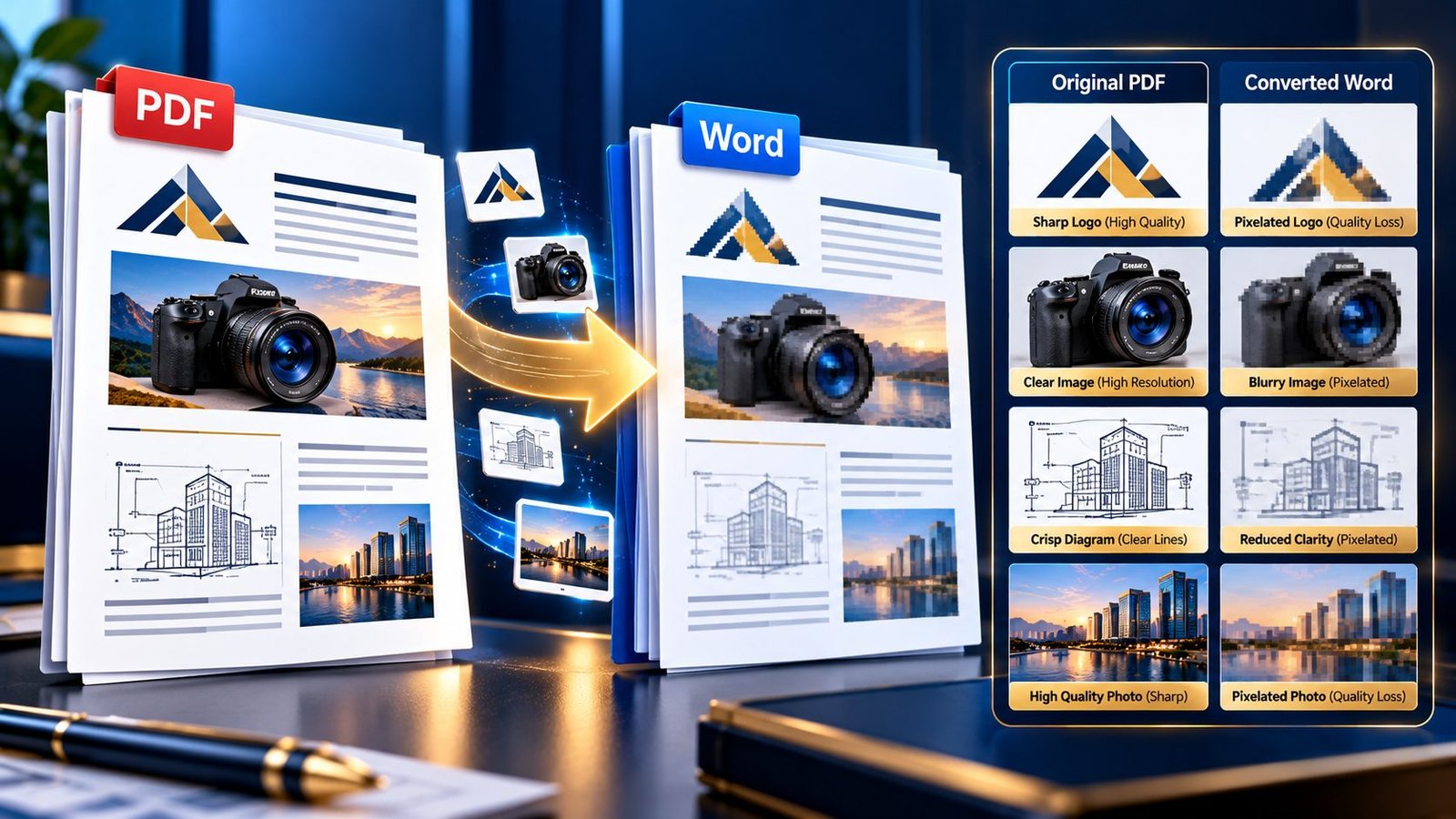
A PDF can look perfectly sharp on screen, yet the images inside the converted Word document suddenly look soft, blurry, or pixelated.
This is especially frustrating when the PDF contains a company logo, product photograph, scanned diagram, chart, screenshot, or high-resolution illustration that needs to remain usable after conversion.
If images become blurry after converting PDF to Word, first determine whether the loss happened in the original PDF, during conversion, or inside Word after the conversion. Then preserve the highest-quality source available, avoid unnecessary compression, check image scaling, and replace severely degraded images with the original graphics when necessary.
Why Do Images Become Blurry After PDF to Word Conversion?
The main reason is simple: PDF and Word handle document graphics differently.
A PDF is primarily designed to preserve a fixed visual page. Word, by contrast, has to reconstruct an editable document containing text, images, tables, paragraphs, and other objects.
During that reconstruction, an image may be:
- Extracted from the PDF
- Resampled
- Re-encoded
- Compressed
- Scaled to a different physical size
- Repositioned inside the Word document
- Rendered differently by Word or another viewer
The result can look noticeably worse even though the original PDF appeared sharp.
However, conversion itself is not always responsible.
Sometimes the PDF already contains a low-resolution image. In other cases, the image is high quality but becomes degraded when the resulting Word document applies additional image compression.
That is why the first step is diagnosis—not simply converting the file again.
First Find Out Where the Quality Was Lost
Before trying another PDF-to-Word converter, compare the same image in three places:
Original source image → PDF → converted Word document
This gives you a much better diagnosis.
If the original image is sharp but the PDF is blurry
The problem occurred before the PDF-to-Word conversion.
The PDF may have been created with:
- Image downsampling
- Aggressive compression
- A low-resolution source image
- An inappropriate export setting
- A screenshot instead of the original graphic
In that case, converting the PDF again will not restore the missing detail.
If the PDF is sharp but Word is blurry
Now the conversion or Word document handling becomes the main suspect.
Possible causes include:
- Image recompression
- Image resampling
- Poor extraction
- Excessive scaling
- Word’s own image-quality settings
- A conversion process that prioritizes document structure over original image fidelity
If both PDF and Word are blurry
The source PDF itself may already contain insufficient image information.
In that situation, the best solution is usually to locate the original image rather than repeatedly reconverting the PDF.
Check the Original PDF Before Converting Again
Open the PDF at a useful zoom level and inspect the problematic image.
Look closely at:
- Small text inside the image
- Fine lines
- Logo edges
- Product details
- Chart labels
- Screenshots
- Diagrams
- Photographs
If the image becomes visibly pixelated when you zoom into the PDF, the Word converter probably isn’t the primary cause.
You are starting with an image that has already lost quality.
If you want to inspect the PDF’s embedded graphics separately, PKCapra’s PDF Image Extractor can be useful for determining what image assets are actually embedded in the source PDF.
Check Whether the PDF Was Already Compressed
PDF creation and optimization can deliberately reduce image resolution or compress image data to make the file smaller.
This is useful for web distribution and storage, but aggressive image optimization can reduce visual quality.
Adobe’s PDF optimization documentation explains that PDF optimization can reduce image file size through compression and downsampling.
That means a small PDF is not automatically a high-quality PDF.
You may have a situation like this:
Original image: 3000 × 2000 pixels
↓
PDF: optimized/downsampled image
↓
Word: extracted and possibly recompressed image
↓
Final result: visibly soft image
The Word conversion is only one part of the chain.
Use the Highest-Quality Source Available
If the original logo, photograph, diagram, or illustration is available separately, use it.
This is particularly important for:
- Company logos
- Product photography
- Technical diagrams
- Charts
- Screenshots
- Maps
- Marketing graphics
- Scanned signatures
- High-resolution illustrations
A PDF-to-Word converter cannot reliably recreate information that no longer exists in the PDF.
If the source PDF contains a low-resolution image, searching for a better converter may improve extraction in some cases, but it cannot manufacture the original missing pixels.
Convert the PDF Without Adding an Unnecessary Compression Step
When the PDF itself looks good, start with the original PDF rather than a heavily compressed copy.
For example, don’t automatically do:
Original PDF → Compress PDF → Convert to Word
if image quality is your primary concern.
PDF compression can intentionally reduce image data. Adobe documents downsampling and image compression as mechanisms used to reduce PDF size.
If the file is already suitable for conversion, go directly to the PKCapra PDF to Word Converter.
Compression is useful when file size is actually the problem—not when you are trying to preserve maximum image quality.
Check the Image Size in Word
An image can also look blurry because it has been enlarged beyond what its available pixel data can support.
Imagine that a small image is extracted and then stretched across most of a Word page.
The image may technically be present, but its pixels are being displayed at a much larger physical size.
This creates the familiar:
small source → large display size → visible pixelation
So don’t judge image quality only by the file’s dimensions.
Check how large the image is being displayed in the Word document.
Don’t Confuse Blurry Images With Incorrect Display Scaling
Sometimes the image itself isn’t permanently degraded.
Different applications can render the same image differently depending on:
- Zoom level
- Display scaling
- Preview rendering
- Document view
- Graphics settings
- Print rendering
Check the image at 100% view and, when appropriate, compare the printed or exported result.
A blurry preview does not always mean that the underlying image data has been permanently damaged.
Check Word’s Image Compression Settings
Word can compress pictures inside documents.
Microsoft documents a High fidelity option for Word and explains that turning off picture compression can improve picture quality, although uncompressed images can increase file size.
If your converted document contains images that were initially sharp but become worse after editing or saving in Word, check the document’s image-quality settings.
In supported desktop versions of Word, the relevant settings are under:
File → Options → Advanced → Image Size and Quality
Depending on the Word version, you may be able to select High fidelity or enable Do not compress images in file.
This is especially worth checking when:
- The PDF image looked sharp
- The first Word conversion looked acceptable
- The image became worse after editing or saving
- Several images in the document show similar quality loss
Be Careful With Word’s “Compress Pictures” Feature
Compression is useful when you need to reduce document size.
It is not necessarily useful when you are trying to preserve image quality.
Microsoft notes that compressing pictures can reduce file size but may also make an image look different because detail can be lost.
So if image quality is the priority, don’t compress the converted document simply because the Word file is large.
Instead, decide which matters more:
Maximum visual quality
or
Smaller file size
For reports, product catalogs, technical documents, and presentations, the answer may be very different from a simple text-heavy document.
Check Whether the Image Was Scaled During Conversion
Another common problem is incorrect image sizing.
Suppose the PDF contains a small diagram positioned at 25% of the page width.
The converter may reconstruct it at a different size in Word.
If the image becomes larger than its original effective resolution supports, it can appear soft.
Look for:
- Oversized logos
- Stretched screenshots
- Enlarged diagrams
- Distorted aspect ratios
- Images occupying unexpectedly large areas
- Images that look sharp when reduced but blurry when enlarged
Correcting the displayed size can sometimes make the image appear significantly better.
Preserve the Original Aspect Ratio
A stretched image can look worse even when its underlying resolution hasn’t changed.
Check whether the image has been distorted horizontally or vertically.
For example:
Original: 1600 × 900
Incorrectly stretched: 1600 × 1200
The result may look distorted and less professional.
Keep the original aspect ratio when resizing images in Word.
What About Logos?
Logos deserve special attention because pixelation is easy to notice around:
- Text
- Thin lines
- Curved edges
- Small symbols
- Brand marks
If the logo looks sharp in the PDF but blurry in Word, the best solution may be to replace the converted image with the original logo file.
If the original logo is available as SVG, PNG, or another high-quality source, inserting that original asset can produce a better result than relying on a rasterized copy extracted from the PDF.
What About Product Images?
Product photography can reveal compression problems quickly.
Look for:
- Blocky shadows
- Loss of fine texture
- Soft edges
- Color artifacts
- Reduced detail
- JPEG-style compression patterns
If the PDF contains a heavily compressed product image, the Word document cannot restore the lost photographic detail.
The better approach is to replace the degraded image with the original product photograph whenever possible.
What About Charts and Technical Diagrams?
Charts are more complicated because they contain both graphics and information.
A blurry photograph may still be understandable.
A blurry chart can make labels, numbers, legends, and lines difficult to interpret.
For important technical graphics, check:
- Axis labels
- Data values
- Legends
- Small annotations
- Grid lines
- Diagram labels
- Symbols
If those elements are unreadable, the image should not be considered successfully preserved simply because the overall picture is still visible.
What About Screenshots?
Screenshots often become blurry after conversion because they contain lots of small interface text and thin lines.
For example, a screenshot may look fine at normal PDF viewing size but become unreadable when inserted into Word at a different scale.
If the screenshot is important, compare it at 100% and avoid enlarging it unnecessarily.
When the original screenshot is available, replacing the converted version is usually preferable.
Scanned PDFs Are a Special Case
Scanned PDFs require a different approach.
A scanned document may contain pages as images rather than native text and graphics.
If you need editable text from the scan, OCR may be more important than image extraction.
For that workflow, use PKCapra OCR PDF when appropriate, then review both the recognized text and the visual images.
Remember that OCR solves a text-recognition problem; it does not automatically restore the resolution of a blurry scan.
If the scan itself is low quality, OCR accuracy and visual quality can both be affected.
Should You Convert the PDF to an Image First?
Usually, no.
Converting an entire PDF into JPG or PNG pages and then placing those pages into Word may preserve the visual appearance of the page, but it creates a different problem:
You get a picture of the page rather than a genuinely editable Word document.
That may be acceptable for a visual archive or presentation, but it defeats the main purpose of a PDF-to-Word conversion when the user needs editable text.
If you only need to inspect how the original PDF renders as images, PKCapra’s PDF to JPG or PDF to PNG tools can help with visual comparison.
Use them as diagnostic or image-output tools rather than assuming they are a replacement for editable Word conversion.
What If Only Some Images Are Blurry?
Don’t automatically reconvert the entire document.
If nine images are sharp and one logo is blurry, the conversion may have handled the majority of the document correctly.
Identify the specific problematic image and determine whether:
- Its source resolution was low
- It was compressed
- It was enlarged
- It was extracted differently
- The original asset is available
Replacing one degraded image can be much faster than rebuilding the entire document.
What If Every Image Is Blurry?
If every image in the converted Word document looks noticeably worse, investigate the conversion pipeline.
Check the original PDF first.
If the original PDF is sharp, compare the same image before and after conversion.
Then check:
- Whether the converter is extracting images at sufficient quality
- Whether Word is compressing the images
- Whether the images are being enlarged
- Whether the PDF was already optimized
- Whether another conversion workflow produces a different result
This systematic approach is more useful than randomly trying multiple converters.
A Simple Diagnostic Test
Choose one representative image from the document.
It should contain enough detail to reveal quality changes, such as a logo, photograph, or diagram.
Then compare:
| Stage | What to Check |
|---|---|
| Original image | Pixel dimensions and visual sharpness |
| Sharpness at normal and higher zoom | |
| Converted Word | Image clarity and displayed size |
| Word after saving | Any additional quality loss |
| Final export/print | Real-world output quality |
If the image is already blurry in the PDF, investigate the PDF source.
If it is sharp in the PDF but blurry in Word, investigate conversion or Word image handling.
If it becomes blurry only after editing and saving in Word, investigate Word’s image compression settings.
When Should You Replace the Image Manually?
Manual replacement makes sense when:
- The original image is available
- The converted image is visibly degraded
- The image is important to the document
- The image contains small text
- The image is a logo or brand asset
- The image contains technical information
- The converted image cannot be made sufficiently sharp through resizing
You don’t need to rebuild the entire Word document.
Replace the individual image and preserve the rest of the conversion.
What If the Original Image Is Not Available?
Then your options become more limited.
You can try:
- Repeating the conversion from the original PDF
- Using the original uncompressed PDF rather than an optimized copy
- Checking Word’s image-quality settings
- Reducing excessive image enlargement
- Extracting the embedded image for comparison
- Using the highest-quality version available
But don’t expect a tool to recreate detail that has already been permanently discarded.
If the PDF contains a 600-pixel image, a converter cannot reliably turn it into the original 3000-pixel image simply by exporting it again.
Should You Compress the PDF Before Converting?
Not if image quality is your primary concern.
Compression can be useful when a PDF is too large to process efficiently, but image compression and downsampling can affect visual quality.
If file size is actually preventing conversion, use a dedicated Compress PDF workflow carefully and then compare the images before and after compression.
The important distinction is:
Compress for file-size problems.
Preserve the original PDF for image-quality problems.
Don’t solve one problem by creating another.
A Better PDF-to-Word Image Quality Workflow
For important documents, use this sequence:
Step 1: Inspect the Original PDF
Find the images that matter most.
Step 2: Compare Image Quality
Determine whether they are already blurry inside the PDF.
Step 3: Check the Source
If the PDF itself is poor, locate the original image assets if possible.
Step 4: Convert the Original PDF
Use the PDF to Word Converter rather than a previously compressed copy when image quality is important.
Step 5: Compare the Converted Images
Check the same images at comparable sizes.
Step 6: Check Word Image Settings
If the images deteriorate after editing or saving, review Word’s compression and resolution settings.
Step 7: Replace Critical Images
Use original logos, diagrams, product images, or screenshots where the converted versions are unacceptable.
Step 8: Validate the Final Document
Check the document on screen and, when necessary, in the final printed or exported form.
This workflow separates source quality, conversion quality, and Word rendering quality instead of treating them as one problem.
Common Mistakes That Make Image Quality Worse
Compressing the PDF Before Conversion
If the PDF is already suitable for conversion, unnecessary compression can reduce image quality.
Enlarging Small Images
Making a low-resolution image physically larger does not create additional detail.
Compressing Images Again in Word
A converted image that was already compressed can lose more quality if it is compressed again.
Judging Quality Only at Thumbnail Size
Small previews can hide serious pixelation.
Check important images at an appropriate viewing scale.
Replacing the Whole Document
If only one or two images are bad, rebuilding everything is unnecessary.
Assuming Every Blurry Image Is the Converter’s Fault
The source PDF may already contain the problem.
Key Takeaways
- Images can become blurry after PDF-to-Word conversion because of extraction, resampling, compression, scaling, or Word’s own image handling.
- Always compare the original PDF with the converted Word document before deciding where the problem occurred.
- If the PDF itself is blurry, a converter cannot restore missing image detail.
- Avoid unnecessary PDF compression when image quality is the priority.
- Check Word’s image compression and resolution settings if quality deteriorates after conversion.
- Don’t enlarge low-resolution images unnecessarily.
- Replace important logos, diagrams, screenshots, and product images with their original assets when available.
- OCR can make scanned text editable, but it does not magically increase the resolution of a poor scan.
- Converting PDF pages to JPG or PNG can help diagnose visual quality but does not produce an editable Word document.
- For important documents, validate images as carefully as you validate text and formatting.
Frequently Asked Questions
Why are my images blurry after converting PDF to Word?
The image may have been compressed, resampled, extracted at lower quality, enlarged in Word, or already been low quality in the original PDF. Compare the PDF and Word versions to identify where the quality changed.
Can a PDF-to-Word converter restore a blurry image?
Not if the original PDF no longer contains the missing detail. A converter can extract available image data, but it cannot reliably recreate information that was discarded earlier.
Why are my PDF images sharp but blurry in Word?
The problem may have occurred during image extraction, scaling, conversion, or subsequent Word image compression. Check the image size and Word’s image-quality settings.
Does compressing a PDF make images blurry?
It can. PDF optimization may use image compression or downsampling to reduce file size. If image quality is important, compare the original and compressed versions before using the compressed PDF for conversion.
How can I stop Word from compressing converted images?
In supported desktop versions of Word, review File → Options → Advanced → Image Size and Quality and consider the High fidelity or Do not compress images in file options where appropriate.
Should I convert my PDF to JPG before converting it to Word?
Usually not. Converting pages to images preserves a visual representation but does not give you the editable text structure you normally want from a Word conversion.
Why are logos especially blurry after PDF conversion?
Logos often contain sharp edges, small text, and thin lines, making compression and pixelation much easier to notice. If the original logo file is available, replacing the converted version is usually the better solution.
Can OCR improve a blurry scanned PDF?
OCR can recognize text in a scanned document, but it does not automatically restore the visual resolution of a blurry scan. Poor source quality can also affect OCR accuracy.
Should I use a different PDF-to-Word converter?
Possibly, but diagnose the source first. If the PDF itself contains low-resolution images, changing converters will not solve the fundamental problem.
What is the best way to preserve image quality when converting PDF to Word?
Start with the highest-quality PDF available, avoid unnecessary compression, convert the original file, check image scaling and Word’s compression settings, and replace critical images with their original assets when necessary.
Conclusion
Blurry images after PDF-to-Word conversion are not always caused by the converter itself.
The quality loss can happen at several stages: when the original PDF is created, when images are compressed or downsampled, during PDF-to-Word extraction, when images are resized, or when Word applies its own image-quality settings.
The fastest way to solve the problem is therefore to compare the original image, the PDF, and the converted Word version.
If the PDF is already blurry, find a better source image. If the PDF is sharp but Word is not, investigate extraction, scaling, and Word’s image settings. And if only a few important images are degraded, replace those assets rather than rebuilding the entire document.
For the best results, treat image quality as a separate validation step alongside text, tables, formatting, and page layout.
That approach gives you a Word document that is not merely editable, but also visually usable.