
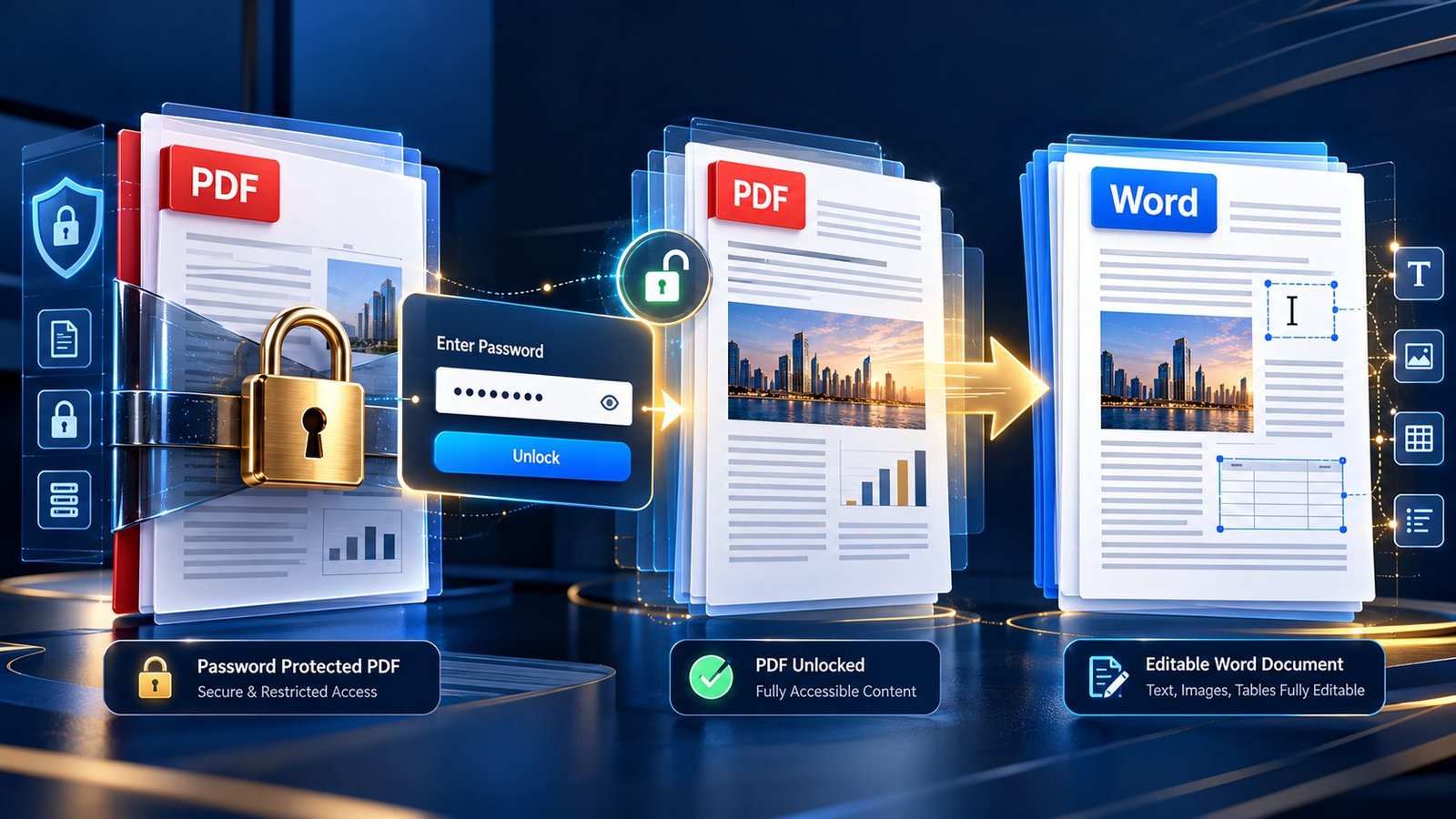
You have the PDF. You have the password. You need an editable Word document.
Then the converter refuses to process the file.
That situation is common, but the solution depends on what type of PDF protection is actually being used.
If you are authorized to access the document and have the required password, the correct workflow is to authenticate the PDF, remove or relax its protection when permitted, verify that the document is accessible, and then convert it to Word. If you do not have the required credentials or authorization, the right solution is to request legitimate access—not bypass the security.
Why Can’t I Convert a Password-Protected PDF to Word?
A password-protected PDF is not necessarily protected in only one way.
Some PDFs require a password before they can be opened. Others open normally but restrict actions such as editing, copying, or printing.
Adobe distinguishes between a Document Open Password, which controls access to the document, and a Permissions Password, which controls certain restricted actions.
That distinction matters because the conversion workflow can be completely different depending on which type of protection is present.
Before trying another converter, identify what is actually locked.
The Two Main Types of PDF Password Protection
1. Password Required to Open the PDF
This is the most obvious type.
You open the file and receive a password prompt before you can view the document.
If you have the correct password and are authorized to use the document, authenticate it first.
If you don’t know the password, don’t treat the protection as a technical obstacle that should simply be defeated. Contact the document owner or locate an authorized copy.
2. Permissions or Editing Restrictions
The second situation is less obvious.
The PDF opens normally, but certain functions may be restricted, such as:
- Copying text
- Editing
- Printing
- Adding comments
- Extracting content
A PDF can therefore appear completely normal while still carrying restrictions that affect downstream processing.
If the document opens but your conversion workflow fails, checking the security settings can be more useful than immediately switching converters.
First: Identify What Is Actually Locked
Before converting, ask four simple questions:
Can you open the PDF normally?
If yes, the document may not have an opening password.
Can you select and copy text?
If not, permissions may be restricting content extraction.
Can you edit or print the document?
Restrictions on these actions can indicate that the PDF has permission controls.
Do you have the authorized password or permission to change the security settings?
If yes, continue with an authorized workflow.
If no, request access rather than attempting to bypass the security.
The Correct Workflow for an Authorized Conversion
A clean workflow looks like this:
Identify protection → Authenticate → Unlock when authorized → Verify → Convert → Review
Separating security handling from file conversion makes troubleshooting much easier.
Step 1: Check the PDF Security Settings
First determine whether the PDF has:
- An opening password
- A permissions restriction
- Both
- Another security mechanism
This prevents you from troubleshooting the wrong problem.
For example, if the PDF opens normally but cannot be copied, repeatedly entering an opening password will not solve the underlying restriction.
Step 2: Use the Correct Password
If the PDF requires an opening password, enter the correct password.
If it uses a permissions password, use the appropriate authorization to change the applicable restrictions.
The important point is that knowing how to remove a restriction is not the same as having permission to remove it.
Step 3: Unlock the PDF Only When Authorized
If you own the document or have permission to modify it, an authorized PDF workflow can remove the relevant security settings.
For this stage, you can use PKCapra’s Unlock PDF tool as part of an authorized document workflow.
The purpose here is to make a legitimately accessible PDF ready for the next processing stage—not to crack or bypass someone else’s password.
Step 4: Verify the PDF Before Conversion
Once the authorized protection has been removed or relaxed, don’t immediately convert it.
First confirm that the working PDF:
- Opens correctly
- Contains all expected pages
- Allows text selection where applicable
- Displays tables correctly
- Displays images correctly
- Behaves normally in a PDF viewer
If the document still fails at this stage, the password may not be the real problem.
Step 5: Convert the Accessible PDF to Word
Once the PDF is accessible, move to the conversion stage.
This is where the PKCapra PDF to Word Converter fits naturally into the workflow.
The goal is now straightforward: create an editable Word document from the authorized, accessible PDF rather than trying to make the conversion process handle an unresolved security layer.
Step 6: Review the Word Document
Successful conversion doesn’t necessarily mean successful reconstruction.
Check:
- Text
- Headings
- Tables
- Images
- Fonts
- Columns
- Page breaks
- Headers and footers
- Lists
- Important numbers and dates
Password handling and formatting quality are separate issues.
A PDF can be successfully unlocked and still require formatting corrections after conversion.
What If You Know the Password but Conversion Still Fails?
Knowing the password does not guarantee that every conversion problem will disappear.
There may be another issue with the document.
The PDF Uses Complex Security Settings
Some files combine different access and permission controls.
A converter may handle a normal PDF but behave differently when additional restrictions are present.
Check the security configuration before assuming the converter itself is broken.
The PDF Is Damaged
A protected PDF can also have structural problems.
If the document displays errors, missing pages, unusual rendering, or inconsistent behavior even after authorized access is restored, investigate the PDF itself.
Security and file integrity are separate layers.
The PDF Is Scanned
This is another common source of confusion.
A scanned PDF may contain page images rather than an actual selectable text layer.
Removing the password does not magically turn those images into editable text.
If the document is image-based, an OCR workflow may be required.
For scanned documents, use PKCapra OCR PDF when OCR is appropriate before continuing with the Word conversion workflow.
The workflow may therefore become:
Unlock/authenticate → OCR → Convert to Word → Review
The PDF Has Complex Formatting
Reports, contracts, financial documents, forms, and technical publications can contain complicated layouts.
Even after the security problem is solved, conversion may change:
- Table structures
- Column alignment
- Font spacing
- Image positioning
- Page breaks
- Headers and footers
This is a conversion-quality issue, not a password issue.
What If You Forgot the PDF Password?
This is where legitimate recovery and password bypass need to be separated.
If you own the document, practical options include:
- Check your password manager
- Ask the document creator
- Contact the sender
- Locate an earlier accessible copy
- Request a new authorized version
- Ask your organization’s administrator
If you don’t have authorization to access the document, don’t use password-cracking or bypass techniques simply because the file needs to be converted.
The purpose of a password is to control access.
Can You Convert a PDF Without Removing the Password?
Sometimes the answer depends on the type of protection and the software being used.
A PDF that can be legitimately opened with the correct password may be processable by software that supports that security configuration.
In other cases, the document needs to be made accessible first.
For a predictable workflow, it is generally easier to separate the process:
Authenticate → Make accessible when authorized → Convert → Review
This also makes it much easier to identify where a failure actually occurred.
What About Permission-Restricted PDFs?
This situation is particularly important because the document may appear completely normal.
You can open it, read it, and sometimes even print it—but copying or editing may be restricted.
If your PDF opens but a converter cannot process it, inspect the document’s security configuration before assuming the PDF is corrupted.
If you need to work with an authorized copy and later restore protection, PKCapra also provides a Protect PDF workflow for securing a PDF after processing.
Should You Upload a Confidential Protected PDF to an Online Converter?
Be careful.
Password protection on the original PDF does not automatically tell you how an online conversion service handles a file after you upload it.
For confidential business, legal, financial, HR, or client documents, evaluate:
- Where the file is processed
- Whether processing occurs locally or remotely
- How uploaded files are handled
- Whether retention policies are clearly stated
- Whether the service is appropriate for sensitive documents
The security of the conversion workflow should therefore be considered separately from the security of the original PDF.
When You Should Not Remove the PDF Password
There are situations where the correct answer is simply don’t remove it.
For example:
- You don’t own the document
- You don’t have permission to modify it
- The document belongs to another organization
- The password was supplied only for authorized viewing
- The file contains confidential information you aren’t authorized to process
- Removing protection would violate an organizational or contractual requirement
In these cases, request an authorized editable copy or ask the document owner to perform the conversion.
PDF Password vs Word Protection
Another frequently overlooked issue is what happens after conversion.
A protected PDF and a protected Word document do not use the same security model.
The PDF might have:
- An opening password
- Permission restrictions
- Copy restrictions
- Editing restrictions
The resulting Word file is a different document with its own security settings.
So don’t assume:
Protected PDF = Protected Word document
If the converted Word file contains sensitive information, review and protect that new document separately.
What If You Only Need Certain Pages?
You may not need to convert the entire protected document.
Once you have legitimate access, you can isolate the pages you actually need and then continue with conversion.
For example:
150-page protected PDF → authenticate → extract pages 42–48 → convert → review
Instead of converting the entire document, use Extract PDF Pages to isolate the required pages first.
This can be particularly useful when only a small section of a long protected document needs to become editable.
A Practical Decision Guide
| Situation | Recommended Action |
|---|---|
| PDF asks for an opening password | Enter the authorized password |
| PDF opens but copying is restricted | Check permissions/security settings |
| You have the permissions password | Change restrictions through an authorized workflow |
| You don’t know the password | Request authorized access or another copy |
| PDF opens but conversion fails | Check security, structure, and file integrity |
| PDF contains scanned pages | Use OCR if editable text is required |
| PDF has complex formatting | Convert and perform detailed quality control |
| Only a few pages are needed | Extract those pages before conversion |
| Document is confidential | Evaluate the conversion service’s processing/privacy model |
| Word output contains sensitive information | Review its security separately |
The Best Workflow for Business and Professional Documents
For contracts, financial reports, HR files, client documents, and other important PDFs, use a controlled process.
1. Establish authorization
Confirm that you are permitted to access and convert the document.
2. Identify the security type
Determine whether it has an opening password, permissions restrictions, or another security mechanism.
3. Authenticate the PDF
Use the correct password or authorized credentials.
4. Create an accessible working copy
Only remove or change protection when you have permission to do so.
5. Inspect the source
Confirm that the document opens correctly and contains the expected content.
6. Extract pages if necessary
If you need only part of the document, isolate those pages before conversion.
7. Convert to Word
Use the PDF to Word Converter after the PDF is accessible.
8. Validate the result
Check text, tables, images, formatting, page structure, and important information.
9. Protect the resulting document if necessary
If the information remains confidential, apply appropriate protection to the resulting document.
This workflow treats security, conversion, and quality control as three separate stages, which is much more reliable than treating password removal as the entire solution.
Common Mistakes
Trying to Guess the Password
Repeatedly guessing credentials is not a legitimate conversion strategy.
If the document is yours, recover the legitimate password or request an authorized copy.
Assuming Every Protected PDF Is the Same
An opening password and permissions restrictions can create very different workflows.
Removing Protection Without Checking Authorization
Technical access does not automatically mean you have permission to modify the document.
Converting Before Checking the Source
If the PDF has structural, scanning, or formatting problems, conversion can make the underlying issue harder to diagnose.
Assuming Unlocking Fixes Formatting
Unlocking solves an access problem.
It does not guarantee perfect Word reconstruction.
Ignoring the New Word File’s Security
The converted Word document should be evaluated as a separate file.
If it contains sensitive information, protect it appropriately.
Key Takeaways
- A password-protected PDF should be converted through an authorized workflow.
- PDF security can involve an opening password, permissions restrictions, or other protection mechanisms.
- If you have the required credentials, authenticate the document before conversion.
- If you don’t have authorization, request legitimate access rather than attempting to bypass security.
- Unlocking a PDF and converting a PDF to Word are separate tasks.
- Scanned PDFs may require OCR even after the security issue is resolved.
- Complex PDFs can still require formatting cleanup after conversion.
- Extract only the pages you need when working with large documents.
- Confidential PDFs require careful evaluation of how the conversion service processes files.
- The resulting Word document should be reviewed and protected separately when necessary.
Frequently Asked Questions
Can I convert a password-protected PDF to Word?
Yes, when you are authorized to access the PDF and have the required credentials. Authenticate the document first, make it accessible through an authorized workflow when necessary, and then convert it to Word.
Can I convert a PDF if I don’t know its password?
If the PDF requires a password to open and you don’t have it, the appropriate solution is to request the password or an authorized copy. Don’t attempt to bypass the access control.
What if the PDF opens but I can’t copy or edit the text?
The document may have permissions restrictions rather than an opening password. Check its security configuration and use an authorized method to change the applicable restriction if you have the required permission.
Does unlocking a PDF fix formatting problems?
No. Unlocking addresses the security layer. PDF-to-Word conversion can still produce changes to tables, fonts, columns, images, margins, and page breaks.
Why does my unlocked PDF still fail during conversion?
The problem may be unrelated to security. The PDF could contain damaged structures, scanned pages, complex layouts, unusual fonts, or other elements that affect conversion.
Do scanned password-protected PDFs need OCR?
They may. Unlocking makes the document accessible, but OCR may still be necessary to turn scanned page images into editable text.
Is it safe to upload a password-protected PDF to an online converter?
Not automatically. For confidential files, evaluate the service’s processing model, privacy practices, and suitability for sensitive documents before uploading.
Will the Word file keep the PDF’s password?
Not necessarily. PDF and Word use different security systems. Review the resulting Word document separately and apply appropriate protection if required.
What if I only need a few pages from a protected PDF?
After gaining authorized access, extract the required pages first and then convert those pages to Word. This can make the workflow faster and easier to review.
Conclusion
A password-protected PDF is not simply a PDF with one extra setting.
Its security configuration can determine whether the document can be opened, copied, edited, printed, extracted, or processed by another application.
That’s why the best PDF-to-Word workflow starts with authorization and security identification, not with repeatedly trying different converters.
If you have the legitimate password, authenticate the document, make an authorized accessible copy when necessary, verify the source, and then convert it to Word.
If the document is scanned, add OCR. If you only need several pages, extract them first. And once the Word document is created, review its content, formatting, and security as a separate file.
The goal isn’t to defeat PDF security. The goal is to convert a document you are authorized to use while preserving its content and handling its information responsibly.