
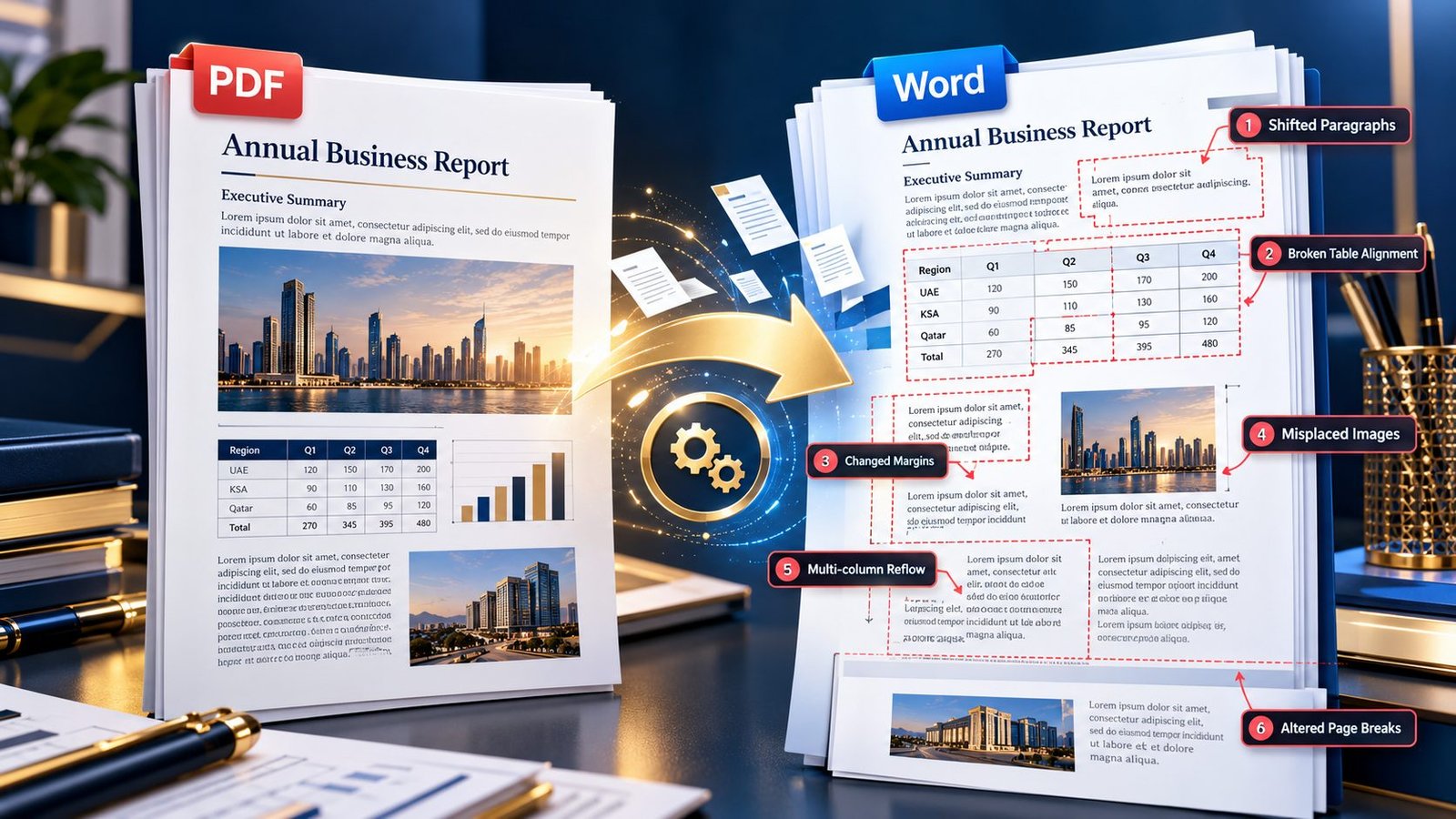
A PDF can look perfectly organized on screen and still turn into a mess after conversion to Word—shifted tables, broken paragraphs, overlapping text boxes, strange page breaks, or margins that suddenly look wrong.
The main reason is that PDF and Word handle document layout differently. A PDF preserves a fixed visual arrangement, while Word reconstructs the content into editable elements that can reflow, resize, and move. That reconstruction can change the appearance of complex documents even when the original PDF is perfectly valid.
Understanding why this happens makes it much easier to fix the problem instead of repeatedly trying different converters.
Why Does PDF Formatting Change When Converted to Word?
The most important thing to understand is that PDF-to-Word conversion is not simply a file-format swap.
A PDF records where content appears on a page. A Word document needs to understand what that content is—a paragraph, heading, table, image, list, header, footer, or other editable object.
The conversion process therefore has to interpret the visual structure of the PDF and rebuild it as editable Word content.
That interpretation is where formatting differences can appear.
For example, a PDF might visually show:
- A heading at the top of a page
- Two columns of text
- A table beneath the columns
- An image positioned beside a paragraph
- A footer aligned to the bottom margin
Word has to reconstruct those visual relationships using its own document structure.
If the reconstruction is imperfect, the final document can look different.
The Most Common Reasons Your PDF Layout Gets Messed Up
Not every formatting problem has the same cause. Identifying the underlying structure of the PDF usually tells you which solution is most appropriate.
1. PDF Uses Fixed Positioning
PDFs are designed primarily to preserve how a document looks.
Text can be positioned at precise coordinates rather than existing as a simple sequence of editable Word paragraphs.
When converted, those positions may need to be translated into:
- Paragraphs
- Tables
- Text boxes
- Floating objects
- Images
- Line breaks
A layout that is visually simple in PDF can therefore become structurally complicated in Word.
2. Complex Tables Are Difficult to Reconstruct
Tables are one of the most common sources of conversion problems.
A PDF table may contain:
- Merged cells
- Unequal column widths
- Nested structures
- Borders positioned independently
- Multiple lines inside cells
- Tables spanning several pages
After conversion, you may notice that columns have shifted or text no longer fits inside the original cells.
This is particularly important for financial reports, invoices, schedules, research tables, and business documents.
If the table itself is the most important part of the document, a PDF-to-Word workflow may not always be the best approach. Depending on the intended result, extracting structured data into a spreadsheet can sometimes be more appropriate.
3. Multi-Column PDFs Can Reflow Incorrectly
Newsletters, magazines, academic papers, brochures, and reports frequently use multiple columns.
Visually, the reading order is obvious to a person.
A conversion process, however, must determine where one column ends and another begins.
If the underlying PDF structure doesn’t clearly communicate that reading order, the converted Word document may produce:
- Text appearing in the wrong order
- Paragraphs jumping between columns
- Excessive blank spaces
- Incorrect line breaks
- Text moving into adjacent areas
This is one reason a PDF can look perfect before conversion but confusing afterward.
4. Fonts Can Change Line Wrapping
Fonts affect much more than appearance.
A different font, font size, or font metric can change the amount of text that fits on each line.
That can trigger a chain reaction:
Font difference → different line length → different paragraph height → changed page break → changed document layout
You may therefore see a paragraph move to the next page even though the text itself hasn’t changed.
The same issue can affect:
- Headings
- Tables
- Captions
- Footnotes
- Lists
- Headers and footers
5. Images May Move or Resize
Images inside PDFs can be positioned very precisely.
Word has different rules for how images interact with surrounding text.
After conversion, an image may therefore:
- Move above or below a paragraph
- Change size
- Push text onto another page
- Overlap nearby content
- Change its wrapping relationship
This is especially noticeable in brochures, product documents, reports, resumes, and marketing materials.
6. Headers and Footers Can Be Reconstructed Differently
A PDF header may appear visually identical on every page.
That does not necessarily mean it was created as a conventional Word header.
During conversion, the content may be interpreted as ordinary page elements rather than a true header or footer.
The result can be:
- Duplicated content
- Misaligned headers
- Incorrect spacing
- Footer text appearing inside the body
- Different positioning on pages
If the original document contains complex headers or footers, inspect those areas carefully after conversion.
7. Page Breaks Are Not Always Preserved
A PDF page is a fixed visual boundary.
Word creates pages dynamically based on content flow, margins, fonts, spacing, tables, and other document settings.
That means a page break that looks obvious in the PDF may not remain in exactly the same location after conversion.
You might see:
- A heading stranded at the bottom of a page
- A paragraph moved to the next page
- A table split differently
- Extra blank pages
- Sections becoming shorter or longer
This doesn’t necessarily mean the conversion failed. It can be a consequence of moving from a fixed-layout format to a reflowable one.
8. Scanned PDFs Are a Different Problem
If your PDF is actually a collection of scanned images, there may be no usable text layer to reconstruct.
In that situation, normal PDF-to-Word conversion cannot simply extract the original editable characters.
OCR—Optical Character Recognition—is needed to recognize the text inside the page images.
PKCapra’s OCR PDF tool is designed for browser-side OCR using Tesseract.js, with the recorded implementation supporting English OCR and up to 20 pages.
Even after OCR, formatting may require additional review because OCR is fundamentally a text-recognition process, not a guarantee of perfect document reconstruction.
How to Fix PDF-to-Word Formatting Problems
Instead of repeatedly converting the same file, use a structured troubleshooting process.
Step 1: Inspect the Original PDF
Before conversion, look at the document carefully.
Ask:
- Is the PDF digitally generated or scanned?
- Does it contain tables?
- Are there multiple columns?
- Are there many images?
- Does it use unusual fonts?
- Are headers and footers complex?
- Does it contain forms or text boxes?
- Is the document very long?
The more visually complex the source, the more carefully you should inspect the converted result.
Step 2: Identify the Most Important Content
Not every part of the document needs identical visual preservation.
Decide what matters most.
For example:
Contract:
Text accuracy and clause structure may matter more than identical page positioning.
Financial report:
Tables, numbers, and column relationships may be the priority.
Resume:
Page structure, typography, and spacing may matter more.
Research paper:
Reading order, citations, tables, and headings may all matter.
This helps you judge the conversion based on the actual purpose of the document.
Step 3: Convert the PDF to Word
Use a dedicated PDF to Word Converter when the goal is to obtain an editable Word document.
The exact result will depend on the structure and complexity of the source PDF. PKCapra’s master workflow records the PDF-to-Word tool as a completed PDF conversion tool.
Step 4: Compare the Result With the Original
Don’t review only the first page.
Check representative sections throughout the document.
Pay particular attention to:
- First page
- Pages containing tables
- Pages containing images
- Multi-column pages
- Pages with headings
- Pages with lists
- Pages near major page breaks
- Final page
This gives you a much better picture of whether the conversion is reliable.
What If Only Certain Pages Are Broken?
You don’t necessarily need to process the entire PDF again.
If only a small section matters, extracting the required pages first can make the workflow easier.
For example:
Original 150-page PDF → Extract pages 42–48 → Convert those pages → Review
PKCapra’s Extract PDF Pages tool is useful when you need to isolate a specific section before continuing with another PDF workflow. The exact URL is part of the verified PKCapra registry.
This also connects naturally with the earlier cluster topic about converting only specific PDF pages into Word.
What If the PDF Is Very Large?
Large documents can introduce another layer of difficulty.
Instead of treating a large PDF as one giant conversion task, consider whether the document can be logically divided into smaller sections.
For example:
Large PDF → Split or extract relevant sections → Convert → Review → Combine or finalize
PKCapra’s verified Compress PDF and Split PDF tools can also be relevant when file size or document structure makes the workflow difficult. Both URLs are recorded in the current PKCapra registry.
The goal isn’t simply to make the PDF smaller. The goal is to create a more manageable conversion workflow.
Should You Try Google Docs Instead?
Sometimes Google Drive and Google Docs can be useful for simple PDFs.
However, documents with complicated grids, columns, tables, or positioning can still require substantial cleanup after conversion.
The important question isn’t which converter is universally “best.”
It’s:
Which workflow gives you the most usable editable document for this particular PDF?
For a simple text-heavy PDF, several workflows may produce acceptable results.
For a complex business report, a dedicated PDF-to-Word workflow may be more practical.
When Perfect Formatting Is Not Realistic
There is an important distinction between content preservation and pixel-perfect visual reproduction.
A conversion can successfully preserve the:
- Text
- Headings
- Tables
- Images
- General structure
while still changing:
- Line wrapping
- Margins
- Page breaks
- Font spacing
- Object positioning
That doesn’t automatically make the conversion useless.
If you need an editable Word document, some visual differences may be an acceptable trade-off for editability.
The right question is therefore not:
“Does the Word document look exactly like the PDF?”
Instead ask:
“Does the converted Word document preserve the information and structure I actually need?”
Common PDF-to-Word Conversion Mistakes
Converting Without Inspecting the Source
If you don’t understand the original layout, you won’t know what to check after conversion.
Judging Quality From the First Page
The first page may convert perfectly while a table-heavy or multi-column page fails.
Assuming Every PDF Is Text-Based
A scanned PDF may require OCR before editable text can be recovered.
Fixing Formatting Before Checking Content
If text or numbers are missing, don’t spend time adjusting margins first.
Verify content accuracy before polishing the layout.
Expecting Word to Behave Like PDF
Word is an editable, reflowable document format.
Trying to force every PDF coordinate into an identical Word structure can produce a document that is technically editable but difficult to work with.
A Simple Troubleshooting Decision Guide
| Problem | Likely Cause | Practical Direction |
|---|---|---|
| Text overlaps | Complex positioning/text boxes | Review object structure |
| Columns are scrambled | Multi-column layout | Check reading order |
| Tables break | Complex table structure | Validate cells and columns |
| Text moves to another page | Font/spacing/page-flow changes | Review fonts and page breaks |
| Images move | Different text-wrapping rules | Adjust image placement |
| Header/footer shifts | PDF elements reconstructed differently | Rebuild header/footer if necessary |
| Scanned text isn’t editable | Image-based PDF | Use OCR |
| Only a few pages are problematic | Localized complex layout | Extract and convert those pages separately |
| Large file is difficult to process | File size or complexity | Compress, split, or extract relevant pages |
The Best Quality-Control Workflow
For important documents, use this sequence:
1. Inspect the PDF
Understand its structure before conversion.
2. Identify the priority
Decide whether text, tables, images, or visual layout matters most.
3. Convert to Word
Use a suitable PDF-to-Word workflow.
4. Compare representative pages
Don’t inspect only the opening page.
5. Check content first
Verify text, numbers, tables, and important information.
6. Fix structural problems
Correct tables, columns, page breaks, images, or headers where necessary.
7. Perform a final visual review
Make sure the finished Word document is genuinely usable.
This approach is much more reliable than repeatedly converting the same PDF and hoping the next attempt will look better.
When Should You Consider a Different Output Format?
Word is not always the best destination.
If your primary requirement is structured numerical data, a spreadsheet may be more appropriate.
If your goal is simply to extract text, a text-extraction workflow may be more efficient.
If you need only a few pages, extracting those pages first may save unnecessary processing.
The format should follow the task—not the other way around.
Key Takeaways
- PDF and Word use fundamentally different layout models.
- PDF preserves a fixed visual arrangement, while Word rebuilds content into editable, reflowable structures.
- Tables, columns, fonts, images, headers, footers, and page breaks are common sources of formatting changes.
- Scanned PDFs may require OCR before their text can become editable.
- A formatting difference does not necessarily mean the conversion failed.
- Always judge the converted document according to its intended use.
- For important documents, compare the original PDF and Word output before sharing the final file.
- If only certain pages matter, extracting them before conversion can simplify the workflow.
- Use related PDF tools when the real problem is file size, page selection, OCR, or document structure—not simply conversion.
Frequently Asked Questions
Why does my PDF look perfect but the Word version is messy?
Because PDF preserves visual positioning while Word reconstructs content into editable elements. Complex positioning, tables, columns, fonts, and images can therefore change during conversion.
Why are my PDF margins different in Word?
Word calculates page layout dynamically using its own margins, fonts, spacing, and paragraph structure. Small changes in these elements can alter the resulting page layout.
Why are tables broken after PDF-to-Word conversion?
PDF tables may be represented visually rather than as conventional editable table structures. The converter must reconstruct the rows, columns, borders, and cell relationships.
Why did my PDF columns become mixed together?
The converter may have difficulty determining the intended reading order of a multi-column layout, particularly when text elements are positioned independently.
Why isn’t my scanned PDF editable after conversion?
A scanned PDF may contain page images rather than actual text. OCR is required to recognize the characters before they can be reconstructed as editable text.
Can I preserve the exact PDF layout in Word?
Not every PDF can be reproduced perfectly as an editable Word document. The more complex the original layout, the more likely some manual adjustment will be necessary.
Should I convert the entire PDF if I only need a few pages?
Usually not. If only specific pages are required, extracting those pages first can create a smaller, more focused conversion workflow.
Conclusion
When a PDF changes formatting after conversion to Word, the problem usually isn’t that the original PDF was “bad.”
The two formats simply solve different problems.
PDF is built to preserve appearance. Word is built to let you edit and reflow content.
Once you understand that difference, formatting problems become much easier to diagnose.
Instead of asking only whether a converter can reproduce the PDF visually, ask whether it can produce a usable, editable Word document that preserves the information and structure you actually need.
If you’re dealing with a PDF that has broken tables, shifted text, strange page breaks, or other layout problems, start with the source structure, identify the problem area, convert strategically, and review the result before finalizing it.
What is the most common PDF-to-Word formatting problem you’ve encountered—broken tables, shifted text, missing fonts, or something else?