
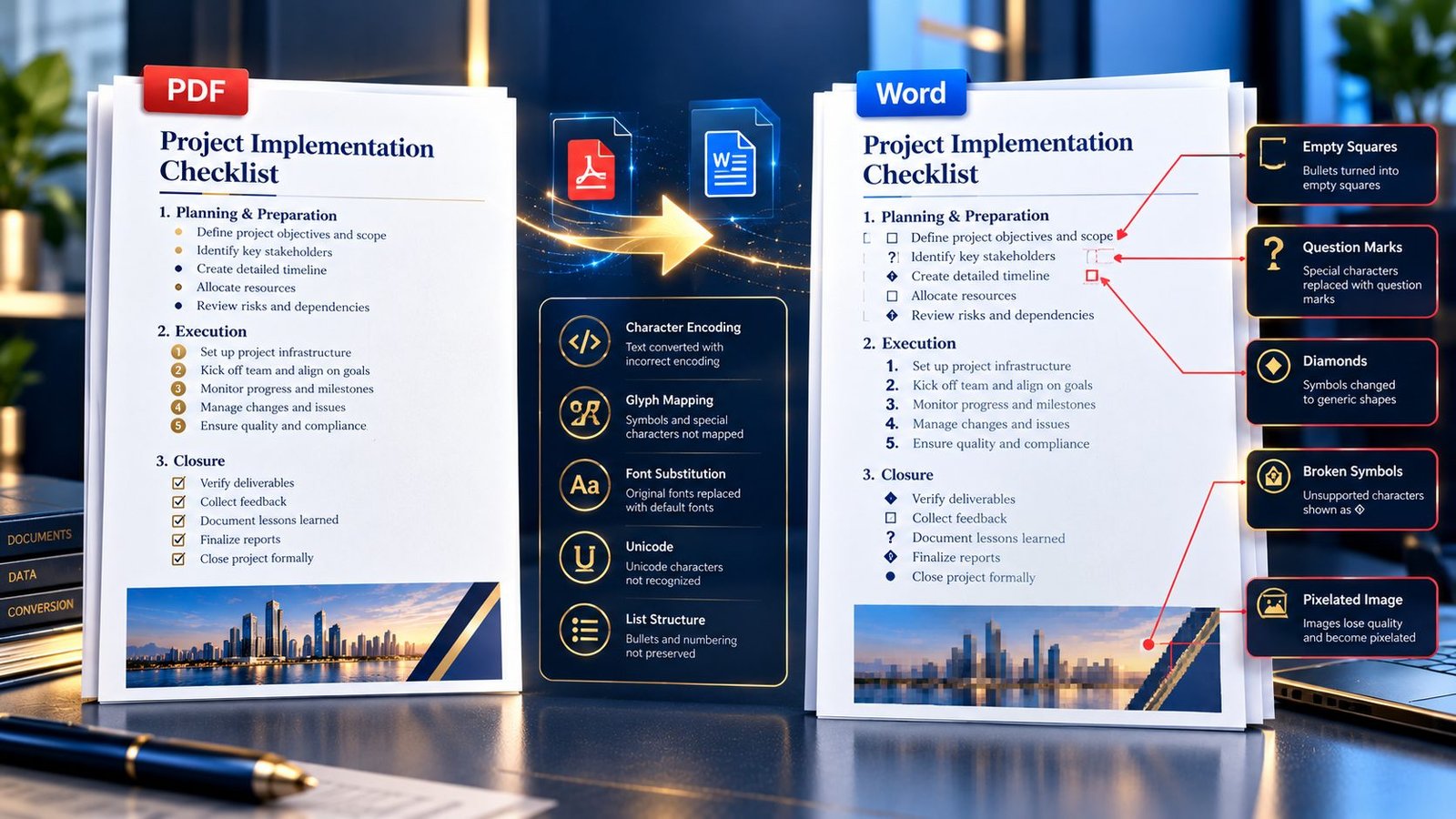
A PDF can look perfectly normal on screen, yet after converting it to Word, a clean bullet list may suddenly become squares, question marks, strange symbols, or completely different characters.
The usual reason is that the converter cannot correctly map the PDF’s bullet or list characters to the corresponding Unicode characters used in Word. The problem can come from font encoding, custom bullet glyphs, embedded fonts, damaged text mapping, or the way the original PDF was created.
The good news is that this does not always mean the PDF is corrupted. In many cases, you can identify the type of list problem first and choose a better conversion or extraction method.
Why Do Bullet Points Turn Into Squares or Question Marks?
A PDF does not store text in exactly the same way that an editable Word document does.
What looks like a simple bullet such as • may internally be represented through a font glyph, character code, or mapping table. During conversion, the software has to determine what that visual character actually represents and then recreate it as editable text in Word.
If that mapping is missing or ambiguous, the converter may produce:
- Empty squares
- Question marks
- Diamond-shaped symbols
- Unusual punctuation
- Random mathematical-looking characters
- Missing bullet points
- Repeated characters
- Incorrect numbering
- Broken checkbox symbols
- Different symbols replacing the original bullets
The same issue can affect numbered lists and checklist characters, not just ordinary bullet points.
What Causes PDF to Word Bullet Point Conversion Errors?
Several different problems can produce similar-looking results. Identifying the cause is important because replacing the symbols manually is not always the best solution.
1. The PDF Uses a Custom Bullet Glyph
Some documents use a font-specific character as a bullet rather than a standard Unicode bullet.
For example, the PDF may visually display a normal-looking dot, but internally that glyph may belong to a particular font’s character set. If the converter cannot interpret that mapping correctly, the resulting Word document may show a square or another symbol.
This is particularly common in professionally designed reports, branded documents, templates, and PDFs created from publishing or design software.
2. The Character Mapping Is Missing or Incorrect
PDF text can contain information that tells software how displayed glyphs correspond to actual characters.
When that mapping is incomplete, the converter may know that a symbol exists visually but not know which editable character it represents.
That creates a frustrating situation: the bullet is visible in the PDF, but its underlying text identity is unclear to the converter.
The result can be a missing character, replacement symbol, or question mark.
3. The Font Encoding Does Not Translate Cleanly
Font encoding is another common source of trouble.
A PDF may use an embedded or specially encoded font where the visible characters do not correspond directly to the character values expected by a modern text editor. A conversion engine must interpret that information before rebuilding the document.
If the interpretation fails, ordinary list markers can become unexpected characters.
This is closely related to the font-substitution problems discussed in the previous article in this cluster, but the symptom here is specifically broken bullets, numbering, or checklist symbols.
4. The PDF Was Created From a Scanned Document
A scanned PDF is fundamentally different from a digitally generated PDF.
If a page is essentially an image, there may be no actual text characters or bullet characters available for a normal PDF-to-Word text converter to interpret.
In that situation, OCR may be required.
You can use PKCapra’s OCR PDF tool to recognize text in scanned PDF pages before attempting to work with the extracted content.
However, OCR is not magic. A small bullet, checkbox, decorative list marker, or low-resolution symbol can still be misread. Always review the resulting text before treating the conversion as final.
Why Do Bullets Become Question Marks?
Question marks usually indicate that the original character could not be represented or correctly interpreted during conversion.
For example, the PDF might contain a specialized symbol that the conversion process cannot map to a valid character in the resulting document.
Instead of preserving the original symbol, the software may substitute a question mark.
This is different from a simple formatting problem.
If the bullet has merely changed size or spacing, the underlying character may still be correct. If it has become ?, □, or another unrelated character, you are more likely dealing with a character-recognition or character-mapping problem.
Why Do Bullets Become Empty Squares?
An empty square often appears when the resulting document contains a character that the selected font cannot display.
The character may technically exist, but the font used by Word does not contain an appropriate glyph.
This can happen after conversion when:
- A specialized symbol is preserved but its font is unavailable.
- A custom font is replaced.
- A Unicode character is not supported by the fallback font.
- A checkbox or decorative list symbol comes from a font-specific character set.
Changing the font can sometimes make the character visible, but that should be treated as a diagnostic step rather than a guaranteed fix.
If changing the font reveals the expected symbol, the underlying character may have survived the conversion and only the display font was the problem.
How to Diagnose a Broken Bullet List Before Fixing It
Do not immediately delete every strange symbol and type new bullets.
First determine whether the problem is limited to formatting or whether the actual characters were lost during conversion.
Step 1: Compare the PDF With the Word Document
Open the original PDF beside the converted Word document.
Check several list items rather than just the first one.
Look for patterns:
- Every bullet became a square.
- Only some bullets became question marks.
- Bullets disappeared completely.
- Numbered lists changed.
- Checkbox symbols became random characters.
- The list text is correct but the markers are wrong.
A consistent replacement pattern can reveal that the problem is systematic rather than random.
Step 2: Check Whether the Main Text Is Correct
Select the text around the broken bullet and copy it.
If the words themselves are correct while only the list markers are wrong, the problem is probably isolated to the list characters or their formatting.
If ordinary letters are also becoming strange symbols, the problem is broader and may involve the PDF’s text encoding or font mapping.
Step 3: Extract the PDF Text Separately
If you are unsure whether the problem originates in the PDF’s text layer, use a PDF Text Extractor as a diagnostic step.
This can help answer an important question:
Are the bullet characters actually present in the PDF’s text layer, or are they only visual glyphs?
If the extracted text already contains broken symbols, the problem may exist in the source PDF’s text representation rather than being introduced exclusively by the Word conversion.
If the extracted text looks correct but the Word conversion produces broken bullets, the conversion process itself deserves closer attention.
Step 4: Check Whether the PDF Is Scanned
Try selecting normal text in the original PDF.
If you cannot select individual words or characters and the entire page behaves like an image, the PDF may be scanned.
In that case, a standard text conversion process may not have enough machine-readable information to reconstruct the list correctly.
OCR becomes the more appropriate route.
How to Fix PDF to Word Bullet Points Turning Into Squares or Question Marks
The right fix depends on what caused the conversion failure.
Fix 1: Try a Different Conversion Path
If the PDF is digitally generated and the text is selectable, try converting the original file again rather than working from an already converted or edited copy.
Repeatedly converting the same broken Word document will not restore characters that were lost during the first conversion.
Start from the cleanest available PDF source.
For the main conversion step, use the PKCapra PDF to Word Converter and then compare the result against the original PDF.
Fix 2: Test the PDF Text Layer
If only bullets are failing, extract the text separately and inspect what the PDF actually contains.
This helps distinguish between:
- A PDF with valid text but poor conversion handling
- A PDF with problematic character mapping
- A scanned PDF requiring OCR
- A document where the bullets are graphical elements rather than ordinary text
That distinction can save considerable editing time.
Fix 3: Use OCR for Scanned PDFs
If the document is scanned, do not expect a conventional text conversion workflow to reliably understand every bullet and checkbox.
Run OCR first, then review the recognized text and list markers.
OCR can turn image-based text into machine-readable characters, but small or decorative symbols may still require manual correction.
Fix 4: Replace the List Markers After Conversion
For a short document, manual correction can be the fastest solution.
If the words are correct and only the bullets are wrong, you can:
- Select the affected list.
- Remove the incorrect symbols.
- Apply a standard Word bullet style.
- Check indentation and spacing.
- Review every list level.
This is practical for a few pages.
It becomes inefficient when a 50-page report contains hundreds of list items.
Fix 5: Rebuild Complex Checklists Manually
Checkboxes and decorative symbols are especially difficult because they may not behave like ordinary bullets.
If the source contains a complex checklist, rebuilding the list using Word’s native list or checkbox-compatible formatting may produce a cleaner editable document than trying to preserve every original graphical symbol.
The goal is not always pixel-perfect reproduction. For an editable business document, a clean and structurally correct list can be more useful than a visually identical but unstable conversion.
What If Only Some Bullet Points Are Broken?
Partial corruption is an important clue.
Suppose a document contains 100 bullet points and only 10 become question marks. That does not necessarily mean the entire conversion failed.
The affected bullets may use a different font, character, indentation level, or symbol definition.
Compare a working bullet with a broken one.
Look for differences in:
- Bullet style
- Font
- List level
- Symbol type
- Checkbox versus ordinary bullet
- Source page
- Whether the list came from a table or text box
If all broken bullets use the same visual marker, the problem may be isolated to that particular glyph or character mapping.
What If Numbered Lists Are Also Broken?
The same underlying issue can affect numbering.
A PDF may visually display:
- First item
- Second item
- Third item
But the converted Word document might contain missing numbers, duplicated numbers, strange symbols, or inconsistent indentation.
Numbered lists are often more recoverable than custom bullets because ordinary numeric characters are widely supported. However, complex multi-level numbering can introduce additional structure and formatting problems.
For important documents, check both the number sequence and the list hierarchy after conversion.
A list that displays 1, 2, 3 correctly can still have incorrect Word list structure underneath.
When the Problem Is Actually Formatting, Not Encoding
Not every strange-looking list is a character-encoding problem.
Sometimes the bullet character is perfectly correct but its formatting has changed.
For example:
- The bullet is too far from the text.
- The indentation is incorrect.
- The bullet is too large.
- The list level has changed.
- Line spacing has expanded.
- The bullet appears on the wrong line.
In these cases, the character itself may be intact.
The solution is to repair the Word list formatting rather than replace the characters.
This distinction matters because deleting and recreating a valid bullet can create unnecessary work.
A Better Workflow for Difficult PDF List Conversion
For documents where list accuracy matters, use a diagnostic-first workflow rather than immediately editing the converted file.
Recommended workflow
1. Keep the original PDF untouched.
Always work from the cleanest source available.
2. Check whether the PDF text is selectable.
If it is not, consider OCR.
3. Compare several bullet and numbered lists.
Do not judge the entire document from one page.
4. Extract a text sample if the problem is unclear.
Use a PDF Text Extractor to determine whether the symbols survive in the PDF’s text layer.
5. Convert the original PDF to Word.
Use the PKCapra PDF to Word Converter rather than repeatedly converting an already modified file.
6. Compare the converted list with the source.
Check symbols, numbering, indentation, hierarchy, and surrounding text.
7. Use OCR when the source is image-based.
Do not treat an image-only PDF like a normal text PDF.
8. Manually repair only what genuinely needs correction.
For a few broken symbols, manual repair may be faster than rebuilding the document.
9. Proofread the final Word document.
Search for question marks, empty squares, missing bullets, duplicated numbering, and unusual characters before delivering or submitting the document.
Common Mistakes to Avoid
Replacing Every Square With a Bullet
An empty square is not automatically a broken bullet. It could represent another character that the current font cannot display.
Check the source before performing a global replacement.
Assuming Every Problem Requires OCR
OCR is useful for scanned PDFs, but it is not the ideal first response to a digitally generated PDF with selectable text.
If the PDF already contains a usable text layer, investigate character mapping and conversion behavior first.
Ignoring Numbered Lists
A document can have perfect paragraph text while its numbered-list structure is damaged.
Review numbering separately from ordinary paragraphs.
Editing the Converted File Before Diagnosing It
Once you start manually replacing symbols, changing fonts, and rebuilding lists, it becomes harder to determine what actually went wrong.
Keep an untouched converted copy for comparison.
Repeatedly Converting a Damaged Word File
If the first conversion produced broken characters, converting the damaged output again is unlikely to restore the missing information.
Return to the original PDF.
Key Takeaways
- Squares, question marks, and strange symbols can indicate character-mapping or font-encoding problems during PDF-to-Word conversion.
- A PDF’s visible bullet is not always stored as a straightforward Unicode bullet.
- Scanned PDFs require a different approach because their text may exist only as pixels.
- A PDF text extraction test can help determine whether the problem exists in the source text layer.
- OCR can help with image-based PDFs, but unusual bullets and checkboxes may still require review.
- If only the list markers are damaged, manual Word list formatting may be faster than rebuilding the entire document.
- Always compare the final Word document against the original PDF before treating the conversion as complete.
Frequently Asked Questions
Why do PDF bullet points become squares in Word?
Usually because the converted document contains a character that the selected Word font cannot display, or because the PDF’s bullet glyph was not correctly mapped during conversion.
Why do bullet points become question marks after PDF conversion?
A question mark can appear when the conversion process cannot correctly interpret or represent the original bullet or list character.
Can I fix broken PDF bullets without converting the whole document again?
Yes. If the surrounding text is correct, you can often replace the damaged list markers and rebuild the affected Word list. For large documents, however, diagnosing the source problem first is safer.
Should I use OCR when PDF bullets are broken?
Use OCR when the PDF is scanned or image-based. If the PDF has selectable text, first investigate the text layer, character mapping, and conversion behavior.
Why are some bullets correct while others become symbols?
Different bullets may use different glyphs, fonts, character mappings, or list definitions. If only one type of bullet fails, compare it with a working bullet to identify the difference.
Can a PDF Text Extractor help diagnose the problem?
Yes. Extracting a sample of the PDF’s text can help determine whether the problematic characters are already broken in the source text layer or whether they become corrupted during Word conversion.
Will changing the font fix question marks or squares?
Sometimes, particularly when the underlying character survived but the selected font cannot display it. If the actual character mapping was lost during conversion, changing the font alone will not restore it.
Conclusion
When PDF bullet points turn into squares, question marks, or strange symbols in Word, the problem is usually deeper than simple formatting. The conversion process has to reconstruct editable characters from the PDF’s internal text and font information, and specialized or poorly mapped glyphs can fail along the way.
Start by determining whether the PDF contains selectable text, inspect the text layer when necessary, and use OCR only when the source is image-based. Then convert from the original PDF and manually repair only the list elements that genuinely need attention.
For a clean starting point, use the PKCapra PDF to Word Converter, and use the PDF Text Extractor or OCR PDF when you need to diagnose the source before conversion.