
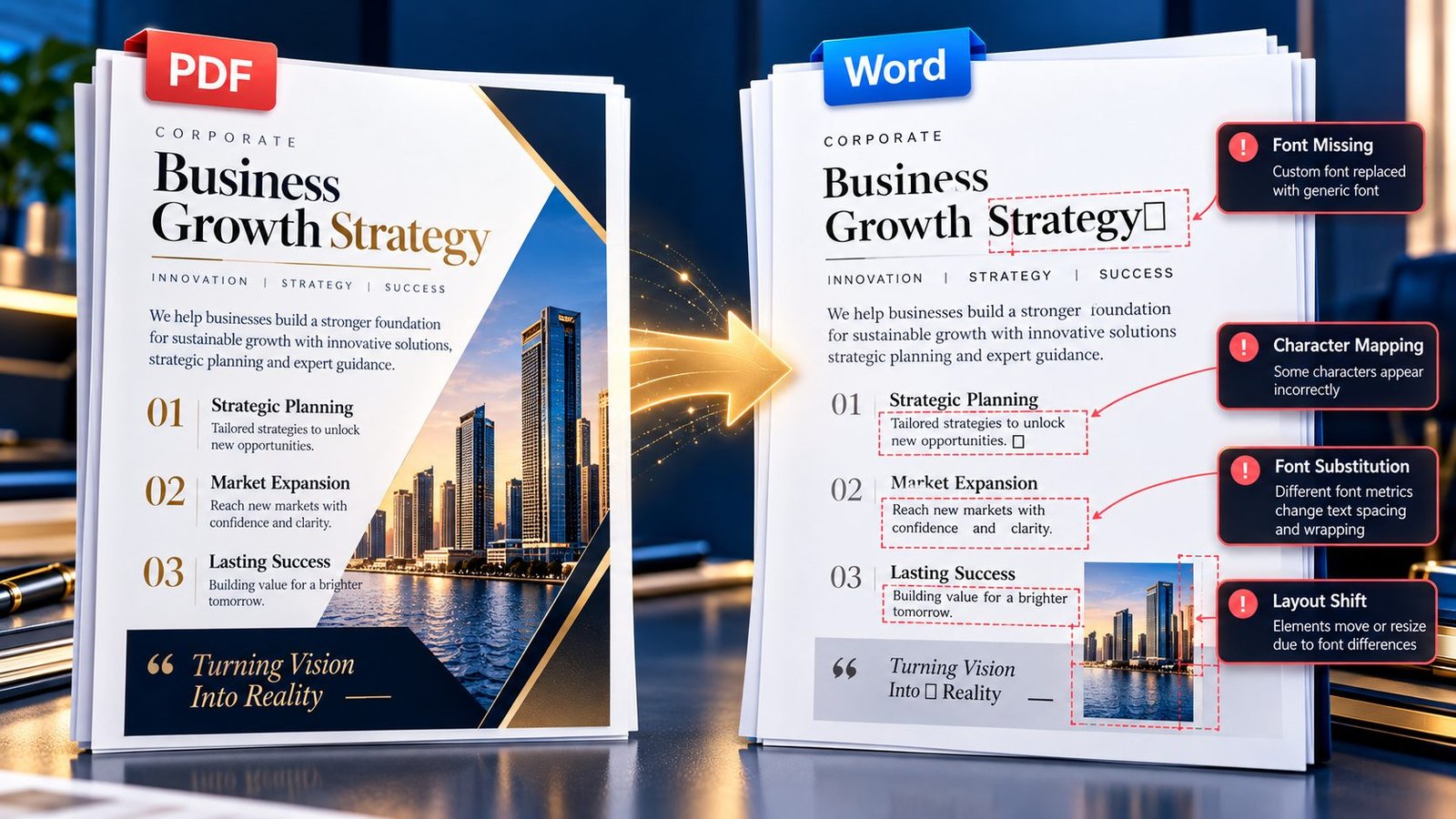
A PDF can look perfect on screen, but after conversion to Word, the typography can suddenly look completely wrong. A corporate document that originally used a custom brand font may come out with Arial, Times New Roman, substituted characters, missing symbols, or spacing that pushes the entire layout out of shape.
If a PDF-to-Word conversion replaces a missing font, first determine whether the original PDF actually contains selectable text and whether the required font information is embedded or recoverable. Then identify whether the problem is font substitution, character encoding, or a source-PDF issue before trying to repair the Word document.
Why Does a PDF-to-Word Converter Replace Fonts?
The key problem is that a PDF and a Word document handle typography differently.
A PDF is primarily concerned with preserving how characters appear at fixed positions on a page. Word, on the other hand, needs editable text with font definitions, styles, spacing rules, and document-level formatting.
When a converter reconstructs the PDF as an editable Word document, it has to determine:
- which font each character uses
- which font family and style are required
- how characters map to Unicode text
- what size and spacing should be applied
- whether the font information is available
- how the text should flow in an editable document
If the original font cannot be identified or reproduced, the converter may use a substitute.
That can turn a carefully designed document into something that looks completely different.
What Does a “Font Missing” or Font Substitution Problem Look Like?
Font problems are not always reported with an obvious error message.
You may notice them only after opening the converted Word file.
Common symptoms include:
- a custom font becomes Arial
- a corporate typeface becomes Times New Roman
- letters appear with unexpected spacing
- some characters become boxes
- symbols disappear
- accented characters change
- text wraps differently
- headings become wider or narrower
- line breaks move
- page counts change
- tables shift because text dimensions changed
- a logo or decorative text appears incorrectly
- certain characters are replaced by question marks
The important point is that a font problem can become a layout problem.
A different font can change the width of every line, which then changes paragraph wrapping, page breaks, table dimensions, and the position of surrounding elements.
First Check: Is the PDF Text Actually Selectable?
Before assuming that the problem is a missing font, select some text in the original PDF.
If you can highlight individual characters and copy them into another text editor, the PDF probably contains an accessible text layer.
If you cannot select individual characters and the entire page behaves like an image, you may be dealing with a scanned or image-based PDF instead.
That distinction matters.
If the text is selectable
The conversion process may be dealing with:
- font identification
- font substitution
- character mapping
- embedded font information
- unusual encoding
- unsupported font characteristics
If the text is not selectable
The problem may actually be OCR rather than font substitution.
In that situation, an OCR PDF workflow can be more appropriate because the system first has to recognize the characters from the page image.
Embedded Fonts and Why They Matter
One of the most important concepts in PDF typography is font embedding.
When fonts are embedded, the PDF can carry font information with the document rather than relying entirely on the fonts installed on the computer.
However, embedding does not automatically mean that every conversion tool can reconstruct the original editable Word document perfectly.
A PDF may contain:
- a fully embedded font
- a subset of a font
- font information with unusual encoding
- a font that can be displayed but not conveniently reconstructed
- visual glyph information that does not translate cleanly into editable text
So the fact that the PDF looks correct does not guarantee that its typography can be reproduced identically in Word.
Font Substitution vs. Missing Characters
These two problems are related but should not be treated as the same issue.
Font substitution
The text remains readable, but the typeface changes.
For example:
Original: Custom Corporate Sans
Converted: Arial
The words are still there, but the visual design changes.
Missing or incorrect characters
The problem is more serious when characters themselves become:
- squares
- question marks
- empty boxes
- incorrect symbols
- unrelated characters
- missing letters
This may indicate a character-mapping or encoding problem rather than simply a missing font.
That distinction is important because installing a similar font may improve appearance but will not necessarily restore characters that were incorrectly interpreted during extraction.
How to Identify the Real Cause
Before manually repairing dozens of paragraphs, use a simple diagnostic process.
Step 1: Compare the Original PDF and Converted Word File
Open both documents side by side.
Check the same heading, paragraph, table, and special-character area.
Look for a pattern:
- Is every font substituted?
- Only one font?
- Only headings?
- Only symbols?
- Only certain languages?
- Only one section?
- Only characters using a particular typeface?
A consistent pattern often reveals more than a generic “font missing” message.
Step 2: Check Whether the Text Is Still Correct
Copy a problematic section from the converted Word document and compare it with the original PDF.
If the words are correct but the appearance changed, you are probably dealing with font substitution.
If the characters themselves are wrong or missing, investigate character recognition or encoding.
Step 3: Check the Original PDF Before Editing Word
Do not immediately start replacing fonts in Word.
First inspect the original PDF.
If the original PDF itself already displays incorrect characters, the conversion may not be responsible.
The source should always be treated as the reference version.
Step 4: Test a Small Section
If the document is large, do not troubleshoot the entire file at once.
Take one affected page or a representative section and test it.
A small test can tell you whether the problem is:
- document-wide
- font-specific
- page-specific
- language-specific
- related to scanned content
- related to a particular type of text element
This can save a considerable amount of cleanup time.
What If the Converted Word File Uses Arial or Times New Roman?
This is one of the most common visual signs of font substitution.
It does not necessarily mean the converter failed completely.
The converter may have successfully extracted the text but selected a fallback font because the original font could not be reproduced as an editable Word font.
You have two separate objectives:
Recover the correct text and restore the intended appearance.
Those objectives should not be confused.
If the text itself is correct, replacing the fallback font with an appropriate installed font may solve much of the visual problem.
If the text is incorrect, changing the font alone will not solve it.
Can You Fix Font Substitution Directly in Word?
Sometimes, yes.
If the converted document contains correct text and only the font has changed, you can:
- identify the original font
- install or make the appropriate font available on the system if you are licensed to use it
- select the affected text
- apply the correct font
- check headings, paragraphs, tables, and page breaks again
- review the document for layout changes
However, this approach works best when the conversion preserved the underlying characters correctly.
It is much less effective when the conversion produced incorrect symbols or missing characters.
Why Changing the Font Can Change the Entire Layout
A font is not merely a visual decoration.
Different fonts have different:
- character widths
- x-heights
- line heights
- spacing
- weight characteristics
- punctuation dimensions
Suppose the original PDF uses a relatively narrow corporate font.
If Word replaces it with a wider font, a paragraph that originally occupied five lines may become six.
That can push everything below it downward.
The result can be:
Font substitution → different text width → different line wrapping → different page breaks → changed document layout
This is why font problems often appear together with formatting problems.
What About Custom Corporate Fonts?
Corporate documents are particularly vulnerable because they often use proprietary or uncommon typefaces.
Examples include:
- brand guidelines
- annual reports
- presentations exported to PDF
- marketing brochures
- company proposals
- branded invoices
- product documentation
- internal templates
If a document depends heavily on a corporate font, conversion should be treated as a reconstruction task rather than a guaranteed pixel-perfect reproduction.
The more unusual the typography, the more carefully you should compare the converted result with the original.
What If Only Special Characters Are Broken?
If ordinary letters look correct but symbols or special characters are wrong, investigate character handling before changing the entire document’s font.
Examples include:
- trademark symbols
- mathematical symbols
- arrows
- currency symbols
- accented letters
- bullet characters
- special punctuation
- technical notation
This can be a sign that the converter is having difficulty mapping the PDF’s character information into editable Unicode text.
If the issue is broader than fonts, extracting the text separately can help diagnose what the PDF actually contains. The PKCapra PDF Text Extractor can be useful as a diagnostic step when you need to inspect extracted text independently of the Word layout.
What If the PDF Is Scanned?
A scanned PDF is fundamentally different from a normal text-based PDF.
The visible letters may simply be pixels in a page image.
There is no ordinary editable text layer for a converter to recover.
In that situation, a font-substitution diagnosis may be misleading.
The workflow is more like:
Scanned PDF → OCR → recognized text → editable Word document
OCR can identify characters, but recognition quality depends on factors such as:
- scan quality
- resolution
- document language
- character clarity
- unusual typography
- background noise
- skew
- compression
For that reason, a scanned document containing unusual fonts should be checked carefully after OCR.
A Better PDF-to-Word Font Troubleshooting Workflow
Instead of repeatedly converting the same file and changing random settings, use a controlled workflow.
1. Inspect the original PDF
Determine whether the text is selectable and whether the font problem actually exists in the source.
2. Identify the affected content
Check whether the problem affects:
- all text
- one font
- headings
- symbols
- a specific language
- scanned pages
3. Convert a representative section
Use the PKCapra PDF to Word Converter to create an editable version and inspect the affected section.
4. Separate text problems from visual problems
Ask two questions:
Are the characters correct?
Is the typography correct?
If the first answer is yes and the second is no, you are probably dealing with font substitution.
If both are no, investigate extraction, encoding, OCR, or source quality.
5. Repair only what actually needs repair
Do not rebuild an entire document because one font was substituted.
If the text is correct, targeted font replacement may be enough.
If only a few pages are affected, consider working with those pages separately rather than repeatedly processing the complete document.
When Extracting Pages First Can Help
Large PDFs often contain a mixture of document types.
For example, a 150-page corporate PDF may contain:
- normal text pages
- scanned appendices
- charts
- forms
- branded cover pages
- technical drawings
If the font problem exists only in a few pages, extracting those pages first can make diagnosis easier.
You can use Extract PDF Pages to isolate the affected section before testing the conversion again.
This also makes side-by-side comparison much easier.
Common Mistakes When Fixing PDF-to-Word Font Problems
Mistake 1: Assuming every font problem is a missing-font problem
A character-encoding issue can look like a font problem.
Mistake 2: Changing the font before checking the characters
If the underlying text is wrong, changing the typeface will not restore it.
Mistake 3: Comparing only one paragraph
A document may contain multiple fonts, and only one may be affected.
Mistake 4: Ignoring page breaks
A font substitution can change line wrapping and create secondary layout problems.
Mistake 5: Treating scanned PDFs like normal PDFs
A scanned document may need OCR rather than conventional text extraction.
Mistake 6: Assuming the Word version must look pixel-perfect
PDF and Word represent documents differently. A successful conversion should be judged by how accurately and usefully the resulting document can be edited.
When Should You Rebuild the Formatting Manually?
Manual repair makes sense when:
- the text is correct
- only a few sections use the missing font
- the document is short
- the original font is available
- the visual appearance is important
It may be more efficient to rebuild selected headings, tables, or branded sections than to repeatedly convert the entire document.
For a very complex document, however, extensive manual repair may take longer than recreating the affected content from the original source.
Key Takeaways
- Font substitution does not always mean that the text itself was lost.
- First determine whether the original PDF contains selectable text.
- Separate font appearance problems from character or encoding problems.
- A fallback font can change line wrapping, page breaks, tables, and overall layout.
- Custom corporate fonts are more likely to require post-conversion checking.
- Scanned PDFs normally require an OCR-oriented workflow.
- Changing the font cannot fix characters that were incorrectly extracted.
- Test a representative page before troubleshooting a large PDF.
- If only specific pages are affected, isolate them before conversion and repair.
- Always compare the converted Word document against the original PDF before treating the result as final.
Frequently Asked Questions
Why does my PDF font change when I convert it to Word?
The converter may not be able to reproduce the original font as an editable Word font, so it uses a fallback or substitute font. This can also happen when the PDF’s font information or character mapping cannot be reconstructed cleanly.
Why is my custom corporate font replaced with Arial?
Arial may be used as a fallback when the original corporate font cannot be reproduced in the converted document. If the text itself is correct, applying the appropriate licensed font in Word may restore much of the original appearance.
Why are some characters missing after PDF-to-Word conversion?
Missing characters can result from font substitution, character mapping, encoding problems, OCR errors, or limitations in reconstructing the PDF’s text layer. Do not assume that installing a font will automatically fix the problem.
Can I prevent font substitution when converting PDF to Word?
You can reduce the risk by starting with a high-quality, text-based PDF and ensuring that the required fonts are available where appropriate. However, no conversion workflow should be assumed to reproduce every custom PDF font perfectly in an editable Word document.
Why does changing the font also change my page layout?
Fonts have different character widths and line metrics. A replacement font can cause text to wrap differently, which can change paragraph heights, table dimensions, and page breaks.
Is a scanned PDF a font problem?
Not necessarily. If the PDF contains page images rather than selectable text, the primary problem is usually text recognition. An OCR workflow may be required before the content can become editable.
How can I check whether the problem is the font or the extracted text?
Compare the original PDF with the converted Word document and check both appearance and character accuracy. If the words are correct but the typeface changed, suspect font substitution. If characters themselves are incorrect, investigate extraction, encoding, or OCR.
Should I convert the whole PDF again if only one page has a font problem?
Not necessarily. If the issue is isolated, extracting the affected page or section first can make troubleshooting and manual repair much easier.
Conclusion
A PDF-to-Word font problem is rarely solved well by simply choosing a different font and hoping the document returns to normal.
The better approach is to diagnose the problem first: is the text correct, is the font available, is the PDF text-based, and are the characters being mapped correctly?
Once you separate font substitution from character-recognition and encoding problems, the repair becomes much more predictable. For ordinary text-based PDFs, convert and compare carefully. For scanned documents, consider OCR. And when only a small section is affected, isolate that section instead of repeatedly rebuilding the entire document.
The goal is not merely to make the Word file look close to the PDF. The goal is to produce an editable document whose text, typography, structure, and layout are reliable enough for the work you actually need to do.