
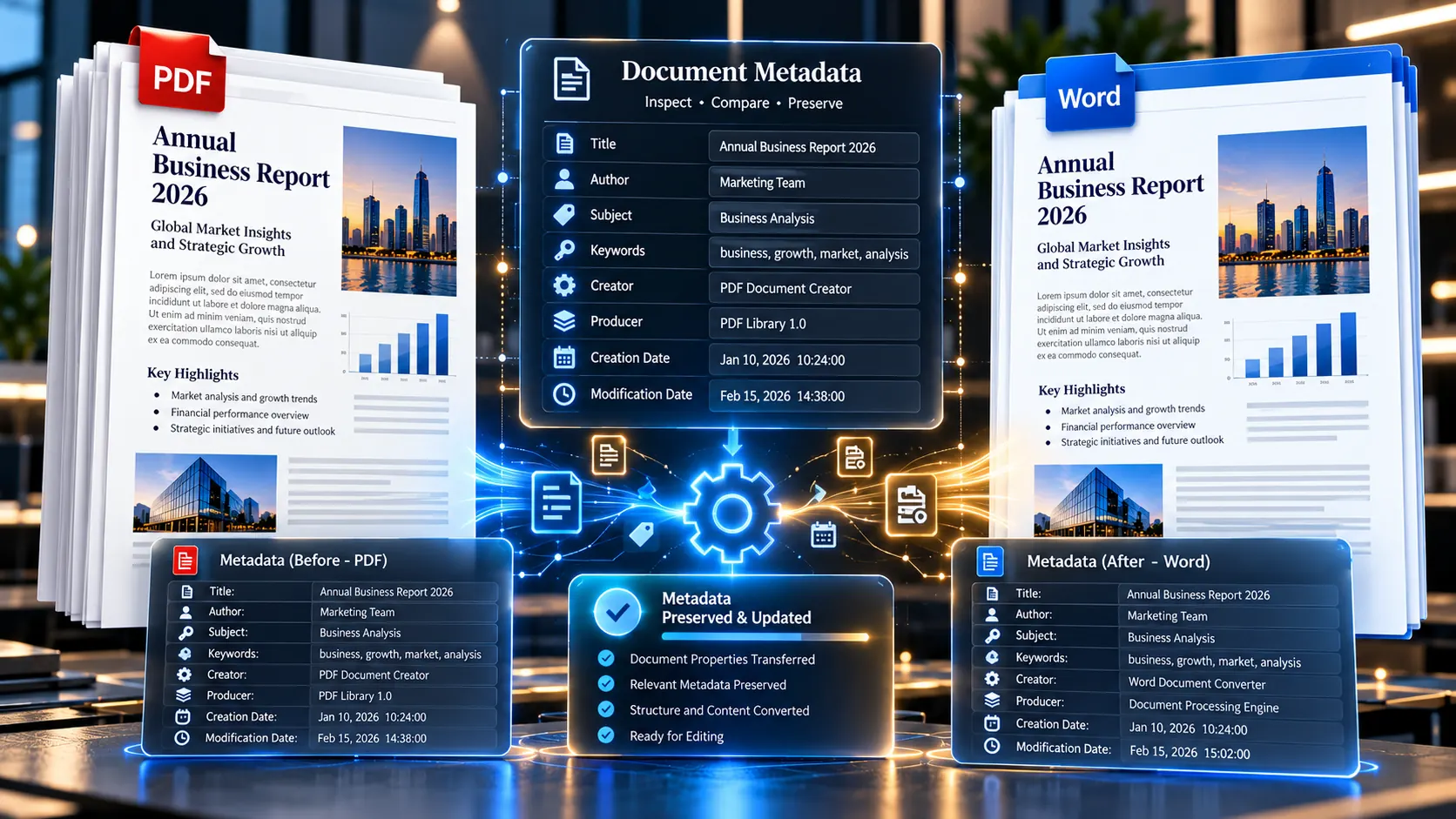
A PDF can look perfectly clean on screen while carrying information you never see: an author name, document title, keywords, creation date, modification date, software information, or other embedded properties. When that PDF is converted into Word, those properties do not necessarily transfer exactly as they were.
If document properties matter, do not assume a PDF-to-Word conversion will preserve every piece of metadata automatically. Check the source PDF first, convert it, then inspect and verify the properties of the resulting Word document.
Why PDF Metadata Matters During Word Conversion
Metadata is often overlooked because it does not appear as normal page content.
A contract may show only its title and clauses, for example, while its underlying properties identify an author, creation date, keywords, or the software that produced the PDF. The same applies to reports, invoices, research papers, HR documents, legal files, and internal business records.
This creates an important distinction:
- Visible content is what you read on the PDF pages.
- Document metadata is information stored in the file properties.
- Word document properties are the properties associated with the resulting
.docxor.docfile. - Revision information may involve a different layer altogether and should not automatically be treated as PDF metadata.
A conversion can successfully reproduce the visible text and formatting while still changing, dropping, or recreating document properties.
That is why a visually accurate conversion is not necessarily a metadata-preserving conversion.
What Document Properties Can Be Stored in a PDF?
Common PDF properties can include:
| Property | What it can represent |
|---|---|
| Title | The document’s title |
| Author | The person or organization associated with the document |
| Subject | A short description of the document |
| Keywords | Search or classification terms |
| Creator | The application or process that created the source document |
| Producer | Software involved in generating the PDF |
| Creation Date | When the PDF was created |
| Modification Date | When the PDF was modified |
These properties can be useful for document organization, records management, auditing, publishing workflows, and internal investigations.
However, they should not automatically be treated as a complete history of the document.
For example, a PDF’s Author field does not necessarily prove who wrote every word in the document. Likewise, a creation date may describe when a particular PDF file was generated rather than when the underlying content was originally authored.
That distinction becomes especially important in legal, compliance, HR, and security workflows.
Why PDF Metadata May Not Survive Conversion Exactly
The biggest mistake is thinking of PDF-to-Word conversion as simply changing one file extension into another.
A converter is usually reconstructing a Word document from the PDF’s content and structure. The resulting Word file has its own document-property model, and there is no requirement that every PDF property map perfectly to an equivalent Word property.
Several things can happen.
Some properties may be transferred
Basic information such as a title or author may sometimes be carried into the resulting document.
Some properties may be transformed
A converter may map information from one property system into another rather than preserving the original structure exactly.
Some properties may be lost
Metadata that has no straightforward equivalent in the target Word document may not appear after conversion.
New properties may be created
The resulting Word document is a new file. Its own creation or modification information can therefore differ from the source PDF.
Advanced metadata may require separate inspection
A PDF can contain metadata beyond the common fields displayed by ordinary document-property dialogs. Specialized or custom metadata may require dedicated inspection tools.
The practical lesson is simple: never promise exact metadata preservation merely because the visible document looks correct after conversion.
The Safest Workflow for Preserving Document Properties
If metadata matters, use a verification workflow rather than treating conversion as a single click.
Step 1: Inspect the original PDF
Before converting the file, identify the properties that matter to your workflow.
Check items such as:
- Title
- Author
- Subject
- Keywords
- Creator
- Producer
- Creation date
- Modification date
PKCapra’s PDF Metadata Viewer & Remover can be useful at this stage for inspecting common PDF metadata before you convert the document.
The important point is to establish a baseline.
If you do not know what the source PDF contains, you have nothing reliable to compare against later.
Step 2: Record important metadata
If the document is important, make a simple record of the properties you need to preserve.
For example:
| Source PDF property | Original value | Important after conversion? |
|---|---|---|
| Title | Annual Financial Report | Yes |
| Author | Example Organization | Yes |
| Subject | FY2026 Report | Yes |
| Keywords | Finance, Annual Report | Maybe |
| Creator | Publishing Application | Maybe |
| Producer | PDF Generator | Usually less important |
| Creation Date | Original date | Depends on workflow |
| Modification Date | Original date | Depends on workflow |
This prevents a common problem: converting the document first and trying to remember what the original metadata contained afterward.
Step 3: Convert the PDF to Word
Once the source has been inspected, use a suitable PDF to Word converter to create the editable Word document.
At this point, focus on two separate questions:
- Did the visible document convert correctly?
- Did the document properties remain appropriate?
These are different quality checks.
A document can pass the first and fail the second.
Step 4: Inspect the resulting Word document
Open the converted Word file and examine its document properties.
Compare the result with the metadata baseline you created before conversion.
Look for:
- Missing title
- Changed author information
- Missing subject
- Missing keywords
- Different dates
- New application or producer information
- Unexpected document properties
- Any metadata that should not have been carried forward
Do not assume that a property is correct simply because Word displays something in its document information panel.
Compare it with the original source.
Step 5: Restore important properties when necessary
If the conversion does not preserve a property you genuinely need, manually restore the appropriate value in the Word document’s properties.
This is often more reliable than trying to force a converter to preserve metadata it was never designed to map exactly.
The goal should be accurate metadata, not merely identical-looking metadata.
Metadata Preservation Is Not the Same as Preserving Revision History
This distinction is easy to miss.
Someone searching for how to convert PDF to Word may use the phrase “document history” when they actually mean several different things.
These are not necessarily the same:
- PDF metadata
- Word document properties
- Comments
- Tracked changes
- Revision history
- Version history
- File-system timestamps
- Embedded application information
- Author information
A PDF generally does not behave like an editable Word document with a native track-changes history.
If a PDF was created from a Word document that previously contained tracked changes, converting the final PDF back to Word does not mean the original Word revision history will automatically reappear.
The conversion starts from the PDF that exists now.
It does not magically recover every historical state of the source document.
What About Author History?
Author information deserves particular attention in legal, compliance, and corporate workflows.
Suppose a PDF contains:
Author: Finance Department
After conversion, the resulting Word file might have a different author value, no author value, or information associated with the application or user who created or saved the new document.
That does not necessarily mean the original PDF was wrong.
It reflects the fact that you now have a new Word file with its own properties.
If authorship matters, record the source PDF metadata before conversion and verify the resulting Word properties afterward.
Do not rely on the converted file alone to establish historical authorship.
What About Creation and Modification Dates?
Dates are another area where users can easily draw the wrong conclusion.
A PDF’s creation date describes the PDF file’s metadata. A Word document created from that PDF is a separate file.
Therefore, the resulting Word document can have dates that differ from the original PDF.
Consider this simplified example:
Original PDF
- Created: January 10
- Modified: January 15
Converted Word document
- Created: January 20
- Modified: January 20
That does not automatically mean the PDF was originally created on January 20.
It may simply mean the Word file was created on that date.
For compliance or evidentiary workflows, always identify which file’s timestamp you are examining.
Use Metadata Inspection Before and After Conversion
For important documents, a before-and-after comparison is much stronger than relying on the converter’s output blindly.
A practical workflow looks like this:
Original PDF → Inspect metadata → Record important properties → Convert to Word → Inspect Word properties → Compare → Correct required properties
This approach works particularly well for:
- Legal documents
- Contracts
- Financial reports
- HR records
- Research documents
- Internal corporate reports
- Regulatory submissions
- Published documents
- Archival material
The conversion becomes one stage in a controlled document workflow rather than the entire workflow.
Can You Preserve Every Hidden PDF Property?
No—not reliably through an ordinary PDF-to-Word conversion alone.
PDF and Word are different document formats with different structures and property systems. Some metadata has a natural equivalent in the target document; some does not.
There can also be metadata that is outside the common fields normally exposed by basic document-property interfaces.
PKCapra’s PDF Metadata Viewer & Remover can inspect common PDF metadata fields including title, author, subject, keywords, creator, producer, and creation/modification dates. It can also remove common metadata and create a new PDF. The current implementation does not guarantee complete forensic sanitization, and specialized XMP or custom metadata may require specialized tools.
That limitation is important.
If your requirement is ordinary document-property inspection, common metadata fields may be enough.
If your requirement is forensic metadata analysis, treat a basic metadata viewer as only one part of the process.
A Better Way to Think About “Hidden Metadata”
Not everything hidden inside a document is equally important.
A useful classification is:
Level 1: Basic document properties
Examples include:
- Title
- Author
- Subject
- Keywords
- Creation date
- Modification date
These are the properties most users can reasonably inspect and compare.
Level 2: Application information
This can include information about the software involved in creating or producing the PDF.
It can be useful for technical investigation but may not be relevant to an ordinary conversion workflow.
Level 3: Advanced or custom metadata
This can include information that is not represented by the basic property fields.
If your workflow requires forensic certainty, specialized metadata-analysis software may be necessary.
Level 4: Historical information
Revision history, previous versions, editing history, cloud version history, and tracked changes are a separate problem.
A PDF-to-Word conversion should not be treated as a mechanism for reconstructing that history.
Common Mistakes When Converting PDFs With Metadata
Mistake 1: Assuming visual accuracy means metadata accuracy
A document can look identical while its properties have changed.
Mistake 2: Checking metadata only after conversion
If you never inspect the original PDF, you cannot reliably determine what was lost or changed.
Mistake 3: Treating the Author field as proof of authorship
Metadata is useful evidence about a file, but a single property should not automatically be interpreted as definitive proof of who created its content.
Mistake 4: Confusing file dates with document history
A converted Word file can have its own creation and modification dates.
Mistake 5: Assuming Word can recreate PDF revision history
Conversion can reconstruct editable content. It does not automatically recreate the historical editing environment of the original document.
Mistake 6: Assuming all metadata can be removed with one basic tool
Common metadata and advanced/custom metadata are not necessarily the same thing.
Mistake 7: Modifying the original before inspection
If the source document matters, keep the original untouched and perform inspection or conversion on a working copy whenever your workflow permits.
What If You Only Need Certain Pages?
Metadata can become more complicated when your workflow involves extracting a small portion of a larger PDF.
For example, you may have a 200-page report but only need pages 75–82 in Word.
The content workflow may be:
Extract the required pages → convert the smaller PDF → inspect the resulting Word document
However, do not assume that extracting pages creates a perfect miniature version of every property and historical characteristic of the original PDF.
The extracted PDF is itself a new file operation, so if metadata matters, inspect the file you are actually converting.
This connects naturally with the earlier cluster topic about converting only specific PDF pages into Word: content selection and metadata preservation should be treated as two separate checks.
When Should You Use a PDF Metadata Tool Before Conversion?
A metadata check is especially worthwhile when:
- The document belongs to a legal workflow.
- Author information matters.
- Creation or modification dates are important.
- The PDF came from an unknown source.
- The document is being prepared for publication.
- Confidential information may exist in file properties.
- You are preparing records for compliance or archiving.
- You need to compare the source and converted files.
- The document may later be examined as part of an investigation.
For an ordinary personal document where metadata has no practical importance, a detailed metadata workflow may be unnecessary.
The right level of checking depends on the document’s purpose.
A Practical Metadata Preservation Checklist
Before converting:
- Keep the original PDF unchanged.
- Inspect the source PDF properties.
- Record important metadata values.
- Decide which properties actually matter.
- Identify whether the document has legal, compliance, or archival requirements.
During conversion:
- Use the appropriate PDF-to-Word workflow.
- Do not assume metadata is automatically preserved.
- Keep the original PDF available for comparison.
After conversion:
- Check the Word document properties.
- Compare important values against the source.
- Confirm title and author information where required.
- Check dates carefully.
- Restore required properties if appropriate.
- Keep both source and converted files when your workflow requires an audit trail.
PDF Metadata vs Word Properties: Quick Comparison
| Requirement | Converted Word document | |
|---|---|---|
| Visible text | Yes | Yes, if conversion succeeds |
| Title | May be stored | May be stored differently |
| Author | May be stored | May be transferred or changed |
| Subject | May be stored | May or may not map directly |
| Keywords | May be stored | May or may not transfer |
| Creator/Producer | Common PDF properties | Not necessarily equivalent |
| Creation date | PDF file property | Word file has its own file/document dates |
| Modification date | PDF property | Word file has its own modification information |
| Revision history | Not equivalent to Word tracking | Not automatically reconstructed |
| Advanced/custom metadata | May exist | Not guaranteed to survive conversion |
The key takeaway is that conversion changes the document format, not just the filename.
When Metadata Preservation Matters More Than Formatting
Most PDF-to-Word discussions focus on layout:
- Are the tables aligned?
- Are the fonts correct?
- Did the images move?
- Are the margins intact?
Those checks matter, but metadata can matter just as much in professional workflows.
A converted contract with perfect formatting but incorrect author information may still require correction.
Likewise, a financial report with accurate tables but unclear document dates can create unnecessary confusion during record review.
For high-value documents, use two quality-control layers:
Content quality: Is the document visually and structurally correct?
Metadata quality: Are the resulting document properties appropriate and accurate?
Both should pass before the converted file becomes the official working copy.
Key Takeaways
- PDF metadata and Word document properties are related but not identical.
- A visually accurate PDF-to-Word conversion does not guarantee metadata preservation.
- Inspect the original PDF before conversion if properties matter.
- Record important metadata values so you have something to compare afterward.
- Check the resulting Word document’s properties after conversion.
- Creation and modification dates should always be interpreted in the context of the specific file.
- PDF metadata should not be confused with revision history or tracked changes.
- Basic metadata tools can inspect common properties, but they do not necessarily provide complete forensic analysis.
- PKCapra’s PDF Metadata Viewer & Remover can help inspect common PDF metadata before a conversion workflow.
- For the actual conversion stage, use the PDF to Word converter and then perform your metadata verification.
Frequently Asked Questions
Does PDF to Word conversion preserve metadata?
Not necessarily. Some common document properties may transfer, while others can be changed, omitted, or recreated in the new Word document. Important metadata should be checked before and after conversion.
Can I preserve the original PDF author information in Word?
You can manually set the appropriate Word document property after conversion, but you should first record the original PDF’s author information rather than assuming the converter will preserve it automatically.
Does converting PDF to Word preserve the original creation date?
You should not assume it will. The converted Word document is a new file and can have its own creation and modification information.
Does PDF metadata include revision history?
Not in the same sense as Word’s tracked changes or version history. Metadata can describe properties of a PDF file, but it should not be treated as a complete historical record of every edit.
Can I check PDF metadata before converting?
Yes. PKCapra’s PDF Metadata Viewer & Remover is designed to view common PDF metadata fields before you proceed with other document workflows.
Does removing PDF metadata guarantee complete privacy?
No. PKCapra’s current metadata tool can remove common metadata, but it does not guarantee complete forensic sanitization. Advanced XMP or custom metadata may require specialized tools.
Should I keep the original PDF after converting it to Word?
For important legal, financial, compliance, or archival workflows, retaining the original source can be valuable because the converted Word document is a new representation of the content and may not preserve every property of the source.
Conclusion: Treat Metadata as Part of the Document
PDF-to-Word conversion is often judged by what appears on the page, but professional document handling requires looking beyond the page.
If document properties matter, establish the original PDF’s metadata baseline, convert the file, inspect the resulting Word properties, and correct anything that needs to be preserved. That simple before-and-after workflow is far more reliable than assuming a converter will reproduce every hidden property automatically.
For routine metadata inspection, you can start with PKCapra’s PDF Metadata Viewer & Remover, then use the PDF to Word converter when you are ready to create the editable document.
When you convert an important PDF, do you normally check its metadata before conversion—or only notice the properties after the Word file has already been created?