
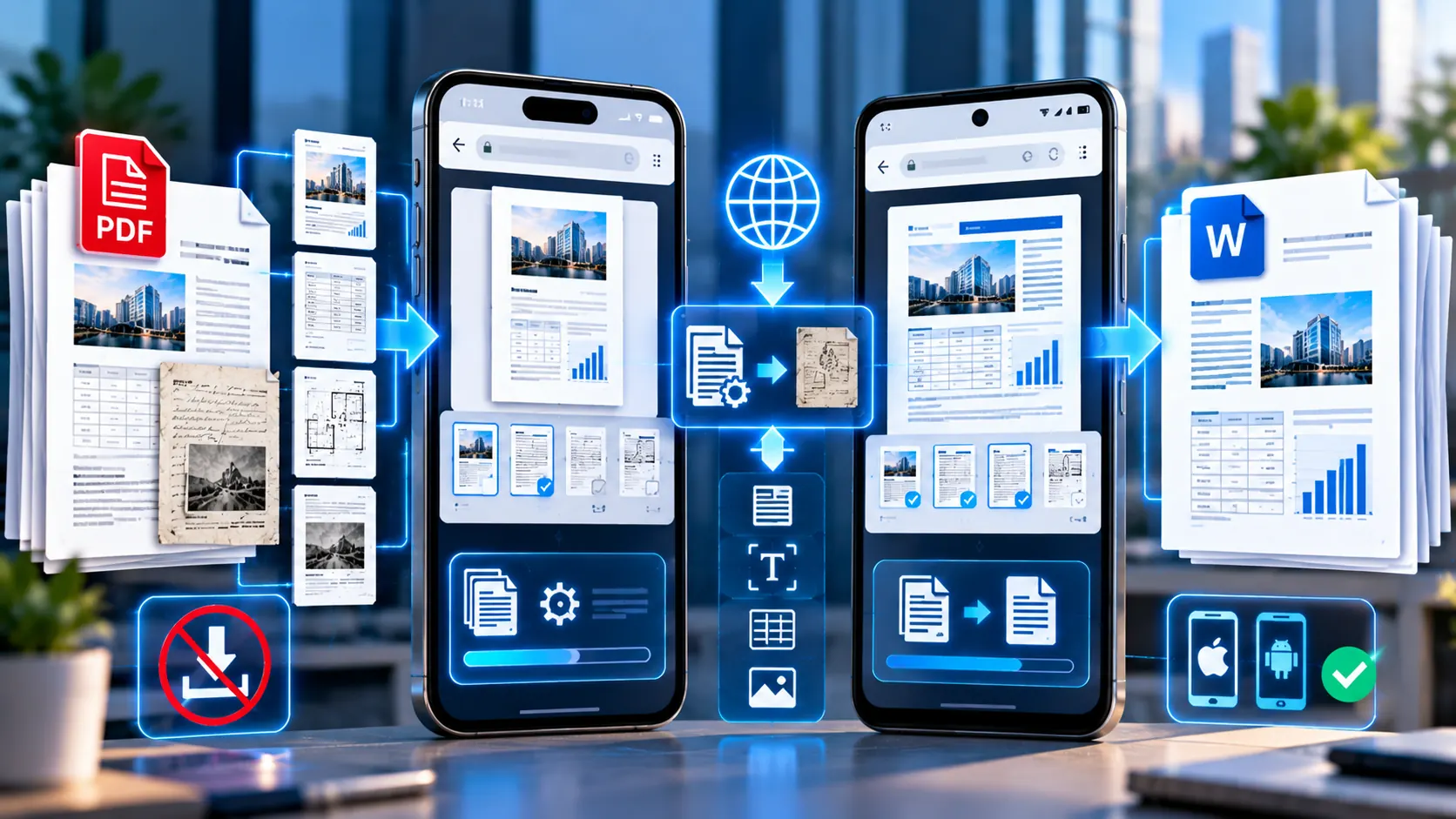
If you have a PDF on your phone and need to edit its contents in Microsoft Word, you do not necessarily need to install another PDF conversion app.
A modern mobile browser can handle the workflow.
On iPhone, you can open Safari, access the PDF converter, select your document from the Files app, convert it to DOCX, and save the resulting Word document.
On Android, you can use Chrome to access the converter, select the PDF from your device, convert it to DOCX, and download the resulting Word document.
PKCapra’s PDF to Word Converter is designed to work in modern mobile browsers and does not require desktop conversion software. The current tool processes the PDF in the browser, lets you select pages, supports OCR for scanned PDFs, and produces an editable DOCX file. pkcapra.com
Can You Convert PDF to Word on a Phone Without an App?
Yes.
The simplest approach is to use a browser-based PDF-to-Word converter.
You need:
- An iPhone or Android phone
- Safari, Chrome, or another supported modern browser
- The PDF you want to convert
- An internet connection to access the web tool
- Enough device resources for the conversion
You do not need to install a dedicated PDF-to-Word application for the basic PKCapra workflow.
The current PKCapra converter specifically states that its interface works with modern mobile browsers. It also notes that large or image-heavy PDFs may perform better on a desktop or laptop because conversion and OCR can require more device resources. pkcapra.com
What You Need Before Converting a PDF on Your Phone
Before starting, make sure the PDF is accessible from your device.
It might be:
- In the iPhone Files app
- In iCloud Drive
- In your Android Files app
- In a Downloads folder
- Attached to an email
- Saved from a messaging application
- Stored in a cloud-storage application
- Downloaded from a website
On iPhone, Safari can save a PDF to the Files app using Share → Save to Files. Apple documents this workflow for saving PDFs locally or to an available Files location. Apple Support
On Android, Chrome can download PDFs and lets you find downloaded files through its Downloads interface. Google Help
Once you know where the PDF is stored, the actual conversion is straightforward.
How to Convert PDF to Word on iPhone Without an App
Step 1: Open Safari on your iPhone
Open Safari and navigate to the PKCapra PDF-to-Word converter.
Open PKCapra PDF to Word Converter
The tool is browser-based, so there is no requirement to install a separate PDF conversion application. The current page provides a mobile-compatible interface. pkcapra.com
Step 2: Choose your PDF
Tap the file-selection area and select the PDF you want to convert.
If the document was downloaded previously, it will normally be available through the iPhone’s Files interface.
Apple’s Files app lets you browse locations such as On My iPhone, iCloud Drive, and connected storage locations. Apple Support
If the PDF is still open in Safari from another website, you can save it to Files first and then select it from the converter.
Step 3: Choose the pages you need
After selecting the PDF, you can decide whether to convert:
- Every page
- One page
- A range of pages
- Several individual pages and ranges
For example:
1-3
or:
2, 5, 8-10
PKCapra’s current converter supports this page-selection format and keeps page breaks between PDF pages. pkcapra.com
This is particularly useful on a phone because you may not want to process a large document when you only need a few pages.
Step 4: Enable OCR if the PDF is scanned
If you can select the text normally inside the PDF, you may not need OCR.
But if the PDF consists of scanned pages or photographs of documents, enable:
Use OCR for scanned PDFs
The PKCapra converter uses OCR to recognize text from image-only or scanned PDF pages when selectable text is unavailable. pkcapra.com
This is useful for:
- Scanned contracts
- Old reports
- Printed forms
- Receipts
- Letters
- Archived documents
- Scanned paperwork
Step 5: Choose the line-break option if necessary
PKCapra also provides:
Keep PDF line breaks
Enable this when preserving the original extracted line structure is useful.
For normal paragraphs, you may prefer not to preserve every PDF line break.
For documents where line structure matters, the option can be useful. pkcapra.com
Step 6: Convert the PDF to DOCX
Tap:
Convert PDF to DOCX
The browser processes the selected pages and creates a separate Word document.
PKCapra states that the conversion takes place directly in the browser rather than sending the source PDF to a PKCapra conversion server. pkcapra.com
Step 7: Download the Word document
When processing finishes, the converter provides the generated DOCX document.
Open or download it and save it where you want to work with the file.
The resulting document is a separate Word file; the original PDF remains unchanged. pkcapra.com
How to Convert PDF to Word on Android Without an App
The Android workflow is very similar.
The main difference is how you select and manage your downloaded files.
Step 1: Open Chrome on Android
Open Google Chrome and navigate to:
You do not need to install a dedicated converter app for the browser workflow.
Chrome itself can open PDFs on supported Android versions, and Google documents PDF viewing, searching and downloading directly within Chrome. Google Help
Step 2: Select your PDF
Tap the PDF upload area and choose the document from your phone.
If you downloaded the PDF using Chrome, Google says downloaded files can be accessed through Chrome’s Downloads interface and the device’s Files app. Google Help
Step 3: Select the pages
Choose all pages or specify the pages you want.
For example:
1-5
or:
2, 6, 10-12
This can save processing time when the original document is much longer than the portion you actually need.
Step 4: Enable OCR when necessary
If the PDF is a scan rather than a normal text-based PDF, enable:
Use OCR for scanned PDFs
PKCapra’s converter can recognize visible characters on image-only pages and turn them into editable text in the DOCX output. pkcapra.com
Step 5: Convert to Word
Tap:
Convert PDF to DOCX
Wait for the browser-based processing to finish.
The generated DOCX is then ready to download.
Step 6: Open the DOCX
Once downloaded, open the Word document with a compatible application.
Microsoft’s mobile documentation confirms that .docx files can be opened and edited in Word on supported iOS and Android devices. Microsoft Support
iPhone vs Android: What Is Different?
The conversion itself is essentially the same.
The biggest difference is file management.
| Task | iPhone | Android |
|---|---|---|
| Browser | Safari or supported browser | Chrome or supported browser |
| Select PDF | Files / available file locations | Files / Downloads / available storage |
| Convert online | Yes | Yes |
| OCR option | Yes in PKCapra workflow | Yes in PKCapra workflow |
| Select pages | Yes | Yes |
| DOCX output | Yes | Yes |
| Dedicated converter app required | No | No |
| Best for very large files | Desktop may be preferable | Desktop may be preferable |
PKCapra states that its converter works with modern mobile browsers on phones, while large or image-heavy PDFs may perform better on desktop or laptop hardware. pkcapra.com
How to Convert a PDF From Safari on iPhone
A common situation is that the PDF is already open in Safari.
For example, you may have received a link to a:
- Contract
- Report
- Invoice
- Application
- Research paper
- Form
- Business document
You can first save the PDF to Files.
Safari workflow
Open PDF in Safari → Share → Save to Files → Open PKCapra converter → Select PDF → Convert to DOCX
Apple’s current iPhone documentation confirms that a PDF displayed in Safari can be saved through the Share menu using Save to Files. Apple Support
This avoids needing to search through the browser’s history later.
How to Convert a Downloaded PDF on Android
If your PDF is already downloaded, you do not have to download it again.
In Chrome, open the Downloads section and locate the file.
Google’s Android Chrome documentation explains that downloaded files can be accessed through More → Downloads, where files can also be shared, renamed or deleted. Google Help
Then:
Open PKCapra → Select PDF → Choose pages → Enable OCR if needed → Convert → Download DOCX
What If the PDF Is Scanned?
This is one of the most important mobile conversion situations.
A PDF can look completely normal while containing pages that are actually images.
For example, imagine opening a scanned invoice on your phone. You can see:
Invoice Number: 10482
But when you try to select the number, nothing happens.
That usually means the visible characters are not available as normal selectable text.
In that situation, enable OCR.
PKCapra’s PDF-to-Word converter specifically provides an OCR option for image-only or scanned pages. pkcapra.com
Simple test
Try selecting a sentence.
Can select text?
→ Normal PDF-to-Word conversion may be sufficient.
Cannot select text?
→ Enable OCR.
What If You Only Need Two Pages From a 100-Page PDF?
You do not necessarily need to convert the entire document.
PKCapra allows you to enter specific pages or ranges.
For example:
45-46
will target only pages 45 and 46.
You can also combine individual pages and ranges:
3, 12, 25-27
The current converter supports these formats. pkcapra.com
This can be especially useful on mobile because processing a smaller number of pages can reduce the workload on the phone.
Can You Convert PDF to Word on an iPhone Without Microsoft Word?
Yes.
The conversion step does not require Microsoft Word to be installed.
The browser-based converter can create the DOCX file first.
You can then open the resulting DOCX using a compatible document application if you need to edit it.
This distinction is important:
PDF conversion and Word editing are two separate steps.
You can create the DOCX without having Word installed.
If you later want to edit the file using Microsoft Word, Word’s mobile applications support .docx files. Microsoft Support
Can You Convert PDF to Word on Android Without Microsoft Word?
Yes.
The browser can perform the conversion and produce a .docx file.
You can then use a compatible Word-processing application to open or edit the result.
Microsoft’s documentation lists .docx as a supported editable document format on Word for iOS and Android. Microsoft Support
Does the PDF Have to Be Saved on the Phone First?
Not necessarily.
The practical workflow depends on where your PDF currently exists.
It may already be available through:
- Files
- Downloads
- Cloud storage
- Email attachments
- A browser download
- Another application
The important thing is that the browser’s file picker can access the document.
On iPhone, Apple provides Files as the central location for files stored locally, in iCloud Drive, or through supported third-party storage providers. Apple Support
On Android, downloaded files can be accessed through Chrome’s Downloads interface and the device’s Files app. Google Help
What About Google Drive on a Phone?
Google Drive can be useful for storing and scanning documents, but there is an important distinction between scanning and converting.
Google’s current Drive documentation says its Android and iOS apps can scan documents and save them as PDFs. Google Help
For PDF-to-text conversion, Google’s documentation points users to drive.google.com on a computer for converting PDF and image files to text. Google Help
Therefore, if your specific goal is:
PDF → editable DOCX directly from a phone browser
a dedicated browser-based PDF-to-Word workflow can be simpler than building the process around desktop-only Google Drive conversion.
What About Using Chrome’s Built-In PDF Features?
Chrome on Android can open PDFs directly without requiring a separate PDF reader, and supported Android versions can select and search text in PDFs. Google Help
Chrome’s desktop PDF viewer also has OCR capabilities for scanned PDFs, with Google stating that the OCR processing for those PDFs happens on the device rather than being sent to Google or third parties. Google Help
However, making a PDF searchable is not the same as creating an editable DOCX.
If your final requirement is a Word document, you still need a PDF-to-Word conversion workflow.
That distinction prevents a common misunderstanding:
Searchable PDF ≠ editable Word document.
How to Get Better PDF-to-Word Results on a Phone
Mobile conversion can work well, but the quality of the source document remains important.
Use a clear PDF
A clean digital PDF generally gives a conversion system more useful information than a low-quality scan.
Use OCR for scanned pages
If the words cannot be selected, enable OCR.
Convert fewer pages when possible
If you only need five pages, do not unnecessarily process a 150-page document.
Keep the original
The original PDF should remain available as your reference.
Check the output
Look at:
- Headings
- Paragraphs
- Numbers
- Tables
- Dates
- Names
- Columns
- Page breaks
- Images
PKCapra specifically warns that complex tables, columns, images, fonts and precise positioning may require additional formatting after conversion. pkcapra.com
Why Does My Word Document Look Different From the PDF?
PDF and Word serve different purposes.
A PDF is designed to maintain a fixed visual representation.
A DOCX document is designed to be edited and reflowed.
When a converter turns PDF content into Word, it has to interpret the PDF’s structure.
Simple paragraphs can convert relatively cleanly.
More complicated pages can require additional adjustment.
Potential trouble spots include:
- Multi-column layouts
- Tables
- Text boxes
- Floating elements
- Images
- Unusual fonts
- Precise positioning
- Complex forms
PKCapra explicitly states that the Word output is not guaranteed to reproduce every visual detail exactly. pkcapra.com
So if the Word document requires a few formatting corrections afterward, that does not necessarily mean the conversion failed.
Is PDF-to-Word Conversion Safe on a Phone?
Security depends partly on where the document is processed.
There is a meaningful difference between:
Browser-side processing
and:
Uploading a document to a remote conversion server.
PKCapra’s current PDF-to-Word converter states that the PDF is processed directly in the browser and is not uploaded to a PKCapra conversion server. pkcapra.com
That can be useful when you prefer the source document to remain within the browser-based processing environment.
However, browser-side processing should not be interpreted as an absolute security guarantee. Your phone, browser, operating system, extensions, network and other applications remain part of the overall security environment. PKCapra itself makes this qualification on the current converter page. pkcapra.com
For confidential business, legal or financial documents, always follow your organization’s document-handling policies.
Does Converting on a Phone Use More Battery?
It can.
Browser-based PDF conversion and especially OCR require the phone to process document data.
The effect depends on:
- Number of pages
- PDF complexity
- Image resolution
- OCR requirements
- Device hardware
- Available memory
- Browser workload
This is why PKCapra notes that large or image-heavy PDFs may perform better on a desktop or laptop. pkcapra.com
For a short contract or a few-page report, a phone may be perfectly practical.
For a very large scanned book, a computer may provide a smoother experience.
When Should You Use a Phone Instead of a Computer?
A phone is particularly convenient when:
- You received the PDF by email
- Someone sent it through messaging
- You are traveling
- You only need a few pages
- You need a quick document edit
- You do not have access to your computer
- You do not want to install another application
A computer may be preferable when:
- The PDF is very large
- The document contains hundreds of pages
- OCR is required across many image-heavy pages
- You need extensive Word formatting afterward
- The document contains complicated tables
- You need to compare the original and converted files side by side
The goal is not to make one device universally better than another.
It is to use the device that fits the document and the task.
iPhone PDF-to-Word Workflow at a Glance
PDF arrives → Safari/Files → PKCapra → Select PDF → Select pages → OCR if needed → Convert to DOCX → Download → Edit
The entire conversion workflow can take place from the phone’s browser.
Android PDF-to-Word Workflow at a Glance
PDF arrives → Chrome/Files → PKCapra → Select PDF → Select pages → OCR if needed → Convert to DOCX → Download → Edit
The conversion process is essentially the same; the main difference is how Android handles downloaded and stored files.
Common Mobile PDF-to-Word Problems
The file picker cannot find my PDF
Check:
- Files
- Downloads
- iCloud Drive on iPhone
- Device storage on Android
- The folder where the PDF was originally saved
The PDF opens but I cannot select text
The PDF may be scanned or image-based.
Enable OCR during PDF-to-Word conversion.
The Word document contains strange formatting
Check tables, columns, fonts and positioned elements first.
These are areas where PDF-to-DOCX reconstruction can require manual cleanup. pkcapra.com
The conversion is taking a long time
If the PDF is large or image-heavy, try fewer pages.
For particularly demanding documents, move the workflow to a desktop or laptop.
The DOCX opens but some content is missing
Compare it with the original PDF.
If the missing material is part of an image or complex layout, the conversion may require a different workflow or manual reconstruction.
The scanned text is inaccurate
Check the original scan.
Poor resolution, skewing, blur, low contrast, unusual fonts and handwriting can all make OCR more difficult. pkcapra.com
A Simple Mobile PDF-to-Word Checklist
Before converting:
- PDF is accessible from the phone
- Safari or Chrome is updated
- You know which pages you need
- You checked whether the PDF contains selectable text
- OCR is enabled if the PDF is scanned
- You have enough device resources for the document
After conversion:
- DOCX downloaded successfully
- Important text checked
- Numbers and dates verified
- Tables reviewed
- Images checked
- Formatting reviewed
- Original PDF retained
Frequently Asked Questions
Can I convert PDF to Word on iPhone without installing an app?
Yes. You can use a browser-based PDF-to-Word converter through Safari. PKCapra’s current converter supports modern mobile browsers and creates an editable DOCX document. pkcapra.com
Can I convert PDF to Word on Android without an app?
Yes. You can access a browser-based PDF-to-Word converter through Chrome or another supported browser and download the resulting DOCX file.
Can I convert PDF to DOCX directly from my phone?
Yes. PKCapra’s converter creates a DOCX document directly from the browser. pkcapra.com
Can I convert a scanned PDF to Word on my phone?
Yes. Enable Use OCR for scanned PDFs when the document contains image-only or scanned pages. pkcapra.com
Do I need Microsoft Word installed to convert the PDF?
No. The conversion happens before the Word editing stage. The browser creates the DOCX file; a compatible document application can then be used to open or edit it.
Can I convert only one page of a PDF?
Yes. PKCapra supports individual pages as well as ranges. For example, entering 7 processes page 7, while 7-10 selects pages 7 through 10. pkcapra.com
Can I convert a PDF from Safari?
Yes. Save the PDF to Files if necessary, then select it from the PKCapra converter. Apple documents Safari’s Share → Save to Files workflow for PDFs. Apple Support
Can I convert a downloaded PDF from Chrome on Android?
Yes. Chrome’s Downloads area provides access to downloaded files, which can then be selected through the browser’s file picker. Google Help
Does PKCapra upload my PDF?
The current PDF-to-Word converter states that processing happens directly in the browser rather than uploading the PDF to a PKCapra conversion server. pkcapra.com
Will the Word document look exactly like the PDF?
Not necessarily. Simple documents can convert more cleanly, while complex tables, columns, images, fonts and precise positioning may require adjustment. pkcapra.com
Can I edit the converted DOCX on my phone?
Yes, if you have a compatible Word-processing application. Microsoft lists .docx as an editable format supported by Word on iOS and Android. Microsoft Support
What if my PDF is too large for my phone?
Try converting fewer pages first. For very large or image-heavy PDFs, a desktop or laptop may provide a smoother experience because processing can require more device resources. pkcapra.com
Conclusion
You do not necessarily need a dedicated mobile PDF converter app just to turn a PDF into an editable Word document.
On iPhone, the practical workflow is:
Safari → Files → PDF-to-Word converter → DOCX
On Android:
Chrome → Files/Downloads → PDF-to-Word converter → DOCX
If the PDF contains selectable text, normal conversion may be enough. If it is a scanned or image-based document, enable OCR.
For large or complicated PDFs, a desktop can still be more comfortable. But for everyday documents, a modern phone browser can handle the complete conversion workflow without requiring another dedicated converter application.
If you are ready to convert the file, open the PKCapra PDF to Word Converter, select your PDF, choose the pages you need, enable OCR when necessary, and create the DOCX directly from your browser. pkcapra.com