
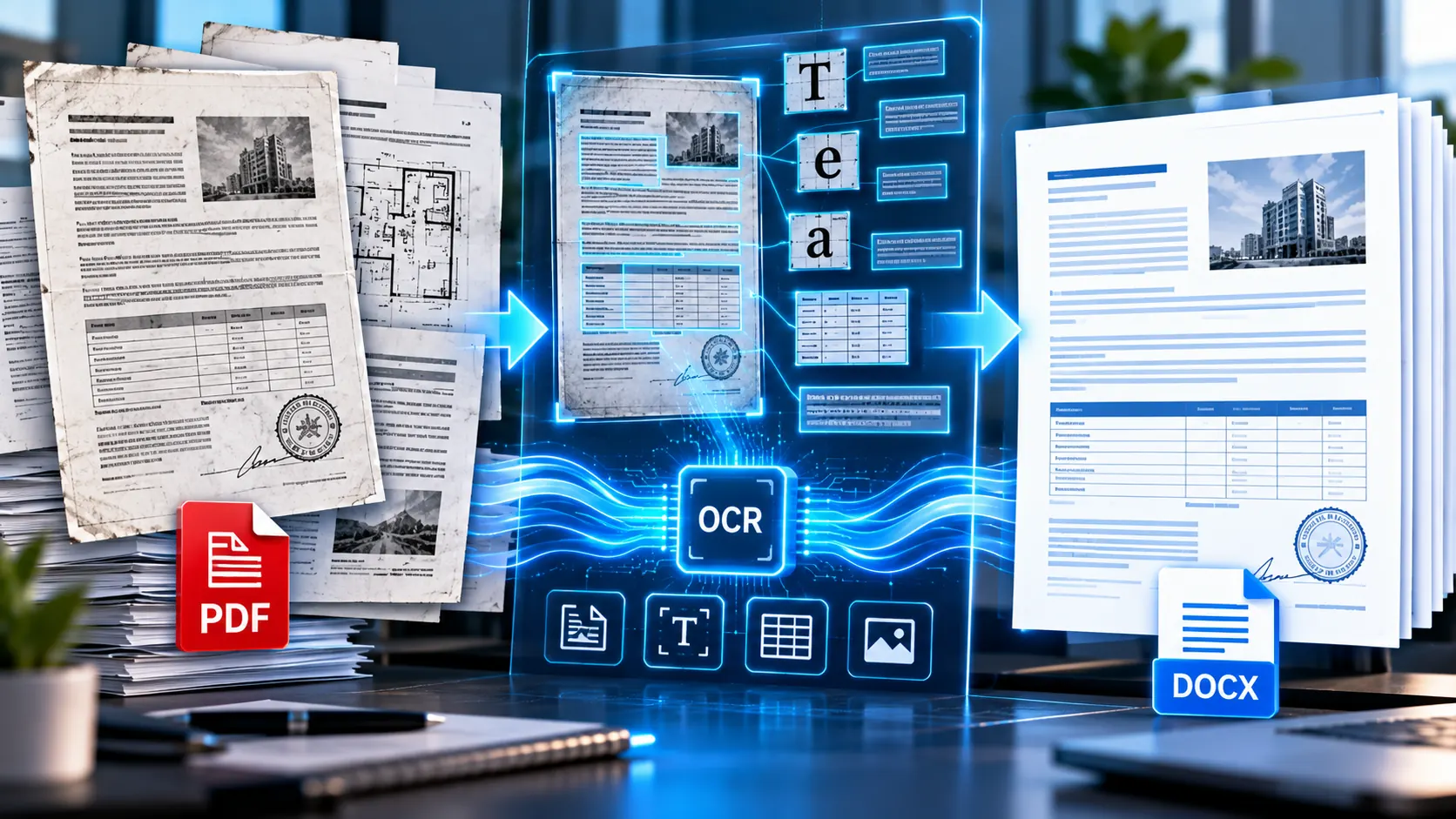
A scanned PDF is not the same as a normal PDF
If you open a scanned PDF and cannot select, copy, or search the words on the page, the document is probably image-based rather than a normal text PDF.
That is why simply converting it to Word does not always produce editable text.
The solution is OCR, or Optical Character Recognition. OCR analyzes the characters visible in a scanned page and creates machine-readable text from them. Microsoft similarly notes that recognition accuracy depends on scan quality and that scanned text should be proofread after recognition. Microsoft Support
To convert a scanned PDF to editable Word text, you need a PDF-to-Word workflow that can recognize text from image-only pages. PKCapra’s PDF to Word Converter includes a Use OCR for scanned PDFs option specifically for this situation. pkcapra.com
What makes a scanned PDF different?
A normal text-based PDF may contain actual characters that software can select and extract.
A scanned PDF can instead contain pages that are essentially pictures of printed documents.
For example, imagine scanning a:
- Printed contract
- Old business report
- Paper invoice
- Application form
- Historical document
- Printed letter
- Book page
- Archived record
- Photocopied document
The page may look perfectly readable to you, but the computer may see only pixels.
That creates a simple problem:
You can see the words, but the software cannot necessarily treat them as editable text.
Adobe describes the same distinction: a scanned paper document saved as a PDF can contain image data rather than searchable text, which is why OCR is used to create a searchable text layer. Adobe Help Center
What is OCR and why do you need it?
OCR stands for Optical Character Recognition.
Instead of treating a scanned page as one large image, OCR analyzes the image and attempts to identify individual characters and words.
The basic process looks like this:
Scanned page → OCR recognition → recognized text → editable Word document
Without OCR:
Scanned PDF → page image → little or no editable text
With OCR:
Scanned PDF → recognized characters → editable text → DOCX
OCR is therefore particularly useful when the PDF does not contain selectable text.
However, OCR is recognition technology—not a guarantee of perfect transcription. Poor scans, unusual fonts, skewed pages, handwriting, damaged documents and complex layouts can produce recognition errors. PKCapra’s own OCR guidance recommends reviewing recognized text against the original document. pkcapra.com
How to check whether your PDF needs OCR
Before converting the entire document, perform a quick test.
Open the PDF and try to:
- Select a word with your mouse.
- Copy a sentence.
- Search for a visible word using
Ctrl + For your PDF viewer’s search function. - Paste the selected text somewhere else.
If the text can be selected and copied normally, the PDF may already contain a machine-readable text layer.
If you cannot select the visible words because each page behaves like an image, OCR is likely necessary.
A useful rule is:
Selectable text → normal PDF-to-Word extraction may be enough.
Image-only/scanned text → use OCR during conversion.
PKCapra’s separate PDF-to-TXT documentation follows the same distinction: normal text extraction works with machine-readable PDF text, while scanned PDFs should go through OCR first. pkcapra.com
How to convert a scanned PDF to an editable Word document
You can convert a scanned PDF using a PDF-to-Word converter that includes OCR.
With PKCapra, the process is browser-based and the current converter provides a dedicated OCR option for image-only or scanned pages. pkcapra.com
Step 1: Open the PDF to Word converter
Open the PKCapra PDF to Word Converter.
The tool creates an editable DOCX document from PDF content directly in your browser.
You do not need to install desktop conversion software for the basic workflow.
Step 2: Select your scanned PDF
Choose the scanned PDF from your device or drag it into the converter.
The current PKCapra interface accepts one PDF file and processes it in the browser. pkcapra.com
Keep the original PDF available as a reference copy. The conversion creates a separate Word document rather than modifying your source file. pkcapra.com
Step 3: Select the pages you need
You do not necessarily have to convert the entire document.
PKCapra allows page selections such as:
1-357-91-3, 5, 8-10
You can also leave the field empty to process all pages. pkcapra.com
Selecting only the pages you actually need can make the workflow easier, particularly when dealing with a long scanned document.
Step 4: Enable OCR for scanned PDFs
This is the important step.
Enable:
Use OCR for scanned PDFs
The option tells the converter to recognize text from image-only or scanned PDF pages when selectable text is unavailable. pkcapra.com
If you skip OCR on a genuinely image-only PDF, the resulting Word document may not contain the editable text you expected.
Step 5: Choose whether to keep PDF line breaks
PKCapra also provides a Keep PDF line breaks option.
When enabled, extracted text lines are retained as separate lines in the Word document. This can be useful when preserving the original line structure is important. pkcapra.com
It is not necessarily the right choice for every document.
For a normal paragraph-heavy document, you may prefer cleaner flowing text. For forms, lists or documents where line positioning matters, retaining line breaks may be more useful.
Step 6: Convert the PDF to DOCX
Click Convert PDF to DOCX.
The browser processes the selected PDF pages and creates a Word document.
When processing finishes, PKCapra provides the resulting DOCX for download. pkcapra.com
Step 7: Open and review the Word document
Do not immediately assume that OCR has reproduced every character perfectly.
Open the DOCX in Microsoft Word or another compatible word processor and check:
- Names
- Dates
- Numbers
- Addresses
- Headings
- Tables
- Paragraphs
- Special characters
- Page breaks
- Formatting
- Footnotes
- Columns
This review is particularly important when the document contains legal, financial, medical, business or other important information.
Why OCR accuracy depends on the original scan
OCR can only recognize what the source image allows it to recognize.
A clean, sharp scan gives recognition software much more useful information than a blurry photograph.
For better results, start with the clearest PDF available.
Use high-quality scans
Higher-resolution pages generally provide more visible character detail.
If you have access to the original paper document, a fresh high-quality scan may produce a better result than trying to OCR an old compressed PDF.
Keep pages straight
A page photographed at an angle can make character recognition more difficult.
Straight, properly aligned pages are generally easier for OCR systems to analyze.
Use good contrast
Black text on a clean white background is usually easier to recognize than faded text against a gray or noisy background.
Avoid blurry pages
Motion blur, poor focus and heavily compressed images can make individual characters ambiguous.
Watch for unusual fonts
Decorative or highly stylized typefaces can be harder to recognize than conventional printed text.
Be careful with handwriting
Handwritten content should not be treated as equivalent to clean printed text.
Microsoft specifically cautions that handwritten text is seldom recognized accurately and recommends proofreading recognized text. Microsoft Support
What happens to the original formatting?
This is one of the most important things to understand before converting a scanned PDF.
OCR primarily solves the text-recognition problem.
It does not mean that every visual element of the scanned page will automatically become a perfectly reconstructed Word layout.
For example, a scanned document may contain:
- Multiple columns
- Tables
- Logos
- Stamps
- Signatures
- Text boxes
- Images
- Headers
- Footers
- Handwritten notes
- Irregular spacing
Some of these elements can require manual cleanup after conversion.
Microsoft explains that PDF-to-Word conversion works best with documents that are mostly text and that complex PDFs may not retain an identical layout when converted. Microsoft Support
PKCapra also explicitly notes that complex tables, columns, images, fonts and precise positioning may require additional formatting in Word. pkcapra.com
So the realistic goal should be:
Convert the scanned content into usable editable text—not promise pixel-perfect reconstruction of every page.
Scanned PDF to Word vs OCR PDF
These two workflows are related but they have different purposes.
Use PDF to Word when:
You want to:
- Edit the recognized text
- Rewrite paragraphs
- Correct spelling
- Reformat content
- Reuse text in Word
- Create an editable DOCX
- Continue working on the document
Use OCR PDF when:
You want to:
- Keep the result as a PDF
- Make scanned pages searchable
- Add a searchable text layer
- Find words inside scanned pages
- Copy recognized text from a searchable PDF
PKCapra’s standalone OCR PDF tool creates a searchable PDF while preserving the original page appearance and adding an invisible text layer. Its current interface supports PDFs up to 25 MB, up to 20 pages, with English OCR. pkcapra.com
The distinction is therefore simple:
Need editable Word → PDF to Word + OCR
Need a searchable PDF → OCR PDF
What if the scanned PDF already has selectable text?
Not every PDF that originated from a scanner is completely image-only.
Some documents can contain a mixture of:
- Native digital text
- Scanned images
- OCR text layers
- Embedded graphics
If you can select some text but not other portions, the document may have mixed content.
In that situation, enabling OCR for scanned pages can be useful because the image-only portions still need recognition.
The result should still be reviewed carefully afterward.
What if the converted Word document contains strange characters?
OCR can confuse visually similar characters.
For example, depending on the source image, recognition may confuse:
Oand0Iand1Sand5- punctuation marks
- accented characters
- closely spaced letters
This is why a visual comparison with the original scan is important.
For critical documents, do not rely solely on an automated OCR result.
Adobe also recommends reviewing OCR output and correcting recognition errors when necessary. Adobe Help Center
What if tables look wrong after OCR?
Tables are one of the more difficult parts of PDF-to-Word conversion.
A scanned table is visually obvious to a person, but OCR and document-conversion software must determine where:
- Rows begin
- Columns begin
- Cell boundaries exist
- Numbers belong
- Headers end
- Text wraps
If the table is particularly important, inspect it carefully after conversion.
For heavily structured tabular data, a dedicated PDF-to-spreadsheet workflow may sometimes be more appropriate than Word.
What if the document contains multiple columns?
Multi-column pages can create unusual reading order after OCR.
For example, a two-column magazine page might be interpreted in an unexpected sequence.
You may therefore need to reorganize the resulting Word document manually.
This is another reason not to judge OCR quality solely by whether the converter produced a DOCX file. The important question is whether the resulting text is usable and correctly ordered.
How to improve scanned PDF to Word results
A few simple preparation steps can make the workflow more reliable.
Start with the original scan
If possible, avoid repeatedly converting, exporting and recompressing the same document.
Each additional processing step can reduce image quality.
Remove unnecessary pages
If you only need three pages from a 100-page document, convert those pages rather than processing everything.
PKCapra supports page ranges directly in its PDF-to-Word workflow. pkcapra.com
Keep the original PDF
Always retain the original scan.
It gives you a reliable reference when checking OCR output.
Proofread important information
Pay special attention to:
- Currency amounts
- Account numbers
- Dates
- Names
- Legal clauses
- Measurements
- Addresses
- Product codes
- Reference numbers
A single OCR character error can change the meaning of important information.
Review the Word layout
Even when the text itself is correct, tables, columns and positioning may need adjustment.
Is browser-based OCR safe for confidential PDFs?
The answer depends on where the processing occurs.
A browser-based tool that processes a file locally is different from a service that uploads the document to a remote conversion server.
PKCapra states that its PDF-to-Word converter processes the PDF directly within the browser rather than uploading it to a PKCapra conversion server. pkcapra.com
That is useful for users who prefer their source document to remain within their browser session.
However, local browser processing should not be confused with an absolute security guarantee. Your operating system, browser, extensions, device security and surrounding environment still matter. PKCapra itself makes this distinction on the current converter page. pkcapra.com
For highly sensitive documents, follow your organization’s document-handling requirements regardless of which conversion method you use.
Common mistakes when converting scanned PDFs to Word
Mistake 1: Treating every PDF as a text PDF
A scanned PDF may contain images instead of selectable characters.
Fix: Test text selection first and use OCR when necessary.
Mistake 2: Forgetting to enable OCR
If the document is image-only, normal extraction may not provide the editable text you need.
Fix: Enable Use OCR for scanned PDFs.
Mistake 3: Expecting perfect visual reproduction
OCR solves recognition, not necessarily every layout problem.
Fix: Expect to review complex tables, columns and positioning.
Mistake 4: Skipping proofreading
OCR can make recognition mistakes.
Fix: Compare important text against the original scan.
Mistake 5: Converting the entire document unnecessarily
You may only need a few pages.
Fix: Use the page-range option to process only the relevant pages.
Mistake 6: Destroying the original
Never treat the converted Word document as a replacement for the source scan until you have verified it.
Fix: Keep the original PDF as your reference copy.
A practical scanned PDF to Word workflow
For most scanned documents, a sensible workflow is:
1. Open the scanned PDF
↓
2. Test whether text is selectable
↓
3. If text is image-based, enable OCR
↓
4. Select only the required pages
↓
5. Convert to DOCX
↓
6. Open the Word document
↓
7. Compare important text with the original
↓
8. Correct OCR and formatting errors
↓
9. Save the edited Word document
This approach is more reliable than assuming that every automated conversion will be perfect on the first attempt.
When should you use PKCapra for scanned PDF conversion?
PKCapra’s PDF-to-Word workflow is particularly relevant when you want a browser-based way to turn scanned PDF content into an editable DOCX without installing dedicated desktop conversion software.
The current tool provides:
- PDF-to-DOCX conversion
- OCR for scanned PDFs
- Page selection
- Optional PDF line-break preservation
- Browser-side processing
- Separate DOCX output
- Mobile-browser compatibility
- No requirement to upload the PDF to a PKCapra conversion server pkcapra.com
For broader PDF workflows, the PKCapra PDF & Document Tools category brings together PDF conversion, OCR, extraction, compression and other document utilities. pkcapra.com
Frequently Asked Questions
Can I convert a scanned PDF to an editable Word document?
Yes. A scanned PDF can be converted into editable Word text when OCR is used to recognize the text contained in the scanned pages.
What is the best way to convert a scanned PDF to Word?
The key is to use a PDF-to-Word converter that supports OCR. Without OCR, image-only PDF pages may not produce editable text.
Can I convert a scanned PDF to Word for free?
Yes. PKCapra’s PDF-to-Word converter is currently available as a free browser-based tool and includes an OCR option for scanned PDFs. pkcapra.com
Do I need OCR if I can select the text in my PDF?
Not necessarily. If the PDF already contains selectable machine-readable text, normal PDF-to-Word extraction may be sufficient. OCR becomes particularly useful when text exists only inside scanned images.
Will OCR preserve the original formatting?
Not always. Text recognition can work well while complex tables, columns, images, fonts or precise positioning still require manual adjustment. Microsoft also warns that converted PDFs may not maintain perfect page-to-page correspondence in Word. Microsoft Support
Can OCR recognize handwriting?
Handwriting can be difficult for OCR. Microsoft specifically notes that handwritten text is seldom recognized accurately, so handwritten material should be checked carefully. Microsoft Support
Can I convert only selected pages?
Yes. PKCapra’s PDF-to-Word converter supports individual pages and page ranges, such as 1-3, 5, 8-10. pkcapra.com
Does PKCapra upload my scanned PDF?
The current PDF-to-Word converter is designed to process the PDF directly in the browser rather than uploading it to a PKCapra conversion server. pkcapra.com
What should I do if OCR produces incorrect words?
Compare the DOCX against the original PDF and manually correct important recognition errors. Scan quality, resolution, alignment, fonts and document complexity can all affect OCR results. pkcapra.com
Should I use OCR PDF or PDF to Word?
Use OCR PDF when you want to keep the document as a searchable PDF. Use PDF to Word with OCR when your goal is an editable Word document.
Final takeaway
Converting a scanned PDF to Word is different from converting an ordinary text-based PDF.
If the words on the page are actually stored as images, the crucial step is OCR. OCR recognizes the visible characters and provides the text layer needed for an editable document.
For the best results:
- Start with the clearest scan available.
- Test whether text is selectable.
- Enable OCR when the PDF is image-based.
- Convert only the pages you need.
- Keep the original PDF.
- Review important text carefully.
- Expect some manual formatting when the document contains complex layouts.
If your goal is an editable DOCX, you can use the PKCapra PDF to Word Converter and enable Use OCR for scanned PDFs before starting the conversion.