
If you’re trying to choose a PDF-to-Word converter, the biggest differences are not always obvious from the upload screen.
Smallpdf, iLovePDF, and PKCapra can all help turn PDF content into an editable Word document, but they use different approaches to conversion, OCR, privacy, limits, and workflow design.
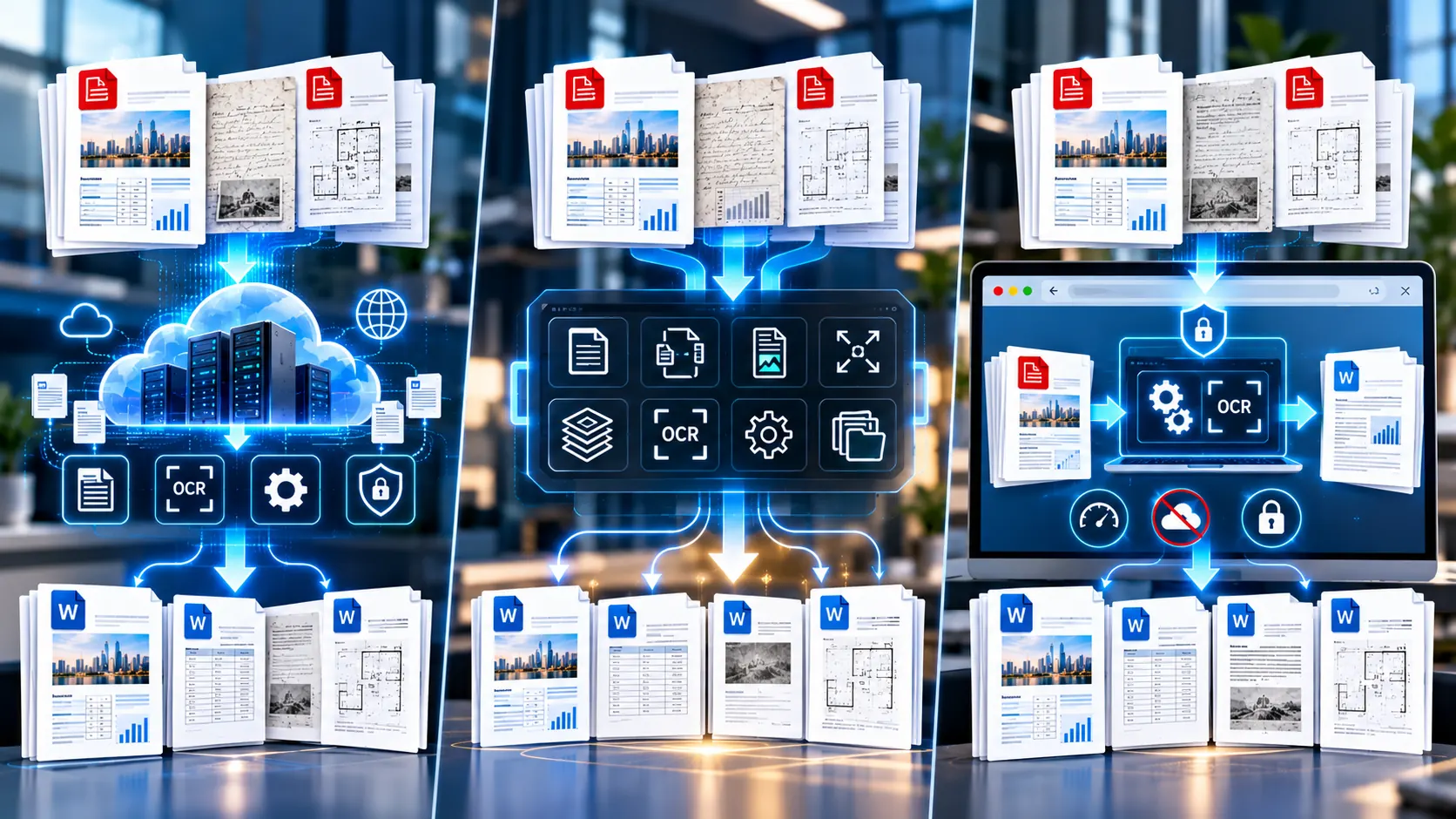
Smallpdf emphasizes a polished browser-based experience, iLovePDF combines online tools with desktop and mobile options, while PKCapra’s PDF-to-Word workflow is designed around browser-side processing rather than sending the PDF to a PKCapra conversion server.
So which approach makes sense for your document?
This comparison looks at conversion workflow, OCR, formatting, privacy, device support, ease of use, and practical limitations rather than relying on unsupported “accuracy scores.”
Smallpdf vs iLovePDF vs PKCapra at a Glance
| Feature | Smallpdf | iLovePDF | PKCapra |
|---|---|---|---|
| PDF to editable Word | Yes | Yes | Yes |
| Browser-based | Yes | Yes | Yes |
| Free basic conversion | Yes | Yes | Yes |
| OCR for scanned PDFs | Pro | Premium | Available in the tool workflow |
| Batch conversion | Pro | Premium | Not currently designed as batch conversion |
| Desktop option | Yes | Yes | Not required |
| Mobile browser | Yes | Yes | Yes, through modern browsers |
| Browser-side PKCapra processing | No | No | Yes |
| Page selection | Converter-dependent | Converter-dependent | Yes |
| No software installation | Yes | Yes | Yes |
| Best suited to | General online PDF workflows | Broad PDF productivity | Browser-based individual conversion |
Smallpdf currently documents free PDF-to-Word conversion without account creation, while OCR and unlimited conversions are part of its Pro offering. Smallpdf iLovePDF documents PDF-to-Word conversion, with OCR and higher limits associated with its paid offerings. iLovePDF – Online tools for PDF PKCapra’s PDF/document architecture includes a dedicated PDF-to-Word workflow alongside related PDF tools. pkcapra.com
What Are We Actually Comparing?
A PDF-to-Word converter has several jobs.
At the simplest level, it needs to transform:
PDF → editable DOCX
But real documents introduce additional requirements.
You may also need:
- OCR for scanned pages
- Text extraction
- Page selection
- Layout preservation
- Table handling
- Image preservation
- Font handling
- Hyperlinks
- Multiple-device support
- Privacy controls
- Large-file handling
- Batch processing
A converter that works well for a two-page text document may behave differently when given a 100-page scanned report full of tables and images.
That is why a single “accuracy percentage” would be misleading.
Microsoft itself notes that PDF-to-Word conversion may not reproduce the original page perfectly, particularly with complex elements such as tables, page borders, footnotes, bookmarks, comments, and graphics. Microsoft Support
1. Smallpdf PDF to Word
Smallpdf is built around a straightforward browser-first workflow.
Its current PDF-to-Word tool allows users to upload a PDF and download an editable DOCX without installing desktop software. Smallpdf states that the free converter does not require account creation. Smallpdf
How Smallpdf approaches conversion
The basic workflow is:
- Open the PDF-to-Word converter.
- Upload or drag in the PDF.
- Enable OCR if the document is scanned.
- Start conversion.
- Download the DOCX file.
Smallpdf identifies OCR as a Pro feature and says its converter works through a browser on Windows, Mac, Linux, iOS, and Android. Smallpdf
Formatting
Smallpdf says its converter preserves fonts, images, tables, hyperlinks, and layout structure. Those are Smallpdf’s own documented product claims, rather than an independent accuracy benchmark. Smallpdf
That distinction matters.
A converter can aim to preserve a layout while still producing differences in difficult documents because PDF and DOCX represent document structure differently.
Microsoft explains that PDFs are fixed-layout files and do not necessarily contain the structural relationships Word needs for paragraphs, tables, or columns. Word therefore has to infer those structures during conversion. Microsoft Support
OCR
Smallpdf supports OCR for scanned PDFs, but its current documentation identifies OCR as a Pro feature. Smallpdf
This means a user converting ordinary text-based PDFs may have a different experience from someone working with scanned documents.
Privacy
Smallpdf states that files are protected using TLS during transfer and automatically deleted after one hour unless the user chooses to store them in an account. It also states that the service is GDPR compliant and ISO/IEC 27001 certified. Smallpdf
This is a server-based online workflow, so users handling confidential files should consider the provider’s stated storage and processing policies before uploading documents.
Smallpdf makes sense when:
- You want a polished browser interface.
- You don’t want to install software.
- You need occasional PDF-to-Word conversion.
- You want to work across different operating systems.
- You already use Smallpdf for other PDF tasks.
2. iLovePDF PDF to Word
iLovePDF takes a broader PDF-productivity approach.
Its PDF-to-Word tool supports editable Word output and identifies OCR as the method for converting scanned, non-selectable PDF text into editable Office documents. iLovePDF – Online tools for PDF
How iLovePDF approaches conversion
The basic workflow is similar:
- Open PDF to Word.
- Select a PDF.
- Choose standard conversion or OCR where applicable.
- Convert.
- Download the DOCX.
iLovePDF also supports cloud sources such as Google Drive and Dropbox according to its documentation. iLovePDF – Online tools for PDF
OCR
OCR is an important part of the iLovePDF ecosystem.
Its current documentation identifies OCR as a Premium capability for PDF-to-Word conversion and says the technology converts non-selectable text into editable Office content. iLovePDF – Online tools for PDF
iLovePDF also publishes guidance explaining that scan quality matters. Blurry documents, difficult fonts, and handwritten annotations can affect the result. iLovePDF – Online tools for PDF
That is a useful reminder for anyone comparing converters:
OCR quality is partly a document-quality problem, not just a converter problem.
Batch conversion
iLovePDF supports batch processing for multiple files, but its published documentation identifies batch conversion as a Premium feature. iLovePDF – Online tools for PDF
Its desktop application also provides an offline workflow, with iLovePDF documenting PDF-to-Word conversion through its Windows and Mac desktop application. iLovePDF – Online tools for PDF
Privacy
iLovePDF states that uploaded documents are encrypted and automatically deleted after processing, and it describes its security and compliance practices on its published pages. iLovePDF – Online tools for PDF
As with any cloud converter, however, the important question for confidential files is not simply whether encryption exists. You should also consider where processing occurs, what gets uploaded, retention rules, account storage, and organizational requirements.
iLovePDF makes sense when:
- You want a broad PDF toolkit.
- You regularly use several PDF operations.
- You need batch processing.
- You want desktop and online options.
- OCR is important to your workflow.
- You are comfortable using Premium features for higher-volume work.
3. PKCapra PDF to Word
PKCapra takes a different approach from the two established cloud-focused services.
The current PKCapra PDF-to-Word workflow is designed for browser-based conversion, with the PDF processed directly in the browser rather than uploaded to a PKCapra conversion endpoint.
The tool allows users to:
- Upload a PDF
- Choose pages
- Convert the PDF to DOCX
- Keep page breaks
- Enable OCR for scanned PDFs
- Download the resulting Word document
This makes the workflow particularly useful when the job is one PDF that needs to become an editable Word document, rather than a large batch-processing operation.
Browser-side processing changes the privacy model
This is one of the biggest differences in this comparison.
With a server-based converter, your document must generally be transferred to the service’s infrastructure for processing.
With PKCapra’s browser-side PDF-to-Word workflow, the conversion is designed to happen within the browser.
That means the question isn’t simply:
“Is this online?”
The more useful question is:
“Where is the document actually processed?”
That distinction was also central to the previous article in this cluster about online versus desktop PDF conversion.
OCR
PKCapra’s PDF-to-Word workflow includes an OCR option for scanned PDFs.
However, OCR should not be treated as magic.
A low-resolution scan, skewed page, unusual font, handwriting, or heavily degraded source can still produce imperfect recognition.
Microsoft similarly notes that conversion and recognition quality depends on the nature and structure of the original document. Microsoft Support
Page selection
PKCapra’s workflow also allows users to choose which PDF pages should be converted.
That can be useful when you have a 100-page PDF but only need pages 12–18 in an editable Word document.
Instead of creating a large DOCX and deleting unwanted pages afterward, you can select the relevant range during conversion.
Related PDF workflows
PKCapra also provides a broader collection of PDF utilities.
For example, if a document is too large before conversion, the Compress PDF tool can be used as a separate preparation step.
If you need to combine documents first, the Merge PDF tool handles that separate workflow.
The broader PDF & Document Tools collection brings these workflows together. pkcapra.com
PKCapra makes sense when:
- You want browser-based conversion.
- You want local browser processing.
- You need page selection.
- You occasionally convert individual PDFs.
- You don’t want to install desktop PDF software.
- You want a straightforward PDF-to-DOCX workflow.
Smallpdf vs iLovePDF vs PKCapra: Conversion Workflow
The three tools have different philosophies.
Smallpdf
Simple browser workflow → cloud processing → DOCX
The focus is convenience and a broad online PDF ecosystem.
iLovePDF
Browser/desktop workflow → PDF productivity ecosystem → DOCX
The focus is broader document management, including batch and offline workflows.
PKCapra
Browser workflow → browser-side processing → DOCX
The focus is a direct web-based conversion workflow without sending the PDF to a PKCapra conversion endpoint.
None of these approaches is automatically right for every document.
The correct choice depends on the file, privacy requirements, volume, and features you actually need.
Speed: Which PDF to Word Converter Is Faster?
This is the section where comparison articles often become unreliable.
It is tempting to say:
Tool A converts a PDF in 8 seconds, Tool B takes 12 seconds, and Tool C takes 15 seconds.
But unless all three tools are tested under the same conditions with the same documents, network connection, browser, device, file size, OCR settings, and server load, those numbers don’t tell you much.
A responsible comparison should therefore avoid invented stopwatch results.
What affects conversion speed?
Several variables can affect the actual experience:
- PDF file size
- Number of pages
- Number of images
- Scan resolution
- OCR requirement
- Number of fonts
- Tables and complex layouts
- Browser/device performance
- Internet upload speed
- Server load
- Download speed
For ordinary text-based PDFs, the differences may be barely noticeable.
For large scanned PDFs, OCR can become a much heavier operation.
Accuracy: What Does “Accurate” Actually Mean?
PDF-to-Word accuracy has several dimensions.
Text accuracy
Does the converted document contain the correct words?
Layout accuracy
Are paragraphs, headings, columns, and page breaks reasonably preserved?
Table accuracy
Are rows and columns still usable?
Image accuracy
Are images present and positioned appropriately?
Font accuracy
Are fonts retained or substituted?
OCR accuracy
For scanned documents, were characters recognized correctly?
Structural accuracy
Did the converter produce useful Word objects rather than turning everything into awkward positioned elements?
These are different tests.
A converter can have excellent text recognition while still struggling with a complicated table.
Microsoft explicitly warns that some PDF elements do not convert cleanly into Word and that page-to-page correspondence may change. Microsoft Support
Why PDF-to-Word Accuracy Is Difficult
A PDF may look like a normal document to a human reader.
Internally, however, it can be much more complicated.
A PDF may contain:
- Individual text fragments
- Positioned graphics
- Images
- Vector objects
- Embedded fonts
- Tables represented visually
- Separate text layers
- Invisible OCR layers
Word needs a different representation.
It needs things such as:
- Paragraphs
- Headings
- Tables
- Lists
- Text boxes
- Images
- Page structure
The conversion engine therefore has to interpret the visual PDF structure and reconstruct an editable document structure.
This is why no responsible converter comparison should promise perfect preservation for every PDF.
Scanned PDFs: Smallpdf vs iLovePDF vs PKCapra
Scanned documents deserve their own comparison.
A scanned PDF may contain an image of a page rather than actual text.
If you select the text and nothing happens, that is often a sign that OCR is needed.
Smallpdf
Smallpdf provides OCR for scanned PDF-to-Word conversion as a Pro feature. Smallpdf
iLovePDF
iLovePDF provides OCR-powered PDF-to-Word conversion and identifies OCR as a Premium feature. iLovePDF – Online tools for PDF
PKCapra
PKCapra’s PDF-to-Word workflow includes an OCR option for scanned PDFs.
PKCapra also has a separate OCR PDF tool for turning scanned PDF pages into searchable PDFs. Its current implementation documents limits including up to 20 pages and English OCR. pkcapra.com
That separate OCR tool should not be confused with the OCR capability in the PDF-to-Word workflow.
Formatting: Don’t Expect Identical PDFs and DOCX Files
A common mistake is expecting a DOCX file to be a perfect editable copy of a PDF.
That isn’t always technically possible.
Microsoft explains that PDFs are fixed-layout documents and that Word must reconstruct their content into editable Word structures. Microsoft Support
You may therefore see changes involving:
- Line wrapping
- Page breaks
- Tables
- Columns
- Footnotes
- Headers
- Images
- Fonts
- Spacing
This doesn’t necessarily mean the converter failed.
It means the output needs to be judged according to the purpose of the conversion.
If the goal is to edit the text, small visual differences may be acceptable.
If the goal is to reproduce a publication exactly, a PDF may remain the better final format.
Which Converter Is Better for Simple Text PDFs?
For a normal text-heavy document, the conversion problem is comparatively straightforward.
Examples include:
- Business reports
- Letters
- Contracts
- Research papers
- Simple proposals
- Text-heavy forms
Smallpdf, iLovePDF, and PKCapra all target this type of PDF-to-Word workflow.
Microsoft also says PDF conversion works best with documents that are mostly text. Microsoft Support
For these documents, workflow convenience may matter more than theoretical differences between converters.
Which Is Better for Scanned Documents?
For scanned documents, look specifically at:
- OCR availability
- OCR pricing
- Supported languages
- Scan quality
- Page limits
- Output editability
- Privacy requirements
Smallpdf documents OCR as a Pro feature. Smallpdf
iLovePDF documents OCR as a Premium capability for PDF-to-Word conversion. iLovePDF – Online tools for PDF
PKCapra provides OCR within its PDF-to-Word workflow, while its dedicated OCR PDF tool has separately documented English-language and page limits. pkcapra.com
For multilingual or highly specialized scans, supported language coverage should be checked before starting a large conversion project.
Which Is Better for Privacy?
Privacy isn’t simply a matter of whether a site uses HTTPS.
The more important question is where the PDF goes and where conversion happens.
Smallpdf
Smallpdf says files are encrypted during transfer and automatically deleted after one hour unless stored in an account. Smallpdf
iLovePDF
iLovePDF says uploaded files are encrypted and automatically deleted after processing, while also describing its security and compliance measures. iLovePDF – Online tools for PDF
PKCapra
PKCapra’s PDF-to-Word workflow is designed for browser-side processing, meaning the PDF does not need to be sent to a PKCapra conversion endpoint.
For highly confidential files, however, users should still consider their browser, device security, extensions, operating system, organizational policies, and the sensitivity of the document.
Which Is Better for Batch Conversion?
This is one area where the differences are straightforward.
Smallpdf
Smallpdf says Pro supports batch PDF-to-Word conversion. Smallpdf
iLovePDF
iLovePDF supports batch conversion and documents it as a Premium capability. iLovePDF – Online tools for PDF
PKCapra
PKCapra’s current PDF-to-Word workflow is designed around one PDF at a time, rather than being a batch conversion system.
Therefore, if you have 50 PDFs and need them converted automatically, a dedicated batch workflow is more appropriate.
If you have one PDF and want a direct browser conversion, PKCapra’s workflow is much more aligned with that use case.
Which One Should You Use for One PDF?
For one ordinary PDF, all three can be considered depending on your priorities.
Choose Smallpdf when:
You want a familiar cloud-based PDF ecosystem and a simple browser interface.
Choose iLovePDF when:
You already use its broader collection of PDF tools or need its desktop/mobile ecosystem.
Choose PKCapra when:
You want a direct browser-based workflow with processing designed to stay in your browser and don’t need batch conversion.
If your main goal is simply to turn a single PDF into an editable DOCX, you can use the PKCapra PDF to Word Converter directly.
What About Microsoft Word’s Built-In PDF Conversion?
There is another option that shouldn’t be ignored: Word itself.
Microsoft documents a built-in workflow where you open a PDF in desktop Word and Word creates an editable copy.
Microsoft also warns that the result may not maintain perfect page-to-page correspondence, particularly with complicated PDFs. Microsoft Support
This can be perfectly reasonable when:
- You already have Microsoft Word.
- The PDF is mostly text.
- You don’t want to upload the file.
- You only have a small number of documents.
It becomes less convenient when you need:
- OCR-focused workflows
- Browser access
- Dedicated PDF tools
- Batch conversion
- Specialized PDF processing
A Practical Test You Can Run Yourself
If accuracy is critical, don’t rely entirely on someone else’s comparison.
Run your own small test.
Choose three PDFs:
Test PDF 1: Simple text
Use a normal text-heavy report.
Check:
- Paragraphs
- Headings
- Page breaks
- Fonts
Test PDF 2: Complex layout
Use a document containing:
- Tables
- Columns
- Images
- Headers
- Footers
Check whether the DOCX remains practical to edit.
Test PDF 3: Scanned document
Use a clean scanned page.
Check:
- OCR accuracy
- Numbers
- Names
- Formatting
- Tables
- Special characters
Then compare the actual outputs.
This is far more useful than relying on a generic “99% accuracy” claim.
A Simple Scoring Framework for Your Own Test
You can score each output based on your actual needs.
| Test | What to inspect |
|---|---|
| Text | Missing or incorrect words |
| Layout | Paragraphs, columns and page breaks |
| Tables | Rows, columns and cell content |
| Images | Position and quality |
| Fonts | Correct or substituted fonts |
| OCR | Recognition of scanned text |
| Editing | How easy the DOCX is to modify |
| Privacy | Where processing occurs |
| Workflow | Steps required |
| Cost | Free vs paid features |
This produces a result that is more meaningful for your documents than a universal accuracy ranking.
Common Reasons a PDF-to-Word Conversion Looks Bad
If one converter produces a messy DOCX, the cause may be the source PDF rather than the converter alone.
Common problems include:
The PDF is scanned
OCR is required.
The scan is blurry
OCR may misread characters.
The PDF uses unusual fonts
The output may substitute fonts.
The PDF has complex columns
Text can reflow unexpectedly.
Tables are visually constructed
The converter may struggle to reconstruct the table structure.
The PDF contains many positioned objects
The Word output can become difficult to edit.
The PDF is heavily image-based
The resulting document may contain images rather than editable text.
Microsoft documents several of these limitations in its explanation of opening PDFs in Word. Microsoft Support
Smallpdf vs iLovePDF vs PKCapra: The Real Difference
The most useful way to understand these three tools is not to ask:
“Which converter has the highest accuracy?”
Instead, ask:
“Which conversion model fits my document and workflow?”
Smallpdf
A strong fit for users who value a polished browser experience, cross-platform access, and a broad cloud PDF ecosystem. Its free PDF-to-Word workflow does not require account creation, while OCR and batch-oriented capabilities are tied to Pro. Smallpdf
iLovePDF
A strong fit for users who want a larger PDF productivity ecosystem, including batch conversion, OCR, cloud integrations, and desktop workflows. Several higher-volume capabilities are associated with Premium. iLovePDF – Online tools for PDF
PKCapra
A strong fit for users who want an individual PDF-to-Word workflow that operates in the browser with browser-side processing. It is not currently positioned as a bulk conversion service.
Final Verdict: Choose Based on Your Workflow
There isn’t a universally correct PDF-to-Word converter for every document.
If your priority is a polished general-purpose online PDF workflow, Smallpdf provides a straightforward browser experience with free basic conversion and paid OCR/batch features. Smallpdf
If you need a broad PDF productivity suite with batch and desktop options, iLovePDF provides a larger ecosystem and documents OCR, batch conversion, and offline workflows. iLovePDF – Online tools for PDF
If your priority is browser-based individual PDF-to-Word conversion with processing designed to remain in the browser, PKCapra takes a different approach.
For the most important documents, don’t choose a converter based solely on a marketing claim about “accuracy.” Test a representative PDF containing the structures you actually care about.
A two-page text document, a scanned contract, and a complex financial report can produce very different conversion challenges.
The best comparison is therefore the one that matches your actual PDFs, privacy requirements, volume, and editing needs.
Frequently Asked Questions
Is Smallpdf better than iLovePDF for PDF to Word?
Smallpdf and iLovePDF offer similar core PDF-to-Word workflows, but their broader feature sets and paid capabilities differ. Smallpdf documents browser-based conversion, OCR through Pro, and batch conversion through Pro. iLovePDF documents OCR, batch conversion, desktop processing, and broader PDF workflows. Smallpdf
Is PKCapra a good alternative to Smallpdf and iLovePDF?
PKCapra is an alternative for users who want a browser-based PDF-to-Word workflow with browser-side processing. It is particularly suited to individual conversions rather than high-volume batch processing.
Which PDF-to-Word converter is most accurate?
There is no universal accuracy result that can responsibly be assigned without a controlled benchmark. Conversion quality varies with document structure, scan quality, fonts, tables, images, OCR requirements, and other factors. Microsoft also documents limitations when converting complex PDFs to Word. Microsoft Support
Which is fastest: Smallpdf, iLovePDF, or PKCapra?
A reliable speed winner requires controlled testing with identical files, devices, browsers, network conditions, OCR settings, and server conditions. Without that controlled benchmark, published feature information cannot establish a universal speed ranking.
Can Smallpdf convert scanned PDFs to Word?
Yes. Smallpdf documents OCR support for scanned PDF-to-Word conversion and identifies OCR as a Pro feature. Smallpdf
Can iLovePDF convert scanned PDFs to Word?
Yes. iLovePDF provides OCR for scanned PDFs and documents OCR-powered conversion to editable Word files. iLovePDF – Online tools for PDF
Can PKCapra convert scanned PDFs to Word?
Yes. PKCapra’s PDF-to-Word workflow includes an OCR option for scanned PDFs.
Can I convert multiple PDFs with PKCapra?
The current PKCapra PDF-to-Word workflow is designed for individual PDF conversion rather than batch processing multiple PDFs simultaneously.
Does PDF-to-Word conversion preserve the original formatting perfectly?
No converter should be assumed to preserve every element perfectly. Microsoft specifically notes that some PDF elements, including certain tables, footnotes, borders, comments, bookmarks, and graphics, may not convert cleanly into Word. Microsoft Support
Should I use Word instead of a PDF converter?
If you already have Microsoft Word and are converting a mostly text-based PDF, Word’s built-in PDF conversion can be useful. Microsoft notes that Word creates a converted copy while leaving the original PDF unchanged, but complex layouts may not convert perfectly.