
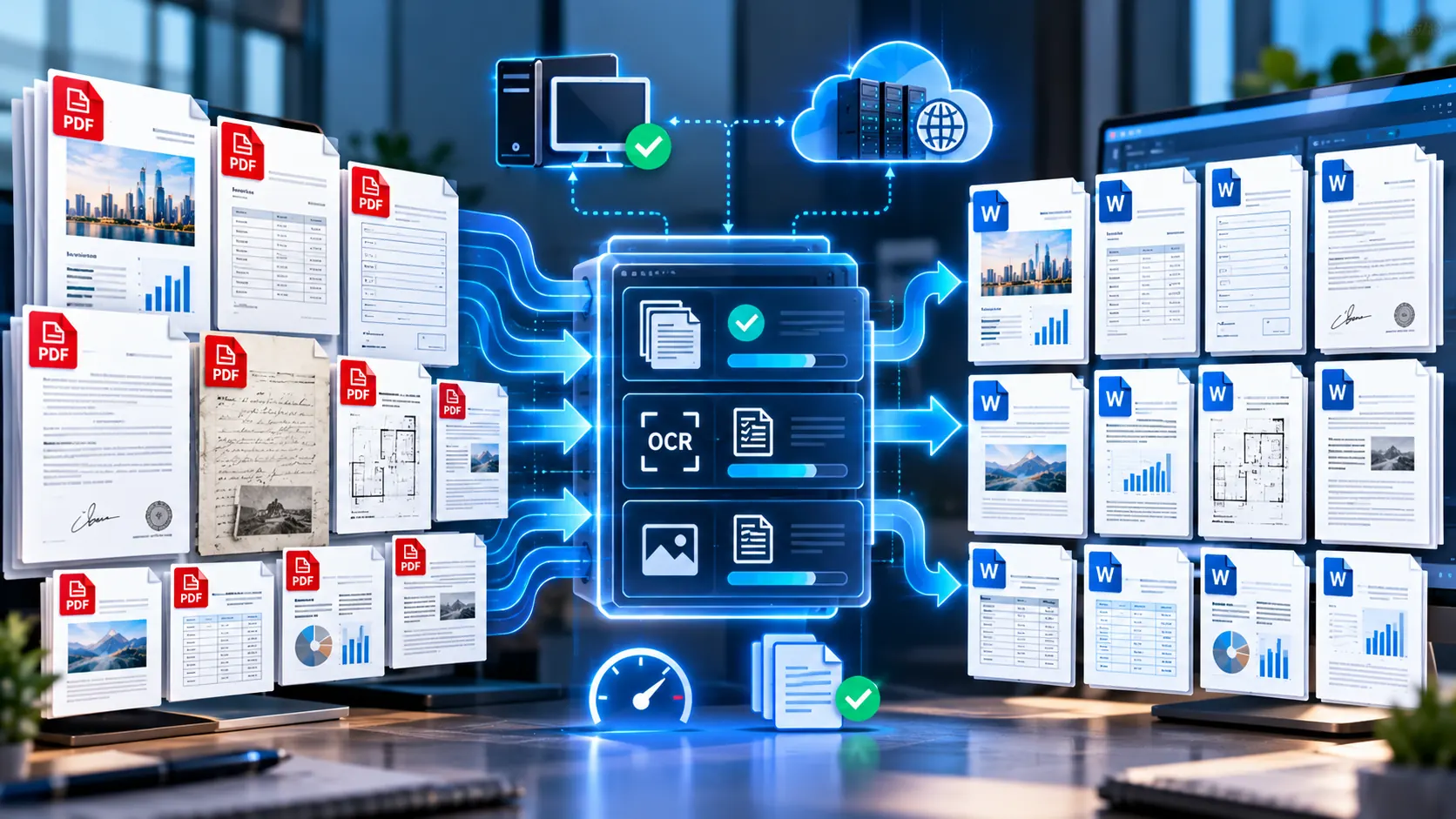
Converting one PDF to Word is easy. Converting 20, 50, or 100 PDFs one by one is a completely different problem.
If you regularly process invoices, contracts, reports, research papers, forms, applications, or archived documents, the biggest productivity gain often comes from batch conversion rather than from shaving a few seconds off a single conversion.
The right bulk PDF to Word converter should let you select multiple PDFs, process them without repeatedly restarting the workflow, and produce separate editable Word files. But there is an important trade-off: some batch converters are free, some require a paid plan, and some work locally on your computer while others upload your files to remote servers.
This guide compares five practical options:
- PDF24 — a strong free option for online multi-file conversion
- PDFgear — a free desktop option with batch conversion
- iLovePDF — a polished cloud-based batch workflow
- Smallpdf — a simple batch workflow through its Pro plan
- Adobe Acrobat Pro — a professional option with automation through Action Wizard
If you only need to convert one PDF occasionally, you may not need batch software at all. In that case, a browser-based PDF to Word Converter can be a simpler workflow.
What Is a Bulk PDF to Word Converter?
A bulk or batch PDF to Word converter processes multiple PDF files during the same conversion workflow instead of requiring you to upload, convert, download, and repeat the process for every file.
For example, imagine you have:
- 25 client reports
- 40 scanned invoices
- 15 research papers
- 30 application forms
- 100 archived business documents
With a single-file converter, you may have to repeat the same process dozens of times.
With batch processing, you can select multiple PDFs, start the conversion, and receive separate Word documents as the output.
The important distinction is that batch conversion does not normally mean merging all PDFs into one Word document. A proper batch workflow usually creates one DOCX output for each source PDF.
The 5 Best Options at a Glance
| Converter | Batch PDF → Word | Free batch option | Processing model | Best for |
|---|---|---|---|---|
| PDF24 | Yes | Yes | Online/server-side | Free multi-file conversion |
| PDFgear | Yes | Yes | Desktop/local | Free offline batch processing |
| iLovePDF | Yes | Paid for batch | Online + desktop | Polished productivity workflow |
| Smallpdf | Yes | Pro required | Online | Simple cloud workflow |
| Adobe Acrobat Pro | Yes | No | Desktop | Professional automation |
The most important thing to notice is that “bulk PDF to Word” and “free PDF to Word” are not always the same thing. Some services reserve batch processing for paid plans.
1. PDF24 — Best Free Online Option for Multiple PDFs
PDF24 is particularly interesting if your priority is processing multiple PDF files without buying a subscription.
Its PDF-to-Word tool explicitly allows users to select multiple PDFs and convert them to Word files. PDF24 describes the service as free, without registration or subscription requirements, and says files are automatically deleted from its server after a short period. PDF24 Tools
Why PDF24 stands out
PDF24 is a good fit when you want:
- Multiple PDFs in one workflow
- No software installation
- No registration
- A free online service
- Separate Word outputs
- Support across common operating systems and browsers
The major trade-off is processing location.
PDF24 states that the conversion takes place on its servers rather than locally on your device. It also says files are transferred using SSL and are automatically removed after a short period. PDF24 Tools
That makes PDF24 attractive for ordinary documents, but confidential files should still be evaluated according to your organization’s privacy requirements.
Best for: Users who want a free online batch workflow.
2. PDFgear — Best Free Desktop Option
PDFgear takes a different approach.
Its Windows and Mac applications support batch PDF-to-Word conversion, allowing multiple PDF files to be added before conversion. PDFgear also documents OCR support for scanned PDFs. PDFgear
Why PDFgear is useful for batch work
A desktop workflow can be preferable when you have a large collection of files because you don’t need to repeatedly upload every document to an online service.
PDFgear’s documented workflow lets you:
- Open the desktop application.
- Select PDF to Word.
- Add multiple PDF files.
- Enable OCR when necessary.
- Select an output location.
- Start the conversion.
- Open the resulting Word files.
PDFgear says its desktop applications support batch conversion on both Windows and Mac. PDFgear
What makes it different from online converters?
The main advantage is local desktop processing.
If your workflow involves hundreds of documents or documents that shouldn’t leave your computer, desktop software can be more appropriate than an online service.
However, local processing also means you need to install and maintain the software.
Best for: Users who want free batch processing on their own computer.
3. iLovePDF — Best for a Familiar Cloud Workflow
iLovePDF offers batch PDF-to-Word conversion, but its own documentation makes an important distinction: batch conversion is available to Premium users. iLovePDF – Online tools for PDF
Its workflow is designed around selecting multiple files, converting them together, and downloading the resulting documents.
Why choose iLovePDF?
It can make sense when you already use iLovePDF for other PDF operations and want one ecosystem for:
- PDF-to-Word conversion
- PDF-to-Excel conversion
- PDF-to-PowerPoint conversion
- PDF compression
- PDF merging
- PDF splitting
- Other document operations
iLovePDF also offers desktop software, and its documentation describes batch conversion through the desktop workflow. iLovePDF – Online tools for PDF
The main limitation
The important point for someone searching for a free bulk PDF-to-Word converter is that iLovePDF’s batch capability is not simply equivalent to its free single-file workflow.
Its documentation states that multiple files per task are available through Premium. iLovePDF – Online tools for PDF
So if avoiding a subscription is your main objective, there are better options in this list.
Best for: Users already invested in the iLovePDF ecosystem who need broader PDF productivity features.
4. Smallpdf — Best for a Simple Cloud Interface
Smallpdf is known for keeping its PDF tools relatively simple to operate.
For PDF-to-Word conversion, Smallpdf specifically states that Smallpdf Pro supports batch conversion of PDFs to Word. Smallpdf
Why Smallpdf can work well
The attraction is simplicity.
A typical workflow is:
- Select your PDFs.
- Upload them.
- Start the conversion.
- Download the Word outputs.
- Review the resulting DOCX files.
Smallpdf also supports OCR for scanned PDFs through its conversion workflow. Smallpdf
The catch: batch processing is a Pro feature
If you’re specifically searching for:
convert multiple PDF files to Word at once free
Smallpdf is not the strongest match because its own documentation places batch PDF-to-Word conversion under Smallpdf Pro. Smallpdf
It becomes more attractive when convenience and a polished cloud workflow matter more than avoiding a paid plan.
Best for: Users who prioritize ease of use and already have access to Smallpdf Pro.
5. Adobe Acrobat Pro — Best for Professional Batch Automation
Adobe Acrobat is the more heavyweight choice in this comparison.
Acrobat Pro includes Action Wizard, which allows users to create repeatable actions and apply them to multiple documents. Adobe’s current documentation says an action can be applied to a single document, several documents, or a collection of documents. Adobe Help Center
Adobe’s 2026 documentation specifically recommends using Action Wizard when you need to export multiple PDF files to another format. Experience League
Why Acrobat Pro is different
This isn’t merely a “select several files” workflow.
Action Wizard can be used to automate a sequence of operations. You can add files or folders to the processing list and run the action across them. Adobe Help Center
That makes Acrobat Pro particularly useful when your workflow involves additional processing steps.
For example, a business might need to:
- Process a folder of PDFs
- Apply a repeatable operation
- Export documents to Word
- Save the resulting files
- Run the same workflow repeatedly
Adobe also documents direct PDF-to-DOCX conversion within Acrobat. Adobe Help Center
The trade-off
Acrobat Pro is professional software rather than a free batch utility.
If you only need to convert a handful of PDFs occasionally, its broader feature set may be unnecessary.
Best for: Businesses, professionals, and high-volume workflows that need repeatable PDF automation.
Which Bulk PDF to Word Converter Is Actually Free?
This is where many comparison articles become confusing.
A converter may advertise free PDF-to-Word conversion while putting batch processing behind a paid plan.
Based on the vendors’ current documentation:
PDF24
PDF24 describes its online PDF-to-Word service as free and allows multiple PDFs to be selected. PDF24 Tools
PDFgear
PDFgear documents batch PDF-to-Word conversion in its free desktop applications for Windows and Mac. PDFgear
iLovePDF
iLovePDF supports batch PDF-to-Word conversion, but its documentation identifies batch conversion as a Premium feature. iLovePDF – Online tools for PDF
Smallpdf
Smallpdf says batch PDF-to-Word conversion is available with Smallpdf Pro. Smallpdf
Adobe Acrobat Pro
Acrobat Pro provides batch processing through Action Wizard, but it is a professional paid application rather than a free bulk converter. Adobe Help Center
So for a user whose primary requirement is free batch PDF-to-Word conversion, PDF24 and PDFgear deserve the closest attention.
Online Batch Conversion vs Desktop Batch Conversion
The biggest decision isn’t always price.
It is where your files are processed.
Online batch converters
Online tools generally offer:
- No installation
- Easy access from different computers
- Simple browser workflows
- Centralized processing
- Convenient sharing and downloading
But your PDFs may need to be uploaded to the provider’s infrastructure.
PDF24, for example, explicitly says its online PDF-to-Word conversion is performed on its servers. PDF24 Tools
Desktop batch converters
Desktop applications can offer:
- Local file access
- Better control over the working environment
- No repeated browser uploads
- Better suitability for large document collections
- Offline workflows in some applications
PDFgear provides desktop batch conversion, while iLovePDF also offers a desktop application with offline PDF-to-Word workflows. PDFgear
For confidential documents, however, you should still evaluate the software, operating system, endpoint security, storage locations, and organizational policies rather than assuming that every desktop application is automatically secure.
What About Scanned PDFs?
Batch conversion becomes more complicated when your PDFs are scanned documents.
A normal PDF can contain selectable text. A scanned PDF may instead contain page images.
If the converter doesn’t perform OCR, the resulting Word file may not contain genuinely editable text.
OCR matters when converting:
- Scanned contracts
- Paper invoices
- Old reports
- Photocopied documents
- Scanned books
- Government forms
- Image-only archives
PDFgear documents OCR for scanned PDF-to-Word conversion. PDFgear
Smallpdf also documents OCR support for scanned PDFs. Smallpdf
iLovePDF likewise documents OCR-powered conversion for scanned documents. iLovePDF – Online tools for PDF
But OCR quality should be evaluated separately from batch capability.
A converter can process 100 PDFs at once and still produce poor editable text if the source scans are low quality.
Don’t Confuse Batch Conversion With Perfect Formatting
Batch processing solves a volume problem.
It does not automatically solve a formatting problem.
PDFs are designed primarily for consistent visual presentation. Word documents are designed for editable document structure.
During conversion, problems can appear with:
- Multi-column layouts
- Tables
- Headers and footers
- Text boxes
- Embedded images
- Unusual fonts
- Complex spacing
- Footnotes
- Forms
- Scanned pages
- Charts and diagrams
This is why a good batch workflow should include a quality-control stage after conversion.
You don’t necessarily need to inspect every page manually. But for important documents, sample several outputs before assuming the entire batch is correct.
A Better Batch Conversion Workflow
If you’re processing a large document collection, don’t simply throw everything into the converter at once.
Use a controlled workflow.
Step 1: Organize the source PDFs
Put the PDFs into a clearly named folder.
For example:
Client-Reports-2026
Then separate documents by type if necessary.
Step 2: Remove unnecessary files
Don’t batch-convert PDFs you don’t actually need in Word format.
If the final requirement is only archival or viewing, keeping the original PDF may be preferable.
Step 3: Check for scanned documents
Identify which PDFs are image-only.
Those documents may require OCR.
Step 4: Choose the batch converter
Use a free option for ordinary bulk work, a desktop workflow for local processing, or professional software when you need repeatable automation.
Step 5: Convert a small sample first
Before processing 100 files, test five.
Check:
- Text accuracy
- Tables
- Images
- Page breaks
- Fonts
- Headers
- Footers
- OCR results
Step 6: Process the full batch
Once the sample looks acceptable, process the remaining documents.
Step 7: Review representative outputs
Open several DOCX files from different source types.
A good sample should include the simplest document and the most complicated document.
Step 8: Keep the original PDFs
Never treat the converted Word files as a replacement for your source archive.
Keep the original PDFs when they are important records.
What If You Only Have One PDF?
This is where a bulk converter may actually create unnecessary complexity.
If you have one PDF and simply need an editable Word document, you don’t need batch automation.
PKCapra’s PDF to Word Converter is designed for that simpler workflow. You can upload a PDF, select the pages you need, optionally use OCR for scanned PDFs, and create an editable DOCX directly in the browser.
That makes more sense for occasional one-file conversions than installing professional batch software.
If the PDF is unusually large or image-heavy, a preliminary PDF compression workflow can also be worth considering before conversion.
What If You Have 100 PDFs?
At 100 files, the choice becomes more important.
Choose a free online batch tool when:
- The documents are not highly confidential
- You don’t want to install software
- You need occasional batch conversion
- Cost is the main consideration
Choose desktop software when:
- You process documents frequently
- You want local processing
- Your files are sensitive
- You need to work without relying on an upload service
Choose professional automation when:
- You process large document collections regularly
- You need repeatable workflows
- Multiple PDF operations are involved
- Your organization already uses Acrobat Pro
How to Choose the Right Bulk PDF to Word Converter
Before choosing a service, ask these questions.
Does it actually support multiple PDF files?
Some tools advertise PDF-to-Word conversion but process only one file per task on their free tier.
Is batch conversion free?
This is a particularly important distinction.
“Free PDF converter” does not necessarily mean “free batch converter.”
Does it support OCR?
If your PDFs are scans, OCR may be essential.
Are files uploaded to a server?
If you’re handling confidential information, understand where processing occurs.
Does it preserve formatting?
Test tables, columns, images, fonts, and page breaks before processing a large collection.
Can it process large files?
Large PDFs can behave differently from ordinary text documents.
Does it work offline?
Offline processing can be useful for sensitive or high-volume workflows.
Does it produce separate DOCX files?
If you need one Word document per PDF, verify the output behavior before starting the batch.
Bulk PDF to Word: Which One Should You Choose?
There isn’t one universal winner.
Choose PDF24 if you want a free online option that supports selecting multiple PDFs.
Choose PDFgear if you want free desktop batch conversion and local processing.
Choose iLovePDF if you want a polished PDF productivity suite and don’t mind using its Premium batch features.
Choose Smallpdf if you value a simple cloud workflow and have access to Pro.
Choose Adobe Acrobat Pro if your business needs more advanced document automation rather than just basic batch conversion.
And if you’re dealing with one PDF rather than dozens, don’t overcomplicate the task. A straightforward browser-based PDF-to-Word converter can be faster and more convenient.
Frequently Asked Questions
Can I convert multiple PDF files to Word at once for free?
Yes. Some tools support free batch PDF-to-Word conversion, while others reserve batch processing for paid plans. PDF24 documents multi-file PDF-to-Word conversion as part of its free online service, while PDFgear documents batch conversion in its desktop software. PDF24 Tools
What is the best free batch PDF to Word converter?
For users specifically looking for free batch processing, PDF24 and PDFgear are two options worth evaluating. PDF24 provides an online workflow, while PDFgear provides desktop batch conversion. PDF24 Tools
Can I batch-convert scanned PDFs to Word?
Yes, if the converter supports OCR. OCR is important because scanned PDFs may contain images rather than selectable text. PDFgear, Smallpdf, and iLovePDF all document OCR-related PDF-to-Word capabilities. PDFgear
Is batch PDF-to-Word conversion better than converting files individually?
For large collections, batch processing can save substantial repetitive work. However, individual conversion can be preferable when you need to carefully control page selection, OCR settings, or formatting for each document.
Does batch conversion merge all PDFs into one Word file?
Not necessarily. A typical batch workflow processes multiple source PDFs and produces separate Word outputs. Always check the converter’s output behavior before processing a large collection.
Is online batch PDF-to-Word conversion safe?
It depends on the service and its processing model. Online converters may upload documents to remote servers, so confidential files require additional privacy and security consideration. For sensitive documents, a trusted local workflow may be preferable.
Can I use PKCapra to convert multiple PDFs at once?
The current PKCapra PDF-to-Word tool is designed around converting one uploaded PDF at a time, rather than bulk batch processing. It is therefore better suited to individual PDF-to-DOCX jobs than to a 50- or 100-file batch.
What should I check after batch converting PDFs to Word?
Review several converted files for text accuracy, tables, images, fonts, page breaks, headers, footers, and OCR quality. A small quality-control sample can reveal conversion problems before you rely on the entire batch.
Final Takeaway
Batch PDF-to-Word conversion is primarily a workflow and volume problem, not simply a file-format problem.
If you only convert occasional documents, a simple browser converter is usually enough. If you regularly process dozens of PDFs, batch capability can eliminate a large amount of repetitive work.
For free batch processing, PDF24 and PDFgear are particularly worth investigating. For broader cloud-based productivity, iLovePDF and Smallpdf offer batch workflows through their paid offerings. For professional automation, Adobe Acrobat Pro provides Action Wizard for processing multiple documents and repeatable actions. PDF24 Tools
The most important thing is to match the tool to the actual workload: one PDF needs simplicity; dozens of PDFs need batch processing; sensitive documents need careful consideration of where processing happens.