
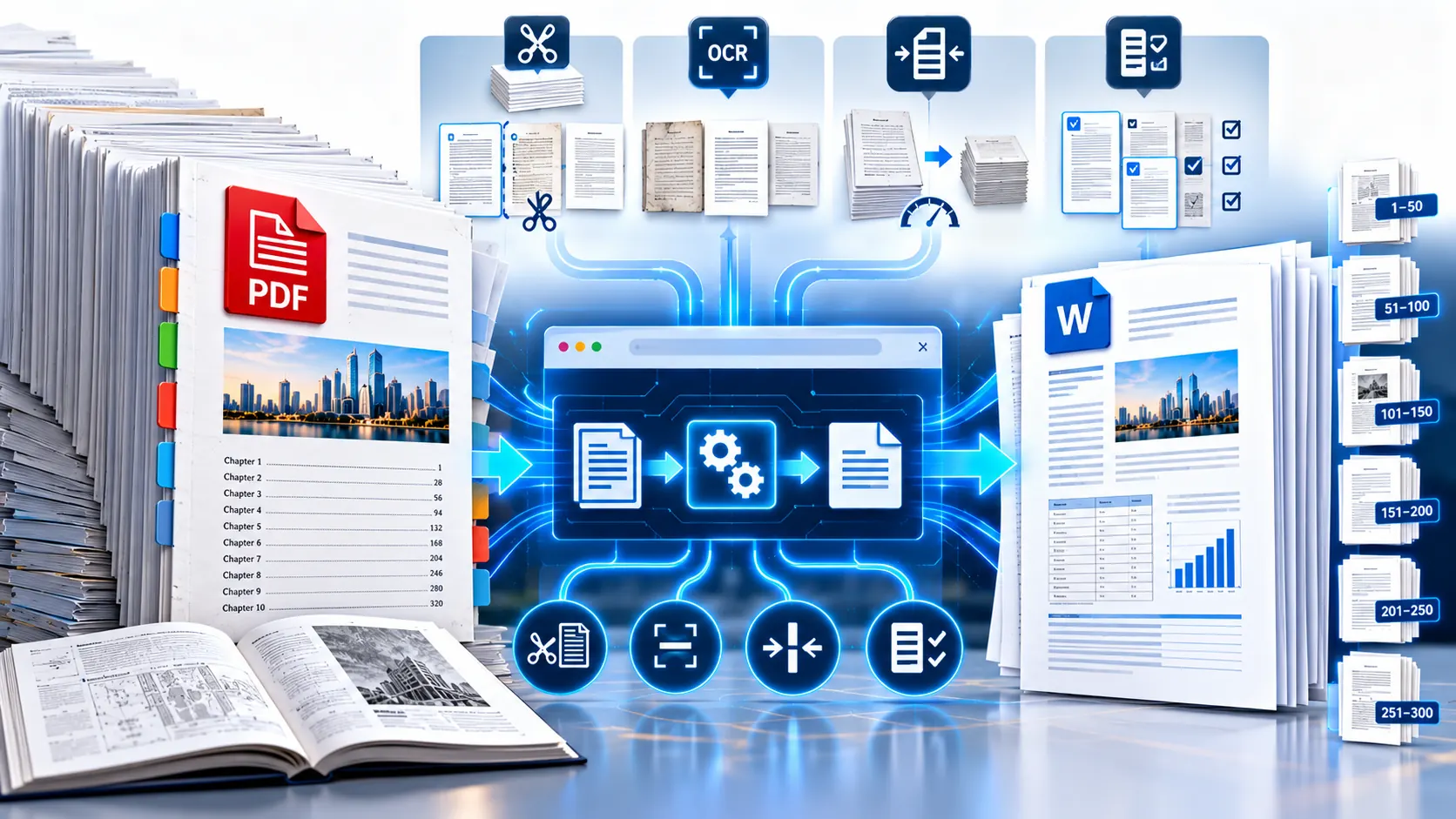
Large PDF files can be difficult to convert to Word, especially when they contain hundreds of pages, scanned images, large graphics, complex tables, or multiple document layouts. Instead of trying to force an entire book-length PDF through one conversion step, a more reliable approach is to prepare the file, divide the workload when necessary, convert manageable sections, and review the resulting Word documents.
If you need to convert a large PDF file to Word online free, the key is not simply finding a converter. You also need to understand what makes a PDF difficult to process and when splitting, compression, page selection, or OCR can make the workflow more manageable.
Why Large PDF Files Are Harder to Convert
A PDF is designed primarily to preserve the appearance of a document. Its internal structure does not always correspond neatly to the paragraphs, headings, tables, images, and editable objects you expect to see in Microsoft Word.
A short text-based PDF may convert relatively easily. A book-length PDF can be very different.
Large files may contain:
- Hundreds of pages
- High-resolution images
- Scanned pages
- Multi-column layouts
- Complex tables
- Embedded fonts
- Headers and footers
- Charts and diagrams
- Different page sizes or orientations
- Text positioned precisely on the page rather than stored as conventional paragraphs
The more complicated the source structure becomes, the more work a conversion process may have to perform.
Microsoft also notes that PDF-to-Word conversion works best with PDFs that are mostly text. Some document elements, including complex tables, frames, certain graphics, comments, footnotes, and other fixed-layout features, may not translate perfectly into an editable Word document.
The Best Way to Convert a Large PDF to Word
You do not always need to convert an entire book-length PDF as one enormous operation.
A practical workflow is:
- Check the PDF before conversion.
- Decide whether you need the entire document or only certain pages.
- Split very large documents into logical sections when necessary.
- Compress the PDF if its file size is unnecessarily large.
- Convert the sections to Word.
- Use OCR when the PDF contains scanned pages.
- Review the converted documents.
- Combine or reorganize the resulting Word files if required.
This approach reduces the amount of work handled during each conversion and makes it easier to identify problematic pages.
Method 1: Convert the Large PDF Directly
If your PDF is reasonably structured and your device can handle the conversion, start by trying the complete document.
PKCapra PDF to Word Converter converts a PDF into an editable DOCX document directly in the browser. The tool also supports selecting pages for conversion, which can be useful when you do not need the entire document.
A direct conversion makes sense when:
- The PDF is primarily text
- The file is not excessively image-heavy
- The document has a relatively straightforward layout
- You need most or all of the pages
- Your computer has enough available resources for the operation
After conversion, open the DOCX file and check the first few pages, several pages from the middle, and the final pages. Do not assume that a successful download means every page converted perfectly.
Method 2: Split a Large PDF Into Smaller Sections
When a book-length PDF becomes difficult to process as one file, splitting it into smaller sections can make the workflow easier.
For example, a 400-page manual could be divided into logical sections such as:
- Pages 1–100
- Pages 101–200
- Pages 201–300
- Pages 301–400
You could also split according to the document’s actual chapters rather than using equal page ranges.
Split PDF can be used when you need to divide a large PDF into smaller documents or work with selected page ranges.
Splitting is particularly useful when:
- The original document is very long
- Only certain chapters need editing
- The complete conversion takes too long
- A particular section causes conversion problems
- You want smaller Word files that are easier to review
Why Splitting Can Help
A smaller conversion unit means fewer pages and document objects have to be processed in a single operation.
It also makes troubleshooting easier.
If a 300-page conversion produces a problem, identifying the cause can be difficult. If the document is divided into six 50-page sections, you can determine which section contains the problematic layout.
This does not guarantee that every section will convert perfectly, but it can make the workflow considerably easier to manage.
Method 3: Compress the PDF Before Converting
Large PDFs are not always large because they contain lots of text. High-resolution images can make a document unnecessarily heavy.
A PDF containing hundreds of scanned pages or full-resolution photographs may require substantially more browser memory and processing resources than a text-focused PDF with the same number of pages.
If the file is unnecessarily large, consider compressing it before conversion.
Compress PDF can reduce PDF file size using browser-based processing and provides compression options for different situations.
Compression should be treated as a preparation step, not a guarantee that the resulting Word document will be smaller or that conversion quality will improve in every case.
If image quality is important, review the compressed PDF before using it as the conversion source.
When You Should Not Compress the Original PDF
Do not automatically compress a PDF simply because it is large.
For example, a technical manual may contain:
- Engineering diagrams
- Product photographs
- Detailed charts
- Architectural drawings
- High-resolution illustrations
- Scanned historical pages
Reducing image quality may make those elements less useful.
If the original PDF already has an acceptable size and your conversion works normally, there may be no reason to introduce compression into the workflow.
Keep the original file unchanged and treat any compressed copy as a separate working version.
What If the PDF Is Scanned?
A scanned book is fundamentally different from a normal text-based PDF.
In a text-based PDF, the words may exist as selectable text. In a scanned PDF, each page may effectively be an image.
Simply converting the page into Word does not automatically turn the image into editable text.
That is where Optical Character Recognition, or OCR, becomes important.
OCR PDF is designed for scanned or image-based PDFs and uses browser-side OCR to recognize text. OCR quality depends heavily on the quality and clarity of the original scan.
For a large scanned book, do not assume that the entire document should be processed through OCR in one operation. Working with smaller sections can make the process easier to control.
Large Scanned PDFs Need Extra Review
OCR is not the same as copying already-existing digital text.
Recognition accuracy can be affected by:
- Blurry scans
- Skewed pages
- Low contrast
- Small text
- Unusual fonts
- Handwriting
- Damaged pages
- Multi-column layouts
- Tables
- Text printed over images
Always proofread OCR-generated content when accuracy matters.
This is especially important for legal documents, financial records, technical manuals, academic material, and other documents where a single incorrectly recognized character can change the meaning.
Large PDFs With Complex Tables
Tables are another common source of conversion problems.
A PDF may visually display a perfect table while storing its text and positioning information in a way that does not map cleanly to a Word table.
After conversion, you may find that:
- Columns have shifted
- Text wraps differently
- Cells have changed size
- Borders are missing
- Rows have become separated
- Numbers are no longer aligned
- A table has been reconstructed as positioned text
If the PDF contains important financial or analytical tables, review them individually rather than assuming the converted Word version preserves the original structure.
Large PDFs With Multiple Columns
Newspapers, magazines, academic papers, books, and technical publications often use multiple columns.
A PDF preserves the visual positions of those elements, while an editable Word document needs a logical text structure.
As a result, conversion can sometimes produce text in an unexpected reading order.
For example, content that visually appears as:
Column 1 → Column 2
may be interpreted differently during conversion.
Check several pages containing columns, particularly pages with:
- Sidebars
- Pull quotes
- Footnotes
- Captions
- Tables
- Images between columns
If the reading order is wrong, the converted document may require manual cleanup.
How to Convert Only the Pages You Actually Need
A common mistake is converting an entire book when only a small section needs editing.
Suppose a 500-page PDF contains one 12-page chapter that needs to be revised.
There is little practical reason to process all 500 pages if the final requirement is only those 12 pages.
In that situation, select the relevant pages during conversion or extract them into a separate PDF first.
This can reduce processing work and produce a smaller Word document that is easier to edit.
A Practical Workflow for a 500-Page PDF
Imagine you have a 500-page technical manual that needs to be edited in Word.
Instead of immediately converting everything, use this workflow:
Step 1: Inspect the source PDF
Determine whether the document is:
- Mostly selectable text
- Mostly scanned pages
- Image-heavy
- Table-heavy
- Multi-column
- A mixture of several formats
Step 2: Decide whether you need all 500 pages
If only certain chapters are required, identify those pages first.
Step 3: Create manageable sections
If the full file is difficult to process, split it into logical sections.
Step 4: Compress only when appropriate
If oversized images are creating unnecessary file weight, create a compressed working copy.
Step 5: Use OCR for scanned sections
Do not expect ordinary text conversion to create editable text from pages that are fundamentally image-based.
Step 6: Convert each section
Convert the manageable PDF sections into DOCX files.
Step 7: Review the output
Check text, headings, tables, images, page breaks, hyperlinks, and reading order.
Step 8: Assemble the final Word document
If the project requires one final Word file, combine and organize the converted sections after reviewing them.
Why Desktop Processing Can Sometimes Work Better
Browser-based document processing depends partly on the device running the browser.
A large or image-heavy PDF may require substantially more memory and processing power than a small text document.
PKCapra’s PDF-to-Word workflow performs conversion in the browser, so very large or image-heavy files may perform better on a desktop or laptop than on a lower-powered mobile device.
This does not mean that every large PDF requires a desktop computer. It means the available device resources become more relevant as document complexity increases.
What Happens to Images During PDF to Word Conversion?
Images can behave differently from text during conversion.
A Word document may preserve an image visually while positioning it differently from the original PDF.
Possible changes include:
- Different image placement
- Changed text wrapping
- Different spacing
- Altered page breaks
- Images moving relative to surrounding text
- Large full-page graphics affecting document flow
If the PDF is primarily a collection of full-page scanned images, the resulting Word document may not behave like a traditionally authored Word document.
If you need to edit the actual text inside those images, OCR is the relevant part of the workflow.
How to Review a Large Converted Word Document
Do not review only the first page.
A better review strategy is to sample different parts of the document.
Check:
- The first few pages
- A representative chapter
- Pages containing tables
- Pages containing images
- Pages with multiple columns
- Pages containing footnotes
- Pages near major section breaks
- The final pages
Also search the Word document for obvious conversion problems such as:
- Missing characters
- Unexpected line breaks
- Broken words
- Repeated text
- Incorrect reading order
- Missing images
- Damaged tables
- Incorrect page breaks
If the document is important, compare the converted Word file against the original PDF before making substantial edits.
Large PDF Conversion Does Not Guarantee Identical Formatting
A PDF-to-Word conversion should not be treated as a perfect visual duplication process.
The purpose of the conversion is to create an editable Word representation of the source document.
Some PDFs contain layout relationships that are difficult to reproduce as normal Word paragraphs, tables, and editable objects.
Microsoft specifically explains that Word attempts to match the original PDF layout but that some elements do not convert cleanly.
This is why a successful conversion should be followed by a formatting review.
What About Privacy When Converting a Large PDF?
Privacy should be considered before converting confidential documents.
PKCapra’s PDF-to-Word tool performs processing in the browser, which means the conversion workflow is designed around client-side processing rather than requiring the PDF to be uploaded to a remote conversion server.
Even so, users should understand the actual processing behavior of the tool they choose and avoid assuming that every online PDF converter handles files in the same way.
For highly sensitive documents, review the service’s current privacy and processing information before using it.
When Splitting Is Better Than One Large Conversion
Splitting is worth considering when:
- The PDF contains hundreds of pages
- The document is image-heavy
- OCR is required
- The browser becomes slow or unstable
- Only specific chapters are required
- One section repeatedly causes conversion problems
- You need smaller Word files for separate teams or departments
The goal is not to split every large PDF automatically.
The goal is to reduce unnecessary processing when the document’s size or structure makes a single conversion inconvenient.
When You Should Keep the PDF Instead
Conversion is not always the right answer.
A PDF may be better left as a PDF when:
- You only need to read it
- You need the exact original visual appearance
- The document is intended for printing
- The layout is extremely complex
- The file is an archival copy
- You do not actually need editable content
Convert to Word when you have a genuine editing, rewriting, extraction, or document-production requirement.
Large PDF to Word Conversion Checklist
Before converting a book-length PDF, use this checklist:
- Keep an untouched copy of the original PDF.
- Check whether the text is selectable.
- Identify scanned pages that may require OCR.
- Determine whether you need the complete document.
- Select only the required pages when possible.
- Split very large files into logical sections when necessary.
- Compress the PDF only when file size is genuinely a problem.
- Use a desktop or laptop when the document is particularly large or resource-intensive.
- Review tables and multi-column pages carefully.
- Check images and page breaks.
- Proofread OCR-generated text.
- Compare important sections against the original PDF.
- Keep the original PDF for reference.
Frequently Asked Questions
Can I convert a large PDF to Word online for free?
Yes, large PDFs can be converted online, but the practical result depends on the PDF’s page count, structure, image content, OCR requirements, and the resources available on your device. For particularly large documents, splitting the file into smaller sections can make the workflow easier.
Can I convert a 500-page PDF to Word?
A 500-page PDF may be convertible, but page count alone does not determine how difficult the conversion will be. A 500-page text document and a 500-page scanned, image-heavy book can place very different demands on the conversion process.
Should I split a large PDF before converting it to Word?
Not always. If the complete document converts successfully and you need all of it, splitting may be unnecessary. If the file is very large, image-heavy, difficult to process, or only certain sections are needed, splitting can make the workflow more manageable.
Does compressing a PDF make Word conversion faster?
Compression can reduce the size of the source PDF, which may make file handling easier in some situations. However, compression does not guarantee faster conversion or better Word formatting. It can also reduce image quality, so review the compressed file before using it.
Can scanned books be converted to editable Word documents?
Scanned pages generally require OCR if you want the text to become editable. OCR attempts to recognize characters from page images, but accuracy depends on scan quality, layout, fonts, and other factors.
Why does my large PDF convert but have incorrect formatting?
PDFs preserve visual positioning rather than necessarily storing content as ordinary Word-style paragraphs and tables. Complex layouts, tables, columns, graphics, and other fixed-position elements may therefore require manual cleanup after conversion.
Is a desktop computer better for converting very large PDFs?
A desktop or laptop can be more suitable when the PDF is large or image-heavy because browser-based conversion and OCR can require more device resources. This is particularly relevant when processing long documents on lower-powered mobile hardware.
Can I convert only part of a large PDF?
Yes. If you only need particular pages, selecting those pages during conversion or extracting them into a separate PDF can avoid processing the entire document.
Should I keep the original PDF after converting it?
Yes. Keep the original PDF whenever the document is important. It provides a reference for checking the converted Word document and gives you an unchanged source if you need to repeat the conversion.
What should I do if my large PDF conversion fails?
First, check whether you actually need the entire document. If possible, try smaller page ranges. You can also split the PDF into sections, reduce unnecessary file size through compression, or handle scanned sections separately with OCR. If the PDF itself appears damaged or cannot be processed normally, a PDF repair workflow may be appropriate before conversion.
Final Takeaway
Converting a large, book-length PDF to Word is not always about finding a converter that accepts the biggest possible file. The document’s structure matters just as much as its page count.
For a straightforward text-based PDF, direct conversion may be enough. For a long or complex document, a more controlled workflow can be better: inspect the PDF, select the pages you actually need, split the document when necessary, compress only when appropriate, use OCR for scanned pages, and review the resulting DOCX carefully.
If you are ready to convert your document, start with the PKCapra PDF to Word Converter. If the file is too large or complex for a single conversion, use Split PDF to divide it into manageable sections, or use Compress PDF when reducing file size is appropriate. For scanned pages, OCR PDF provides the relevant OCR workflow.