
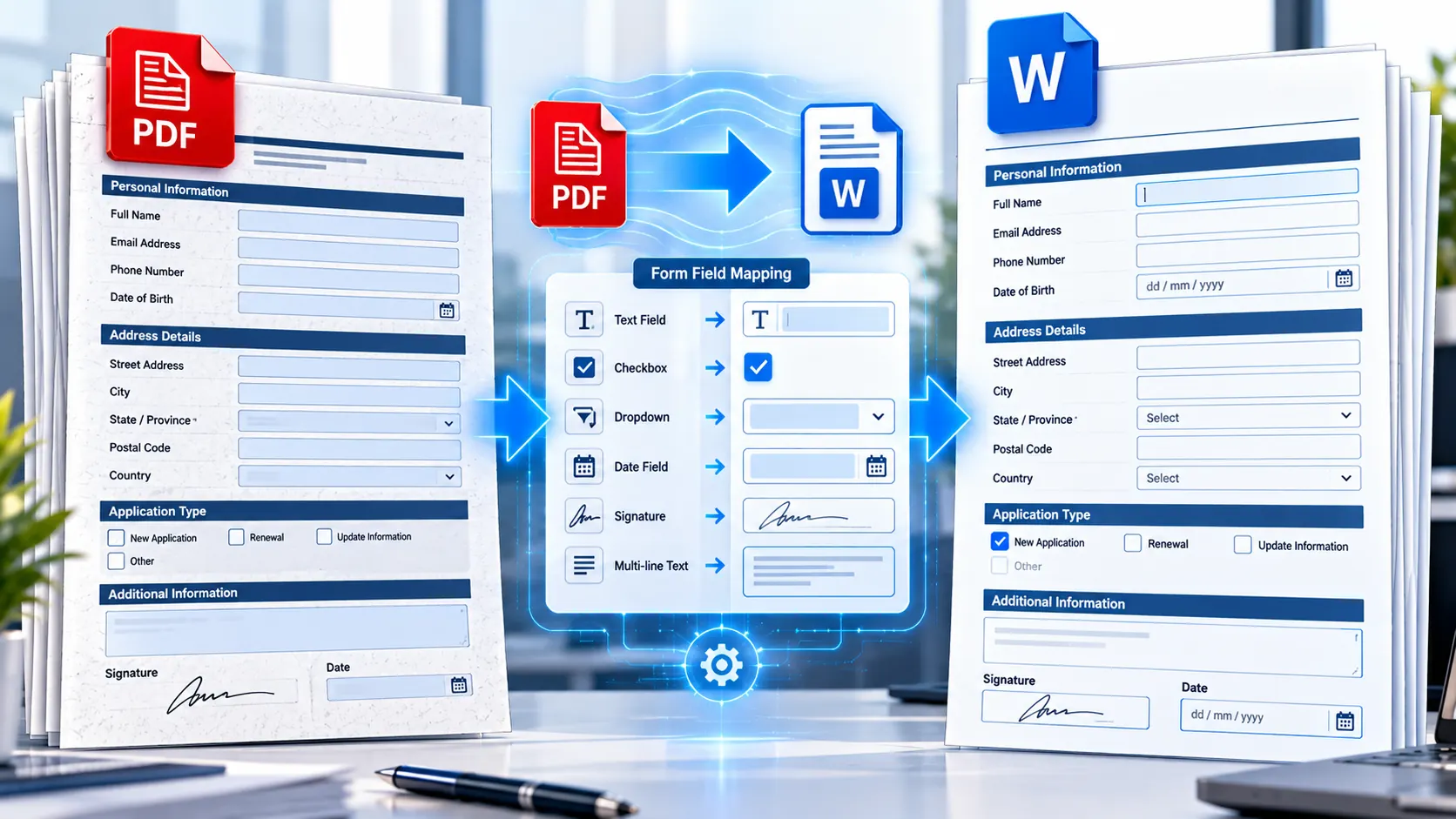
A fillable PDF form and an interactive Word document may look similar on screen, but they do not use the same form technology. A PDF can contain interactive text fields, checkboxes, radio buttons, dropdown lists, and other form elements, while Microsoft Word uses content controls such as text boxes, check boxes, date pickers, and drop-down lists.
That difference matters when you want to convert a fillable PDF into an editable Word form.
A normal PDF-to-Word conversion can help recover the visible text, labels, tables, and general document structure, but you should not assume that every interactive PDF field will automatically become a native Word form control. For a genuinely interactive Word document, the practical workflow is usually to convert the PDF content first and then recreate or verify the interactive fields in Word.
Can You Convert a Fillable PDF to an Interactive Word Document?
Yes, but there is an important distinction between converting the PDF content and rebuilding the form functionality.
A fillable PDF contains form fields that are designed for PDF software. Common field types include:
- Text fields
- Checkboxes
- Radio buttons
- Dropdown lists
- List boxes
- Signature fields
- Buttons
PDF form systems can also support field formatting, validation, calculations, actions, and other interactive behavior.
Microsoft Word uses a different system. Word forms can use content controls such as:
- Plain text controls
- Rich text controls
- Check box controls
- Date pickers
- Drop-down lists
- Combo boxes
Microsoft’s current documentation explains that Word forms can be created using content controls and then protected so users can complete the form.
Therefore, converting a fillable PDF to Word is not simply a matter of changing .pdf into .docx. If the final document must behave like an interactive Word form, the form fields need to be preserved, recreated, or checked in the Word environment.
Why PDF Form Fields Do Not Always Convert Directly to Word Fields
The biggest source of confusion is that a PDF form field is not the same thing as a Word content control.
The PDF format has its own form-field structure. Word has its own document and form-control structure.
For example, a PDF may contain a field labeled:
Full Name
The visible result might look like an empty box beside the label. Behind that appearance, however, the PDF can contain an actual interactive text field with its own field name and properties.
After PDF-to-Word conversion, Word may receive the visible label and surrounding layout without receiving an equivalent native Word content control.
This is why you should distinguish between:
Editable Word document
and
Interactive Word form
An editable Word document allows you to modify the converted content.
An interactive Word form allows the person completing the document to click or tab between designated fields and enter information through Word’s form controls.
Those are two different outcomes.
What Is a Fillable PDF Form?
A fillable PDF is a PDF that contains interactive areas where users can enter or select information.
Typical examples include:
- Job application forms
- Employee information forms
- Registration forms
- Client intake forms
- Application forms
- Survey forms
- Order forms
- Expense forms
- Business questionnaires
- Government or institutional forms
- Internal company forms
Adobe describes interactive PDF forms as documents containing fields that users can select or fill in, while flat forms do not contain those interactive fields.
This distinction is important before you start the conversion.
If the PDF is already interactive, you may have useful form-field information available.
If the PDF is simply a scanned paper form, there may be no actual fields to preserve. In that case, OCR can help recover text, but the interactive Word controls still need to be created separately.
Step 1: Check Whether Your PDF Is Actually Fillable
Before converting anything, test the PDF.
Click inside areas where information is supposed to be entered.
If you can type into a field, select a checkbox, choose an item from a dropdown, or move between fields using the Tab key, the PDF is likely an interactive form.
If nothing happens when you click the apparent fields, the document may be a flat PDF.
A flat PDF can still look exactly like a form.
For example:
Name: __________________________
Date: __________________________
Gender: □ Male □ Female
These lines and boxes may only be visual elements. They are not necessarily interactive controls.
This difference affects the conversion workflow.
Step 2: Identify the Type of Form You Have
Before choosing a conversion method, classify the PDF.
Interactive PDF
The document contains actual form fields.
This is the easiest starting point when your goal is to recover the form’s structure and rebuild it in Word.
Flat digital PDF
The form was designed digitally but contains only static text, lines, and boxes.
The visible structure can be converted, but the fields may need to be recreated.
Scanned paper form
Each page is essentially an image.
OCR may be necessary to recover the printed text before rebuilding the form.
Complex PDF form
The document may contain calculations, validation rules, buttons, signatures, scripts, or specialized form behavior.
These features should not be expected to transfer automatically into Word simply because the visible page was converted successfully.
Step 3: Convert the PDF Content to Word
When your primary requirement is an editable Word version of the PDF, start with the PKCapra PDF to Word Converter.
PKCapra’s PDF-to-Word workflow creates a DOCX document from PDF content and supports page selection and OCR-related options in the browser.
This is useful when you want to recover the form’s:
- Labels
- Instructions
- Headings
- Paragraphs
- Tables
- Page structure
- Visible field areas
- Other document content
The conversion gives you an editable Word document that can then be prepared as an actual Word form.
Step 4: Check the Converted Word Document
Do not immediately distribute the converted document.
Open the DOCX file and compare it with the original PDF.
Pay particular attention to:
- Form labels
- Field positions
- Tables
- Checkboxes
- Lines
- Page breaks
- Instructions
- Headers
- Footers
- Logos and images
- Alignment
- Text wrapping
- Spacing
A PDF is designed to preserve a fixed visual arrangement, while Word is designed around editable document content.
Consequently, a visually simple form can still require some cleanup after conversion.
Step 5: Determine Which Fields Need to Be Interactive
Now make a list of the fields users need to complete.
For example:
| PDF Field | Word Form Control |
|---|---|
| Full Name | Text control |
| Date of Birth | Date picker |
| Address | Text control |
| Department | Drop-down list |
| Employment Type | Drop-down list |
| Agree to Terms | Check box |
| Gender | Check box or appropriate selection control |
| Comments | Rich text or text control |
| Signature | Appropriate Word signature workflow |
The exact control should match the information being collected.
Do not turn every visible line into a text box simply because it looks like an input area.
Consider how the person will actually complete the form.
Step 6: Create Word Content Controls
Microsoft Word provides content controls for creating forms that users can complete.
Microsoft’s documentation lists controls such as check boxes, text boxes, date pickers, and drop-down lists.
In the desktop version of Word, you can use the Developer tab to add these controls.
A typical workflow is:
- Open the converted DOCX file.
- Enable the Developer tab if it is not already visible.
- Place the cursor where the form field should appear.
- Insert the appropriate content control.
- Configure the control’s properties.
- Repeat for the remaining fields.
- Protect the form if required.
- Test the completed document.
Microsoft notes that creating fillable forms is not available in Word for the web in the same way as the desktop version; the desktop version is used to create the form controls.
How to Convert a PDF Text Field Into a Word Text Field
Suppose your PDF contains:
Employee Name: [empty field]
After conversion, you may have the label and an empty area in Word.
Instead of leaving a decorative line, insert a Word text content control in the appropriate location.
The user can then click inside the control and enter their name.
This is more useful than simply converting the PDF’s visual box because the resulting Word document has an actual input mechanism.
How to Convert PDF Checkboxes Into Word Checkboxes
Checkboxes require similar treatment.
A PDF may contain:
Employment Type
□ Full Time
□ Part Time
□ Contract
After conversion, these may simply appear as characters or graphical boxes.
If the final document must be interactive, replace or supplement those visual elements with Word check box controls.
This gives the person completing the document a control they can actually select.
Be careful when the original PDF uses checkboxes for mutually exclusive choices.
If only one option should be selected, a set of radio-button-style choices may be more appropriate conceptually than several independent checkboxes.
How to Convert PDF Dropdowns Into Word Dropdowns
A PDF dropdown may contain choices such as:
Department:
Sales
Marketing
Finance
Human Resources
The visible PDF may only show the currently selected option.
When recreating the form in Word, create a drop-down list or combo box and enter the appropriate choices.
This is preferable to converting the dropdown into ordinary text because the user can select from controlled options instead of typing inconsistent answers.
For example, a controlled department list can prevent entries such as:
- Human Resources
- HR
- H.R.
- Human Resource
from being used interchangeably when standardized answers are important.
What Happens to PDF Calculations?
This is one of the most important limitations to understand.
Some PDF forms contain calculations.
For example:
Quantity × Unit Price = Total
The PDF may automatically calculate the total when a user enters values.
That behavior is not necessarily preserved when the document is converted into Word.
The visual fields and labels may survive while the underlying calculation logic does not.
If the Word version needs calculations, you should recreate and test the calculation workflow separately using the functionality available in Word.
Do not assume that a PDF form’s JavaScript, calculations, validation rules, or button actions will automatically become equivalent Word functionality.
Adobe documents PDF form fields as supporting properties such as formatting, validation, calculations, and custom behavior within the PDF form environment.
What Happens to PDF Dropdowns and Radio Buttons?
PDF form controls have their own behavior and properties.
A dropdown in a PDF is not automatically equivalent to a Word dropdown.
Likewise, PDF radio-button groups may not become native Word controls during ordinary PDF-to-DOCX conversion.
This is why the safest workflow is:
Convert the document → inspect the result → recreate required Word controls → test the form.
That approach avoids assuming that the two formats use identical field structures.
What If the PDF Is Scanned?
Scanned forms require an additional step.
If the PDF contains photographs or scans of printed forms, the text may not be selectable.
In that situation, use OCR PDF when you need to recognize text from scanned pages.
PKCapra’s OCR workflow is designed for scanned or image-based PDFs and processes the PDF in the browser. The current tool supports PDFs up to 25 MB and up to 20 pages, with English OCR.
OCR can help recover:
- Field labels
- Instructions
- Headings
- Printed questions
- Other visible text
However, OCR does not automatically turn every printed box or blank line into a native Word form control.
You should still rebuild the interactive fields in Word.
OCR Is Not the Same as Form Conversion
This distinction is worth remembering.
OCR answers:
“What text appears in this scanned image?”
A form conversion workflow answers:
“How should this document be structured so a person can enter information?”
Those are related but different problems.
For example, OCR might correctly recognize:
Applicant Name
But the final Word document still needs a text control positioned beside that label.
Similarly, OCR might recognize:
Yes No
but it does not automatically mean that Word now has the correct interactive choice controls.
What If the PDF Contains Tables?
Many forms use tables to organize fields.
For example:
| Employee Information | Value |
|---|---|
| Full Name | |
| Employee ID | |
| Department | |
| Start Date |
Tables can make the form easier to organize, but PDF-to-Word conversion may change column widths, borders, spacing, or alignment.
Review the converted table before inserting Word controls.
If the table structure is important, stabilize the Word layout first and then insert the form controls.
This can prevent controls from shifting when the document is edited.
How to Preserve the Form’s Layout
A practical order is:
- Convert the PDF.
- Clean up the Word layout.
- Fix headings and instructions.
- Correct tables.
- Adjust spacing.
- Position images and logos.
- Insert content controls.
- Protect the form.
- Test the final document.
Do not add dozens of interactive fields before fixing the underlying layout.
Otherwise, formatting changes later may force you to reposition the controls.
Should You Convert the Entire PDF?
Not necessarily.
If the PDF contains 100 pages but only five pages are actual forms, you may not need to convert the entire document.
PKCapra’s PDF-to-Word workflow supports page selection, making it possible to focus the conversion on the pages you actually need.
This can be useful for:
- Application packets
- Long manuals containing a short form section
- Contracts with separate schedules
- Employee handbooks containing forms
- Training documents
- Multi-section business documents
If you only need specific pages, selecting those pages can make the workflow more focused.
What If the Form Contains a Signature Field?
Signature fields require special attention.
A PDF may contain a dedicated digital-signature field or another signature mechanism.
Simply converting the visible signature box into Word does not necessarily reproduce the original PDF signature functionality.
If the Word document requires signatures, determine whether the requirement is:
- A visible signature line
- A typed name
- A drawn signature
- A Word-compatible signing workflow
- A formal digital-signature process
Do not assume that a converted signature box has the same security or functionality as the original PDF signature field.
What If the PDF Contains Buttons?
Some PDF forms include buttons for actions such as:
- Submit
- Reset
- Calculate
- Navigate
- Open another document
These actions are part of the PDF form environment.
They should not be expected to become identical Word buttons simply because the PDF page was converted into DOCX.
If the final Word form requires a particular action, rebuild and test that workflow separately using Word-compatible functionality.
How to Protect an Interactive Word Form
Once the Word form has been created, you may want to prevent users from accidentally changing the underlying questions and labels.
Microsoft’s Word form workflow includes protecting the form after adding content controls.
Protection can help users focus on completing the intended fields instead of accidentally modifying the form structure.
Before distributing a protected form, test it yourself.
Check that users can:
- Enter text
- Select checkboxes
- Choose dropdown values
- Select dates
- Move between fields
- Save the completed document
- Reopen the completed document
Test the Form Before Sending It
Testing is essential.
Do not send an interactive form to dozens of employees or customers immediately after creating it.
Create a test copy and complete it as if you were an actual user.
Check every field.
Text fields
Can users enter the required information?
Checkboxes
Can users select and deselect the controls?
Dropdowns
Are all required choices present?
Date fields
Can users enter or select dates correctly?
Long answers
Does the text control accommodate longer responses?
Page layout
Does entering information push important content into an unexpected position?
Protection
Can users complete the form without accidentally editing the template?
Saving
Does the completed document reopen correctly?
A form that looks correct before completion can behave differently after users enter long names, addresses, comments, or other variable-length information.
Common Problems After Converting a Fillable PDF to Word
The PDF fields became ordinary boxes
This usually means the visual appearance was converted but the native PDF field behavior was not reproduced as Word content controls.
Recreate the necessary fields in Word.
The checkboxes became symbols
A PDF checkbox may appear as a character, graphic, or static object after conversion.
Replace it with an appropriate Word check box control when interactivity is required.
The dropdown became plain text
A converted dropdown may retain its visible value without retaining the original selection behavior.
Create a Word drop-down list or combo box with the appropriate choices.
The form layout changed
PDFs use fixed page positioning, while Word content can reflow.
Review tables, spacing, page breaks, and field placement before finalizing the form.
The scanned form contains no editable text
Use OCR when the source is image-based, then rebuild the interactive fields in Word.
Calculations no longer work
PDF calculations may depend on PDF-specific field logic. Recreate the required calculation workflow in the Word environment rather than assuming it transferred automatically.
Fillable PDF vs Interactive Word Form
It helps to compare the two formats directly.
| Feature | Fillable PDF | Interactive Word |
|---|---|---|
| Text entry | PDF form field | Word text control |
| Checkbox | PDF checkbox | Word check box control |
| Dropdown | PDF dropdown | Word drop-down/combo control |
| Date entry | PDF field | Word date picker |
| Layout | Fixed PDF page | Editable Word layout |
| Form behavior | PDF form system | Word content controls |
| Calculations | PDF-specific functionality | Must be supported/recreated in Word |
| Scripts/actions | PDF-specific | Not automatically equivalent |
| Editing | PDF editing environment | Word document editing |
| Protection | PDF security/form settings | Word form/document protection |
The important point is that conversion changes the document environment.
You are not simply changing the filename extension.
When Converting the Form to Word Makes Sense
A Word version can be useful when:
- Your team works primarily in Microsoft Word
- The form needs substantial text editing
- The original PDF was created from a Word-style document
- You need to customize the form regularly
- You want to integrate the form into an existing Word workflow
- Users need to complete the form in Word
- The organization already uses Word templates
Word is particularly useful when the document will continue to be edited and maintained as an office document.
When You Should Keep the Form as a PDF
Converting to Word is not always the best solution.
Keep the original PDF when:
- The PDF layout must remain fixed
- The existing PDF form already works correctly
- Digital-signature functionality is important
- PDF-specific calculations or actions are required
- The document is intended primarily for distribution
- Exact visual consistency matters more than Word editing
- The document is part of a PDF-based workflow
If the existing PDF form already meets your requirements, conversion can introduce unnecessary work.
A Practical Workflow for Converting a Fillable PDF to Word
For most users, the process can be simplified into nine steps:
1. Check the original PDF
Determine whether it is interactive, flat, or scanned.
2. Keep a backup
Do not overwrite the original form.
3. Convert the required pages
Use the PKCapra PDF to Word Converter to create an editable DOCX version.
4. Review the converted document
Compare the DOCX against the PDF.
5. Fix the layout
Correct tables, spacing, headings, images, and page breaks.
6. Identify required fields
Make a list of every field the user needs to complete.
7. Add Word content controls
Use the appropriate text, checkbox, date, dropdown, or other control.
8. Protect the form
Use Word’s form-protection workflow when appropriate.
9. Test the completed form
Enter realistic sample information and verify that everything works.
This workflow separates document conversion from form engineering, which is important because the two tasks solve different problems.
Privacy Considerations When Converting Forms
Forms can contain sensitive information such as:
- Names
- Addresses
- Employee information
- Customer information
- Financial details
- Identification information
- Internal business data
Before using any online document service, understand how the service processes uploaded files.
PKCapra’s PDF-to-Word workflow is browser-based, and its PDF/document tool collection is designed around browser-based document processing.
For highly sensitive documents, always review the current privacy and processing behavior of the specific tool you use rather than assuming that every online converter follows the same model.
Frequently Asked Questions
Can I convert a fillable PDF to Word?
Yes. You can convert the PDF’s document content into an editable Word document, but the PDF’s interactive fields may not automatically become native Word form controls. If the final document needs to be interactive, review and recreate the required fields in Word.
Will PDF form fields automatically become Word fields?
Not necessarily. PDF forms and Word forms use different form technologies. A conversion may reproduce the visible labels and layout without creating equivalent Word content controls.
Can I convert PDF checkboxes to Word checkboxes?
You can recreate them as Word check box controls, but you should not assume that a PDF checkbox will automatically become a native Word checkbox during ordinary PDF-to-DOCX conversion.
Can I convert a PDF dropdown to a Word dropdown?
The visible dropdown content may be converted, but the interactive behavior may need to be recreated in Word using a drop-down list or combo box.
Can scanned PDF forms be converted to Word?
Yes, but scanned forms may require OCR to recognize the printed text. After OCR, interactive fields may still need to be created separately in Word.
Does OCR automatically create interactive Word fields?
No. OCR recognizes text from images. It does not by itself create the complete set of Word content controls needed for an interactive form.
Can PDF calculations be preserved in Word?
Do not assume that PDF calculations will transfer automatically. PDF forms can contain calculation logic and other PDF-specific field behavior. If calculations are required in the Word version, they should be recreated and tested separately.
Can I convert only the form pages from a large PDF?
Yes. If the PDF contains many pages but only a few are forms, use page selection during the PDF-to-Word workflow so you do not have to process unnecessary pages.
Can I create an interactive form directly in Microsoft Word?
Yes. Microsoft Word supports content controls such as text fields, check boxes, date pickers, and drop-down lists for creating forms. Microsoft documents this workflow for desktop Word versions.
Can I create a fillable Word form in Word for the web?
Microsoft’s current documentation states that creating fillable forms is not available in Word for the web in the same way as the desktop version. The desktop version is used to create the form controls.
Should I keep the original PDF after conversion?
Yes. Keep the original PDF as a reference and backup. This is especially important when the original contains form fields, calculations, signatures, or other functionality that may not be reproduced in Word.
What is the difference between a fillable PDF and an interactive Word document?
A fillable PDF uses PDF form fields, while an interactive Word document uses Word content controls. They may provide similar user experiences, but their underlying technologies and capabilities are different.
Final Takeaway
Converting a fillable PDF into an interactive Word document is best treated as a two-stage process.
First, convert the PDF content into an editable DOCX document. Then review the document and recreate the fields that users need to complete using Word’s content-control system.
This is especially important for forms containing checkboxes, dropdowns, date fields, calculations, signatures, or other interactive features. A successful PDF-to-Word conversion does not necessarily mean that every PDF form function has become a native Word function.
If you simply need an editable version of the form, start with the PKCapra PDF to Word Converter. If the source is a scanned form, OCR PDF can help recognize text before you rebuild the interactive fields. For broader PDF workflows, explore the PDF & Document Tools category.
The safest workflow is simple: preserve the original PDF, convert the content, repair the layout, recreate the necessary Word controls, protect the form when appropriate, and test the completed document before distributing it.