
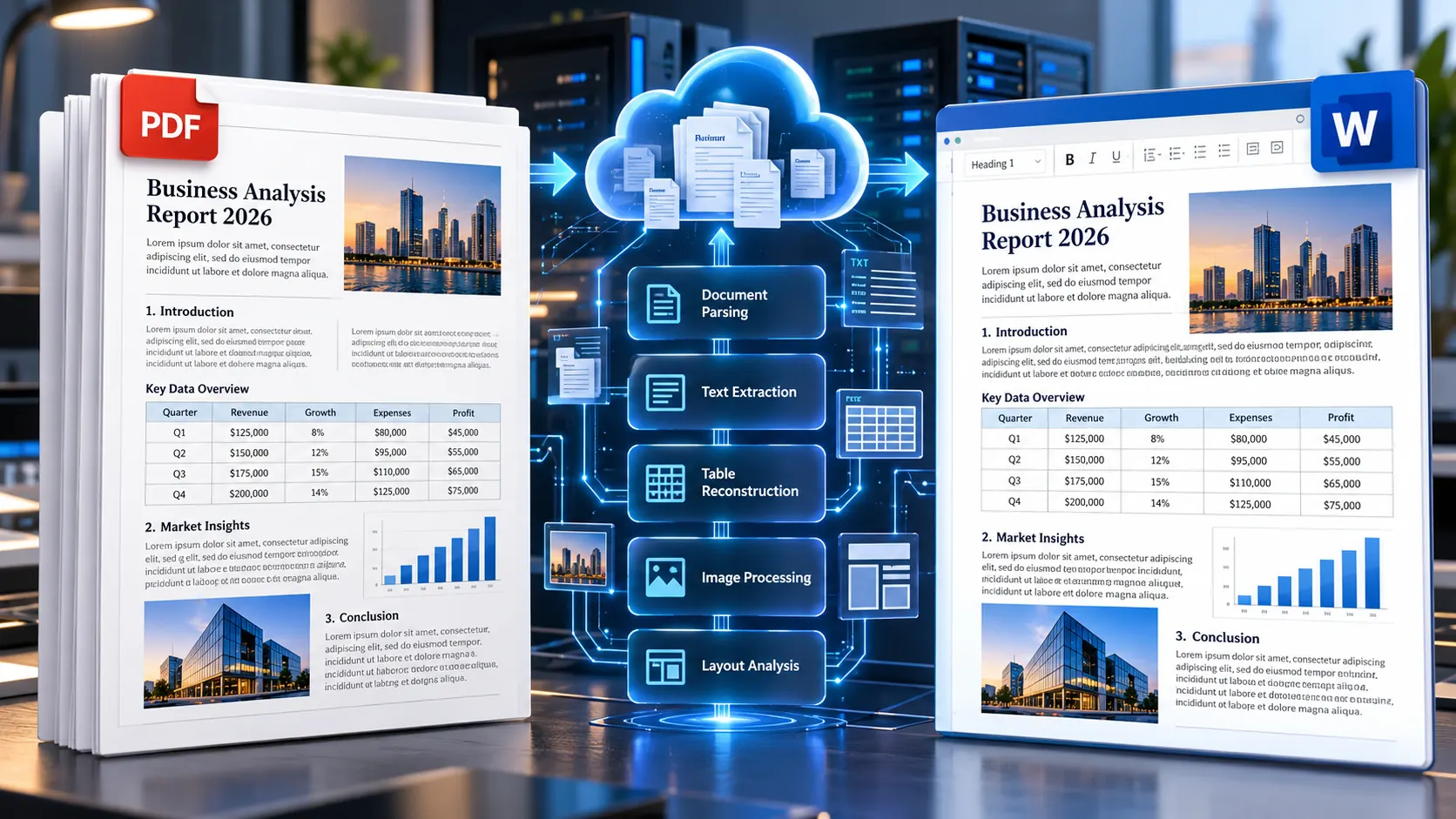
Converting a PDF through Google Drive can be convenient, especially when you already use Google Docs for everyday work. But there is an important catch: opening a PDF with Google Docs does not guarantee that its original layout will remain intact.
Simple text-heavy PDFs can convert reasonably well, while documents containing tables, multiple columns, forms, images, unusual spacing, or scanned pages may need substantial cleanup afterward. If your priority is an editable Word document with the closest practical representation of the original PDF, a dedicated PDF-to-Word workflow is often more appropriate.
How PDF Conversion Works in Google Drive
Google Drive can store and preview PDF files, while Google Docs can be used to open supported files and create an editable document. After opening the converted content in Google Docs, you can download the document in Microsoft Word format.
The important thing to understand is that this is not simply a file-format swap.
A PDF is designed primarily to preserve the appearance of a document. Google Docs, on the other hand, works with an editable document structure made from paragraphs, tables, images, spacing, and other elements.
That difference explains why a PDF that looks perfect on screen can become less predictable after conversion.
The basic workflow is:
- Upload the PDF to Google Drive.
- Open the PDF with Google Docs.
- Let Google Docs create an editable document.
- Review the converted text and layout.
- Correct formatting problems.
- Download the result as a Microsoft Word document.
For a simple report or text document, this may be enough. For a heavily formatted document, you should inspect the result carefully before treating it as finished.
Why PDF Formatting Changes in Google Docs
The biggest problem is that a PDF stores visual positioning differently from an editable document.
A PDF may effectively describe where text, images, lines, and other objects appear on a page. During conversion, those visual elements have to be interpreted and reconstructed into editable document structures.
That reconstruction can produce changes such as:
- altered margins
- different line spacing
- misplaced images
- broken columns
- changed paragraph spacing
- missing borders
- damaged tables
- shifted headings
- incorrect page breaks
- text appearing in the wrong order
This becomes more noticeable when the source PDF was originally designed for printing rather than editing.
The more complicated the layout, the more carefully you should check the converted document.
The Biggest Problem: Tables and Grids
Tables are one of the most useful tests for PDF conversion quality.
A PDF table may visually contain rows and columns, but the converter still has to determine which pieces of text belong to which cells.
A financial report, invoice, comparison chart, timetable, application form, or spreadsheet-like PDF can therefore produce a result where:
- columns no longer line up
- cell borders disappear
- numbers move into the wrong column
- rows become separate paragraphs
- merged cells are reconstructed incorrectly
- long values wrap unexpectedly
- table widths change
If the document contains important financial, legal, scientific, or business data, do not assume that a visually similar result is automatically a structurally accurate result.
Always compare the converted table with the original PDF.
For workflows where the information is fundamentally tabular rather than document-oriented, a dedicated PDF to Excel workflow may be more appropriate than forcing a complex table into Word.
What Happens to Multi-Column PDFs?
Multi-column layouts create another common problem.
Imagine a two-column article:
Column A:
Introduction, paragraphs, references
Column B:
Related text, statistics, images
A PDF viewer knows exactly where everything belongs visually. During conversion, however, the software has to determine the reading order.
The result can sometimes become:
Paragraph from Column A → paragraph from Column B → another paragraph from Column A → image → remaining text
That makes the document technically editable but practically difficult to read.
If your PDF contains newsletters, magazines, academic papers, brochures, or newspaper-style layouts, inspect the reading order immediately after conversion.
What About Images?
Images generally require less structural reconstruction than tables, but their placement can still change.
You may notice:
- images moving above or below paragraphs
- different image sizes
- changed text wrapping
- unexpected blank spaces
- captions separating from images
- images appearing on another page
This is especially important when the image is part of the document’s meaning rather than decoration.
For example, a technical report may contain a diagram followed by an explanation. If the diagram moves away from its related paragraph, the document may remain readable but become much less useful.
Scanned PDFs Are a Different Case
A scanned PDF is usually an image of a document rather than a PDF containing normal selectable text.
That means simply opening it in Google Docs does not necessarily give you the same result as converting a digitally generated PDF.
If the source is scanned, you need OCR — Optical Character Recognition — to identify the text inside the page image.
This is also why our earlier cluster article on converting scanned PDFs into editable Word documents is an important companion topic to this guide. The problem is not simply “PDF versus Word”; it is whether the source PDF actually contains machine-readable text.
For scanned or image-based files, PKCapra’s OCR PDF tool is the more relevant starting point. The current PKCapra implementation uses browser-side OCR with Tesseract.js and supports English OCR with a 20-page maximum.
Google Drive vs a Dedicated PDF-to-Word Converter
Google Drive is convenient because it fits naturally into a Google Workspace workflow.
But convenience and conversion fidelity are not exactly the same thing.
| Requirement | Google Drive + Google Docs | Dedicated PDF-to-Word workflow |
|---|---|---|
| Basic text PDF | Usually convenient | Usually convenient |
| Quick editing | Very convenient | Convenient |
| Tables | May require cleanup | Depends on converter |
| Multi-column layout | Can require correction | Depends on converter |
| Scanned PDF | OCR considerations | OCR-specific workflow may be better |
| Complex forms | Often requires reconstruction | Depends on converter |
| Original visual layout | Not guaranteed | Depends on conversion engine |
| Word output | Available after export | Direct workflow |
| Best for quick edits | Yes | Yes |
| Best for complex documents | Requires testing | Requires testing |
The key point is that neither method should be judged only by whether it produces a .docx file.
The real question is whether the resulting Word document preserves the parts of the original document that matter to you.
When Google Drive Is a Good Choice
Google Drive can be a practical option when:
- the PDF is mostly normal text
- the layout is relatively simple
- you already work inside Google Workspace
- you need quick browser-based editing
- tables are simple
- the document does not depend heavily on exact positioning
- you are willing to review the result before downloading it
For a short letter, simple report, basic article, or straightforward text document, this workflow can be perfectly reasonable.
When You Should Use a Dedicated PDF-to-Word Tool
A dedicated PDF-to-Word workflow makes more sense when the document is primarily being converted for editing and you want to evaluate the output specifically as a Word document.
For example, you may want to use the PKCapra PDF to Word Converter when the main task is turning PDF content into an editable Word document.
The PKCapra PDF and document ecosystem also includes related tools for OCR, extraction, conversion, and PDF preparation, so the workflow can be adapted when the PDF itself needs additional processing first. The current master records PDF-to-Word as a completed tool and the PDF category as complete.
A Better Workflow for Difficult PDFs
If formatting accuracy matters, do not automatically upload the PDF and export the first result you get.
Use a quick diagnostic workflow instead.
Step 1: Check the PDF Type
Ask:
- Is the text selectable?
- Is it a scan?
- Does it contain tables?
- Does it have multiple columns?
- Are there forms or checkboxes?
- Are there many images?
- Is the document very long?
This immediately tells you how difficult the conversion is likely to be.
Step 2: Check the Most Important Page
You do not always need to inspect every page first.
Find the page with the most complicated structure.
For example, if the document contains:
- a table
- two columns
- an image
- a heading
- footnotes
that page is a much better conversion test than a page containing only three paragraphs.
Step 3: Convert a Small Test
Before committing to a large document, test the workflow on representative content if your process allows it.
Check:
- text order
- headings
- tables
- images
- links
- spacing
- page breaks
If the difficult page converts badly, converting the entire document will not magically solve the underlying layout problem.
Step 4: Compare the Original and Converted Versions
Open the original PDF beside the converted Word document.
Do not only read the text.
Compare the structure.
A useful five-point check is:
- Text order — Is the content in the correct reading sequence?
- Tables — Are rows, columns, and values aligned?
- Images — Are images still associated with the correct text?
- Layout — Are margins, headings, and spacing reasonable?
- Completeness — Is anything missing?
This approach catches problems much faster than reading the converted document from beginning to end without the original beside it.
What About Hyperlinks?
Links deserve a separate check because a document can look visually correct while its hyperlinks are broken or missing.
This is particularly important for:
- reports
- research documents
- ebooks
- reference documents
- tables of contents
- documents containing external URLs
This connects directly with the earlier article in this cluster about keeping hyperlinks active when converting PDF to Word.
After conversion, click important links rather than assuming that underlined text is still an active hyperlink.
If links are critical to the document, make them part of your quality-control checklist.
What About Fillable PDF Forms?
Fillable PDFs create another special case.
A PDF form may contain:
- text fields
- checkboxes
- dropdowns
- date fields
- signature areas
- calculated fields
Simply converting the visible appearance of that form into Word does not necessarily recreate equivalent interactive Word controls.
That is why the earlier cluster article covering fillable PDF forms and interactive Word documents should be treated as a separate workflow rather than assuming that a normal PDF conversion will reproduce every form function.
If the goal is an editable document rather than an interactive form, normal conversion may be sufficient. If the goal is to create a genuinely interactive Word form, additional reconstruction may be required.
Common Google Drive PDF Conversion Problems
The PDF opens but the formatting looks wrong
This usually means the original PDF contains a layout that did not translate cleanly into editable document structures.
Check tables, columns, images, and paragraph spacing first.
The table becomes a mess
Tables are particularly sensitive to conversion because visual borders and cell relationships must be reconstructed.
Compare important values against the original before using the converted table.
Text appears in the wrong order
This commonly happens with multi-column documents, sidebars, text boxes, or complex page layouts.
Check reading order before editing.
Images move around
The conversion process may reconstruct images and surrounding text differently.
Check image anchoring and text wrapping in the resulting document.
The scanned PDF contains no useful editable text
The source may be image-based.
Use an OCR workflow rather than treating it like a normal text PDF.
The document looks fine but editing is difficult
A conversion can technically produce editable content while still creating awkward spacing, fragmented paragraphs, unnecessary tables, or other structural problems.
Editability should be judged by how easy the resulting document is to work with—not simply by whether you can place a cursor on the page.
How to Choose the Right Workflow
The easiest way to decide is to start with the job you actually need to complete.
Need quick editing of a simple PDF?
Google Drive and Google Docs may be sufficient.
Need a clean editable Word document?
Use a dedicated PDF-to-Word workflow and inspect the result.
Working with a scanned PDF?
Start with OCR.
Working with complicated tables?
Test the table structure carefully, or consider a PDF-to-spreadsheet workflow when the data is fundamentally tabular.
Working with a very large PDF?
Consider page selection, splitting, or compression before conversion.
For example, Split PDF can help when only certain sections of a large document need to be handled, while Compress PDF can be useful when file size itself becomes a problem.
A Practical Quality-Control Checklist
Before sending or publishing a Word document converted from PDF, check the following:
- All important text is present.
- Reading order is correct.
- Headings are still understandable.
- Tables contain the correct values.
- Columns have not been mixed together.
- Images are in the correct locations.
- Important hyperlinks work.
- Page breaks are reasonable.
- Headers and footers are correct.
- Special characters display properly.
- Scanned pages have been processed with OCR where necessary.
- Forms have been tested separately if interactivity matters.
- The final DOCX opens correctly in Word.
This checklist is especially useful for business, academic, legal, and administrative documents where a small conversion error can have a much bigger consequence later.
Key Takeaways
The biggest lesson is simple: Google Drive can be convenient for PDF conversion, but convenience does not guarantee formatting fidelity.
Simple, text-based PDFs are usually easier to work with. Complex tables, multi-column layouts, scanned pages, forms, images, and unusual positioning require more careful checking.
If your priority is simply getting PDF content into an editable environment, Google Docs can be a useful option.
If your priority is producing a usable Word document from a complex PDF, treat the conversion as a workflow rather than a one-click operation: identify the PDF type, test difficult pages, compare the output with the original, and correct the structures that matter.
For a direct PDF-to-Word workflow, you can also use PKCapra’s PDF to Word Converter, while the wider PDF & Document Tools collection provides related utilities for OCR, extraction, conversion, page management, and other document tasks.
Frequently Asked Questions
Can I convert a PDF to Word using Google Drive?
Yes. A common workflow is to upload the PDF to Google Drive, open it with Google Docs, review the resulting editable document, and then download it as a Word document.
Does Google Drive preserve PDF formatting?
Not necessarily. Simple PDFs may convert well, but complex tables, columns, images, forms, spacing, and other layout elements can change during conversion.
Why do tables break when I convert a PDF in Google Docs?
PDF tables are visual layouts, while an editable document needs structured rows and columns. The conversion process has to reconstruct that structure, and complex tables may not map perfectly.
Can Google Docs convert scanned PDFs into editable text?
Scanned PDFs require OCR because their pages may consist primarily of images rather than selectable text. OCR should therefore be treated as a separate part of the workflow.
Is Google Drive better than a PDF-to-Word converter?
It depends on the document. Google Drive is convenient for simple documents and Google Workspace workflows. A dedicated PDF-to-Word tool may be more appropriate when your main goal is producing an editable Word document and you want to evaluate conversion specifically for that purpose.
How can I check whether a PDF-to-Word conversion is accurate?
Compare the original PDF and converted document side by side. Check text order, tables, images, hyperlinks, page breaks, headings, and overall completeness.
What should I do if only a few pages of a PDF need conversion?
Instead of processing the entire document, extract the required pages first and then convert the smaller document. This can make the workflow easier to review and manage.
What is the best workflow for a scanned PDF?
Use OCR to recognize the text first, then review the resulting content carefully before converting or editing it as a Word document.
Conclusion
Converting a PDF through Google Drive is useful when you need a quick browser-based workflow, but it should not be treated as a guarantee that the original PDF layout will survive unchanged.
For simple documents, the process can be straightforward. For tables, grids, columns, forms, scans, and image-heavy layouts, the quality of the final Word document depends heavily on how the source PDF was constructed and how its visual structure is reconstructed.
The safest approach is to choose the workflow based on the PDF itself. Check the document type, test the difficult parts, compare the output against the original, and use a more specialized PDF tool when the document requires it.
That turns PDF conversion from a frustrating trial-and-error task into a predictable document workflow.