
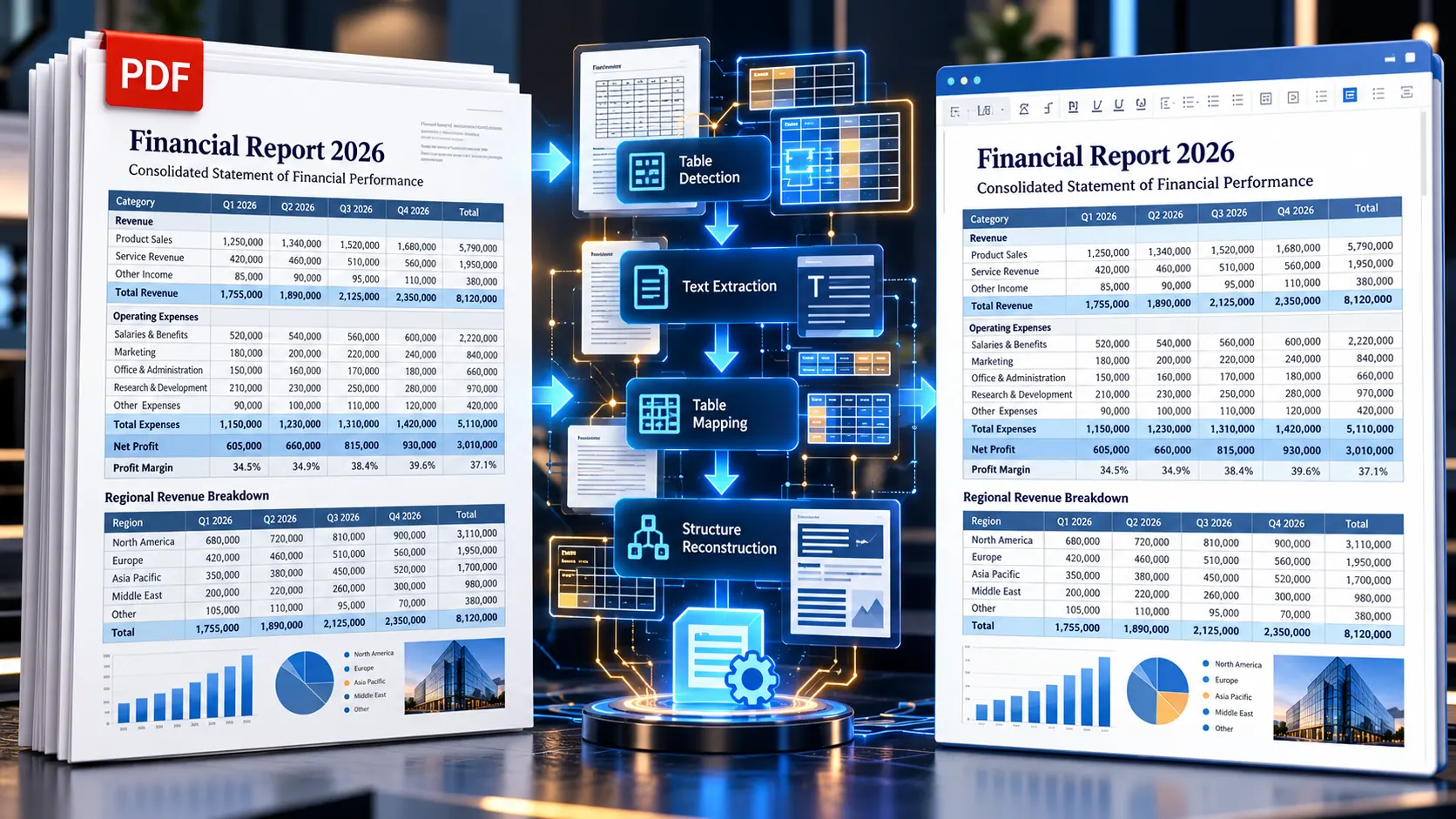
Converting a PDF with a simple paragraph of text into Word is usually straightforward. The real test starts when the PDF contains financial tables, invoices, reports, multi-column layouts, merged cells, charts, or carefully positioned numbers.
If you need to extract PDF tables and layouts into Word without data distortion, the safest approach is to treat tables as a separate conversion problem: choose the right output format, convert the document, then compare important rows, columns, numbers, and layout elements against the original PDF. No PDF-to-Word conversion should be assumed to preserve a complex table perfectly without verification.
For simple documents, a normal PDF to Word Converter may be enough. For data-heavy PDFs, however, you need to decide whether Word is actually the best destination before you convert.
Why PDF Tables Are Difficult to Convert to Word
A PDF is designed to preserve how a document looks on a page.
That is very different from how an editable Word document represents information.
A table that looks perfectly structured in a PDF may contain:
- rows and columns
- merged cells
- borders
- text positioned inside cells
- numbers aligned to the right
- different font sizes
- wrapped text
- blank cells
- headings spanning multiple columns
- footnotes
- totals and subtotals
When that visual structure is reconstructed as an editable Word document, the converter has to determine which pieces belong together.
That is where problems can appear.
A table may still look vaguely recognizable while important relationships between cells have changed.
For example, a financial table might originally contain:
| Product | Quantity | Unit Price | Total |
|---|---|---|---|
| Product A | 25 | $20 | $500 |
| Product B | 10 | $35 | $350 |
After a poor conversion, the same information could become a sequence of disconnected lines:
Product A 25 $20 $500
Product B 10 $35 $350
The information is technically still present, but the structure that makes the information understandable has been damaged.
That is what makes data distortion more serious than ordinary formatting damage.
First Decide: Do You Really Need Word?
Before converting a table-heavy PDF, ask one important question:
Is the final document supposed to be edited as a document, or analyzed as data?
Word is excellent when you need:
- editable reports
- contracts
- proposals
- letters
- formatted documents
- narrative reports
- documents containing tables alongside normal text
But if the PDF is primarily a spreadsheet-like dataset, Word may not be the best destination.
For suitable PDF content that needs spreadsheet-based processing, PKCapra’s PDF to Excel tool may be a more appropriate workflow.
The distinction is important:
Document → Word
Tabular data → Excel
You can still move the resulting information into Word afterward if the final deliverable needs to be a report.
What Happens During PDF-to-Word Table Conversion?
A useful way to think about conversion is as a reconstruction process.
The original PDF contains a visual arrangement.
The conversion process tries to turn that arrangement into editable structures.
A simplified workflow looks like this:
PDF page → text and object recognition → structure reconstruction → Word document
For a normal paragraph, reconstruction is relatively simple.
For a table, the converter has to understand relationships between multiple elements.
For example:
PDF
│
├── Table heading
├── Column 1
├── Column 2
├── Column 3
├── Row 1
├── Row 2
├── Row 3
└── Total
       ↓
Structure reconstruction
       ↓
Editable Word table
The more complicated the original layout, the more opportunities there are for the reconstructed structure to differ from the source.
This is why visual similarity is not the same thing as data accuracy.
The Three Types of Table Problems You Need to Watch
Most PDF table conversion problems fall into three broad categories.
1. Structural distortion
The rows and columns no longer represent the original relationships.
Examples include:
- values moving into another column
- rows breaking apart
- merged cells becoming separate cells
- headings attaching to the wrong columns
- totals appearing outside the table
This is the most serious category because it can change the meaning of the information.
2. Visual distortion
The data remains correct, but the table looks different.
You might see:
- changed column widths
- different borders
- altered alignment
- different font sizes
- extra spacing
- changed row heights
- unexpected page breaks
This may be annoying without necessarily changing the underlying information.
3. Content loss
Some information may not survive the conversion correctly.
Possible examples include:
- missing text
- missing symbols
- missing footnotes
- lost characters
- incomplete values
- omitted images
- broken reading order
Content loss requires a direct comparison with the original PDF.
How to Extract PDF Tables Into Word More Reliably
There is no single setting that guarantees perfect conversion for every PDF.
Instead, use a controlled workflow.
Step 1: Inspect the Original PDF
Before converting anything, identify what kind of table you have.
Ask:
- Is the text selectable?
- Is the table actually a table or just positioned text?
- Are there merged cells?
- Are there multiple header rows?
- Are numbers aligned precisely?
- Are there footnotes?
- Does the table continue across pages?
- Are there images or charts mixed with the table?
This gives you an idea of how much post-conversion checking will be necessary.
Step 2: Identify the Most Important Data
Not every part of the document deserves the same level of inspection.
If you are converting an annual report, for example, pay particular attention to:
- financial totals
- percentages
- dates
- account numbers
- quantities
- prices
- subtotals
- final totals
If one number is wrong, a visually attractive document is still a failed conversion.
Step 3: Convert the PDF to Word
For a document whose final destination is an editable Word file, use the PKCapra PDF to Word Converter.
The goal at this stage is not to assume that the output is perfect.
The goal is to create an editable working copy that can then be checked against the source.
Step 4: Compare the Table With the Original
Open the PDF and Word document side by side.
Do not simply scan the table visually.
Check the actual data.
A useful verification sequence is:
Headers → first row → middle rows → totals → footnotes
This quickly reveals whether the table structure survived the conversion.
Step 5: Rebuild the Table When Necessary
Sometimes the fastest solution is not endlessly fixing a damaged converted table.
If the table is short but structurally important, recreating it as a clean Word table may be safer than trying to repair dozens of misplaced elements.
The converted PDF still provides the source information.
The goal is not to preserve every underlying PDF positioning instruction. The goal is to produce an accurate, usable Word document.
When PDF to Excel Is Better Than PDF to Word
This is one of the most important decisions in the entire workflow.
Suppose your PDF contains a 20-column financial dataset.
If the primary purpose is to analyze, sort, filter, calculate, or manipulate those values, converting everything into Word may create unnecessary work.
A spreadsheet format is generally more appropriate for spreadsheet-style information.
Use a PDF-to-Excel workflow when the information is primarily:
- numerical
- tabular
- record-based
- suitable for rows and columns
- intended for calculations
- intended for sorting or filtering
Then use Word if you need to turn the processed information into a polished report.
This gives you a much cleaner workflow:
PDF → Excel for data work → Word for presentation
rather than:
PDF → Word → manually repair table → manually analyze data
How to Handle Multi-Page Tables
Multi-page tables are more complicated because the table may continue across page boundaries.
You need to check whether:
- the header repeats correctly
- rows remain in sequence
- a row is split between pages
- totals are associated with the correct section
- footnotes remain connected to the right content
- page breaks create misleading spacing
A particularly important check is the transition between pages.
Look at the final few rows on one page and the first few rows on the next.
If the sequence is incorrect there, the problem may not be obvious when viewing individual pages separately.
What About Merged Cells?
Merged cells are common in reports and forms.
For example:
| Category | Q1 | Q2 | Q3 |
|---|---|---|---|
| North Region | 100 | 120 | 140 |
| Sales | 60 | 70 | 80 |
| Services | 40 | 50 | 60 |
The “North Region” heading may span several columns or rows in the original design.
During conversion, that relationship may not be recreated exactly.
If the merged structure communicates important meaning, check it manually.
Do not judge success solely by whether the words are still visible.
Multi-Column Layouts Can Also Distort Tables
Some PDFs combine normal text with tables in a magazine, academic, or report-style layout.
For example:
Column A                 Column B

Introduction             Table
Paragraph                Table
Paragraph                Table
Reference                Notes
A conversion process may reconstruct the reading order differently.
Text from the surrounding article can become mixed with table content.
This is one reason Article #11 in this cluster focuses specifically on Google Drive conversion and formatting/grid problems. Table extraction should be treated as a deeper issue rather than simply another formatting detail.
What If the PDF Is Scanned?
A scanned PDF is fundamentally different from a normal text-based PDF.
If the table is actually an image of a printed page, there may be no normal text structure available for direct extraction.
In that situation, OCR becomes part of the workflow.
PKCapra’s OCR PDF tool is designed for browser-side OCR processing. The current implementation uses Tesseract.js 5.1.1, supports English OCR, and has a 20-page maximum.
OCR can make text recognizable, but recognition is not the same thing as perfectly reconstructing a complex table.
For a scanned financial table, for example, you should pay particular attention to:
- decimal points
- commas
- currency symbols
- negative values
- dates
- column boundaries
- handwritten marks
- small characters
A single OCR character error can change a number’s meaning.
Use PDF Text Extraction as a Diagnostic Step
Sometimes you do not need to convert the entire document immediately.
If your main question is whether the PDF contains usable selectable text, a text-extraction workflow can help diagnose the source.
PKCapra provides a PDF Text Extractor for extracting text from PDF content.
This can help answer a basic question:
Is the information actually available as text, or are we dealing with page images?
That distinction matters before choosing between direct conversion and OCR.
How to Preserve Numbers During Conversion
Numbers deserve special treatment because they can look correct while still being wrong.
Check:
Decimal values
Make sure:
125.50
did not become:
12550
or:
125.5
when precision matters.
Negative values
Check whether:
-1,250
remains negative.
Percentages
Check whether:
12.5%
remains associated with the correct row and column.
Currency
Check currency symbols and decimal placement.
Dates
Check whether dates remain associated with the correct records.
Totals
Recheck totals independently whenever the data is important.
A table can look visually perfect while a single misplaced digit makes the final document unreliable.
How to Check a Converted Table Quickly
You do not necessarily have to compare every character manually.
Use a risk-based verification approach.
Low-risk document
Check:
- headings
- first and last rows
- obvious totals
- random middle rows
Medium-risk document
Check:
- every table header
- important values
- totals
- multi-page transitions
- merged cells
- footnotes
High-risk document
For legal, financial, medical, compliance, or business-critical information, perform a much more thorough comparison.
The more consequential the data, the less acceptable it is to assume that a successful conversion automatically means a correct conversion.
What to Do When the Table Comes Out as Plain Text
Sometimes the result looks like this:
Item Quantity Price Total
A    10       25    250
B    15       30    450
C    8        50    400
instead of a proper Word table.
Do not immediately assume that the data is useless.
First determine whether:
- all values are present,
- the reading order is correct,
- column relationships can be identified,
- the number of rows is correct.
If the data is intact, you may be able to reconstruct the table in Word.
If the document is primarily data rather than narrative content, consider whether PDF to Excel is a more appropriate destination.
Large PDFs With Complex Tables
Large reports and book-length documents add another layer of difficulty.
A document may contain:
- hundreds of pages
- repeated tables
- large images
- scanned pages
- complex charts
- multiple table formats
If you only need certain sections, there is little reason to process the entire document.
You can first use Extract PDF Pages when you need specific pages, or Split PDF when you want to separate a larger document into manageable sections.
For oversized files, Compress PDF can also be part of the preparation workflow when file size itself becomes an obstacle.
This connects naturally with the earlier cluster topic covering large, book-length PDFs: large-file conversion and table accuracy are related, but they are not the same problem.
Should You Recreate the Table Manually?
Sometimes, yes.
Manual reconstruction sounds inefficient, but it can be the most reliable option when:
- the table is short
- the data is important
- the original conversion is structurally wrong
- there are many merged cells
- the document requires a polished final layout
The mistake is spending an hour trying to repair a badly reconstructed table when recreating a 15-row table would take 15 minutes.
The correct workflow depends on the size and importance of the table.
A Practical Decision Tree
Use this quick decision process:
Is the PDF mostly normal text?
Use a PDF-to-Word workflow.
Is the PDF mostly spreadsheet-style data?
Consider PDF to Excel.
Is the PDF scanned?
Use OCR first.
Does the document contain only a few required pages?
Extract those pages first.
Is the file very large?
Consider splitting or compressing it before conversion.
Did the table convert but lose structure?
Compare the source and output, then rebuild the affected table if necessary.
Did the content itself disappear?
Determine whether the source is scanned, image-based, damaged, or otherwise unsuitable for direct text extraction.
Common PDF Table Conversion Problems
The columns are shifted
Check whether the original table uses unusual spacing, merged cells, or positioned text.
Numbers appear under the wrong heading
Compare the column headers and several rows rather than judging the table by appearance alone.
Borders disappear
This is usually a visual problem unless the borders communicate important structure.
A table becomes paragraphs
Determine whether the data itself is still present and in the correct order.
Some rows are missing
Compare the original row count with the converted document.
The scanned table is unreadable
Use OCR and carefully verify numerical content.
The table looks correct but the data is wrong
This is the most dangerous situation.
Perform a value-level comparison for important documents rather than relying on visual similarity.
A Five-Point PDF-to-Word Table Accuracy Test
Before you consider the conversion finished, run this simple test.
1. Header test
Are all column headings present and correctly positioned?
2. Row test
Do the rows appear in the same logical order?
3. Value test
Do important numbers, dates, prices, percentages, and totals match the source?
4. Layout test
Are merged cells, spacing, borders, and page breaks acceptable?
5. Completeness test
Is anything missing from the original PDF?
If all five checks pass, you have much stronger evidence that the Word document is usable.
When a PDF-to-Word Converter Cannot Preserve the Original Layout Perfectly
It is important to set realistic expectations.
PDF-to-Word conversion is not necessarily a pixel-perfect reconstruction process.
Some PDFs were created specifically to preserve a fixed visual layout rather than to provide a clean editable document structure.
The more complex the source, the more likely you are to need some post-conversion cleanup.
That does not mean conversion has failed.
A successful conversion can mean:
- the important text is editable
- tables remain understandable
- key values are preserved
- images remain usable
- the document can be edited efficiently
- the final Word document is fit for its intended purpose
The goal should be usable accuracy, not blindly preserving every visual coordinate from the PDF.
Privacy and Sensitive Tables
Table-heavy PDFs often contain sensitive information.
Examples include:
- financial reports
- customer records
- invoices
- contracts
- business data
- employee information
Before using any online conversion workflow, understand how the specific tool processes uploaded files and what privacy protections it provides.
For especially sensitive documents, do not assume that “online” automatically means private or that “browser-based” automatically means server-free.
Review the actual tool’s processing model and privacy information before uploading confidential material.
Key Takeaways
- PDF tables are harder to convert accurately than ordinary paragraphs.
- Visual similarity does not guarantee data accuracy.
- Always verify important numbers, totals, dates, and percentages.
- Decide whether Word or Excel is the better destination before conversion.
- Scanned tables require OCR before normal text-based workflows can work effectively.
- Multi-page tables and merged cells deserve extra inspection.
- Extract or split large PDFs when you only need specific sections.
- Rebuilding a small, important table manually can sometimes be safer than repairing a badly converted one.
- For suitable spreadsheet-like PDF data, PDF to Excel may be a better route than forcing everything into Word.
- For normal editable document workflows, PDF to Word remains the natural starting point.
- Related PDF utilities such as OCR PDF, PDF Text Extractor, Extract PDF Pages, and Split PDF can solve problems before or around the conversion itself.
Frequently Asked Questions
What is the best way to preserve PDF tables when converting to Word?
Use a PDF-to-Word workflow, then compare the converted tables against the original PDF. Pay particular attention to column alignment, merged cells, numerical values, totals, and multi-page tables.
Why do PDF tables get distorted in Word?
PDFs preserve page appearance, while Word needs editable document structures. Reconstructing rows, columns, cells, spacing, and positioned content can produce structural or visual differences.
Can I convert a PDF table directly into Word?
Yes, but the quality depends heavily on the source PDF. Simple tables may convert reasonably well, while complex, scanned, or heavily formatted tables may require cleanup or reconstruction.
Should I convert a PDF table to Word or Excel?
Use Word when the final goal is an editable report or document. Use Excel when the information is primarily tabular data that needs sorting, filtering, calculations, or spreadsheet-based analysis.
How do I convert a scanned PDF table into editable text?
A scanned table normally requires OCR. After OCR, inspect the extracted values carefully because OCR recognition errors can affect numbers, symbols, dates, and other important data.
What should I do if my PDF table becomes plain text?
First check whether all the information is still present and in the correct order. If it is, you may be able to recreate the table in Word. If the information is fundamentally spreadsheet-like, consider converting suitable content to Excel instead.
How can I check whether PDF-to-Word conversion changed my data?
Compare the original and converted documents. Check headers, rows, important numerical values, totals, dates, percentages, and footnotes. For high-risk documents, perform a more thorough value-level comparison.
Can I extract only the pages containing a table?
Yes. If you only need specific pages, extract those pages first and then work with the smaller PDF. This can make conversion and verification easier.
Is it possible to preserve every part of a complex PDF layout in Word?
Not always. Some PDFs use highly specific positioning or visual structures that do not translate cleanly into editable Word elements. The practical goal should be an accurate and usable Word document rather than assuming every visual coordinate will remain identical.
Conclusion
A PDF table is more than a collection of words and numbers. Its meaning often depends on the relationship between rows, columns, headings, totals, and surrounding layout.
That is why the safest way to convert a table-heavy PDF into Word is to separate conversion from verification.
Convert the document. Inspect the structure. Compare important values. Fix or rebuild the parts that matter.
And before you start, ask whether Word is actually the right destination. If you need an editable report, PDF to Word makes sense. If you need to manipulate structured data, a spreadsheet workflow may be better. If the PDF is scanned, OCR belongs earlier in the process.
For a straightforward editable-document workflow, start with PKCapra’s PDF to Word Converter. If the PDF contains spreadsheet-like information, consider PDF to Excel instead. For scanned documents, start with OCR PDF.
The important part is not simply getting a .docx file at the end.
It is getting a Word document whose data still means what the original PDF meant.