
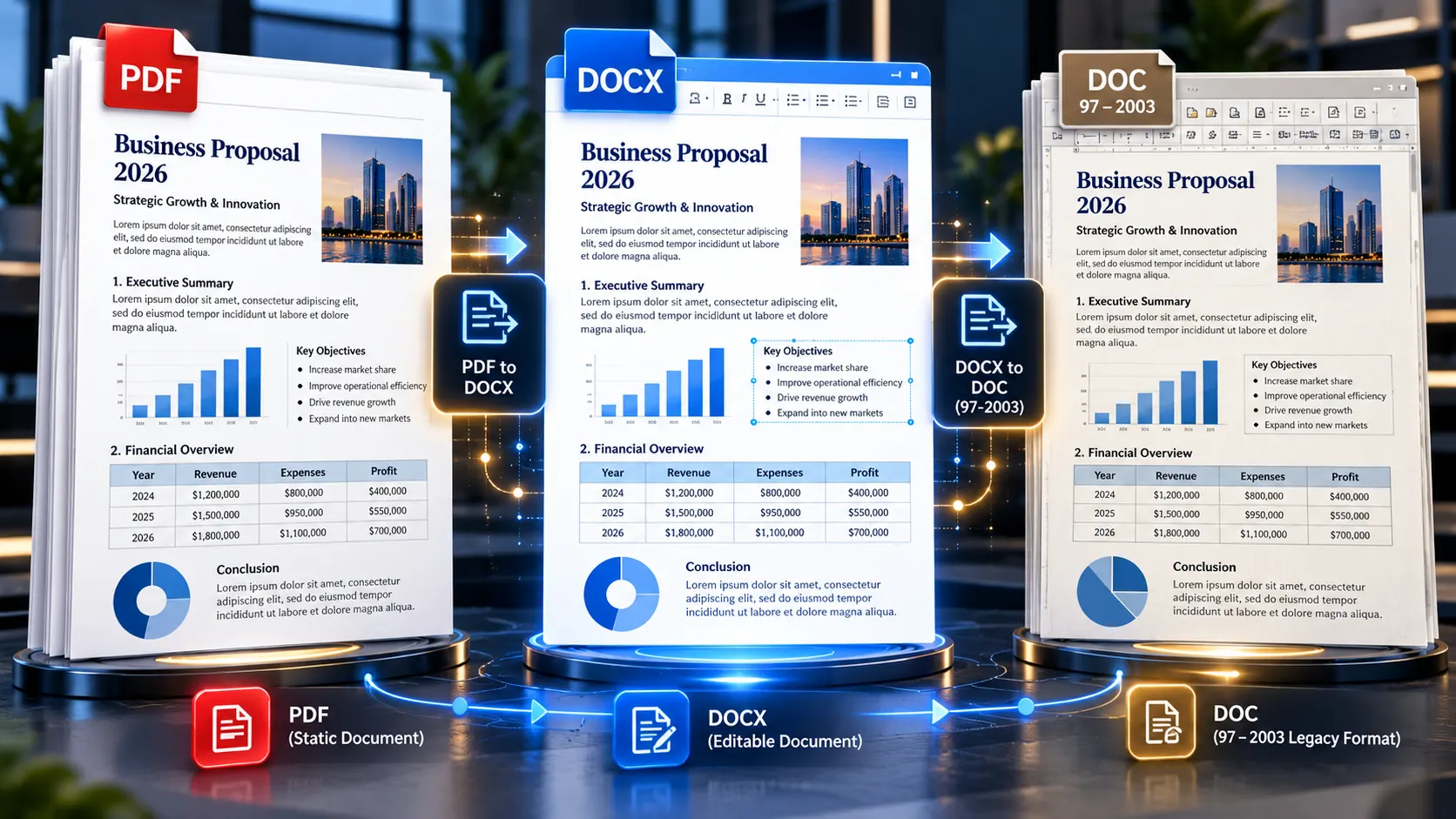
PDF conversion becomes more complicated when the final requirement is not a modern .docx file but the older Microsoft Word .doc format used by legacy systems, institutions, archives, or compatibility-sensitive workflows.
If you need to convert a PDF into an old .DOC file, the practical approach is usually to convert the PDF into an editable Word document first, then save that document in the legacy Word 97–2003 .doc format. This two-stage workflow is often more reliable than assuming every online PDF converter can generate the old format directly.
That distinction matters because .doc and .docx are not simply two different filename extensions. They represent different generations of Word document formats, with different compatibility characteristics and limitations.
Why Do Some Workflows Still Require the Old .DOC Format?
The .doc format predates the modern Office Open XML .docx format.
Many users now work almost exclusively with .docx, but older institutional systems may still expect .doc files because of:
- legacy document-management software
- older enterprise applications
- archival systems
- government or institutional submission requirements
- older document templates
- compatibility with outdated office software
- automated systems that validate file extensions
- historical document repositories
- older legal or administrative workflows
For a normal modern workflow, .docx is usually the more practical format.
But if a receiving system specifically says “Microsoft Word 97–2003 (.doc)”, changing the extension manually is not enough.
The document needs to be saved in the appropriate legacy format.
.DOC vs .DOCX: What Is the Difference?
The most important distinction is that .doc and .docx use different underlying document structures.
The older .doc format is associated with Microsoft’s legacy binary Word document format.
The newer .docx format uses an XML-based package structure.
That difference affects compatibility, editing features, file size, and how modern Word features are represented.
A simplified comparison looks like this:
| Feature | Legacy .DOC | Modern .DOCX |
|---|---|---|
| Word 97–2003 compatibility | Yes | No |
| Modern Word format | Legacy | Current |
| XML-based package | No | Yes |
| Supports many modern Word features | Limited | Better |
| Suitable for old software | Often | Not always |
| Typical modern workflow | Less common | Standard |
The important point is simple:
You cannot reliably turn a .docx into a .doc by renaming the file extension.
The file must actually be converted or saved into the older format.
Can You Convert a PDF Directly to an Old .DOC File?
Sometimes third-party software may advertise direct PDF-to-DOC conversion, but you should first understand what happens during the conversion.
A PDF does not contain a normal Word document structure.
It primarily describes how content should appear on a page.
The converter therefore has to reconstruct:
- paragraphs
- headings
- tables
- images
- page breaks
- fonts
- lists
- columns
- spacing
- alignment
Then, if the final output is .doc, that reconstructed document must also be represented using the older Word format.
This creates two separate challenges:
PDF → editable document structure
and
editable document structure → legacy .DOC
For that reason, a controlled two-stage workflow can be easier to troubleshoot.
The Practical PDF → DOC Workflow
For most compatibility-sensitive situations, think of the process like this:
Original PDF
     ↓
PDF → DOCX conversion
     ↓
Editable Word document
     ↓
Review formatting and content
     ↓
Save As Word 97–2003
     ↓
Legacy .DOC file
The review stage is important.
Do not convert the PDF into DOCX and immediately save it as .doc without checking the content first.
If the PDF-to-Word conversion already damaged tables, columns, images, or formatting, saving the result in another format will not magically repair those problems.
Step 1: Examine the Original PDF
Before converting the document, determine what you are dealing with.
Ask:
- Is the PDF text selectable?
- Is it a scanned document?
- Does it contain tables?
- Are there multiple columns?
- Are there images?
- Are there unusual fonts?
- Does it contain forms?
- Are there headers and footers?
- Does it contain footnotes?
- Are there complex page layouts?
A simple text-based PDF is generally easier to reconstruct than a heavily designed document.
This is especially important for legal and institutional documents because formatting can sometimes carry meaning.
Step 2: Convert the PDF Into an Editable Word Document
The first conversion stage should produce an editable Word document.
PKCapra provides a verified PDF to DOCX Converter for this part of the workflow.
The important objective is to create an editable working version of the PDF.
At this point, the output should be treated as a conversion draft, not automatically as a perfect copy of the source.
This distinction becomes particularly important for documents containing tables, multi-column layouts, forms, or unusual formatting.
Step 3: Check the Converted DOCX Before Saving as .DOC
Before moving to the legacy format, inspect the Word document carefully.
Check the parts that matter most.
Text
Look for:
- missing paragraphs
- incorrect characters
- broken words
- unexpected spaces
- incorrect reading order
Tables
Check:
- column alignment
- row order
- merged cells
- numerical values
- totals
- borders
- page breaks
Images
Check:
- image presence
- position
- resolution
- captions
- surrounding text
Formatting
Check:
- headings
- bold and italic text
- font substitution
- paragraph spacing
- margins
- lists
- page numbering
This stage is particularly important because legacy-format conversion can introduce another layer of compatibility issues.
Step 4: Save the Editable Document as Word 97–2003 .DOC
Once the DOCX version has been checked, open it in Microsoft Word or another compatible desktop word processor that supports saving to the legacy Word format.
Use the application’s Save As or equivalent format-selection workflow.
Select the older Word format corresponding to:
Word 97–2003 Document (*.doc)
The exact menu wording can vary depending on the application and version.
The important point is that the document must be saved using the actual .doc format rather than simply renamed.
Why Renaming .DOCX to .DOC Does Not Work
Suppose you have:
report.docxand rename it to:
report.docThe filename has changed, but the internal document structure has not.
The result is still a DOCX-format package with a .doc extension.
A program expecting a genuine legacy Word document may reject it or report that the file is damaged.
This is why format conversion and filename changes should never be treated as the same thing.
Changing the extension changes the name. Saving in the legacy format changes the document structure.
What Can Go Wrong During PDF to DOC Conversion?
The biggest problems usually occur before the final .doc file is even created.
Tables may move
A PDF table can become a collection of text blocks or an incorrectly structured Word table.
This is especially common with:
- merged cells
- complex headers
- financial reports
- multi-page tables
- irregular column widths
Columns may change
A two-column PDF may become a document where text from the second column appears after the first column.
The document may still contain all the words, but the reading order can be wrong.
Fonts may change
If the original PDF uses a font that cannot be reproduced correctly, Word may substitute another font.
This can change:
- line wrapping
- page count
- spacing
- headings
- table dimensions
Images may move
Images can shift relative to surrounding paragraphs.
In some cases, the text may wrap differently around them.
Page breaks may change
A PDF has fixed pages.
An editable Word document is reflowable.
That means converting between them can change where pages begin and end.
What Happens to Tables When You Eventually Save as .DOC?
Tables deserve special attention because they can be affected at multiple stages.
Consider this workflow:
PDF table
   ↓
PDF → DOCX
   ↓
Word table reconstruction
   ↓
DOCX review
   ↓
DOC conversion
   ↓
Legacy Word table
If the table is already wrong in the DOCX version, the final .doc file will inherit the problem.
Therefore, the correct sequence is:
Check the table before the legacy conversion, not after everything is finished.
For complicated tables, compare:
- headers
- first row
- random middle rows
- final row
- totals
- footnotes
This is especially important for legal, financial, administrative, and compliance documents.
What If the PDF Is Scanned?
A scanned PDF requires a different starting point.
A scanned page is essentially an image.
The words may look perfectly readable to a human, but the computer may not have actual text objects to convert.
In that situation, OCR may be required before an editable Word document can be produced.
The workflow becomes:
Scanned PDF
     ↓
OCR
     ↓
Recognized text
     ↓
Editable Word document
     ↓
Review
     ↓
Legacy .DOC
OCR accuracy should be checked carefully for:
- numbers
- dates
- names
- punctuation
- currency
- decimal points
- legal references
- special characters
For a scanned legal contract, for example, one incorrectly recognized character can matter more than several paragraphs of ordinary formatting differences.
Is .DOC Better Than .DOCX?
Not generally.
The older format is useful primarily when compatibility requires it.
For a modern workflow, .docx is usually preferable because it is designed for current Word environments and modern document features.
Use .doc when the destination specifically requires it.
Examples might include:
- an old document-management system
- a legacy application
- an institutional archive
- a submission portal with strict file-format requirements
- an older office environment
If there is no compatibility requirement, converting a document to .doc simply because it is older is usually unnecessary.
When Should You Keep the DOCX Version?
Whenever possible, keep the DOCX working copy even after creating the legacy .doc.
For example:
Original PDF
      ↓
Working DOCX
      ↓
Legacy DOC
Keep both:
contract-working.docx
contract-legacy.doc
Why?
Because the DOCX file can remain your modern editable master.
The .doc file can then be treated as the compatibility copy.
This is useful if you later need to:
- make substantial edits
- change formatting
- insert images
- update tables
- create another output format
- generate a PDF again
Maintaining the modern source avoids repeatedly converting the original PDF.
What About Legal and Institutional Documents?
Legacy .doc requirements are particularly relevant in workflows where the receiving organization specifies an exact file format.
The safest approach is to separate three questions:
Does the receiving system require .DOC?
If yes, create a genuine legacy .doc.
Does the document need to remain editable?
If yes, carefully inspect the conversion before final delivery.
Does the formatting carry meaning?
If yes, compare the converted document against the PDF before submission.
A file that opens successfully is not necessarily a file that has converted correctly.
How to Verify a Legacy .DOC File
After saving the document as .doc, open the resulting file and inspect it again.
Do not assume that the successful save operation means the document is identical to the DOCX version.
Check the opening pages
Look for:
- missing content
- changed margins
- unusual fonts
- altered headings
- page-break changes
Check important tables
Compare:
- row order
- column alignment
- totals
- merged cells
- headings
Check images
Make sure important graphics still appear.
Check headers and footers
Legacy-format conversion can affect positioning and page layout.
Check the final page
This can reveal unexpected overflow, missing content, or altered pagination.
A Simple Compatibility Test
If the .doc file is being prepared for another person or system, perform a small acceptance test.
Test 1: Open
Does the file open without a repair warning?
Test 2: Edit
Can the intended text be edited?
Test 3: Navigate
Do headings, pages, tables, and other important structures behave reasonably?
Test 4: Compare
Does the document still contain the important information from the PDF?
Test 5: Submit
If the file is intended for an institutional system, confirm that the receiving workflow accepts the actual .doc file.
The final test matters because technical compatibility and visual correctness are two different things.
Common Mistakes When Converting PDF to Old .DOC
Mistake 1: Renaming .DOCX to .DOC
This does not convert the file format.
Mistake 2: Assuming every PDF converter supports legacy DOC
Many modern converters focus on .docx.
Always check the actual output format before relying on a conversion workflow.
Mistake 3: Skipping the DOCX review
If the intermediate document has errors, those errors can carry into the final .doc.
Mistake 4: Ignoring tables
A document can look acceptable while important table values are incorrectly positioned.
Mistake 5: Ignoring scanned PDFs
Image-based PDFs may require OCR before editable text can be reconstructed.
Mistake 6: Editing the only copy
Keep the original PDF and, where possible, the modern DOCX working file.
Mistake 7: Assuming .DOC means better compatibility everywhere
.DOC can improve compatibility with some older systems while creating limitations elsewhere.
The correct format depends on the receiving environment.
PDF → DOCX → DOC vs PDF → DOC
For compatibility-sensitive workflows, compare the approaches carefully.
| Workflow | Main Advantage | Main Risk |
|---|---|---|
| PDF → DOCX → DOC | Allows review before legacy conversion | Two conversion stages |
| PDF → DOC | Potentially simpler | Quality depends entirely on direct converter |
| PDF → DOCX | Best for modern editing | Does not itself satisfy a .doc requirement |
| PDF → OCR → DOCX → DOC | Useful for scanned PDFs | OCR errors require verification |
The strongest workflow is not necessarily the one with the fewest steps.
It is the one that gives you the most control over the final document.
When Direct Legacy Conversion Makes Sense
A direct PDF-to-DOC workflow can make sense when:
- the conversion software genuinely supports
.doc - the PDF is relatively simple
- compatibility is the primary concern
- you can inspect the output
- the destination specifically requires legacy Word
But if a tool only provides modern DOCX output, there is no reason to force the tool to pretend it supports .doc.
Instead, use the verified PDF-to-DOCX conversion stage and then perform the legacy-format save separately.
When You Should Not Use the Old .DOC Format
Avoid unnecessary legacy conversion when:
- the recipient accepts
.docx - the document contains complex modern Word features
- you need maximum compatibility with current Word features
- the document will be heavily edited
- there is no legacy software requirement
In those cases, keeping the document as .docx avoids an unnecessary compatibility layer.
A Better Workflow for Legacy Document Requirements
If you regularly receive PDFs that must eventually become old Word files, create a repeatable process.
Stage 1: Source inspection
Determine whether the PDF is text-based, scanned, table-heavy, or layout-heavy.
Stage 2: Editable conversion
Convert the PDF into a modern editable Word document.
Stage 3: Content verification
Compare important text, tables, images, headings, and page structure.
Stage 4: Legacy conversion
Save the verified document as Word 97–2003 .doc.
Stage 5: Final validation
Open the .doc and verify the critical content again.
This gives you a clear chain:
Source → Editable master → Compatibility copy → Final validation
That is much safer than treating the final file extension as the entire conversion process.
How This Fits Into a Larger PDF Conversion Workflow
Legacy DOC conversion is rarely an isolated problem.
It is often connected to other PDF conversion issues.
For example:
- scanned PDF → OCR
- complex table → table verification
- large PDF → page extraction or splitting
- normal editable PDF → PDF to DOCX
- legacy submission requirement → DOCX to DOC
- final distribution → PDF again
The key is choosing the right format at each stage rather than expecting one converter to solve every problem.
If your source is already a normal text-based PDF, start with PKCapra’s PDF to DOCX Converter, then review the editable document before saving it to the legacy format required by your destination system.
Frequently Asked Questions
Can I convert a PDF directly to an old .DOC file online?
Some conversion software may support legacy .doc output, but many modern PDF converters focus on .docx. A practical alternative is to convert the PDF to an editable DOCX first and then save it as Word 97–2003 .doc.
Can I rename a .DOCX file to .DOC?
No. Renaming the extension does not change the underlying document format. A genuine .doc file must be saved or converted using a process that produces the legacy Word format.
What is the difference between DOC and DOCX?
.doc is the older Word document format associated with Word 97–2003, while .docx is the newer XML-based Word format used by modern versions of Microsoft Word.
Why would someone still need a .DOC file?
Legacy software, institutional systems, archives, older templates, or submission workflows may specifically require the older Word format.
Should I convert PDF to DOCX before DOC?
For many workflows, this is a sensible approach because it gives you an editable intermediate document that you can inspect before creating the legacy .doc version.
Will PDF-to-DOC conversion preserve the original formatting?
Not necessarily. PDFs preserve fixed page appearance, while Word documents use editable and reflowable structures. Tables, columns, fonts, images, and page breaks may require post-conversion review.
What if my PDF is scanned?
A scanned PDF may require OCR before editable text can be reconstructed. After OCR, carefully verify names, numbers, dates, symbols, and other important content.
Is DOC better than DOCX?
No. DOC is mainly useful when compatibility with older software or a specific legacy workflow requires it. For modern editing, DOCX is generally the more appropriate format.
Should I keep the DOCX after creating the DOC file?
Yes, whenever possible. The DOCX can serve as your modern editable master, while the .doc can serve as the compatibility version.
What should I check after converting PDF to DOC?
Check the text, tables, headings, images, page breaks, fonts, headers, footers, and important numerical or legal information. Then open the final .doc separately to verify that the legacy conversion did not introduce additional problems.
Key Takeaways
- A
.docfile is not simply a.docxfile with a different extension. - Legacy
.docis primarily useful when an older system or workflow specifically requires it. - A practical workflow is PDF → DOCX → review → Word 97–2003
.doc. - Do not rename
.docxto.doc. - Review tables, columns, images, fonts, and page breaks before creating the legacy copy.
- Scanned PDFs may require OCR before editable conversion.
- Keep the modern DOCX version whenever possible.
- If the receiving system accepts DOCX, there is usually no need to downgrade the document.
- A successful file conversion should be judged by both compatibility and content accuracy.
Conclusion
Converting a PDF into an old Word .doc file is less about finding a magic one-click converter and more about understanding the compatibility requirement.
The most dependable approach is to separate the process into stages: create an editable Word document, verify the content, then save a compatibility copy in the legacy Word 97–2003 format when the destination actually requires it.
That approach also gives you something important: control.
You can identify formatting problems before they become part of the final legacy file, keep a modern editable master, and deliver the .doc version only when it is genuinely needed.
For the first stage of the workflow, you can use PKCapra’s PDF to DOCX Converter.
If your receiving system still requires .doc, the final step should be performed using a compatible word processor that can genuinely save the document in the legacy Word 97–2003 format.
Does your workflow still require .doc, or will the receiving system accept the newer .docx format?