
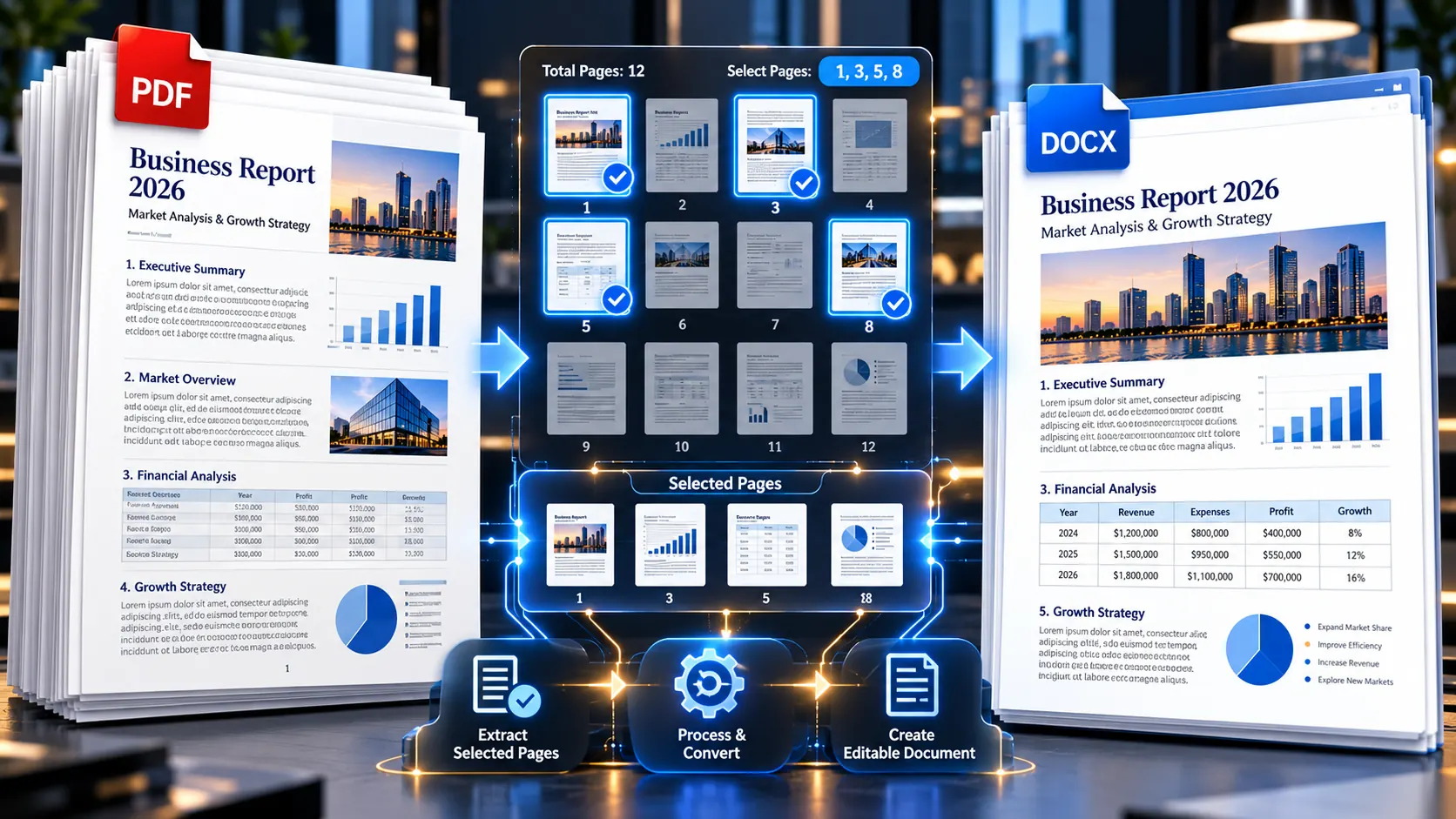
A 200-page PDF can make a simple editing task feel unnecessarily complicated. If you only need pages 7, 12, and 18 in an editable Word document, converting the entire file first creates extra work, extra cleanup, and a larger document than you actually need.
The easiest approach is to isolate the pages you need first, then convert that smaller PDF to Word. This keeps the conversion focused on the relevant content and makes it easier to review the final Word document.
Why Convert Only Certain PDF Pages?
Not every PDF-to-Word task requires the entire document.
You might have a long:
- legal contract
- research report
- employee handbook
- university document
- financial report
- technical manual
- government publication
- scanned archive
- product catalogue
- training document
but only need a few pages.
For example, suppose a 180-page report contains one 3-page section that needs editing.
Converting all 180 pages means you may have to deal with:
- unnecessary content
- larger output files
- more formatting to review
- irrelevant images
- additional page breaks
- extra tables
- a longer Word document
If your actual goal is simply to edit three pages, there is little reason to carry the other 177 pages through the conversion process.
The Best Workflow for Specific-Page PDF to Word Conversion
The cleanest workflow is:
Original PDF
     ↓
Identify required pages
     ↓
Extract those pages
     ↓
Create a smaller PDF
     ↓
Convert selected PDF to Word
     ↓
Review the Word document
This is different from converting the complete PDF and deleting unwanted pages afterward.
The key principle is:
Reduce the source before performing the conversion whenever the task only concerns a small portion of the document.
Step 1: Identify Exactly Which Pages You Need
Start by determining the pages that contain the content you want to edit.
For example:
Pages 4–6or:
Pages 12, 17, 24or:
Pages 35–42Be careful when identifying page numbers.
A PDF viewer may display both a PDF page index and a printed page number.
For example, the viewer may show:
PDF page 18while the document itself prints:
Page 12Those numbers are not necessarily the same.
Check the PDF’s Actual Page Position
Before extracting pages, confirm whether the page number you are looking at refers to:
- the PDF viewer’s page position
- the printed number on the document
- a section number
- a chapter number
This small check can prevent extracting the wrong section.
Step 2: Extract the Required Pages
Once you know the pages, isolate them into a separate PDF.
PKCapra provides a verified Extract PDF Pages tool for this type of task.
The purpose is simple: create a new PDF containing only the pages you need.
For example:
Original:
Pages 1–200

Required:
Pages 72–75

New PDF:
Pages 72–75
The extracted file becomes your focused source for the next stage.
Step 3: Check the Extracted PDF
Do not immediately convert the extracted file to Word.
Open it first and make sure the correct pages are present.
Check:
- first selected page
- last selected page
- page order
- tables
- images
- headers
- footers
- page numbering
- important text
This takes very little time and can save you from converting the wrong section.
Step 4: Convert the Smaller PDF to Word
Once the page-only PDF is correct, convert it into an editable Word document.
PKCapra’s verified PDF to Word Converter can be used for the PDF-to-Word stage.
The workflow now becomes:
200-page PDF
     ↓
Extract pages 72–75
     ↓
4-page PDF
     ↓
PDF to Word
     ↓
Editable Word document
The resulting Word document is focused on the content you actually need.
Why Extract Pages Before Converting?
There are several practical advantages.
Less unnecessary content
You only carry the required pages into the editable document.
Easier formatting review
A four-page Word document is much easier to inspect than a 200-page conversion.
Easier editing
You can immediately work on the relevant section without deleting large amounts of unrelated content.
Cleaner final output
If the document is going to someone else, you can provide only the pages relevant to the task.
Easier troubleshooting
If formatting goes wrong, you have a much smaller conversion to investigate.
This is particularly useful when the selected pages contain complex tables, columns, or images.
When Should You Extract Pages Instead of Splitting the PDF?
The two workflows are related but serve slightly different purposes.
Extract PDF Pages
Use page extraction when your goal is:
“I need these particular pages.”
For example:
Pages 8, 14, 21 and 22Split PDF
Use a Split PDF workflow when you want to divide a document into separate page ranges or smaller PDF files.
For example:
Pages 1–20
Pages 21–40
Pages 41–60
The distinction is useful because your end goal should determine the operation.
If you only need a few specific pages for Word editing, page extraction is usually the more direct approach.
What If the Pages Are Not Consecutive?
Non-consecutive pages are common.
You may need:
Page 3
Page 8
Page 19
Page 27
You do not need to convert the entire document simply because the required pages are separated.
The better workflow is:
- identify the required pages
- extract those pages
- verify their order
- convert the resulting PDF to Word
- review the Word document
This creates a much more focused editing workflow.
What If You Need a Continuous Range?
If you need pages 40 through 55, the process is even simpler.
You can treat the selection as one continuous range:
40 → 41 → 42 → ... → 55After extraction, verify that the resulting PDF begins and ends at the correct pages.
This is particularly useful for:
- chapters
- appendices
- report sections
- contracts
- research papers
- training modules
What If the PDF Contains a Table?
This is where page selection and conversion quality become especially important.
Suppose the pages you need contain a financial table.
You should check whether:
- the table continues onto another page
- the header appears only on the previous page
- totals appear on the following page
- footnotes are outside the selected range
- merged cells span page boundaries
If you extract only one page from a multi-page table, you may accidentally remove context that is necessary to understand the data.
A Better Table Check
Before extraction, ask:
Does the selected page contain the complete table, or does the table continue elsewhere?
If it continues, extract the complete relevant range.
This connects directly with the previous article in this cluster about extracting PDF tables and layouts into Word without data distortion, where table structure and data accuracy are the main concerns.
What If the PDF Is Scanned?
A scanned PDF requires extra care.
A scanned page may contain an image of text rather than actual selectable text.
If you extract pages from a scanned document, you are still extracting image-based pages.
The next stage may require OCR if the goal is an editable Word document.
The conceptual workflow becomes:
Scanned PDF
     ↓
Extract required pages
     ↓
Selected-page PDF
     ↓
OCR / text recognition where needed
     ↓
Editable Word document
Do not assume that extracting pages automatically makes their text editable.
Page extraction changes which pages are included.
OCR changes whether image-based text can be recognized as text.
Those are two different operations.
What If the PDF Is Very Large?
Specific-page extraction becomes even more useful with large PDFs.
Imagine a 600-page technical manual where you only need pages 215–223.
Instead of processing the entire document, create a focused PDF containing those pages and continue from there.
For very large files, you may also benefit from splitting or compressing the source when appropriate.
The objective is not to perform more file operations than necessary.
It is to reduce unnecessary processing before the conversion stage.
How to Convert Only One Page From a PDF to Word
If you need just one page, the workflow can be extremely simple.
Step 1
Find the required page.
Step 2
Extract that page into a new PDF.
Step 3
Open the extracted PDF and verify it.
Step 4
Convert the extracted PDF to Word.
Step 5
Review the resulting Word document.
The result should contain the content from the selected page rather than the entire original PDF.
How to Convert Several Specific Pages to Word
For several pages, use the same basic process.
For example, suppose you need:
Pages 5–7
Pages 14
Pages 28–30
Create a selected-page PDF containing those pages.
Then:
Selected PDF
      ↓
PDF to Word
      ↓
Editable Word file
The important part is preserving the required page order.
If the pages are extracted in an unusual sequence, check the resulting PDF before conversion.
Should You Delete Unwanted Pages After Converting?
You can, but it is often less efficient.
Consider:
200-page PDF
      ↓
Convert all 200 pages
      ↓
Large Word document
      ↓
Delete 195 pages
versus:
200-page PDF
      ↓
Extract 5 pages
      ↓
5-page PDF
      ↓
Convert to Word
The second workflow is more targeted.
It also gives you a cleaner intermediate file and makes the final Word document easier to inspect.
What Happens to Page Numbers After Extraction?
This depends on how the original document is designed.
There are two different concepts:
- PDF page position
- printed page number
Suppose you extract PDF pages 40–45 from a report.
The new PDF may contain six pages, but the printed numbers inside the document could still say:
Page 73
Page 74
Page 75
...
That is not necessarily an error.
The content’s original page numbering and the new PDF’s physical page count are different things.
This distinction becomes important when someone asks you to extract “pages 73–78” based on printed page numbers rather than PDF positions.
What If the Selected Page Contains Headers and Footers?
Headers and footers can remain relevant even when only a small page range is extracted.
Check whether they contain:
- document title
- confidentiality notices
- version information
- dates
- page numbers
- legal notices
- section names
If they are part of the source page, they may appear in the resulting Word document depending on how the PDF-to-Word conversion reconstructs the page.
Do not assume that every PDF element will become a normal Word header or footer.
PDF conversion is a reconstruction process, not a perfect reversal of the original document.
What If the Selected Pages Have Multiple Columns?
Multi-column pages deserve additional review.
A page containing:
Column A | Column Bdoes not necessarily convert into two clean Word columns.
Text can sometimes be reconstructed in an unexpected order or layout.
If the selected pages contain important multi-column content, compare the resulting Word document against the source PDF carefully.
This is particularly important for:
- academic papers
- newsletters
- magazines
- legal publications
- technical documentation
What If the Page Contains Images?
Images may be reconstructed differently in Word.
After conversion, check:
- image position
- image size
- surrounding text
- captions
- image quality
If the image is essential to the meaning of the selected page, do not judge the conversion only by whether the text is editable.
The page needs to remain understandable as a whole.
A Quality-Control Checklist for Selected-Page Conversion
Before editing the final Word document, compare the source and output.
Content
- Is every required page present?
- Is the page order correct?
- Is important text missing?
- Are numbers accurate?
Layout
- Are headings positioned correctly?
- Are columns in the right reading order?
- Are tables usable?
- Are page breaks reasonable?
Visual elements
- Are images present?
- Are captions preserved?
- Are important diagrams still readable?
Context
- Did you accidentally omit the beginning or end of a table?
- Are footnotes included?
- Are required headers or notices still present?
This check is much more valuable than simply confirming that the Word file opens.
Common Mistakes When Extracting PDF Pages for Word
Mistake 1: Using the printed page number as the PDF page number
These can be different.
Mistake 2: Extracting only half of a table
Always check whether the table continues onto adjacent pages.
Mistake 3: Converting the entire PDF first
If you only need a few pages, this creates unnecessary work.
Mistake 4: Assuming scanned pages are editable
A scanned page may still be an image after extraction.
Mistake 5: Ignoring page order
Non-consecutive page selection can produce a confusing document if the order is wrong.
Mistake 6: Removing context
A page may depend on information immediately before or after it.
Mistake 7: Not checking the final Word document
A successful conversion does not guarantee accurate formatting or reading order.
A Simple Decision Guide
| Your Requirement | Recommended Approach |
|---|---|
| Need one specific page | Extract that page → convert to Word |
| Need several non-consecutive pages | Extract selected pages → convert to Word |
| Need a continuous chapter | Extract the page range → convert to Word |
| Need separate PDF sections | Split the PDF |
| Need the entire PDF editable | Convert the complete PDF to Word |
| PDF is scanned | Extract pages → OCR if required → Word |
| Selected pages contain tables | Extract complete relevant range → carefully verify tables |
| Selected pages contain complex layouts | Extract first → convert → compare against source |
A More Efficient Workflow for Large Documents
If you frequently work with large PDFs, it helps to separate selection from conversion.
Instead of thinking:
“I need to convert this PDF to Word.”
Think:
“I need these pages from this PDF in an editable Word format.”
That small change in thinking leads to a more efficient workflow.
Stage 1: Find
Identify the exact content and page range.
Stage 2: Extract
Create a smaller PDF containing only what matters.
Stage 3: Inspect
Confirm that the extracted PDF is complete.
Stage 4: Convert
Use the PDF-to-Word workflow on the selected file.
Stage 5: Validate
Compare important content and formatting.
Stage 6: Edit
Make the required changes in Word.
This workflow avoids unnecessary conversion of content that you never intended to edit.
How This Article Connects With Other PDF-to-Word Problems
Specific-page conversion is part of a larger PDF workflow.
If your problem is primarily about tables, the previous article in this cluster addresses PDF table and layout preservation.
If your problem is a large PDF, reducing the document to the relevant pages can make the conversion workflow easier to manage.
If your PDF is scanned, OCR becomes the next important consideration.
If you are working with the complete document rather than selected pages, the PDF to Word Converter is the more direct starting point.
The important thing is to solve the actual problem rather than automatically converting the largest possible file.
Frequently Asked Questions
Can I convert only one page of a PDF to Word?
Yes. Extract the required page into a separate PDF first, then convert that smaller PDF to Word.
How do I extract specific PDF pages before converting to Word?
Select the pages you need, create a new PDF containing those pages, verify the result, and then use a PDF-to-Word conversion workflow.
Can I convert non-consecutive PDF pages to Word?
Yes, provided your page-extraction workflow supports selecting the required pages. The important thing is to verify their order before converting.
Is it better to extract PDF pages before converting to Word?
When you only need a small portion of a large PDF, extracting the relevant pages first is generally a cleaner workflow because it avoids converting unnecessary content.
What if I need pages 10–15 from a PDF?
Extract pages 10 through 15 into a separate PDF, check that all six pages are correct, and then convert that PDF to Word.
What if the PDF page numbers don’t match the printed page numbers?
Use the PDF viewer’s actual page position when selecting pages, and confirm the printed page number inside the document so you do not extract the wrong section.
Can I extract a page from a scanned PDF and make it editable?
Page extraction alone does not make scanned text editable. If the page contains image-based text, OCR may be required before or during the editable-document workflow.
What happens to tables when I extract PDF pages?
The table itself remains part of the selected page, but PDF-to-Word conversion may reconstruct its structure differently. If the table continues onto another page, extract the complete relevant range.
Should I extract pages or split the PDF?
Use page extraction when you need specific pages. Use splitting when you want to divide the document into broader page ranges or separate PDF files.
Can I delete unwanted pages after converting to Word instead?
You can, but if you already know which pages you need, extracting them before conversion usually creates a cleaner and more focused workflow.
Key Takeaways
- You do not need to convert an entire PDF when you only need a few pages in Word.
- Extract the required pages first, then convert the smaller PDF to Word.
- Always distinguish PDF page positions from printed page numbers.
- Check whether tables, footnotes, or sections continue onto adjacent pages.
- Non-consecutive pages can be handled as a selected group when the extraction workflow supports them.
- Scanned pages may require OCR before their text becomes editable.
- Review the extracted PDF before starting the Word conversion.
- Review the final Word document against the original PDF, especially for tables, columns, images, and important numbers.
- Keep the workflow focused: Find → Extract → Verify → Convert → Review → Edit.
Conclusion
Converting a 200-page PDF just to edit three pages is unnecessary work.
A better approach is to isolate the pages that actually matter, verify the smaller PDF, and then convert that focused document into Word. This keeps the conversion task manageable and makes quality control much easier.
The important distinction is between extracting pages and converting pages. First decide what content you need; then choose the conversion workflow that produces the editable format you want.
For a page-specific workflow, start with PKCapra’s Extract PDF Pages tool, then move the resulting PDF into the PDF to Word Converter.
Do you usually need an entire PDF converted to Word, or do you normally need just a few selected pages?