
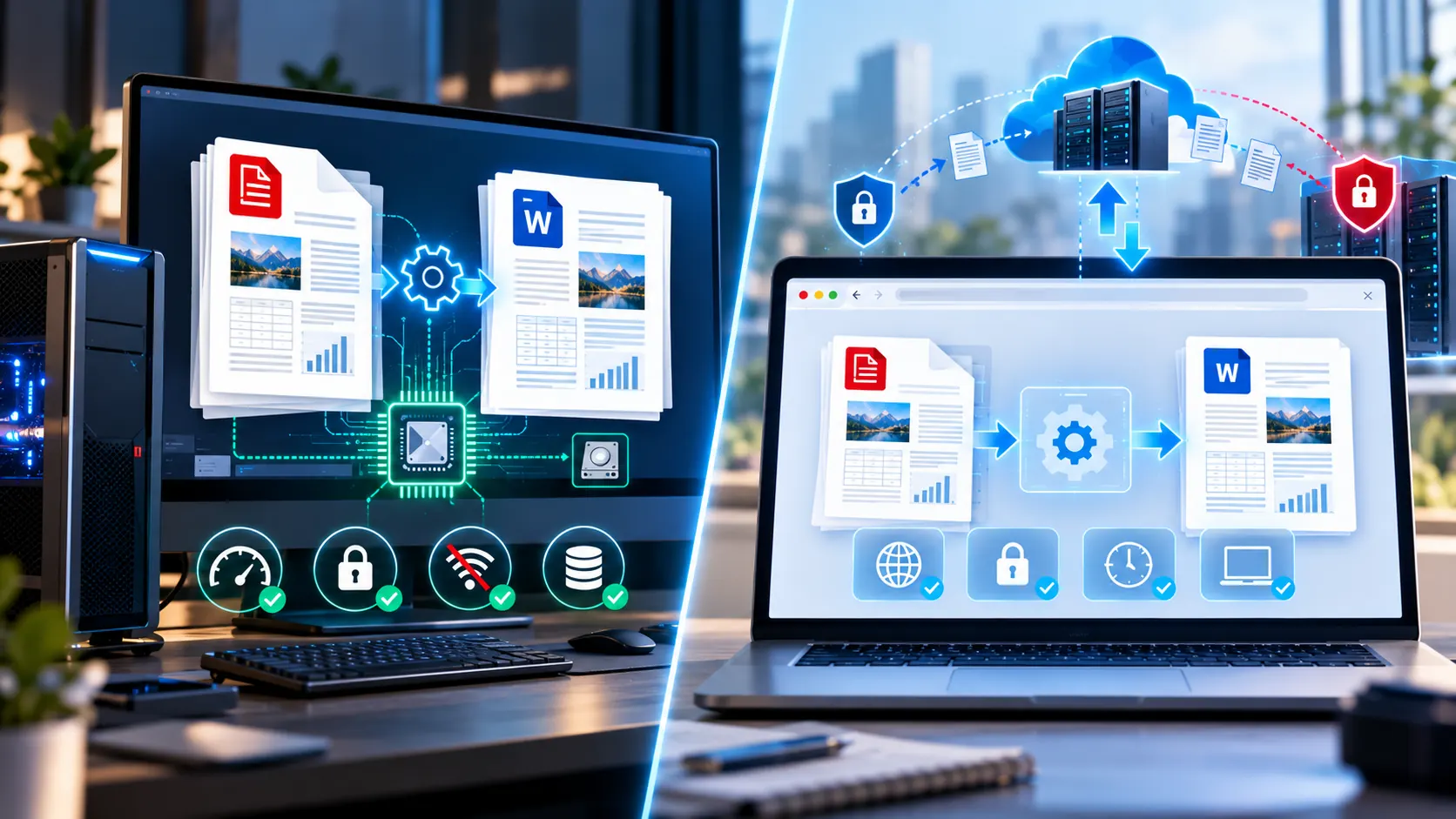
If you need to convert a PDF into an editable Word document, you have two broad choices: use a desktop application or use a browser-based converter.
At first glance, the difference looks simple.
Desktop = installed software.
Online = website.
But that distinction is no longer enough.
Some online converters upload your PDF to a remote server for processing. Others can process the file locally inside your browser. Similarly, some desktop applications perform conversion entirely on your computer while others include cloud-connected features.
So if you are asking “Is it safe to convert PDF to Word online?”, the more useful question is:
Where does my PDF actually go, and where does the conversion happen?
That processing model affects privacy, security, speed, internet requirements, device performance and what happens to your document after conversion.
The Short Answer: Online Conversion Can Be Safe, but Check the Processing Model
There is no universal rule that online PDF conversion is unsafe or that desktop conversion is automatically safe.
The important distinction is local processing versus remote processing.
Local or browser-based processing
The PDF stays on your device while the browser performs the conversion.
Server-side processing
Your PDF is transmitted to a remote service, processed on its infrastructure and the resulting DOCX is returned to you.
Both models can be implemented securely.
But they have different privacy implications.
For example, Adobe’s Acrobat online services explicitly upload files to Adobe cloud storage for online processing. Adobe says those files are protected using measures including AES-256 and TLS 1.2, and that files used without signing in are deleted from its servers within a short period. Adobe Help Center
That is a very different architecture from a converter that processes the document locally in your browser.
The key is therefore not simply whether a converter is called “online.”
Online vs Desktop PDF to Word at a Glance
| Factor | Browser-based / Online | Desktop |
|---|---|---|
| Installation | Usually none | Required |
| Internet | Usually required to access the site | Often not required after installation |
| Processing | May be local or server-side | Often local, but cloud features may exist |
| Privacy | Depends heavily on architecture | Depends on application and connected services |
| Speed | Can be quick for small files | Can be quick for local processing |
| Large files | Browser/device resources can matter | Desktop hardware may provide more resources |
| Updates | Website updates automatically | Software may require updates |
| Mobile access | Usually strong | Limited or unavailable depending on software |
| Corporate control | Depends on service | Often easier to control locally |
| Installation effort | Minimal | Higher |
| Best for occasional conversion | Often convenient | May be unnecessary |
| Best for repeated offline work | Less convenient | Often more practical |
The table should not be interpreted as saying that one model is always better.
The correct choice depends on the document and your requirements.
What Actually Happens When You Convert a PDF to Word?
Before comparing security, it helps to understand the basic workflow.
A PDF-to-Word converter generally has to:
- Read the PDF structure.
- Identify text and document elements.
- Determine their positions and relationships.
- Extract or interpret images.
- Reconstruct paragraphs, headings and other content.
- Build a new DOCX document.
- Make that document available for download.
The processing can happen in different places.
Local conversion
Your computer or browser performs these operations.
Remote conversion
Your PDF is transmitted to a service’s infrastructure, where the conversion takes place.
This difference is more important than whether the website looks modern or whether the application has a desktop icon.
Local Processing vs Server Processing
This is the most important concept in the entire comparison.
Local Processing
With local processing, the browser or desktop application performs the conversion using resources available on your device.
A simplified workflow looks like:
PDF → Your Device → Conversion → DOCX
The document does not need to be uploaded to a remote conversion server.
This can be particularly useful when the document contains confidential information.
However, local processing does not magically make a computer secure. If the device itself is compromised, poorly maintained or accessible to unauthorized users, locally stored documents can still be exposed.
CISA notes that attackers who gain access to a device can potentially access unencrypted data stored on it, which is why device and file protection remain important regardless of where conversion happens. CISA
Server-Side Processing
A server-based converter generally follows this model:
PDF → Internet → Conversion Server → DOCX → Download
The service receives your file, processes it and sends the result back.
That can provide substantial computing resources and sophisticated conversion engines.
But it also introduces an additional trust boundary.
You now need to understand:
- Who receives the file?
- Where is it stored?
- How long is it retained?
- Is the file encrypted in transit?
- Is it encrypted at rest?
- Who can access it?
- Is it used for other purposes?
- Are third-party processors involved?
- Is the output also stored?
- When is the temporary file removed?
A reputable service should make these policies reasonably clear.
Is Uploading a PDF to an Online Converter Dangerous?
Not automatically.
A secure online service can use encryption, access controls and defined retention procedures.
Adobe, for example, states that its Acrobat online services use TLS 1.2 for data in transit and AES-256 for file protection. Adobe also states that files uploaded to its cloud storage are marked private by default. Adobe Help Center
So the question should not be:
“Does this service upload files?”
Instead ask:
“If it uploads my file, what security and retention controls does the service provide?”
Uploading a document means you are trusting another system with that document.
That does not automatically mean the system is insecure.
It means the service’s security and data-handling practices become part of your security decision.
Why Browser-Based Local Processing Is Different
A browser-based converter can also be called an online tool even when the actual file processing happens locally.
The website provides the interface, JavaScript and processing logic, but the PDF itself can remain on your device.
In that situation, the workflow is closer to desktop software than to a traditional cloud converter.
PKCapra’s current PDF-to-Word workflow is designed around browser-side processing rather than sending the PDF to a PKCapra conversion server. The tool supports page selection, editable DOCX output and an OCR option for scanned PDFs. PKCapra PDF to Word Converter
That distinction matters when evaluating privacy.
Online Does Not Automatically Mean Cloud
This is one of the most common misconceptions about online document tools.
A website can contain software that runs inside your browser.
For example:
Traditional server converter
PDF
↓
Upload
↓
Remote server
↓
Conversion
↓
Download DOCX
Browser-based converter
PDF
↓
Browser
↓
Local processing
↓
DOCX
↓
Download
Both are accessed through a website.
Only one necessarily requires your source document to be transmitted to a conversion server.
Therefore, “online” describes how you access the tool, not necessarily where your document is processed.
Which Is Faster: Online or Desktop?
There is no universal speed winner.
Conversion speed depends on several variables:
- PDF size
- Number of pages
- Number of images
- Scanned content
- OCR requirements
- Tables
- Fonts
- Layout complexity
- Processor performance
- Available RAM
- Browser performance
- Internet speed
- Server load
For a small text-based PDF, a browser converter can feel almost immediate.
For a large document, local processing may become limited by your device’s CPU and available memory.
A server-based service may have considerably more processing resources, but upload and download time becomes part of the workflow.
Internet Speed Can Become Part of the Conversion Time
Suppose you have a 200 MB PDF.
A cloud converter has to receive that file before it can process it.
The practical workflow is therefore:
Upload → Wait → Process → Download
Even if the remote server processes the document quickly, a slow connection can dominate the overall experience.
With local processing:
Load → Process → Save
There is no large source-file upload.
This can be particularly relevant for large documents or unreliable connections.
But Local Processing Is Not Always Faster
Local processing also has limits.
Your browser may have to decode pages, render images, run OCR and construct the output document using your device’s available memory and CPU.
A powerful desktop can handle this comfortably.
An older laptop or mobile phone may struggle with the same document.
This is why browser-based processing can be excellent for ordinary documents while becoming less comfortable for very large or image-heavy PDFs.
The PKCapra PDF-to-Word workflow similarly notes that large or image-heavy PDFs may perform better on a desktop or laptop because browser processing can require more device resources.
What About Privacy?
Privacy is where the processing architecture becomes particularly important.
Consider three different scenarios.
Scenario 1: Local browser processing
The file remains on your device during conversion.
The remote website provides the application, but not the document-processing server.
This reduces the need to transmit the source document.
Scenario 2: Cloud conversion
The PDF is uploaded to a remote service.
The provider processes the file on its infrastructure.
The provider’s privacy, security and retention policies therefore become part of the workflow.
Scenario 3: Desktop application with cloud features
You may install software on your computer but still use connected services for particular operations.
Therefore, desktop software does not automatically mean that every operation is local.
You need to check the actual feature being used.
Security Is More Than Encryption
Encryption is important, but it is not the entire security picture.
A secure document-conversion workflow involves several layers.
Encryption in transit
Protects data while it travels between your device and a remote service.
Encryption at rest
Protects files stored on the provider’s infrastructure.
Access controls
Limit who can access stored documents.
Retention policies
Determine how long uploaded files remain available.
Authentication
Controls access to accounts and stored documents.
Application security
Protects the service itself against unauthorized access and malicious activity.
Device security
Protects files before and after conversion.
CISA recommends using HTTPS for online services because encrypted connections help protect communications against eavesdropping and tampering. CISA
So when evaluating an online converter, do not stop at the word “encrypted.”
Ask what happens to the document throughout its lifecycle.
What About Confidential Business Documents?
This is where organizations should be more cautious.
Imagine the PDF contains:
- Client contracts
- Employee records
- Financial statements
- Internal pricing
- Legal documents
- Product designs
- Customer information
- Business strategy
- Intellectual property
Before uploading such a document to any third-party service, determine whether your organization’s policies allow it.
For some businesses, local processing may be preferable because it minimizes external transmission.
For others, an approved enterprise cloud service may be acceptable because the organization has already evaluated its security controls and contractual arrangements.
The important point is:
Do not make the decision based solely on whether a tool is free, paid, online or desktop.
Use the organization’s actual data-handling requirements.
Online Conversion Can Still Be Secure
It is important not to confuse remote processing with insecure processing.
A professional cloud service can have strong security controls.
Adobe’s documentation, for example, describes encryption for its Acrobat online services and explains how files are handled when users do not sign in. Adobe Help Center
The trade-off is that your document still leaves your device.
That creates a different trust model from local processing.
The distinction is:
Secure remote processing ≠ local processing.
They solve the security problem differently.
Desktop Conversion Can Still Have Security Risks
Installing a converter does not eliminate security risks.
A desktop application can still be affected by:
- Malware
- Outdated software
- Compromised operating systems
- Unsafe PDFs
- Unauthorized device access
- Unencrypted local storage
- Browser or application vulnerabilities
- Cloud-connected features
Adobe’s current security guidance for Acrobat specifically discusses protections against potentially harmful PDF actions, including restrictions on external content, file-system operations and cross-domain communication from untrusted files. Adobe Help Center
That is a useful reminder that the source PDF itself can also be part of the security equation.
A PDF Can Be Untrusted Before You Even Convert It
Security is not only about protecting your document from the converter.
The PDF you receive can itself be malicious or contain active features.
If you downloaded the PDF from an unknown source, treat it as untrusted before opening or processing it.
This is especially relevant for business environments where files arrive through email, messaging platforms or external websites.
The safer workflow is:
Unknown PDF → Verify source → Scan/inspect → Process → Review output
rather than immediately uploading or opening every document.
What About OCR?
OCR introduces another processing step.
If your PDF consists of scanned pages, the converter may need to recognize characters from images.
That can require considerably more CPU and memory than extracting already-selectable text.
A browser-based local OCR workflow therefore depends heavily on your device.
A cloud service can potentially perform OCR on its own infrastructure.
But again, the cloud workflow means the document is transmitted to that service.
If privacy is important, check where OCR occurs.
Formatting Quality Can Differ Too
Privacy is not the only difference.
Conversion quality can vary according to the processing engine.
A PDF may contain:
- Multiple columns
- Tables
- Images
- Floating elements
- Headers
- Footers
- Embedded fonts
- Forms
- Scanned pages
- Complex positioning
A converter has to reconstruct those elements into the DOCX document model.
This can produce different results between conversion engines.
A desktop application may use a sophisticated conversion engine.
A browser-based tool may use a lightweight client-side engine.
A cloud service may use a powerful server-side engine.
Therefore, conversion architecture and conversion quality are separate questions.
A privacy-friendly tool is not automatically the most accurate tool for every PDF.
Likewise, a highly accurate converter is not automatically the best choice for confidential documents.
When an Online PDF-to-Word Converter Makes Sense
A browser-based converter can be particularly convenient when you:
- Need a quick one-off conversion
- Do not want to install software
- Are using a shared or temporary computer
- Need mobile access
- Have a normal text-based PDF
- Want selected pages converted
- Prefer browser-based processing
- Need a simple PDF-to-DOCX workflow
If the converter processes the document locally, it can also reduce the need to transmit the source PDF.
When Desktop Software Makes More Sense
Desktop software can be more appropriate when you:
- Convert documents frequently
- Work offline
- Handle very large PDFs
- Need advanced PDF editing
- Need extensive PDF management
- Need predictable enterprise deployment
- Need integration with other desktop workflows
- Have strict internal controls over installed software
It can also be preferable when your documents are too large or complex for comfortable browser processing.
A Third Option: Browser-Based Local Processing
There is a useful middle ground between traditional desktop software and cloud conversion.
A browser-based application can provide:
- No installation
- Cross-platform access
- Modern browser interface
- Local processing
- No traditional document-upload server
- Easy access from different devices
That is the model used by PKCapra for its PDF-to-Word workflow. The tool is accessed through the browser while the PDF processing itself is designed to happen locally in the browser. Use PKCapra PDF to Word Converter
This can be useful when you want the convenience of a website without automatically sending the source document to a remote conversion server.
How to Check Whether an Online Converter Is Actually Private
Do not rely on marketing phrases such as:
- Secure
- Private
- Safe
- Privacy-first
- Encrypted
Look for specific technical information.
Ask these questions:
1. Is my PDF uploaded?
Look for a clear statement about whether the file leaves your device.
2. Where is processing performed?
Browser, desktop, cloud server or third-party service?
3. Is the file stored?
Temporary processing still involves storage if the service says the file is retained on its infrastructure.
4. How long is it retained?
Look for a defined retention period.
5. Is the output stored?
The generated DOCX matters too.
6. Is the service using third-party processors?
This may be relevant for corporate data.
7. Is the connection encrypted?
For remote services, HTTPS/TLS should be expected.
8. Is the privacy policy specific?
A vague privacy statement provides less useful information than a clear description of document handling.
A Practical Security Checklist Before Converting a Confidential PDF
Before using any online converter, check the following:
- Is the document actually confidential?
- Does your organization permit third-party processing?
- Does the service explain where processing occurs?
- Does the file leave your device?
- Is HTTPS used?
- Is temporary storage explained?
- Is retention clearly documented?
- Are third-party processors disclosed where relevant?
- Does the service require an account?
- Can the task be completed locally instead?
If the answer to several of these questions is unclear, do not assume the service is private.
Online vs Desktop: Which Should You Use?
Rather than declaring one approach universally superior, match the method to the job.
| Situation | What to examine |
|---|---|
| One small PDF | Convenience and conversion quality |
| Large PDF | Device resources, upload time and processing limits |
| Confidential PDF | Processing location and organizational policy |
| Offline environment | Desktop/local processing |
| Mobile conversion | Browser compatibility and device resources |
| Scanned PDF | OCR availability and accuracy |
| Complex tables | Conversion quality and output review |
| Frequent PDF work | Workflow features and software capabilities |
| Corporate documents | Security controls, policies and approved services |
| Occasional conversion | Installation versus browser convenience |
This approach avoids treating “online” and “desktop” as two completely separate security categories.
How to Safely Convert a PDF to Word Online
If you decide to use an online converter, follow a sensible workflow.
Step 1: Classify the document
Determine whether it contains confidential or regulated information.
Step 2: Check the processing model
Find out whether the converter processes locally or uploads the PDF.
Step 3: Review the privacy information
Look for actual retention and processing details.
Step 4: Use HTTPS
Do not enter sensitive information through an insecure connection. CISA recommends HTTPS when interacting with online services because it helps protect data in transit. CISA
Step 5: Convert
Use the required PDF-to-Word settings.
Step 6: Review the DOCX
Check formatting, tables, images, headings and page breaks.
Step 7: Remove unnecessary copies
After completing the task, clean up downloaded files and temporary copies from devices or shared folders according to your organization’s document-handling policy.
What PKCapra’s Browser-Based Model Means
PKCapra’s current PDF-to-Word converter is designed to process the selected PDF directly in the browser rather than sending it to a PKCapra conversion endpoint. It supports selecting all pages or page ranges, creating an editable DOCX and enabling OCR for scanned PDFs. PKCapra PDF to Word Converter
That means the tool’s processing model is different from a conventional online converter that uploads the source document to a remote conversion server.
However, local browser processing should not be confused with a blanket guarantee of security.
Your device, browser, operating system, downloaded files and surrounding workflow still matter.
For sensitive business documents, follow your organization’s security and data-handling requirements.
The Most Important Distinction: Convenience vs Control
Online conversion generally emphasizes convenience.
Desktop conversion generally emphasizes local control.
But browser-local processing can provide elements of both:
Website convenience + local document processing
That is why asking whether online conversion is “safe” is too broad.
You need to know which type of online conversion you are actually using.
Frequently Asked Questions
Is it safe to convert PDF to Word online?
It can be, but safety depends on how the service processes and protects your document. Check whether the PDF is uploaded, where it is processed, how it is protected and how long it is retained.
Is desktop PDF-to-Word conversion safer than online conversion?
Not automatically. A local application can reduce the need to transmit documents, but the computer itself still needs to be secured. Online services can also implement strong security controls.
Does an online PDF converter always upload my file?
No. Some browser-based tools process files locally in the browser. Others upload files to remote servers. Check the individual tool’s processing model.
Can a browser convert PDF to Word without uploading the PDF?
Yes, if the converter is designed for local browser-side processing.
Is cloud PDF conversion secure?
It can be. For example, Adobe states that Acrobat online services use AES-256 and TLS 1.2 and describes how uploaded files are handled. Adobe Help Center
Is local browser processing completely private?
It can reduce transmission of the source file, but it is not a universal guarantee of privacy. Device security, browser security and the rest of your workflow still matter.
Is online PDF-to-Word conversion faster than desktop conversion?
Not necessarily. Small files may convert quickly online, while large files can be affected by upload speed or browser/device resources. Desktop performance depends on the computer and conversion engine.
What is better for large PDF files?
It depends on the document and conversion engine. Large, image-heavy or OCR-intensive PDFs can require substantial memory and processing resources, so a capable desktop may provide a smoother experience.
Should I upload a confidential business PDF to a free converter?
First check your organization’s policies and the converter’s processing and retention practices. If the document cannot be sent to a third party, use an approved local or organizational workflow.
Does PKCapra upload my PDF for PDF-to-Word conversion?
PKCapra’s current PDF-to-Word workflow is designed for browser-side processing rather than sending the PDF to a PKCapra conversion server. Check the PKCapra PDF to Word Converter
Final Takeaway
The safest way to compare online and desktop PDF-to-Word converters is to stop treating “online” and “desktop” as security guarantees.
Instead, ask:
Where is the file processed?
A traditional cloud converter may upload the PDF to a remote server. A desktop application may process it locally. A browser-based converter may also process it locally without sending the document to a conversion server.
That difference affects privacy, security, speed and control.
For ordinary documents, convenience may be the main consideration.
For confidential documents, processing location and organizational policy become much more important.
And for large or complex PDFs, device resources and conversion quality deserve equal attention.
The practical rule is simple:
Do not choose a PDF-to-Word converter based only on whether it is online or desktop. Choose it after checking how it processes your document, what happens to your data and whether its conversion workflow fits the document you actually need to convert.