
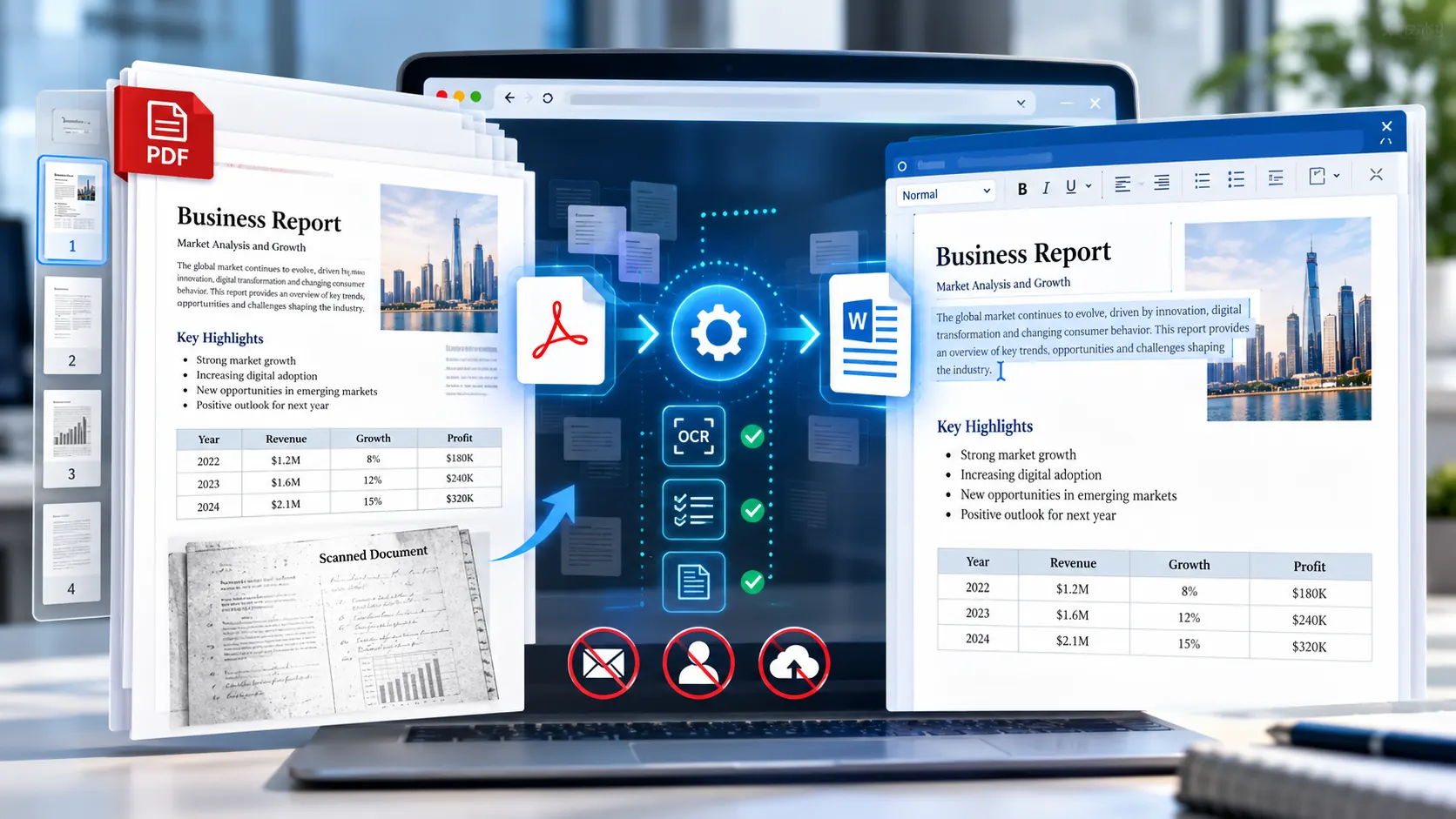
Sometimes you do not need a full document-management platform. You have a PDF, you need to change a few lines, and you want the result as a Word document.
That should be a simple job.
Yet many online PDF converters add friction around an otherwise straightforward task. You may encounter account prompts, email requests, conversion limits, desktop software recommendations, or workflows that require sending the document to a remote server.
For a one-off document, that can be unnecessary.
The more useful question is not simply “Which PDF to Word converter is free?”
It is:
Which converter lets you create an editable Word document without requiring an email address or registration, while giving you enough control over privacy, scanned PDFs, page selection and formatting?
That distinction matters because PDF-to-Word conversion is not just a file-extension change. A PDF stores page content and positioning in a way that is fundamentally different from how Word stores flowing document content. A converter has to reconstruct that information into an editable document.
This guide explains what to look for and where browser-based converters such as PKCapra fit into that workflow.
What Makes a PDF to Word Converter Actually Useful?
A useful free converter should remove unnecessary steps without hiding important limitations.
At minimum, look for these characteristics:
- No mandatory email address
- No account required for basic conversion
- Editable DOCX output
- Browser-based operation
- Support for selectable-text PDFs
- OCR support when the PDF contains scanned pages
- Page or page-range selection
- Reasonable handling of line breaks
- Clear privacy information
- No unnecessary desktop installation
The last point is particularly important.
A converter can advertise itself as “free” while still requiring registration, restricting downloads, adding watermarks, or moving important features behind a paid plan.
Free should describe the actual workflow, not merely the first button you can click.
Can You Convert PDF to Word Without an Email Address?
Yes.
There are browser-based PDF-to-Word tools that allow conversion without requiring an email address or account for the basic workflow.
For example, PKCapra’s PDF to Word Converter is designed to process the PDF directly in the browser and produce an editable DOCX file. The tool allows you to select all pages or specify page ranges, and it includes an option to use OCR for scanned PDFs.
That makes it suitable for a common situation: you have a PDF and simply want an editable Word copy without creating another online account.
The important distinction is that “no email required” and “private processing” are separate questions.
A service may not ask for your email while still uploading your document to its servers. If privacy matters, check how the actual document is processed rather than looking only at the signup form.
Why Browser-Based Conversion Can Be Different
Traditional online converters commonly follow a straightforward architecture:
Your computer → upload PDF → remote server → conversion engine → DOCX download
That model can work well, particularly for demanding conversions, because the server handles the processing.
A browser-based converter takes a different approach:
Your computer → browser loads the PDF → local processing → DOCX generated in the browser
In PKCapra’s current PDF-to-Word workflow, the PDF is processed directly in the browser rather than being uploaded to a traditional PKCapra conversion server.
That matters when the document contains information you would rather keep on your own device.
It also changes the performance model.
With server-side conversion, the service controls the processing environment. With browser-side conversion, your device’s available memory and processing power become part of the conversion environment.
A modern desktop with plenty of memory may handle a large document comfortably. An older laptop or mobile browser may struggle with a very large, image-heavy PDF.
So “browser-based” is not automatically better for every file. It is a different technical trade-off.
What About Privacy When Converting a PDF Online?
This is one of the first things worth checking before choosing a converter.
Consider what is actually inside the PDF.
It might contain:
- Contracts
- Invoices
- Business proposals
- Employee documents
- Financial information
- Legal correspondence
- Internal reports
- Personal identification information
- Research documents
- Customer information
If a conversion service requires uploading that file, the document necessarily leaves your device and enters a remote processing environment.
That does not automatically mean the service is unsafe. It does mean you should understand the service’s stated handling and retention practices before uploading sensitive material.
Browser-side processing offers a different architecture because the conversion can occur locally.
PKCapra explicitly states on its PDF-to-Word page that the PDF is processed directly in the browser and is not uploaded to its server for conversion.
That is a meaningful feature when the primary reason for avoiding registration is not convenience but document privacy.
Free Does Not Mean Every PDF Will Convert Perfectly
This is where many “best PDF converter” articles become misleading.
PDF is designed primarily as a fixed-layout document format.
Word is designed around editable document structure.
Those are not the same thing.
A PDF page might contain text positioned at precise coordinates rather than paragraphs stored in the logical order you would expect in Word. A heading might be represented as several positioned text objects. A table can consist of independent text and drawing elements rather than an actual table structure.
The converter therefore has to infer structure.
That can work very well for ordinary documents, but difficult layouts can require cleanup afterward.
Simple text PDF
A normal report with:
- headings
- paragraphs
- ordinary lists
- straightforward page breaks
is generally much easier to reconstruct.
Complex PDF
A PDF containing:
- multiple columns
- floating text
- complicated tables
- overlapping objects
- unusual fonts
- positioned graphics
- forms
- decorative page elements
is harder.
The resulting DOCX may contain text that is editable but still require formatting adjustments.
This is not necessarily a failure of the converter. It is a consequence of reconstructing one document model from another.
What Happens With a Scanned PDF?
This is another major distinction.
If you open a normal PDF and can highlight individual words with your mouse, the document probably contains machine-readable text.
A scanned PDF is different.
The page may effectively be an image.
There are no actual text characters for a normal text extractor to retrieve. What you see as a sentence is actually a collection of pixels.
That is where OCR — Optical Character Recognition — becomes important.
OCR analyzes the rendered page and attempts to identify characters and words from the image.
The simplified workflow looks like this:
Scanned page → image pixels → OCR recognition → text → editable document
OCR quality depends heavily on the source.
A sharp, correctly oriented scan with good contrast is much easier to recognize than a skewed, low-resolution photocopy.
PKCapra’s PDF-to-Word converter includes an option to use OCR for scanned PDFs. Its documentation also notes that OCR accuracy can depend on factors such as document quality, clarity, orientation and layout.
So if your PDF is scanned, don’t evaluate a converter solely on how it handles ordinary text PDFs.
Why Page Selection Is More Useful Than It Sounds
Imagine you have a 120-page PDF but only need pages 37–40 in Word.
You do not necessarily want to convert the entire document and then delete 116 pages.
A useful converter should allow you to identify the pages you actually need.
PKCapra’s PDF-to-Word workflow supports selecting all pages or specifying page ranges.
For example:
All pages
or:
3-5, 12, 27-30
This is particularly useful with:
- long reports
- manuals
- books
- contracts
- research papers
- archived documents
It also reduces unnecessary processing when you only need a small portion of a larger file.
What Does “Editable Word Document” Actually Mean?
There is an important distinction between an editable DOCX and a visually identical copy of a PDF.
A DOCX file can contain real Word paragraphs, headings, lists and other document structures.
But some conversion methods may produce a document where content is positioned in ways that make editing awkward.
For example, if every line becomes an independent text box, the document may look close to the PDF while becoming difficult to edit.
A good conversion workflow should therefore be evaluated on two separate dimensions:
Visual similarity
and
Editability
They are related, but they are not identical.
For many everyday documents, getting clean editable text is more valuable than reproducing every pixel of the original page.
For highly designed documents, visual fidelity may matter more.
How Free PDF to Word Converters Compare With Adobe Acrobat
Adobe Acrobat’s online PDF-to-Word service is another established option. Adobe states that its online converter can transform PDFs into editable Word documents and supports scanned PDFs through OCR. Its current online workflow also indicates that files are handled by Adobe’s servers, with deletion conditions described on the service page.
That illustrates an important difference between converter architectures.
A conventional cloud converter can use substantial server-side resources to perform document reconstruction.
A browser-based converter can keep processing on the user’s device.
Neither architecture should automatically be treated as universally superior. The appropriate choice depends on the document, privacy requirements, device capabilities and conversion complexity.
For users whose main requirement is simply “I need an editable Word file and I don’t want to create another account”, a browser-based converter can be a much simpler workflow.
What Should You Check Before Choosing a Free Converter?
Instead of judging converters only by a “free” label, check these practical points.
1. Does it actually require an email?
Some services allow the conversion but introduce registration at the download stage.
If you want a no-email workflow, test the complete process through download.
2. Is the document uploaded?
Read the privacy information.
“No signup” does not necessarily mean “no upload.”
3. Does it create a real DOCX?
Make sure the result is an editable Word document rather than a PDF containing page images.
4. Does it support scanned PDFs?
If your source is image-only, ordinary text extraction may not be enough.
Look for OCR support.
5. Can you select pages?
This becomes important when working with long documents.
6. How does it handle difficult layouts?
Test a representative document if formatting matters.
Tables, columns, forms and unusual typography are useful stress tests.
7. Does it explain its limitations?
A trustworthy tool should tell you where conversion may require cleanup.
Claims of perfect conversion for every possible PDF should be treated cautiously.
A Practical No-Email PDF-to-Word Workflow
For a normal text-based PDF, the process should be straightforward.
Step 1: Open the converter
Open a browser-based PDF-to-Word converter that does not require registration for the conversion you need.
Step 2: Select the PDF
Choose the document from your computer or device.
Step 3: Select the required pages
Convert the entire document or specify a page range when you only need part of it.
Step 4: Choose OCR when necessary
If the PDF is scanned or the text cannot be selected, enable OCR if the converter supports it.
Step 5: Review the DOCX
Do not immediately assume the document is perfect.
Check:
- headings
- paragraphs
- page breaks
- tables
- images
- lists
- unusual characters
- spacing
Step 6: Edit the Word document
Once the DOCX has been downloaded, open it in Microsoft Word or another compatible editor and make the required changes.
This workflow avoids manually copying and pasting large amounts of PDF content.
How to Get Better Conversion Results
You can improve the result by starting with a better source.
If you control the original document, use the cleanest PDF available.
For scanned documents:
- Use a sharp scan.
- Avoid heavily compressed images.
- Correct sideways or skewed pages when possible.
- Avoid extremely low-resolution scans.
- Make sure text has reasonable contrast against the background.
For normal text PDFs:
- Prefer PDFs generated directly from documents over screenshots.
- Avoid unnecessarily complicated layouts.
- Check tables after conversion.
- Review fonts and special characters.
And remember that a conversion is a reconstruction process.
The goal is not always to reproduce the PDF pixel-for-pixel. The goal is to produce a Word document that you can actually work with.
When a Free Online Converter Is Enough
A free browser-based converter is often sufficient when you need to:
- edit a short report
- update a letter
- reuse text from a PDF
- modify a contract draft
- extract selected pages
- convert a straightforward business document
- edit text from a clean PDF
- convert a scanned document where OCR is supported
You may not need a large desktop application for these tasks.
When You Should Consider Desktop Software
There are also situations where an online browser converter may not be the best fit.
Consider desktop software or a more specialized workflow when you routinely handle:
- very large PDFs
- highly complex layouts
- sophisticated forms
- unusual embedded fonts
- complicated tables
- large batches of documents
- documents requiring extremely precise layout reproduction
The browser itself has finite memory and processing resources.
A 5-page text document and a 500-page image-heavy document are very different workloads.
Is “No Email” the Most Important Feature?
Not necessarily.
No email is convenient, but it should not be the only criterion.
A better way to evaluate a converter is:
No registration + clear privacy model + editable output + appropriate OCR + useful page controls + acceptable conversion quality.
That combination addresses the actual problem.
If you only compare the number of fields in a signup form, you may overlook whether your document is uploaded, whether the result is genuinely editable, or whether scanned pages are supported.
Frequently Asked Questions
Can I convert PDF to Word without an email?
Yes. Some online PDF-to-Word converters allow basic conversion without requiring an email address or account. Always check the complete workflow, including the download step.
Is a free PDF-to-Word converter safe for confidential documents?
It depends on how the converter processes files. A service that uploads documents to a remote server has a different privacy model from a browser-based converter that processes the file locally. Check the service’s privacy and processing information before using confidential documents.
Can I convert a scanned PDF to Word?
Yes, if the converter supports OCR. A scanned PDF normally contains page images rather than selectable text, so OCR is needed to recognize the characters before they can become editable text.
Will the converted Word document look exactly like the PDF?
Not necessarily. Simple text-based PDFs can convert cleanly, but complex layouts involving columns, tables, positioned objects, images or unusual fonts may require formatting adjustments.
Can I convert only certain PDF pages to Word?
Some converters support page selection or page ranges. PKCapra’s PDF-to-Word converter supports selecting all pages or specifying the pages you want to process.
Do I need Microsoft Word installed?
No. You can create a DOCX file through an online converter without having Microsoft Word installed. You will, however, need a compatible application if you want to edit the resulting DOCX locally.
Is DOCX better than plain text for PDF conversion?
It depends on the purpose. DOCX is more appropriate when you need an editable document with formatting. Plain TXT is better when you only need the written content without document formatting.
Why does my converted PDF look different in Word?
PDF and Word use different document models. A PDF focuses on fixed page positioning, while Word works with flowing editable content. The converter must reconstruct the PDF’s visual information into Word structures, which can produce differences in complex documents.
Final Takeaway
If your requirement is simple — convert a PDF to an editable Word document without handing over your email address or creating another account — you do not necessarily need a heavyweight desktop application.
A browser-based converter can provide a much shorter workflow.
But the right evaluation goes beyond the word “free.”
Check whether the service requires registration, understand whether your file is uploaded, verify that the output is genuinely editable, and make sure the tool supports OCR if your PDF is scanned.
For straightforward text PDFs, the process can be almost effortless. For complex documents, expect to review the resulting DOCX and make some formatting corrections.
PKCapra’s browser-based PDF-to-Word converter is built around that simple workflow: select a PDF, choose the pages you need, optionally use OCR for scanned documents, generate the DOCX, and download the result without sending the PDF to a traditional PKCapra conversion server.
The important part is knowing what your PDF contains and what you actually need from the Word file. Once you understand that, choosing a free converter becomes much easier.
Useful reference: Adobe’s official documentation explains its own PDF-to-Word conversion workflow and the role of OCR when converting scanned documents. Adobe Acrobat: Convert PDF to Word