
Sharing a PDF is easy, but simply attaching a file and sending it is not always enough.
A PDF can contain sensitive information that is visible on the page, as well as hidden information such as metadata, comments, annotations, embedded content, or other document data. If you are sending a contract, invoice, identification document, business report, customer record, financial document, or internal file, it is worth preparing the PDF before it leaves your control.
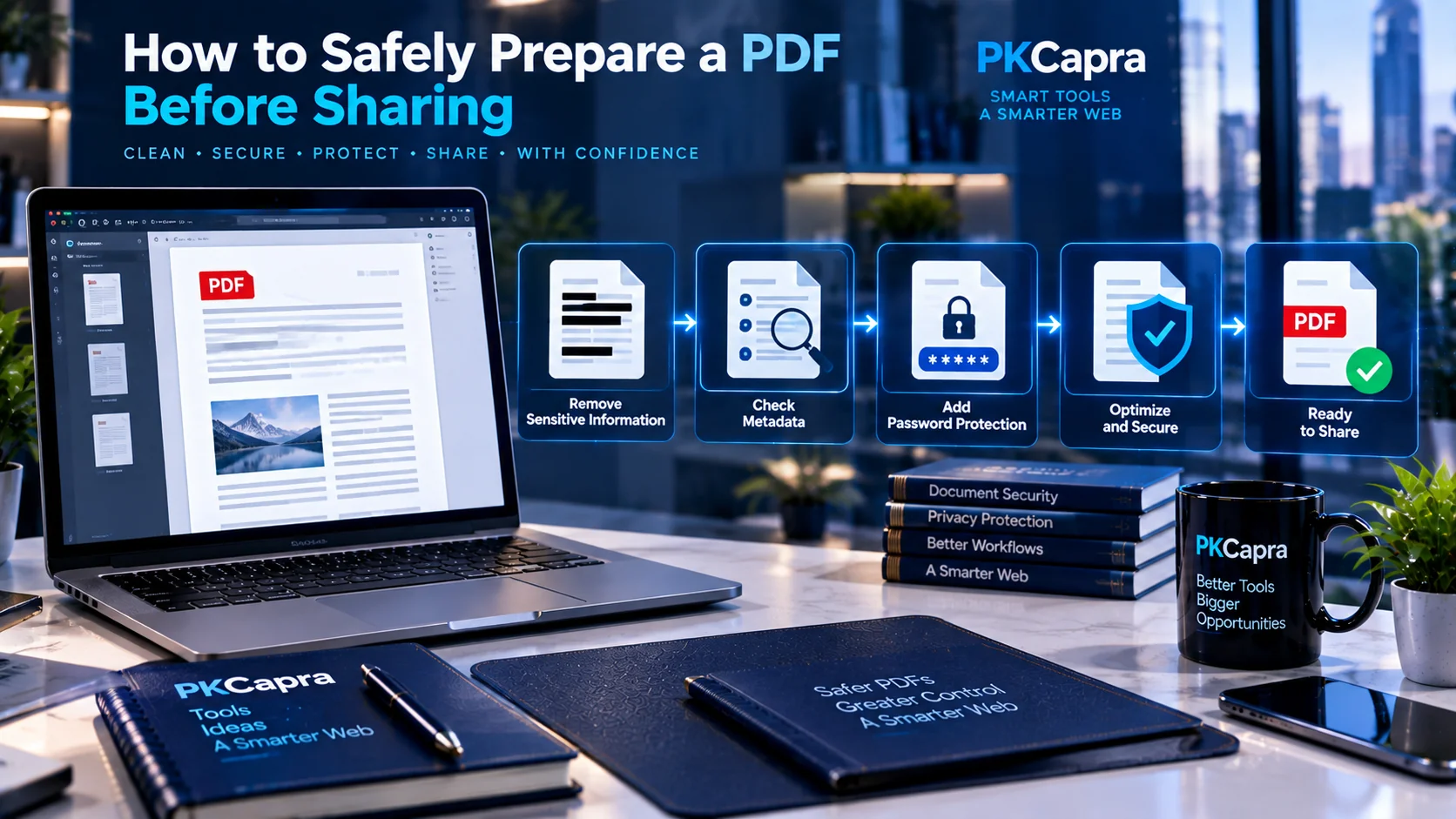
A safer PDF-sharing workflow should usually include four steps:
- Remove information that the recipient should not see.
- Check and remove unnecessary hidden information.
- Finalize the document so the removed content cannot be easily recovered.
- Add password protection when the file requires an additional access-control layer.
This guide explains how to prepare a PDF for safer sharing and which steps to consider before sending it by email, uploading it to a portal, or sharing it with another person.
Why You Should Prepare a PDF Before Sharing
A PDF may contain much more information than what appears on the page.
For example, a document could contain:
- Personal names and contact information
- Addresses
- Account or reference numbers
- Financial information
- Customer information
- Internal business information
- Comments and annotations
- Document author information
- Creation or modification information
- Embedded files or other hidden content
There is also an important difference between hiding information visually and removing information from the document.
Simply placing a black shape over sensitive text does not necessarily remove the underlying content. Proper redaction is designed to permanently remove selected sensitive information from the PDF. Adobe also distinguishes visible redaction from sanitization, which addresses hidden information such as metadata and other non-visible content.
That is why preparing a PDF should be treated as a workflow rather than a single action.
Step 1: Review the PDF Before Editing
Start by opening the original document and reviewing every page.
Look for information that the recipient does not actually need.
Pay particular attention to:
- Personal information
- Confidential business information
- Financial details
- Internal notes
- Customer or employee information
- Signatures
- Unnecessary pages
- Comments and annotations
- Attachments or embedded information
- Old versions or duplicated content
Do not begin by editing the original file blindly.
Keep a secure copy of the original document if you may need the complete version later. Then create a separate working copy for sharing.
This gives you two clearly separated versions:
Original: Complete internal document.
Sharing copy: The version prepared specifically for the recipient.
Step 2: Redact Sensitive Information
If certain information should not be visible to the recipient, use proper PDF redaction instead of simply drawing a box over it.
Redaction is useful when you need to remove information such as:
- Names
- Addresses
- Phone numbers
- Email addresses
- Account numbers
- Financial figures
- Customer information
- Internal notes
- Confidential business information
The key principle is simple: if the recipient should not have access to the information, remove it rather than merely covering it visually.
Proper redaction is intended to permanently remove the selected content from the document.
Do Not Confuse Redaction With Highlighting or Black Boxes
A common mistake is to place a black rectangle over sensitive text and assume the information is gone.
Depending on how the PDF was created, the original text may still exist underneath the visual layer.
A proper redaction workflow removes the underlying content rather than simply changing how it looks.
This distinction is particularly important when sharing legal documents, financial records, identification documents, business agreements, or customer information.
Step 3: Check the PDF for Hidden Metadata
After reviewing visible content, check the PDF for metadata and other information that may not appear directly on the page.
PDF metadata can contain information associated with the document, such as author or document information. PDFs can also contain other hidden elements depending on how the document was created and edited.
Before sharing a sensitive document, review the metadata and remove information that the recipient does not need.
Adobe’s current PDF guidance also recommends sanitizing documents to remove hidden information such as metadata, comments, hidden layers, and other non-visible content when preparing sensitive PDFs for distribution.
What Should You Check?
Depending on the document, check for:
- Author information
- Document properties
- Comments
- Annotations
- Hidden layers
- Embedded content
- Attachments
- Unnecessary document information
- Other hidden elements
Not every PDF contains all of these elements, but checking before sharing is especially important for confidential documents.
Step 4: Flatten the Final PDF When Appropriate
If your PDF contains annotations, form elements, overlays, or other editable elements that should become part of the final document, consider flattening the PDF.
Flattening can help turn certain interactive or layered PDF elements into a more finalized document structure.
This can be useful when you have finished editing a document and want to create a final version for distribution.
However, flattening should not be treated as a replacement for proper redaction.
If sensitive information needs to be removed, redact it first. If hidden information needs to be removed, review and sanitize the document as appropriate. Then flatten the final version when your workflow requires it.
Step 5: Protect the PDF With a Password When Necessary
Some documents require an additional access-control layer.
For example, you may be sending a confidential report, contract, financial document, internal business document, or another file that should not be freely accessible if the attachment is forwarded accidentally.
Password protection can require a recipient to enter a password before opening the PDF. PDF security settings can also provide controls over actions such as editing, printing, or copying, depending on the protection method and settings used.
Keep the Password Separate From the PDF
If you send a password-protected PDF, avoid sending the password in the same message or channel whenever practical.
For example:
Email: Send the protected PDF.
Separate channel: Send the password through another trusted communication method.
The goal is to avoid putting the document and its access credential together in one place.
Step 6: Sign the PDF If the Document Requires Your Signature
Some documents need more than privacy protection.
If the recipient needs a completed agreement, authorization, approval, or signed document, add the required signature before creating the final sharing copy.
Before signing, make sure the document is already in its intended final form.
A useful sequence is:
Review → Redact → Check metadata → Finalize → Sign → Protect if needed → Share
This reduces the risk of making significant content changes after a document has already been signed.
A Practical PDF Sharing Workflow
For many sensitive PDFs, the following workflow provides a useful checklist:
1. Keep the original
Save the complete original document securely.
2. Create a sharing copy
Work on a separate copy rather than modifying the original.
3. Review every page
Identify information that the recipient does not need.
4. Redact confidential information
Permanently remove sensitive text or images that should not be shared.
5. Review hidden information
Check metadata, comments, annotations, embedded content, and other hidden elements where relevant.
6. Remove unnecessary metadata
Clean the document of information that should not accompany the shared copy.
7. Flatten when appropriate
Finalize interactive or layered elements if the document requires a flattened final version.
8. Sign the document
Add signatures only after the substantive content is final.
9. Add password protection if needed
Use an additional security layer when the document contains information that requires controlled access.
10. Open and inspect the final copy
Do not assume that the file is correct just because the editing process is complete.
Open the final PDF and review it page by page.
How to Check a PDF Before Sending It
A final inspection can catch mistakes that are easy to miss during editing.
Check the following:
Content: Is all information that should remain visible still present?
Redactions: Are all sensitive areas properly removed?
Pages: Are unnecessary pages removed?
Metadata: Has unnecessary document information been removed?
Comments: Are there any comments or annotations that should not be shared?
Attachments: Does the PDF contain embedded files that the recipient does not need?
Signatures: Are required signatures present and valid for your workflow?
Password: If the PDF is protected, does the password work?
Layout: Does the final PDF display correctly?
Filename: Does the filename avoid exposing unnecessary confidential information?
Final copy: Are you sending the prepared sharing copy rather than the original?
Common Mistakes When Sharing Sensitive PDFs
Covering Sensitive Text With a Black Box
This is one of the most important mistakes to avoid.
A visual overlay is not necessarily the same as permanent removal. Use proper redaction when information must actually be removed.
Forgetting Metadata
Removing visible information does not automatically mean that all hidden document information has been removed.
Check the PDF metadata and other hidden content before sharing sensitive files.
Editing the Original Instead of a Copy
If you permanently remove information from the only copy, you may not be able to recover it later.
Keep the original separately and create a dedicated sharing version.
Assuming Password Protection Removes Sensitive Information
A password protects access to the file, but it does not replace redaction.
If a recipient is allowed to open the PDF, they may still be able to see information that you should have removed.
Use the appropriate security layer for the problem you are trying to solve.
Sharing the Password in the Same Message
If the PDF and its password are delivered together, the additional protection becomes less useful.
Use a separate communication channel when practical.
Skipping the Final Review
Always inspect the actual PDF that you are about to send.
Do not rely only on the editing interface or the original document.
Redaction, Metadata Removal, Flattening, and Password Protection Are Different
These four steps are often confused, but they solve different problems.
Redaction removes selected sensitive content.
Metadata removal removes unnecessary information stored in the document’s properties or other hidden areas.
Flattening can finalize certain editable, layered, or interactive elements.
Password protection adds an access-control layer to the resulting PDF.
Using one does not automatically perform all the others.
For example, password-protecting a PDF does not mean that sensitive information inside the PDF has been removed. Similarly, removing metadata does not remove confidential text that is visible on the page.
A safer workflow uses each step only when it addresses a specific requirement.
When You May Not Need Every Step
Not every PDF requires the complete workflow.
For a simple public document, you may only need a final visual review.
For a document containing personal information, redaction may be necessary.
For a confidential business document, metadata review and password protection may also be appropriate.
For a signed agreement, you may need a workflow involving final review, signature, and controlled sharing.
The right process depends on the type of document, the sensitivity of the information, and who will receive it.
A Simple PDF Security Checklist
Before sending a sensitive PDF, ask:
- Have I removed information the recipient does not need?
- Did I use proper redaction instead of simply covering text?
- Did I check the PDF for metadata and hidden information?
- Did I remove unnecessary comments and annotations?
- Did I check for embedded files or other hidden content?
- Did I create the sharing copy separately from the original?
- Does the final PDF contain the correct pages?
- Does it need flattening?
- Does it need a signature?
- Does it need password protection?
- Did I test the final file before sending it?
- Am I sending the prepared copy rather than the original?
If the answer to these questions is yes, you have a much more controlled document-sharing workflow.
Use PKCapra to Prepare Your PDF for Sharing
PKCapra provides a collection of PDF tools that can help with different stages of preparing a document for distribution.
Start with the task your document requires:
- Redact PDF — remove sensitive content from a PDF.
- PDF Metadata Viewer & Remover — inspect and remove unnecessary PDF metadata.
- Flatten PDF — finalize certain PDF elements when flattening is appropriate.
- Sign PDF — add a signature to documents that require one.
- Protect PDF — add password-based protection when additional access control is needed.
You can also explore the complete PDF & Document Tools collection for additional PDF workflows.
Final Thoughts
Preparing a PDF before sharing it is about more than making the document look correct.
A professional sharing workflow considers both what the recipient can see and what information may remain inside the file.
For sensitive documents, start with a separate copy, review the content, properly redact information that should not be shared, check for hidden information and metadata, finalize the document when necessary, and add password protection when the situation requires additional access control.
Most importantly, review the final PDF before sending it.
A few extra minutes of preparation can help prevent information from being shared that was never intended for the recipient.
Frequently Asked Questions
What should I remove from a PDF before sharing it?
Remove any information the recipient does not need to see, including confidential business information, personal information, financial details, internal notes, unnecessary pages, comments, and other sensitive content.
Is putting a black box over text the same as redacting a PDF?
No. A visual black box may only cover the appearance of the text. Proper PDF redaction is designed to permanently remove the selected content from the document.
Should I remove PDF metadata before sharing?
If the document contains information that the recipient does not need, reviewing and removing unnecessary metadata can be an important part of preparing the PDF. PDFs can contain author information and other hidden document data.
Does password protection remove sensitive information from a PDF?
No. Password protection controls access to the document, but it does not remove sensitive information contained inside the PDF. Redaction and password protection serve different purposes.
Should I keep the original PDF after redacting it?
If you are authorized to retain the original and may need the complete document later, keeping a securely stored original can be useful. The version prepared for sharing should be treated as a separate copy.
Should I flatten a PDF before sharing it?
Flattening can be useful when you need to finalize certain interactive, layered, or editable elements, but it is not a replacement for proper redaction or metadata cleanup.
What is the safest way to share a password-protected PDF?
Use a strong, appropriately managed password and, when practical, communicate the password through a separate trusted channel rather than placing the PDF and password together in the same message.
Conclusion
A PDF should be treated as a digital document containing information, not simply as a page that looks correct on screen.
Before sharing a sensitive PDF, review the visible content, properly redact information that should remain private, check for hidden information and metadata, finalize the document when appropriate, and use password protection when additional access control is needed.
The result should be a PDF that contains only the information the recipient actually needs.