
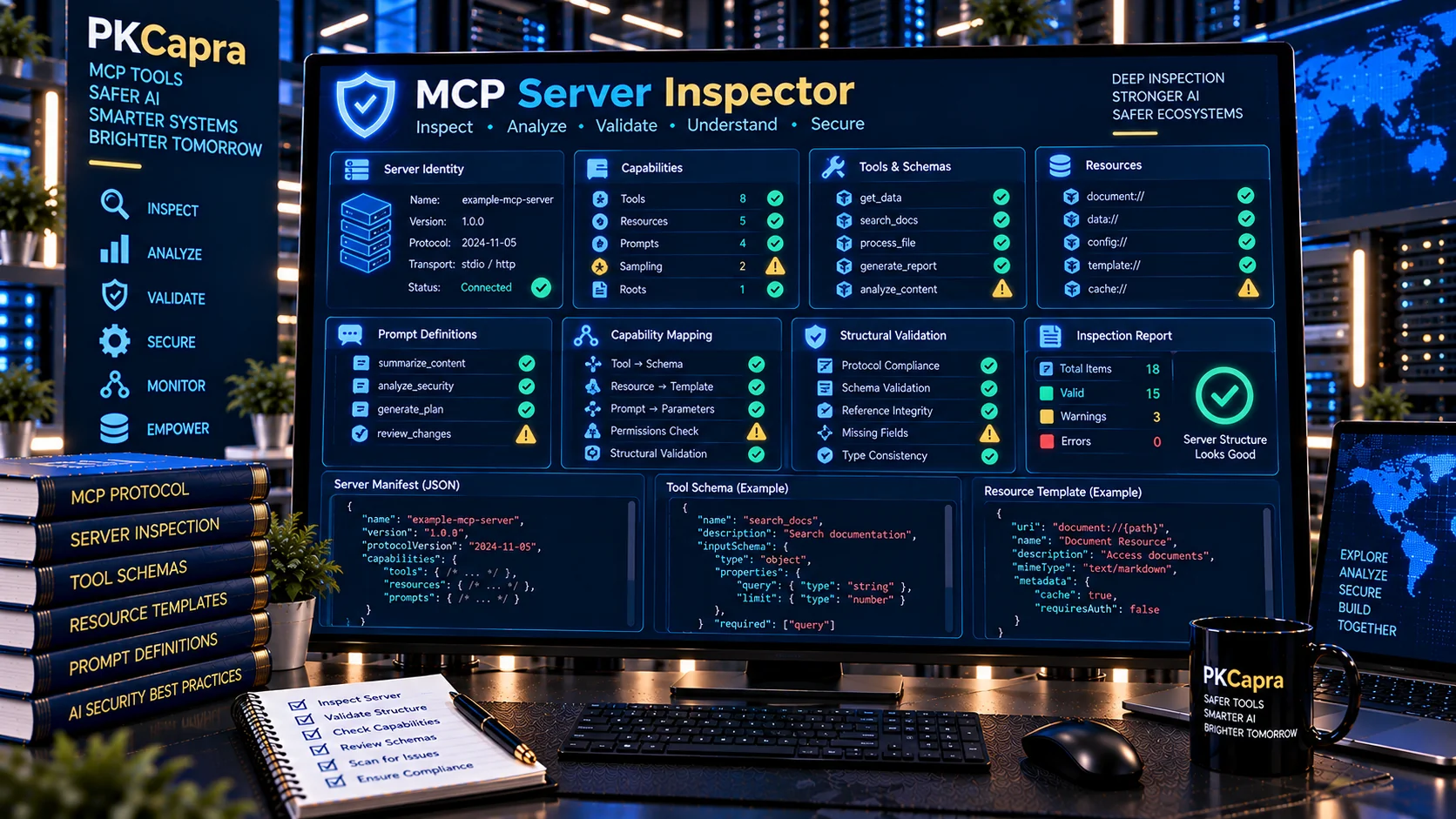
The MCP Server Inspector is a browser-based diagnostic tool for examining Model Context Protocol (MCP) server definitions, server metadata, declared capabilities, tools, resources, prompts, schemas, and configuration signals. It helps developers understand what an MCP server exposes and identify structural or descriptive issues before connecting it to an AI application.
Paste an MCP server definition, exported configuration, or supported JSON representation into PKCapra’s MCP Server Inspector to generate a structured inspection report. The analysis is performed locally in your browser, making it useful for development reviews, troubleshooting, documentation checks, and MCP security preparation.
MCP Server Inspector
Inspect a pasted MCP server snapshot, configuration, or combined discovery response. Review server identity, protocol details, capabilities, tools, resources, prompts, annotations, schemas, and potential configuration gaps without connecting to the server.
Server Overview
Capability Inventory
Exposed Tools
Resources & Prompts
Inspection Findings
Inspection Report
What Is an MCP Server Inspector?
An MCP Server Inspector examines the structure and declared surface of an MCP server.
MCP servers can expose several standardized primitives, including tools, resources, and prompts, while server capabilities communicate which features are available to connected clients. Current MCP SDK documentation also exposes server identity, protocol version, server capabilities, and server instructions as client-visible connection information.
PKCapra’s MCP Server Inspector focuses on the information that can be analyzed from a supplied server definition or exported representation. It does not attempt to replace a live MCP client or network-based protocol debugger.
What Does the MCP Server Inspector Check?
The tool organizes an MCP server into practical inspection areas so developers can quickly understand its exposed surface.
Server Identity and Protocol Information
The inspector can examine available server identity and protocol-related fields, including:
- Server name
- Server version
- Protocol information
- Server instructions
- Declared server metadata
- Missing or incomplete identity information
Server identity and negotiated protocol information are part of the information available to an MCP client after connection.
Server Capabilities
The inspector checks declared capabilities and highlights supported areas such as:
- Tools
- Resources
- Prompts
- Completions
- Logging
- Other declared capability structures when present
MCP SDK documentation describes tools, resources, prompts, completions, logging, and related server capabilities as part of the server feature surface.
Tool Inventory
Tools are one of the most important parts of an MCP server because they allow connected AI applications to request actions from the server.
The inspector can review:
- Tool names
- Tool descriptions
- Input schemas
- Output schemas when supplied
- Tool annotations
- Duplicate tool names
- Missing or incomplete structural fields
- Potentially high-impact capability language
MCP server implementations expose tools with identifiers, descriptions, schemas, and handlers.
Resource Inventory
MCP resources allow servers to expose information through URI-based resource access.
The inspector can identify:
- Resource definitions
- Resource names
- Resource URIs
- Resource templates
- MIME type information
- Resource-related capability declarations
- Structural inconsistencies
MCP server documentation describes resources and resource templates as standardized server features that clients can discover and access.
Prompt Inventory
MCP prompts provide reusable prompt templates that clients can expose to users.
The inspector can review:
- Prompt names
- Prompt descriptions
- Prompt arguments
- Prompt-related structures
- Missing descriptive information
- Duplicate prompt identifiers
The current MCP SDK documentation describes prompts as named message templates that clients can invoke and expose to users.
Why Inspect an MCP Server Before Integration?
An MCP server can expose a significant tool, resource, and prompt surface to an AI client. Understanding that surface before integration makes development and security review easier.
An inspection can help you:
- Understand what a server actually declares
- Identify missing structural information
- Review tool and resource exposure
- Examine prompt definitions
- Spot duplicate identifiers
- Detect incomplete schemas
- Review high-impact capability indicators
- Prepare a server for deeper security testing
- Create a clearer technical inventory
The official MCP ecosystem also provides an MCP Inspector for interactively connecting to servers, listing exposed features, and manually testing them. PKCapra’s browser-based inspector serves a different purpose: static analysis of supplied server data without requiring a live connection.
MCP Server Inspector vs MCP Response Validator
These tools inspect different parts of an MCP implementation.
The MCP Server Inspector focuses on the server’s declared identity, capabilities, tools, resources, prompts, schemas, and overall exposed surface.
The MCP Response Validator focuses on returned MCP response structures, including response envelopes, content blocks, structured content, error states, metadata, and schema compatibility.
Use the server inspector when you want to understand what the server exposes. Use the response validator when you want to examine what the server returns.
MCP Server Inspector vs MCP Tool Schema Validator
The MCP Tool Schema Validator focuses specifically on tool input and output schema structures.
The MCP Server Inspector provides a broader server-level inventory and can surface tools, resources, prompts, capabilities, and metadata alongside schema-related observations.
For detailed schema analysis, use the MCP Tool Schema Validator.
MCP Server Inspection Workflow
A practical MCP inspection workflow can follow these steps:
- Export or copy the MCP server definition or supported JSON representation.
- Paste the data into the MCP Server Inspector.
- Run the inspection.
- Review server identity and protocol information.
- Examine declared capabilities.
- Review the tool inventory.
- Inspect resources and resource templates.
- Review prompt definitions.
- Examine structural warnings and duplicate identifiers.
- Export the inspection report for development or documentation.
For live interactive server testing, the official MCP Inspector can connect to a server and allow tools and resources to be exercised directly.
Common MCP Server Problems the Inspector Can Help Identify
Missing Server Information
Incomplete server metadata can make an MCP implementation harder to identify and document.
Duplicate Tool Names
Tool identifiers should provide clear and distinguishable names. Duplicate identifiers can make a server inventory ambiguous.
Incomplete Tool Definitions
A tool without a useful description or appropriate schema information can be difficult for an MCP client or developer to understand.
Capability Mismatches
A server may declare capabilities that do not appear to match the structures supplied for inspection.
Incomplete Resource Definitions
Resources and resource templates need coherent identifiers and associated metadata to be useful to clients.
Weak Prompt Definitions
Prompts without meaningful names, descriptions, or argument definitions can create an unclear user-facing interface.
Excessive or High-Impact Surface
A server exposing many powerful tools or capabilities deserves additional permission and security review. Static inspection does not prove that a capability is malicious or unsafe; it identifies areas that may deserve closer examination.
Use PKCapra’s MCP Security Tools Together
MCP server inspection works best as part of a broader validation workflow.
Use the MCP Server Configuration Validator to check server configuration structures.
Use the MCP Configuration Security Checker to examine configuration-level security signals.
Use the MCP Tool Permission Analyzer for tool-level permission analysis.
Use the MCP Tool Poisoning Checker to examine tool definitions for suspicious instructions and poisoning signals.
Use the MCP Tool Description Checker to review descriptions for quality and potentially unsafe instruction patterns.
Use the MCP Tool Schema Validator for deeper tool schema validation.
Use the MCP Response Validator to examine MCP response structures.
Static Inspection vs Live MCP Testing
The PKCapra MCP Server Inspector is designed for static analysis of supplied data. It does not establish a connection to an MCP server or execute its tools.
This distinction is important.
Static inspection can help identify:
- Declared capabilities
- Tool definitions
- Resource definitions
- Prompt definitions
- Schema structures
- Metadata problems
- Naming inconsistencies
- Potentially important capability signals
Live testing can additionally reveal runtime behavior, transport problems, authorization behavior, tool execution results, and server responses.
For that reason, static inspection should be treated as one layer of an MCP development and validation workflow rather than a complete runtime security assessment.
Privacy-Friendly MCP Inspection
PKCapra’s MCP Server Inspector is designed for browser-side analysis. Your supplied server data is analyzed within the tool rather than being sent to an external AI service for interpretation.
This makes the tool useful when reviewing development configurations, exported server definitions, schemas, and other MCP-related JSON data.
As with any browser-based security utility, avoid pasting credentials, access tokens, private keys, production secrets, or other sensitive information unless you understand the risks of exposing that information to your browser environment.
Who Can Use an MCP Server Inspector?
The tool can be useful for:
- MCP developers
- AI application developers
- Agent developers
- Security engineers
- DevOps teams
- AI infrastructure teams
- Software architects
- QA engineers
- MCP server maintainers
- Developers evaluating third-party MCP integrations
It can also help technical teams create a quick inventory of what an MCP server declares before moving into deeper testing.
Frequently Asked Questions
What is an MCP Server Inspector?
An MCP Server Inspector is a diagnostic utility for examining an MCP server’s declared identity, capabilities, tools, resources, prompts, schemas, and related structural information.
Does the PKCapra MCP Server Inspector connect to my MCP server?
No. PKCapra’s tool is designed for static inspection of supplied server data. It does not require a live MCP connection.
Can it inspect MCP tools?
Yes. It can examine tool names, descriptions, schemas, annotations, duplicate identifiers, and other available structural information.
Can it inspect MCP resources?
Yes. The inspection can identify resource definitions, resource templates, URIs, MIME-related information, and resource capability structures when supplied.
Can it inspect MCP prompts?
Yes. MCP prompts can be reviewed for names, descriptions, arguments, and structural information.
Does it replace the official MCP Inspector?
No. The official MCP Inspector is designed for interactive server inspection and testing, including connecting to a server and manually exercising exposed features. PKCapra’s tool provides browser-based static analysis of supplied data.
Does inspection prove that an MCP server is secure?
No. Static inspection can identify structural issues and signals that deserve attention, but it cannot prove that an MCP server is secure, trustworthy, or free from vulnerabilities.
Is the MCP Server Inspector free?
The PKCapra tool is provided as an online utility for MCP server inspection and diagnostics.
What should I inspect after reviewing an MCP server?
After the server-level inspection, review tool schemas, permissions, descriptions, configuration security, poisoning indicators, and response structures using the relevant PKCapra MCP tools.
MCP Server Inspector for AI Infrastructure Diagnostics
MCP is increasingly used to connect AI applications with tools, resources, and reusable prompts. Modern MCP SDKs expose standardized server features and capability negotiation, making server-level visibility an important part of development and troubleshooting.
PKCapra’s MCP Server Inspector provides a focused static-analysis layer for developers who need to understand an MCP server’s declared surface before proceeding to deeper testing, permission analysis, security review, or live integration.