
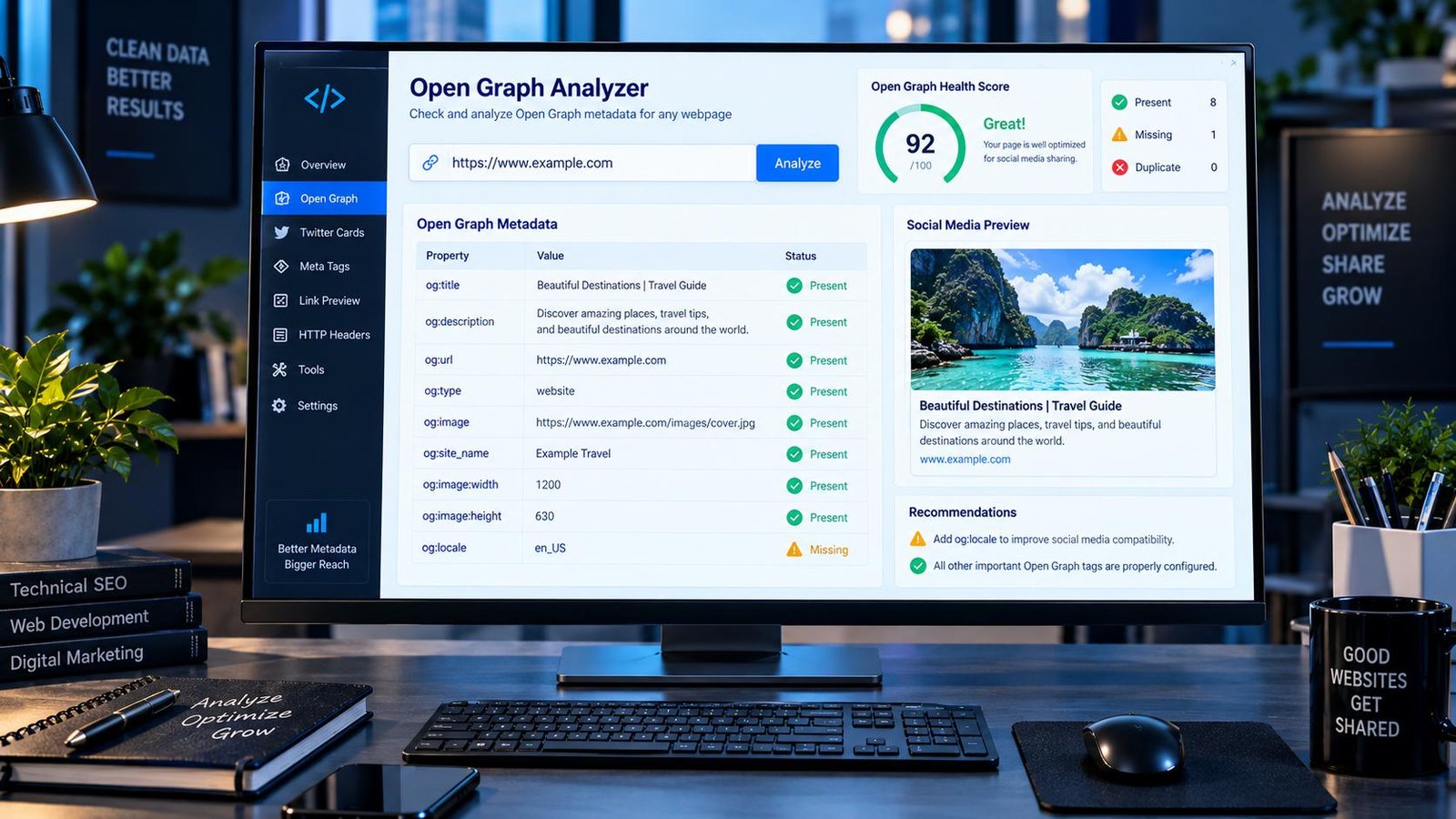
Open Graph metadata controls how a webpage is represented when its URL is shared on social platforms and other services that read Open Graph tags. PKCapra’s Open Graph Analyzer lets you enter a public webpage URL and quickly inspect its Open Graph metadata, identify missing or duplicate tags, review a social sharing preview, and see basic response information.
Open Graph Analyzer
Check the Open Graph metadata that helps control how your page appears when shared on social platforms.
Open Graph description will appear here.
This analyzer inspects the HTML response returned for the public URL. Social platforms may cache metadata, apply their own rules, or render previews differently.
Analysis uses the public URL you provide. Do not submit private, authenticated, or sensitive URLs.
What Is an Open Graph Analyzer?
An Open Graph Analyzer checks the Open Graph <meta> tags included in a webpage’s HTML. These tags provide information such as the page title, description, URL, content type, and preview image that can be used when the page is shared.
The core Open Graph properties are og:title, og:type, og:image, and og:url. Additional properties such as og:description, og:site_name, and locale information can provide more context for the shared page.
This makes an Open Graph check useful when a page is displaying the wrong title or image when shared, when social previews look incomplete, or when you have changed your metadata and want to confirm what is actually present in the page source.
What Does PKCapra Open Graph Analyzer Check?
PKCapra checks the Open Graph metadata that is available in the public HTML response of the URL you submit.
Core Open Graph Tags
The analyzer checks the four fundamental Open Graph properties:
- og — the title associated with the shared page.
- og — identifies the type of object, such as a website or article.
- og — specifies the image that can be used for the social preview.
- og — identifies the canonical URL associated with the Open Graph object.
If one of these important properties is missing, the analyzer highlights the issue so you can investigate the page before relying on its social preview.
Additional Open Graph Metadata
The analyzer also checks additional properties commonly used to improve the information available for sharing:
- og
- og
- og:image
- og:image
- og
These additional values help you understand whether the page provides enough metadata for a more complete sharing representation.
Why Check Open Graph Metadata?
Open Graph metadata is primarily about how content is represented when it is shared, not about directly improving Google rankings.
A page can have strong SEO title and description elements while still producing an incomplete or incorrect social preview. For example, the browser title may look correct, but a social platform may display an unexpected image or an outdated title because the relevant Open Graph metadata is missing or incorrect.
An Open Graph check is especially useful after:
- launching a new website or landing page
- redesigning a website
- changing a page title or description
- replacing a featured image
- changing WordPress themes
- installing or configuring an SEO plugin
- migrating a website
- changing URL structures
- troubleshooting incorrect social previews
- publishing important pages that will be shared frequently
How to Use the Open Graph Analyzer
1. Enter a Public URL
Enter the complete URL of the webpage you want to inspect.
Use a publicly accessible http:// or https:// webpage. The analyzer cannot inspect pages that require authentication or private access.
2. Start the Analysis
Run the Open Graph Analyzer. PKCapra retrieves the publicly accessible HTML response and examines the Open Graph metadata contained in the page.
3. Review the Open Graph Tags
Check the detected values for the title, description, URL, type, image, site name, image dimensions, and locale.
Pay particular attention to missing required properties and unexpected duplicate tags.
4. Review the Health Results
The analyzer provides an Open Graph health assessment based on the metadata it finds. Use the results to identify missing or duplicate information that may need attention.
5. Check the Social Preview
Review the generated sharing preview to see how the detected Open Graph information fits together.
If something looks wrong, return to the page source, WordPress settings, theme, SEO plugin, or other system generating the metadata and correct the underlying information.
Understanding the Open Graph Results
A healthy Open Graph implementation is not simply about having as many tags as possible. The important part is that the metadata accurately represents the page and does not conflict with other metadata systems.
Check og
og:title should clearly describe the page that users will see after opening the shared link.
If it is missing, incorrectly written, or duplicated, investigate the system responsible for generating your page metadata.
Your Open Graph title does not necessarily have to be identical to your HTML title tag, but it should accurately represent the same page and avoid creating confusing differences.
For the page’s search-focused title metadata, you can also use the Title Tag Analyzer to review the HTML title separately.
Check og
The Open Graph description gives sharing systems additional context about the page.
A missing description does not necessarily prevent a page from being shared, but having accurate metadata can make the shared representation more informative.
For comparison, the HTML meta description serves a different purpose and can be reviewed with the Meta Description Analyzer.
Check og
og:type tells systems what kind of object the page represents.
For many ordinary website pages, website is appropriate. Other page types may require a more specific value depending on the content and implementation.
Check og
The Open Graph image is one of the most important elements of a social preview.
Make sure the selected image actually represents the page and is accessible from the public web. An incorrect image URL, inaccessible image, or poorly configured metadata can result in an unexpected sharing preview.
The analyzer checks the Open Graph image URL and can also report the declared image dimensions when those properties are present.
Check og
og:url identifies the URL associated with the Open Graph object.
It should represent the intended URL for the page rather than an unrelated page, tracking URL, or obsolete address.
If you are investigating URL consistency, it is useful to compare this value with the page’s canonical URL using the Canonical URL Checker.
Missing Tags and Duplicate Tags
Two common Open Graph problems are missing properties and duplicate declarations.
Missing Open Graph Tags
A missing property means the expected metadata was not detected in the public HTML response.
The solution is not always to add the tag manually. First determine which system controls your site’s metadata. On WordPress, this could be an SEO plugin, theme, custom code, or another metadata component.
Duplicate Open Graph Tags
Duplicate Open Graph tags can create ambiguity, particularly when different values are being generated by multiple plugins, themes, or custom implementations.
For example, if two systems generate different og:title values, you should identify which component is responsible and remove the unwanted duplicate rather than simply adding another tag.
If you need a broader inspection of the page’s metadata, use the Meta Tags Analyzer to examine the page’s available meta information alongside the Open Graph results.
Open Graph Metadata and WordPress
WordPress websites commonly generate metadata through a combination of the active theme, SEO plugin, social settings, custom code, and page-level configuration.
This can create problems when more than one system attempts to control the same Open Graph property.
If you have recently installed or changed an SEO plugin, switched themes, or modified social-sharing settings, check the generated HTML rather than assuming that the settings screen tells you exactly what visitors and external services receive.
The Open Graph Analyzer works from the public HTML response, which makes the result useful for checking what is actually exposed by the webpage.
Open Graph Tags, Redirects, and HTTP Responses
Open Graph metadata is read from the HTML response of a webpage, so the URL’s technical response also matters.
A URL that redirects may eventually reach a different document from the one you initially entered. Similarly, an unexpected HTTP response can prevent the intended HTML metadata from being retrieved.
When investigating this type of problem, use the Redirect Checker to inspect the redirect path and the HTTP Status Checker to verify the HTTP response.
This is particularly useful after website migrations, domain changes, HTTPS changes, URL restructuring, or redirect configuration updates.
Open Graph and Page Performance
Open Graph metadata itself is lightweight, but the image referenced by og:image can still be an important part of the sharing experience.
A very large or poorly optimized preview image may be worth reviewing separately from the metadata itself.
For a broader technical check of the webpage’s response, HTML size, resources, images, CSS, and JavaScript, you can use PKCapra’s Page Speed Analyzer.
Open Graph vs SEO Metadata
Open Graph tags and traditional SEO metadata are related but serve different purposes.
Your HTML title and meta description are important page metadata that can be reviewed independently, while Open Graph metadata primarily describes how a page can be represented when its URL is shared.
A strong technical setup keeps these systems consistent without assuming that one replaces the other.
For structured data and search-oriented markup, a separate Schema Markup & Structured Data Analyzer can help you inspect structured data independently of Open Graph metadata.
Common Open Graph Mistakes to Avoid
Adding Open Graph Tags Without Checking Existing Tags
If your theme or SEO plugin already generates Open Graph metadata, manually adding another set can create duplicates.
Always inspect the existing HTML first.
Using the Wrong Image
An image that looks good inside the webpage is not automatically the best image for social sharing. Make sure the og:image value points to the intended public image.
Forgetting URL Changes
After changing domains, URL structures, or HTTPS settings, check whether og:url still represents the correct page.
Assuming SEO Title Equals Open Graph Title
They can contain similar information, but they are separate metadata fields and should be checked separately.
Testing Only the WordPress Settings
A setting can appear correct inside WordPress while another plugin, theme component, cache layer, or custom code changes the final HTML.
The generated public page is the important thing to inspect.
Privacy and Processing
PKCapra’s Open Graph Analyzer works with publicly accessible webpage URLs.
Do not submit private, authenticated, internal, or sensitive URLs that should not be accessed publicly.
The analyzer performs a server-side HTML snapshot of the submitted public URL. The result represents the metadata available in the retrieved response at the time of the test. Social platforms may cache pages, apply their own processing, or use additional rules when generating previews, so the analyzer should be treated as a technical inspection tool rather than a guarantee of exactly how every platform will display a shared URL.
Key Features
- Analyze Open Graph metadata from a public webpage
- Check core Open Graph properties
- Inspect title, description, URL, type, and image metadata
- Check site name and locale information
- Detect missing important properties
- Identify duplicate Open Graph tags
- Review declared image dimensions
- Generate a social sharing preview
- View basic response timing
- Use a public URL without uploading website files
- Provide a practical Open Graph health assessment
Frequently Asked Questions
What is an Open Graph Analyzer?
An Open Graph Analyzer checks the Open Graph metadata exposed by a webpage and helps identify missing, duplicated, or potentially incorrect sharing information.
What are the main Open Graph tags?
The four core Open Graph properties are og:title, og:type, og:image, and og:url. Additional properties such as og:description, og:site_name, and locale information can provide further context.
Does Open Graph metadata improve Google rankings?
Open Graph metadata is primarily intended for social and content-sharing representation. It should not be treated as a direct Google ranking shortcut.
Why is my social preview showing the wrong image?
Common causes include an incorrect og:image value, duplicate Open Graph tags, an inaccessible image, caching, or another system generating different metadata.
Can duplicate Open Graph tags cause problems?
They can create ambiguity when different values are supplied by multiple declarations. If duplicates are detected, investigate which plugin, theme, or custom code is generating them.
Does the analyzer check the actual HTML?
Yes. The analyzer retrieves the public webpage HTML and inspects the Open Graph metadata available in that response.
Can I analyze a private webpage?
No. The tool is designed for publicly accessible URLs and should not be used to inspect private or authenticated pages.
Does the Open Graph Analyzer guarantee how Facebook or other platforms will display my page?
No. The analyzer shows the metadata available in the retrieved webpage response. Social platforms can cache content and apply their own processing and preview rules.
Final Check Before Publishing or Sharing a Page
Before publishing an important landing page, article, product page, or campaign URL, check that its Open Graph metadata accurately represents the page.
Start with the core properties — og:title, og:type, og:image, and og:url — then review the description, site name, image information, locale, and any duplicate tags. If the page has recently been moved or redirected, check its HTTP response and redirect path as well.
A clean Open Graph implementation will not replace good SEO, strong content, or technical optimization. It simply ensures that when people share your URL, the metadata available to sharing systems gives them an accurate representation of the page.