
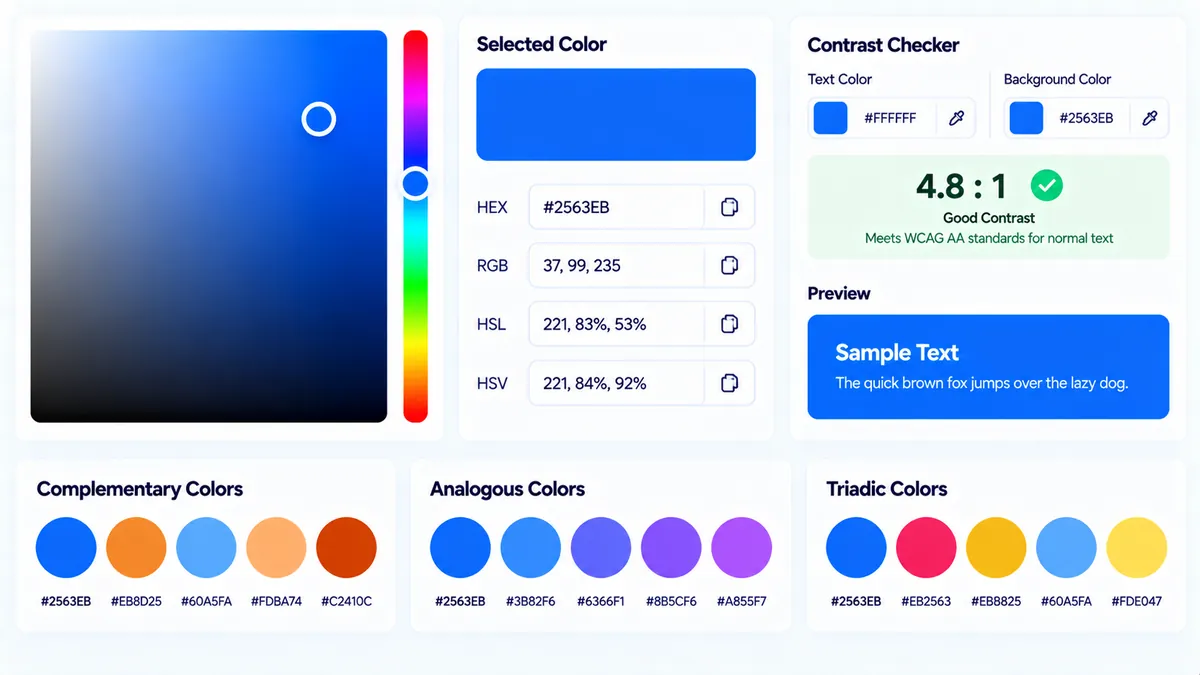
Pick, inspect, convert, and compare colors directly in your browser. The PKCapra Color Picker lets you work with HEX, RGB, HSL, and HSV values, check contrast against white and black, generate related colors, copy CSS values, and export your color analysis for design or development workflows.
Color Picker
Pick a color, edit its HEX value, inspect RGB/HSL/HSV values, check WCAG contrast, and generate useful color combinations and CSS values.
Pick or enter a color
Copy-ready values
WCAG contrast
Harmonies
Shades & tints
CSS values
--color-primary: #2563EB;\ncolor: #2563EB;\nbackground-color: #2563EB;Selected Color Summary
How to Use the Color Picker in Simple Steps
- Choose a color. Use the visual color picker or enter a color value directly. Where your browser supports the EyeDropper API, you can also use Pick from Screen to sample a color from your screen.
- Review the color values. The tool converts the selected color into HEX, RGB, HSL, and HSV formats so you can use the same color across design and development workflows.
- Check color relationships and contrast. Review the complementary, analogous, and triadic colors, along with generated shades and tints. The tool also checks contrast against white and black and reports WCAG AA and AAA results.
- Copy or export your result. Copy an individual HEX, RGB, HSL, or HSV value, copy the CSS output, or use Copy Report, Copy JSON, Download JSON, or the direct PDF report when you need to save or share the analysis.
What the Color Picker Actually Does
A color picker is useful when you need more than a visual swatch. A design tool may show a color, but your website code, design system, CSS variables, and accessibility workflow can require the same color in several different formats.
PKCapra’s Color Picker keeps those values together.
For example, a single selected color can be represented as:
- HEX for common web and design workflows
- RGB for screen-based color values
- HSL for adjusting hue, saturation, and lightness
- HSV for hue, saturation, and value-based color selection
When you change the active color, the related values and generated color combinations update with it.
HEX
HEX is one of the most common color formats used in CSS.
A value such as #2563EB represents a color using hexadecimal red, green, and blue components.
You can copy the HEX value directly when adding a color to CSS, a design specification, a theme, or another web project.
RGB
RGB represents a color using red, green, and blue channels.
For example:
rgb(37, 99, 235)
RGB is useful when a development workflow requires explicit channel values or when you are working with graphics and screen-based color systems.
HSL
HSL represents a color through:
- Hue
- Saturation
- Lightness
For example:
hsl(217, 83%, 53%)
HSL can be convenient when you want to reason about how a color should become lighter, darker, more saturated, or less saturated.
HSV
HSV represents a color using:
- Hue
- Saturation
- Value
For example:
hsv(217, 84%, 92%)
HSV is useful for workflows that think about color in terms of hue, saturation, and brightness/value.
Pick a Color From Your Screen
The Pick from Screen option can use the browser’s EyeDropper API where it is supported.
This allows you to sample a visible color from another area of your screen instead of manually estimating or entering the color value.
Browser support for the EyeDropper API varies. If the feature is unavailable in your browser, you can continue using the visual picker and direct color-value input.
A sampled color can then be inspected through the same HEX, RGB, HSL, HSV, contrast, and color-generation features.
Check Color Contrast
Contrast is important when selecting colors for text, buttons, links, navigation, forms, and other interface elements.
The tool checks the selected color against white and black and reports the resulting contrast information with WCAG AA and AAA pass/fail indicators.
This gives you a quick way to identify whether a foreground/background combination deserves further accessibility review.
For example, a bright background may look attractive on its own but provide insufficient contrast for normal-sized text. A darker variation of the same color may provide a substantially different result.
Contrast results should therefore be evaluated using the actual foreground and background combination you intend to use.
AA and AAA Results
WCAG contrast levels provide different accessibility requirements.
The Color Picker presents the relevant AA and AAA indicators for the tested color combinations so you can quickly identify whether the selected pairing meets those thresholds.
Passing an automated contrast ratio check does not mean an entire interface is accessible. Typography, font size, UI states, non-text contrast, surrounding colors, and the actual page context still matter.
Generate Related Colors
The tool can generate several useful color relationships from the active color.
Complementary Color
A complementary color is positioned opposite the selected hue in the color wheel.
This can be useful when you need a contrasting accent color for a design system, illustration, interface element, or visual component.
Analogous Colors
Analogous colors are nearby hues that create a more closely related palette.
They are useful when you want supporting colors that feel visually connected rather than strongly contrasted.
Triadic Colors
Triadic colors use three hues distributed around the color wheel.
This can provide a starting point for a three-color palette containing more visual separation than a simple analogous scheme.
Shades and Tints
The tool can generate lighter and darker variations of the selected color.
This is useful when building a practical palette around one primary color.
For example, a single brand color may need:
- A lighter background version
- A standard primary version
- A darker hover or active version
- Additional supporting shades
Generated colors can be selected directly so you can inspect and reuse them as the active color.
Copy CSS Values
The CSS output makes it easier to move a selected color from the tool into a website or stylesheet.
You can copy individual formats such as HEX, RGB, HSL, or HSV, or copy the generated CSS output for use in your development workflow.
A simple CSS declaration might look like:
:root {
  --primary-color: #2563EB;
}
CSS variables are especially useful when the same color appears across multiple components because changing the variable can update every dependent component.
Technical Breakdown and Competitive Edge
The Color Picker is designed as a browser-side utility rather than a color lookup service that depends on an external API.
Its core workflow includes:
- Visual color selection
- Direct color-value editing
- HEX conversion
- RGB conversion
- HSL conversion
- HSV conversion
- Screen sampling where EyeDropper is supported
- White and black contrast checks
- WCAG AA and AAA indicators
- Complementary color generation
- Analogous color generation
- Triadic color generation
- Shades and tints
- Click-to-select generated colors
- CSS output
- Individual value copying
- Report copying
- JSON copying
- JSON download
- PDF report generation
Because the calculations happen locally in the browser, the tool can be used without sending the selected color to an external color-processing service.
A Practical Web Design Workflow
A useful workflow is to start with a primary brand or interface color, inspect its HEX/RGB/HSL/HSV values, and then generate related colors.
Next, test the intended text and background colors using the contrast information.
After that, select useful shades and tints for different interface states.
For a website project, you can turn the final palette into CSS variables:
:root {
  --brand-primary: #2563EB;
  --brand-light: #DBEAFE;
  --brand-dark: #1D4ED8;
  --brand-accent: #F97316;
}
This creates a reusable foundation for buttons, links, cards, backgrounds, borders, and other components.
Developer Snippets (Automate This Tool Offline)
The following examples show how to perform common color conversions and calculations locally without an external API.
Python
import colorsys

hex_color = "#2563EB"

value = hex_color.lstrip("#")
red = int(value[0:2], 16)
green = int(value[2:4], 16)
blue = int(value[4:6], 16)

r = red / 255
g = green / 255
b = blue / 255

h, s, v = colorsys.rgb_to_hsv(r, g, b)

print("HEX:", hex_color)
print("RGB:", red, green, blue)
print("HSV:", round(h * 360), round(s * 100), round(v * 100))
PowerShell
$hex = "#2563EB".TrimStart("#")

$red = [Convert]::ToInt32($hex.Substring(0, 2), 16)
$green = [Convert]::ToInt32($hex.Substring(2, 2), 16)
$blue = [Convert]::ToInt32($hex.Substring(4, 2), 16)

Write-Output "HEX: #$hex"
Write-Output "RGB: $red, $green, $blue"

$max = [Math]::Max($red, [Math]::Max($green, $blue))
$min = [Math]::Min($red, [Math]::Min($green, $blue))

Write-Output "Maximum channel: $max"
Write-Output "Minimum channel: $min"
Node.js
function hexToRgb(hex) {
  const value = hex.replace("#", "");

  return {
    r: parseInt(value.slice(0, 2), 16),
    g: parseInt(value.slice(2, 4), 16),
    b: parseInt(value.slice(4, 6), 16)
  };
}

const color = hexToRgb("#2563EB");

console.log("RGB:", color);

const css = `
:root {
  --primary-color: #2563EB;
}
`.trim();

console.log(css);
These snippets are useful for small offline scripts, batch processing, or development experiments. The PKCapra tool provides the interactive visual workflow and additional color relationships in one interface.
Excel Power Query Workaround
Excel can also be used to maintain a color reference table when your team manages a larger design system.
Create columns such as:
Color NameHEXRGBHSLHSVUsageContrast Notes
For example:
| Color Name | HEX | Usage |
|---|---|---|
| Primary Blue | #2563EB | Main buttons and links |
| Light Blue | #DBEAFE | Backgrounds and highlights |
| Dark Blue | #1D4ED8 | Hover and active states |
You can import this table into Power Query, normalize the text values, remove duplicates, and combine color references from multiple workbooks.
This approach is useful when a design team or development team maintains a shared spreadsheet of approved colors.
Power Query is a data-management workaround rather than a replacement for the visual color-selection interface. Use the PKCapra tool when you need interactive color picking, conversions, contrast checks, or generated color relationships.
Use Color Values Across SEO and Website Workflows
Color selection often becomes part of a larger website workflow.
After choosing your interface colors, the Open Graph Analyzer can help you inspect how pages define social sharing metadata, while the X Card Analyzer can help review X/Twitter card metadata.
For on-page SEO implementation, the Title Tag Analyzer and Meta Description Analyzer can be used to review page metadata.
If your site has technical issues affecting URLs or navigation, the Broken Link Checker and Redirect Checker can be used as part of the same website QA workflow.
Frequently Asked Questions
What is a color picker?
A color picker is a tool for selecting a color and obtaining its digital color values. PKCapra’s Color Picker also converts colors between HEX, RGB, HSL, and HSV and provides related color and contrast information.
Can I enter a HEX color?
Yes. You can work with HEX color values and inspect the corresponding RGB, HSL, and HSV representations.
Can I convert HEX to RGB?
Yes. The Color Picker automatically provides the RGB representation of the selected color.
Can I convert HEX to HSL and HSV?
Yes. The tool provides HSL and HSV values for the active color so you can use the format required by your design or development workflow.
Can I pick a color directly from my screen?
Yes, where your browser supports the EyeDropper API. The Pick from Screen feature depends on browser support.
Does the tool check WCAG contrast?
Yes. The tool checks the selected color against white and black and reports WCAG AA and AAA indicators for those combinations.
What are complementary, analogous, and triadic colors?
Complementary colors are opposite the selected hue, analogous colors are nearby hues, and triadic colors form a three-part hue relationship around the color wheel.
Can I generate lighter and darker versions of a color?
Yes. The tool generates shades and tints that you can select and inspect as new active colors.
Can I use the generated colors in CSS?
Yes. You can copy CSS output and individual HEX, RGB, HSL, or HSV values for use in stylesheets and design systems.
Can I save my color analysis?
Yes. You can copy the report, copy structured JSON, download JSON, or generate a direct PDF report from the tool.
Does the Color Picker require an external API?
No. The core color selection, conversion, contrast, and color-generation workflow runs in the browser without requiring an external color-processing API.