
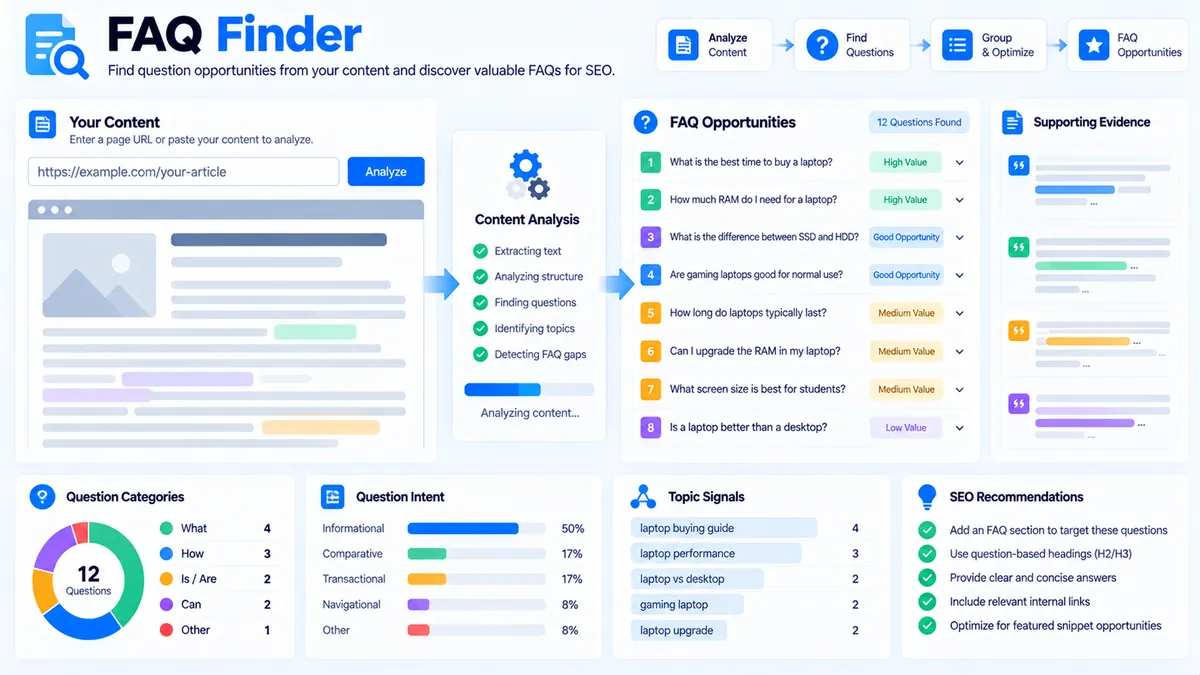
FAQ Finder helps you identify useful FAQ questions from existing content. Paste your article or page content, optionally add a primary topic, choose the analysis mode and result limit, and the tool identifies question candidates, FAQ opportunities, topic signals, and supporting content evidence.
The analysis runs directly in your browser. No AI API, API key, Google search connection, search-volume database, or external keyword service is required.
FAQ Finder
Find existing question patterns and identify FAQ opportunities directly from the content you supply.
FAQ Finder Report
Generated from the content and topic you supplied.
View JSON report
How to Use the FAQ Finder in Simple Steps
- Paste your existing article, page, or draft content into the content field.
- Enter a primary topic if you want the analysis focused on a specific subject.
- Choose the matching mode and the number of FAQ opportunities you want to review.
- Click “Find FAQ Opportunities” and review the detected questions, topic signals, evidence, and suggested FAQ opportunities.
You can then copy the report, copy the JSON data, download the JSON report, or download a PDF report for further review.
What Does FAQ Finder Check?
FAQ Finder looks at the content you provide and identifies question-like content and FAQ opportunities based on deterministic text-analysis rules.
The results can include:
- Question candidates detected in the supplied content
- FAQ opportunities derived from the content
- Topic signals
- Supporting content evidence
- Occurrence and relevance signals
- A controlled number of opportunities based on your selected result limit
A question candidate is content that already resembles a question. An FAQ opportunity is a broader signal that the supplied content may support a useful FAQ topic.
This distinction helps you separate questions that already exist in the article from additional FAQ ideas suggested by patterns in the same content.
Why FAQ Opportunities Matter
FAQ sections work best when they answer genuine questions related to the page rather than adding unrelated keyword variations.
For example, an article about improving website performance may naturally contain questions about image compression, caching, browser caching, or page loading. Those questions can be more useful to the reader than unrelated FAQ topics added simply to increase keyword coverage.
If you are working on broader SEO content structure, you can also use the Content-to-Keyword Mapper to check how target keywords are represented in the same content.
For pages that require deeper topic planning, the Keyword Clustering workflow can help organize related keyword concepts before you decide which questions belong in the final content.
Broad, Balanced, and Focused Modes
FAQ Finder provides different matching modes so you can control how broadly the supplied content is interpreted.
Broad Mode
Broad mode allows wider matching and can surface a larger range of related FAQ opportunities.
This can be useful for long articles where several related subjects are discussed.
Balanced Mode
Balanced mode provides a middle-ground analysis between broad discovery and narrow matching.
It is useful when the page covers one main subject with several supporting sections.
Focused Mode
Focused mode keeps the analysis closer to the strongest topic and content signals.
Use it when the page has a narrow subject and you want a smaller set of closely related FAQ opportunities.
The selected result limit controls how many opportunities are returned for review.
How FAQ Finder Works
FAQ Finder uses the text supplied in the tool as its analysis source.
It does not need to crawl your website or retrieve external search results. The content stays within the browser during the analysis, making the tool suitable for reviewing drafts, published-page text, documentation, guides, and other written content.
The analysis is deterministic rather than AI-generated. This means the tool does not send your content to an external generative-AI service to invent answers or questions.
The tool identifies patterns from the supplied content and presents them as candidates and opportunities that you can review yourself.
FAQ Finder for SEO Content Planning
FAQ Finder is particularly useful after you have written a substantial article and want to identify questions that are already supported by the content.
For example, a workflow can look like this:
- Write or update the main article.
- Use FAQ Finder to identify question candidates and FAQ opportunities.
- Review each opportunity against the actual page.
- Keep only questions that genuinely help the reader.
- Add or expand answers where the existing content supports them.
- Use a Pillar Page Analyzer when the article is part of a larger pillar-page structure.
This approach keeps FAQ development connected to the actual page instead of treating FAQs as a separate keyword list.
Existing Questions vs. FAQ Opportunities
The two result types serve different purposes.
Question candidates are question-like statements detected directly in the content.
FAQ opportunities are potential question topics identified from content and topic signals.
For example, if your article contains:
“How does browser caching work?”
that sentence can be identified as an existing question candidate.
If the surrounding content repeatedly discusses cache expiration, cached resources, and browser storage without explicitly asking a question, the tool may identify an FAQ opportunity related to that subject.
The opportunity still requires human review. It is a content signal, not proof of search demand.
What FAQ Finder Does Not Do
FAQ Finder does not provide live Google search results.
It does not provide:
- Google search volume
- Keyword difficulty
- Google rankings
- People Also Ask results
- Live SERP questions
- Competitor FAQ extraction
- Search-demand estimates
- AI-generated answers
The tool therefore should not be interpreted as a keyword-volume or SERP research system.
If you need to analyze search intent from keyword phrases, the Search Intent Analyzer is a separate workflow designed for that purpose.
Using FAQ Finder with Existing Content
FAQ Finder works best when you provide enough content for meaningful context.
A very short paragraph may contain too little information to produce useful opportunities. A complete article, guide, documentation page, or substantial draft generally gives the analysis more material to work with.
For an existing page, copy the relevant page content into the tool. For a draft, use the current draft rather than isolated keyword lists.
You can also combine the workflow with the Content Gap Analyzer when you are reviewing whether important topics are already covered or missing across a content set.
Interpreting the Results
A detected FAQ opportunity is not automatically an FAQ that should be published.
Review each result using three practical questions:
- Is the question genuinely relevant to this page?
- Does the existing content support a useful answer?
- Would the answer help the reader complete the task or understand the topic?
If the answer to those questions is yes, the opportunity may be worth developing.
If the question is only loosely related to the article, leave it out.
This keeps the FAQ section focused and prevents unrelated questions from weakening the page’s topical clarity.
Developer Snippets (Automate This Tool Offline)
You can reproduce a basic question-candidate workflow offline with Python.
The following script reads a plain-text article, detects explicit question lines and common question openings, removes duplicates, and saves the candidates as CSV.
import csv
import re
from pathlib import Path

source = Path("article.txt")
output = Path("faq_candidates.csv")

text = source.read_text(encoding="utf-8")

pattern = re.compile(
    r"^(what|why|how|when|where|which|who|can|does|do|is|are|"
    r"should|will|may|could)\b",
    re.IGNORECASE
)

candidates = []

for line in text.splitlines():
    line = re.sub(r"\s+", " ", line).strip()

    if not line:
        continue

    if line.endswith("?") or pattern.match(line):
        candidates.append(line)

unique = []
seen = set()

for question in candidates:
    key = question.casefold()

    if key in seen:
        continue

    seen.add(key)
    unique.append(question)

with output.open("w", newline="", encoding="utf-8") as handle:
    writer = csv.writer(handle)
    writer.writerow(["question"])

    for question in unique:
        writer.writerow([question])

print(f"Saved {len(unique)} FAQ candidates to {output}")
This offline example focuses on explicit question detection. It does not attempt to reproduce every matching rule used by the browser tool.
Automate FAQ Candidate Extraction with Excel Power Query
Excel Power Query can be useful when your team reviews multiple article drafts.
- Put your article content into an Excel table.
- Open the table with Data → From Table/Range.
- Split the content into manageable rows or lines.
- Filter rows containing
?or question-style openings such asHow,What,Why,When,Where, orCan. - Remove duplicate questions.
- Load the resulting candidates back into Excel.
- Review each candidate before adding it to the article.
Power Query is useful for repeatable internal workflows because the transformation can be refreshed when the source content changes.
FAQ Finder is more convenient when you want the complete browser-based analysis together with topic signals, opportunity results, JSON export, and PDF reporting.
Building Better FAQ Sections
An effective FAQ section should extend the page rather than repeat it.
If an article already explains a concept clearly, repeating the same paragraph as an FAQ answer adds little value.
Instead, use the identified opportunity to answer a specific reader concern, clarify an implementation detail, explain a limitation, or resolve a likely point of confusion.
For example, a technical article might benefit from questions such as:
- What causes this issue?
- How can I check whether the issue affects my page?
- What should I change first?
- Can this problem occur after an update?
- When should I use a different approach?
The exact questions should depend on the content and subject of the page.
Related PKCapra Workflows
FAQ discovery is often more useful when it is part of a broader content workflow.
Use the Content-to-Keyword Mapper when you want to compare target keywords against the actual page content.
Use the Content Gap Analyzer when you want to identify potentially missing topics across your content and reference material.
Use the Keyword Clustering tool when related keywords need to be organized into practical topic groups.
Use the Search Intent Analyzer when you need to classify the likely intent behind a search phrase.
For a larger central article, the Pillar Page Analyzer can help review topic coverage, headings, and internal-link signals.
Frequently Asked Questions
What is FAQ Finder?
FAQ Finder is a browser-based tool that identifies question candidates and FAQ opportunities from content you provide.
Does FAQ Finder use an AI API?
No. FAQ Finder uses deterministic browser-side analysis and does not require an external AI API.
Does FAQ Finder use Google search data?
No. FAQ Finder does not retrieve Google search results, search volume, or People Also Ask data.
Can FAQ Finder find questions already present in an article?
Yes. It detects question-like sentences and FAQ-style content in the supplied text.
Can I provide a primary topic?
Yes. You can enter a primary topic to focus the relevance analysis.
What is the difference between a question candidate and an FAQ opportunity?
A question candidate is detected directly in the supplied content, while an FAQ opportunity is a potential question topic derived from content and topic signals.
What does Focused mode do?
Focused mode keeps the analysis closer to the strongest topic and content signals.
Does FAQ Finder prove that an FAQ has search demand?
No. FAQ Finder identifies content-based opportunities and does not provide live search-demand data.
Can I download the results?
Yes. The tool supports Copy Report, Copy JSON, Download JSON, and Download PDF.
Is my content sent to an external AI service?
No. The FAQ Finder analysis runs in the browser using the content supplied to the tool.