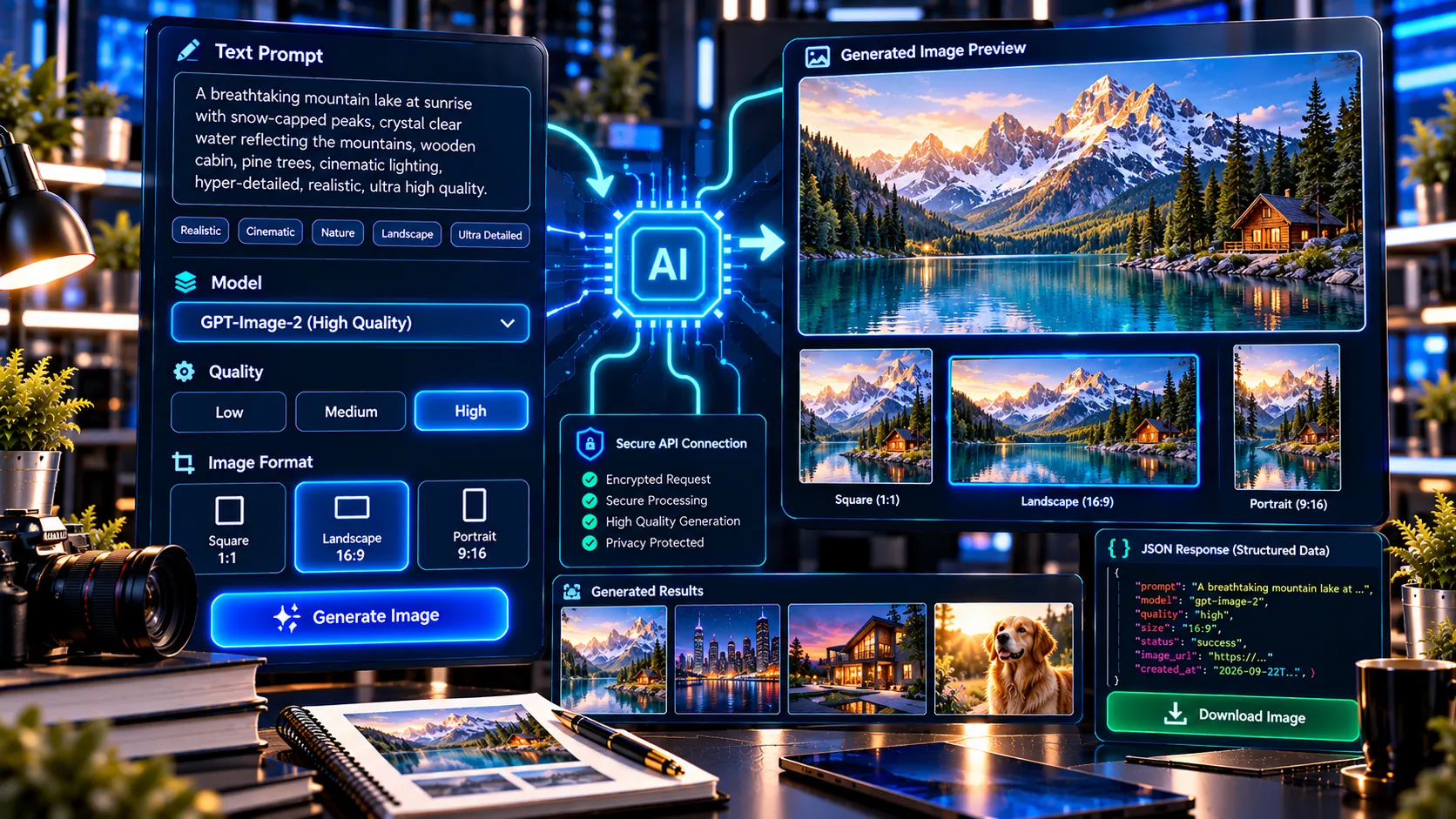
Create images from text prompts with PKCapra’s AI Image Generator. Enter a detailed description, choose your preferred image size and quality, provide your own OpenAI API key, and generate an image directly from your browser.
Privacy: Image generation sends your prompt and API key to the endpoint you specify. PKCapra does not save the key in this tool's database. Check the provider's current terms, privacy policy, pricing, and data-handling rules before use.
What Does an AI Image Generator Do?
An AI image generator creates visual content from a written description, commonly called a prompt. You describe the subject, setting, composition, mood and visual style you want, then use the generated image as a starting point for your creative project. PKCapra’s AI Image Generator is intended to help you turn image ideas into visual results through its available generation controls.
Make Your Image Prompt More Specific
A useful prompt gives the image model a clear subject and enough visual direction to understand what should appear in the scene. You do not need complicated wording. Specific, organized descriptions are often easier to interpret than a long list of unrelated adjectives.
Subject
Identify the main person, object, animal, product or scene. State what the viewer should notice first.
Environment
Describe where the subject is located, what surrounds it and whether the background should be simple or detailed.
Composition
Explain the camera angle, framing, subject placement and the amount of empty space needed around the subject.
Lighting and Mood
Specify soft daylight, dramatic shadows, a calm atmosphere, bright colors or another visual mood that supports the idea.
Visual Style
Choose a direction such as realistic photography, editorial illustration, flat vector art or a clean 3D render.
Purpose
Explain whether the image is intended for a social post, website banner, product concept, presentation or personal artwork.
How to Write a Better AI Image Prompt
Build your description in a logical order. Start with the main subject, then add the scene, visual treatment and composition details.
Describe the Main Subject
Begin with a concrete subject instead of a broad instruction such as “make something beautiful.”
Add the Setting
Include the location, background elements and relevant context that make the scene understandable.
Define the Visual Direction
Describe the intended style, lighting, color palette and mood without combining conflicting instructions.
Specify the Composition
Mention portrait or landscape framing, close-up or wide view, and where the main subject should appear.
Review the Generated Result
Check whether the image matches your brief. Refine the prompt with focused changes rather than rewriting everything at once.
Prepare the Image for Use
Check dimensions, visual clarity, text placement and suitability for the platform where you plan to publish it.
From a Vague Idea to a Useful Description
These examples demonstrate how adding visual details can make an image brief clearer. They are illustrative prompts, not guaranteed output descriptions.
| Prompt Element | Less Specific | More Useful Direction |
|---|---|---|
| Subject | A coffee cup | A ceramic coffee cup filled with dark coffee |
| Setting | On a table | On a wooden café table beside a sunlit window |
| Lighting | Nice light | Soft morning light with gentle natural shadows |
| Composition | Make it look good | Close-up product composition with a clean background |
| Style | Professional | Realistic commercial product photography |
A handcrafted ceramic coffee cup filled with dark coffee, placed on a warm wooden café table beside a large window. Soft morning sunlight creates gentle shadows. Realistic commercial product photography, natural colors, clean composition, subtle background details and sufficient negative space around the cup.
A friendly digital illustration of a website creator working at a laptop, with simple floating icons representing images and design. Bright but balanced colors, clear visual hierarchy, uncluttered background, modern editorial illustration and a wide composition suitable for an educational social media post.
Common AI Image Styles and When to Use Them
The style should support the purpose of the image. A product concept, a social media illustration and a realistic scene usually need different visual instructions.
| Visual Style | Suitable Uses | Prompt Direction |
|---|---|---|
| Photorealistic | Product concepts, editorial scenes and realistic environments | Natural lighting, realistic materials, detailed textures |
| Flat Vector | Explainers, simple illustrations and educational graphics | Clean shapes, limited palette, minimal shadows |
| 3D Render | Concept objects, technology visuals and product mockups | Defined materials, studio lighting, controlled perspective |
| Editorial Illustration | Articles, social posts and visual storytelling | Expressive composition, clear subject, purposeful details |
| Minimalist | Backgrounds, banners and simple brand visuals | Few elements, generous space, restrained colors |
Common AI Image Prompt Mistakes
Small changes to the prompt can help reduce ambiguity and make the intended visual direction easier to follow.
Too Many Conflicting Styles
Mixing unrelated visual directions can make the brief inconsistent. Choose one main style and add compatible details.
Unclear Subject
A prompt with many background details but no clear focal point may produce an image that feels visually unfocused.
Overloaded Description
Repeating adjectives and adding unnecessary details can obscure the main idea. Keep the prompt organized and relevant.
Ignoring Image Placement
If the image will contain a headline or overlay, describe the need for empty space and a suitable subject position.
Expecting Perfect Text
Image models may render letters, numbers and long phrases inaccurately. Review any visible text carefully.
Skipping Final Review
Inspect faces, hands, object proportions, background details and visual artifacts before publishing or sharing the image.
Review AI-Generated Images Before Publishing
Generated images can be useful creative assets, but they should not automatically be treated as verified photographs or factual evidence. Check the content and intended use before distributing an image.
A practical publishing checklist
- Confirm that the image communicates the intended subject clearly.
- Check for unwanted artifacts, distortions and inconsistent details.
- Review any text, logos, labels or symbols appearing in the image.
- Use appropriate image dimensions for the destination platform.
- Make sure the image does not falsely represent a real event or person.
- Review the applicable rights and usage terms for your image-generation service.
- Add meaningful alternative text when the image is used on a webpage.
- Optimize the final image file when page speed or file size matters.
Useful PKCapra Tools for Working with Images
Image generation is only one part of preparing visual content. These related tools can help with image analysis, metadata, accessibility and AI-oriented image preparation.
AI Image Generator FAQs
Answers to common questions about writing prompts, generated images and practical image use.
What is an AI image generator?
An AI image generator is a tool that uses an image-generation model to create visual content from a prompt or other supported input. The result depends on the model, instructions and available generation settings.
How do I write a good prompt for AI image generation?
Describe the main subject, setting, composition, lighting, visual style and intended purpose. Keep the instructions specific and avoid contradictory details.
Can I use an AI-generated image for social media?
Generated images can be used in social media content when their quality, subject matter and usage rights are suitable. Check the platform’s requirements and the terms of the image-generation service before publishing.
Can AI image generators create images with text?
Some image models can attempt to render text, but spelling, letter shapes and longer phrases may be inaccurate. Review the result and add important text with a design editor when precise wording is required.
Why does my generated image look different from the prompt?
Image models interpret prompts probabilistically and may prioritize some details over others. Try simplifying the description, clarifying the focal subject or changing one visual instruction at a time.
What image style should I choose?
Choose a style based on the image’s purpose. Realistic photography may suit product concepts, while vector illustration can work well for explainers and simple educational graphics.
Are AI-generated images always accurate?
No. Generated images can contain visual errors or invented details. They should be reviewed before being used to represent real people, products, places, events or factual information.
Can I use generated images commercially?
Commercial use depends on the image-generation service’s terms, the content of the image and applicable laws. Review the relevant license and avoid using protected characters, logos or other material without appropriate permission.
Should I optimize an AI-generated image before adding it to a website?
Usually, yes. Check the image dimensions and file size, choose a suitable format and provide descriptive alternative text when the image conveys meaningful information on the page.
Does a generated image prove that a real event happened?
No. A generated image is not evidence that a depicted event occurred. Verify factual claims using reliable sources and clearly distinguish synthetic visuals from documentary images.
Turn Your Visual Idea into a Clear Image Brief
Start with a subject, describe the scene and choose a visual style that fits your goal. Use PKCapra’s AI Image Generator to explore your idea, then review and prepare the result before sharing it.
For more image-related utilities, visit the PKCapra Image Tools category or explore the AI Tools collection.