
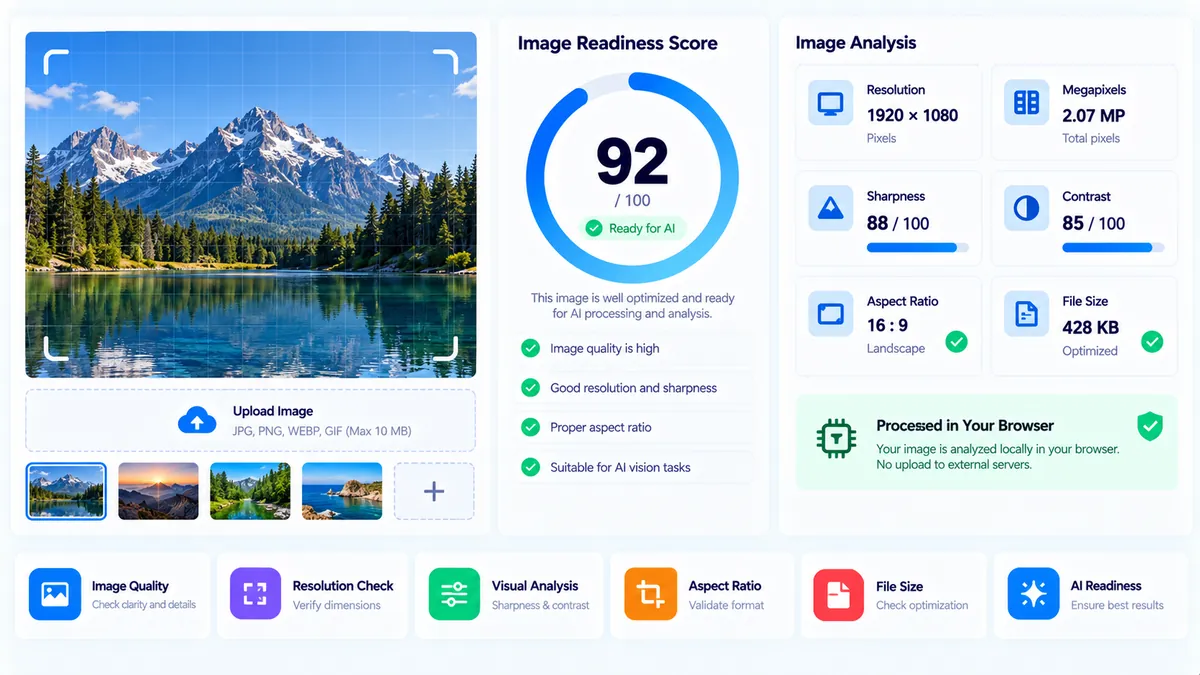
Analyze an image before using it in an AI vision workflow. The AI Image Readiness Checker examines the image locally in your browser and measures practical signals such as resolution, format, visual detail, contrast, sharpness, file efficiency, megapixels, and aspect ratio. It then produces a heuristic readiness score from 0 to 100 with individual checks explaining what may need improvement.
AI Image Readiness Checker
Analyze an image locally for dimensions, format, visual detail, contrast, sharpness and other practical signals that can affect AI vision input quality.
Upload an image to analyze
AI vision input assessment
—
Readiness checks
How to Use the AI Image Readiness Checker in Simple Steps
- Upload or drag and drop a JPG, PNG, WebP, GIF, BMP, or AVIF image into the checker. The browser-processing limit is 20 MB.
- Click Analyze Image to process the selected image locally in your browser.
- Review the readiness score, image dimensions, format, megapixels, aspect ratio, sharpness, contrast, and individual readiness checks.
- Use Copy Report, Copy JSON, Download JSON, or Download PDF if you need to keep or share the analysis. Use Load Example to test the interface and Clear to remove the current image and result.
Technical Breakdown: What the Checker Actually Measures
The AI Image Readiness Checker is a browser-side heuristic analyzer rather than an AI model. Your image is decoded and sampled in the browser, and the checker does not send the image to an external AI service for scoring.
The analysis considers several measurable signals:
- Resolution: Checks the source dimensions and whether the image provides enough pixel area for detailed visual work.
- Modern image format: Recognizes common raster formats and gives a stronger format signal to PNG, WebP, AVIF, and JPEG.
- Visual detail / text signal: Samples edge activity to estimate how much local structure, fine detail, or text-like visual information is present.
- Contrast range: Measures luminance separation across the sampled image.
- Sharpness: Uses image edge-transition information to estimate whether the image is relatively crisp or soft.
- File efficiency: Considers file size when assessing whether the image is practical to handle in browser and AI workflows.
- Transparency: Detects transparent pixels and flags them when they may require deliberate background handling.
The checker scales large images down to a maximum analysis dimension of 1,600 pixels before calculating sampled visual metrics. This keeps browser-side processing practical while preserving the original dimensions for the report.
The final score is a weighted heuristic rather than a prediction of how a particular AI model will respond. A high score does not guarantee accurate OCR, object recognition, chart interpretation, diagram understanding, or visual question answering. Different AI models and applications can have different image requirements.
This approach gives PKCapra a useful preflight layer between an image file and a downstream vision workflow. Instead of uploading an image to an AI service simply to discover that it is small, soft, low-contrast, or inefficient, you can inspect measurable image characteristics first.
For image-specific SEO diagnostics, use the Image SEO Analyzer. For metadata-focused inspection, use the AI Image Metadata Inspector. If you need to inspect or work with colors, the Color Picker provides a separate color-focused workflow.
Developer Snippets (Automate This Tool Offline)
The following examples implement practical offline image preflight checks without calling an AI API. They are useful when you want to inspect a local image before sending it into another vision pipeline. Their measurements are companion implementations and should not be treated as byte-for-byte reproductions of the browser heuristic.
Python with Pillow
Install Pillow first with python -m pip install Pillow.
from pathlib import Path
from PIL import Image, ImageStat, ImageFilter

MAX_BYTES = 20 * 1024 * 1024

def analyze_image(path):
    file_path = Path(path)
    if not file_path.is_file():
        raise FileNotFoundError(file_path)

    size_bytes = file_path.stat().st_size
    if size_bytes > MAX_BYTES:
        raise ValueError("Image exceeds the 20 MB processing limit.")

    with Image.open(file_path) as image:
        width, height = image.size
        megapixels = (width * height) / 1_000_000
        aspect_ratio = width / height if height else 0

        rgb = image.convert("RGB")
        grayscale = rgb.convert("L")

        stats = ImageStat.Stat(grayscale)
        mean = stats.mean[0]
        contrast = stats.stddev[0]

        edges = grayscale.filter(ImageFilter.FIND_EDGES)
        edge_stats = ImageStat.Stat(edges)
        edge_activity = edge_stats.mean[0]

        return {
            "file": file_path.name,
            "format": image.format,
            "width": width,
            "height": height,
            "megapixels": round(megapixels, 2),
            "aspect_ratio": round(aspect_ratio, 4),
            "file_size_bytes": size_bytes,
            "mean_luminance": round(mean, 2),
            "contrast_stddev": round(contrast, 2),
            "edge_activity": round(edge_activity, 2),
            "has_alpha": "A" in image.getbands()
        }

if __name__ == "__main__":
    import json
    import sys

    if len(sys.argv) != 2:
        raise SystemExit("Usage: python image_readiness.py image.jpg")

    result = analyze_image(sys.argv[1])
    print(json.dumps(result, indent=2))
PowerShell
This Windows PowerShell example reads image dimensions and file size locally. It uses the .NET image classes available in Windows PowerShell environments.
param(
    [Parameter(Mandatory = $true)]
    [string]$Path
)

if (-not (Test-Path -LiteralPath $Path -PathType Leaf)) {
    throw "Image file was not found."
}

$file = Get-Item -LiteralPath $Path
$maxBytes = 20MB

if ($file.Length -gt $maxBytes) {
    throw "Image exceeds the 20 MB processing limit."
}

Add-Type -AssemblyName System.Drawing

$image = $null

try {
    $image = [System.Drawing.Image]::FromFile($file.FullName)

    $width = $image.Width
    $height = $image.Height
    $megapixels = ($width * $height) / 1000000
    $aspectRatio = if ($height -gt 0) { $width / $height } else { 0 }

    [pscustomobject]@{
        FileName = $file.Name
        Format = $image.RawFormat.Guid.ToString()
        Width = $width
        Height = $height
        Megapixels = [math]::Round($megapixels, 2)
        AspectRatio = [math]::Round($aspectRatio, 4)
        FileSizeBytes = $file.Length
    } | ConvertTo-Json -Depth 3
}
finally {
    if ($null -ne $image) {
        $image.Dispose()
    }
}
Node.js with Sharp
Install Sharp with npm install sharp.
const fs = require("fs/promises");
const path = require("path");
const sharp = require("sharp");

const MAX_BYTES = 20 * 1024 * 1024;

async function analyzeImage(filePath) {
  const absolutePath = path.resolve(filePath);
  const stat = await fs.stat(absolutePath);

  if (!stat.isFile()) {
    throw new Error("Image file was not found.");
  }

  if (stat.size > MAX_BYTES) {
    throw new Error("Image exceeds the 20 MB processing limit.");
  }

  const metadata = await sharp(absolutePath).metadata();

  if (!metadata.width || !metadata.height) {
    throw new Error("The image has no usable dimensions.");
  }

  const megapixels = (metadata.width * metadata.height) / 1000000;
  const aspectRatio = metadata.width / metadata.height;

  return {
    file: path.basename(absolutePath),
    format: metadata.format || null,
    width: metadata.width,
    height: metadata.height,
    megapixels: Number(megapixels.toFixed(2)),
    aspectRatio: Number(aspectRatio.toFixed(4)),
    fileSizeBytes: stat.size,
    hasAlpha: metadata.hasAlpha === true
  };
}

analyzeImage(process.argv[2])
  .then(result => {
    console.log(JSON.stringify(result, null, 2));
  })
  .catch(error => {
    console.error(error.message);
    process.exitCode = 1;
  });
Native Software Workaround: Check Image Readiness with Excel Power Query
Excel Power Query cannot perform the same browser-side visual analysis as this tool, but it can create a useful local inventory for a folder of images before you process them elsewhere.
- Put the images you want to inspect into one folder.
- Open Excel and select Data → Get Data → From File → From Folder.
- Select the image folder and choose Transform Data.
- Keep the Name, Extension, Date modified, and Content columns. The file size can be derived from the binary content metadata when required.
- Use Add Column → Custom Column to create operational categories such as image type or workflow group from the file extension.
- Filter the table for unusually large files, unsupported extensions, or files that need separate processing.
- Load the inventory back into Excel and use it as a preflight list before sending images into an AI or content workflow.
For actual visual measurements such as sharpness, contrast, edge activity, and the PKCapra readiness score, use the AI Image Readiness Checker itself because those calculations require decoding and sampling the image pixels.
Frequently Asked Questions
What is an AI Image Readiness Checker?
An AI Image Readiness Checker is a preflight tool that measures practical image characteristics that can affect downstream AI vision workflows.
Does this tool send my image to an AI model?
No. The checker performs its analysis in the browser and does not send the image to an external AI model for scoring.
Which image formats are supported?
The checker accepts browser-decodable JPG, PNG, WebP, GIF, BMP, and AVIF images.
What is the maximum image size?
The browser-processing limit is 20 MB per image.
What does the readiness score mean?
The readiness score is a 0–100 heuristic based on measurable image signals such as resolution, format, visual detail, contrast, sharpness, and file efficiency.
Does a high score guarantee that an AI model will understand the image?
No. The score is not a model-specific accuracy prediction and does not test OCR, object recognition, chart interpretation, diagram understanding, tokenization, prompting, or a particular AI application’s vision system.
Why can a large image still receive a low readiness score?
Image dimensions alone do not determine visual quality. Low contrast, blur, limited edge detail, or inefficient image characteristics can reduce the measured readiness even when the pixel dimensions are large.
Why does the checker flag transparency?
Transparent pixels can behave differently depending on the downstream vision workflow. The checker flags detected transparency so you can decide whether the image should be flattened against an intentional background.
Can I save the analysis?
Yes. After analysis, the checker provides Copy Report, Copy JSON, Download JSON, and Download PDF options.
Is the tool suitable for OCR testing?
It is suitable for image preflight, but it is not an OCR engine. Its visual-detail and contrast checks can identify characteristics that may affect text visibility, while actual OCR accuracy depends on the OCR system and the image content.