
Subtitle Muxer
Add a selectable subtitle track to a video without re-encoding the video stream, directly in your browser.
Ready for subtitle muxing
Review options, then create the muxed video
Processing is local to the browser. PKCapra does not receive or store the selected video or subtitle file through an upload endpoint.
Subtitle track added
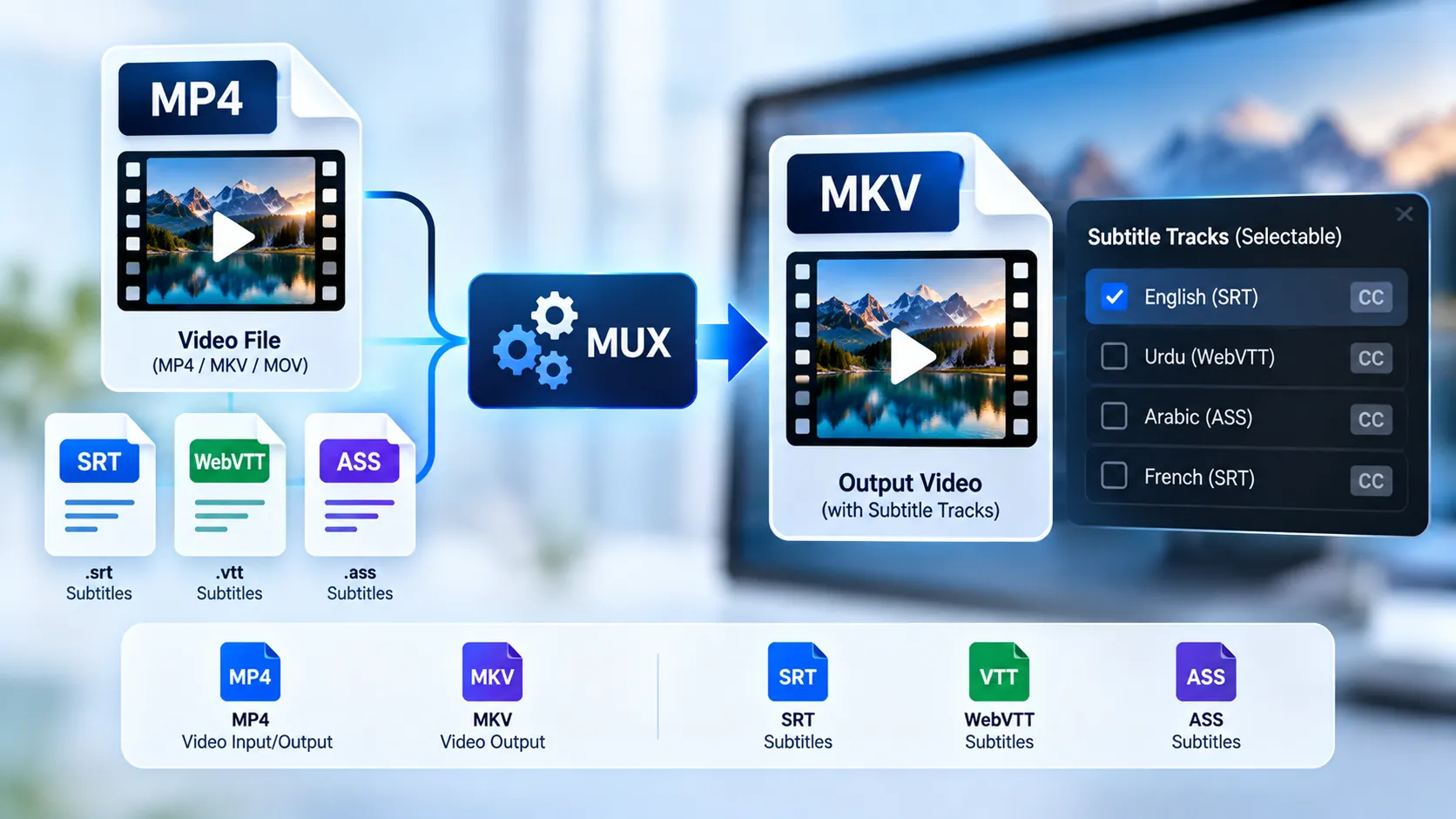
Add selectable subtitles to your video without permanently burning text into the video frames. PKCapra Subtitle Muxer combines a video with an SRT, WebVTT, ASS, or SSA subtitle file directly in your browser and creates a new video containing the subtitle track.
The subtitle remains a separate media stream, so the original video appearance is preserved. Compatible media players can display, hide, or switch the subtitle track independently from the video and audio.
If you are preparing a video for broader playback compatibility, you can also use the Video Compatibility Checker + Auto-Fixer to inspect common compatibility issues before or after your subtitle workflow.
What Is a Subtitle Muxer?
A subtitle muxer adds a subtitle stream to an existing video container without permanently rendering the subtitle text into the video image.
This is different from subtitle burning. With soft subtitles, the text remains a separate selectable stream inside the media container. The video frames themselves do not need to contain the subtitle text.
Subtitle muxing is useful when you want to distribute a video with optional subtitles while preserving the original visual presentation.
For other video-container and stream-related workflows, PKCapra also provides tools such as the Video Metadata Normalizer and Video PTS/DTS Repair Converter.
Supported Subtitle Formats
PKCapra Subtitle Muxer supports common subtitle formats:
- SRT
- WebVTT
- ASS
- SSA
The resulting subtitle stream depends on the selected output container and the source subtitle format.
Supported Output Formats
The tool supports:
- MP4
- MKV
For MP4 output, compatible text subtitles are stored as a mov_text subtitle stream.
MKV provides broader subtitle-format support and can be used with formats such as SubRip, WebVTT, ASS, and SSA.
How to Use the Subtitle Muxer
1. Select Your Video
Choose the video file that you want to use as the source.
The tool processes the selected media locally in your browser through FFmpeg WebAssembly. It does not require the source video to be uploaded to a PKCapra server.
If your source video has a container or compatibility problem before you begin, you can first check it with the Video Compatibility Checker + Auto-Fixer.
2. Select Your Subtitle File
Choose an SRT, WebVTT, ASS, or SSA subtitle file.
The subtitle file should contain valid timing information so that each subtitle cue can be positioned correctly on the video timeline.
3. Configure Subtitle Options
After selecting both files, configure the available subtitle settings.
You can set options such as:
- Subtitle language
- Subtitle track title
- Whether the subtitle track should be the default track
- Output container
The language setting is stored as subtitle-track metadata. For example, selecting Arabic stores the standard ara language code.
4. Start Muxing
After both files have been selected and the options configured, click Mux Subtitles.
The tool then loads the browser-local FFmpeg engine, inspects the selected media, creates the subtitle stream, and combines it with the video.
5. Validate and Download
After muxing is complete, PKCapra validates the resulting media before making the output available for download.
The final file can then be opened in a compatible media player and the subtitle track can be enabled from the player’s subtitle or captions controls.
Soft Subtitles vs Burned-In Subtitles
Subtitle muxing creates soft subtitles.
Soft subtitles remain separate from the video frames. A compatible media player can display or hide them independently.
For example, if a video contains only music and you add an SRT file containing normal text, the music is not converted into subtitles and the audio itself is not changed simply because a subtitle stream was added.
Burned-in subtitles work differently. They become part of the actual video image and normally cannot be switched off.
Use a subtitle muxer when you want selectable subtitles. Use a subtitle burn-in workflow when the subtitles must permanently appear in the video image.
Why Does the Video Look Unchanged?
A successfully muxed video can look exactly like the original when you first open it.
That is expected.
The Subtitle Muxer does not need to draw the subtitle text onto every video frame. Instead, it adds a separate subtitle stream to the media container.
If the subtitle track is disabled in the media player, the video will appear unchanged. Enable the subtitle track to display the embedded text.
This approach can also avoid unnecessary video re-encoding when the selected operation supports stream copying.
If you need to make other technical changes to a video, such as changing its H.264 compatibility, use the Video H.264 Compatibility Converter rather than using subtitle muxing for that purpose.
Subtitle Language
The subtitle language is stored as metadata on the subtitle stream.
This helps compatible media players identify the language and can allow viewers to select the appropriate subtitle track.
For example:
- English can be stored using
eng - Arabic can be stored using
ara - Spanish can be stored using
spa
The selected language affects the subtitle-track metadata. It does not translate the subtitle text.
Subtitle Track Title
A subtitle track title provides a human-readable name for the embedded subtitle stream.
For example, a track can be identified as:
- English Subtitles
- Arabic Subtitles
- Spanish Subtitles
- Captions
The title is metadata associated with the subtitle stream and does not alter the subtitle text itself.
Default Subtitle Track
You can mark the subtitle track as the default track.
When supported by the media player, this tells the player that the embedded subtitle stream should be selected automatically when the video is opened.
The viewer can still disable or change the subtitle track when the media player provides subtitle controls.
MP4 Subtitle Muxing
MP4 is widely used for general video distribution and playback.
When compatible text subtitles are muxed into an MP4 container, PKCapra uses the mov_text subtitle format for the embedded text subtitle stream.
The existing video and audio streams can remain untouched when stream copying is supported by the selected operation.
If your MP4 requires additional technical optimization for playback, you can use the MP4 Fast Start Optimizer from the broader PKCapra video-tool workflow where applicable.
MKV Subtitle Muxing
MKV provides broader subtitle-stream support and is useful when working with formats such as SRT, WebVTT, ASS, and SSA.
The subtitle stream can be preserved in a format appropriate for the MKV container instead of converting every subtitle format into the MP4-compatible mov_text format.
MKV can therefore be useful when subtitle-format flexibility is more important than MP4 compatibility.
Browser-Based Processing
PKCapra Subtitle Muxer is designed for local browser processing.
Your selected video and subtitle files are processed through FFmpeg WebAssembly in the browser rather than being sent to a PKCapra upload endpoint for the muxing operation.
This provides a browser-based workflow for combining subtitle files with videos without requiring a traditional server-side media upload.
You can access the wider collection of browser-based utilities through the All Free Online Tools page.
File Size Limit
The browser-based video input limit is 500 MB.
The subtitle input limit is 25 MB.
Very large media files may require significant browser memory and processing time, particularly on mobile devices or systems with limited available resources.
Subtitle Timing
The muxer does not rewrite the subtitle cue timings simply because the subtitles are embedded into the video.
For example, an SRT file containing:
1
00:00:00,000 --> 00:00:02,500
Welcome to PKCapra.
will retain that timing in the resulting subtitle track.
For accurate synchronization, make sure the subtitle timings already match the selected video before muxing.
If the video itself has timestamp problems, subtitle muxing is not a timestamp-repair tool. In that situation, use the Video PTS/DTS Repair Converter to address the relevant timing workflow.
Muxing Does Not Translate Subtitles
Subtitle muxing combines media streams. It does not translate, rewrite, proofread, or automatically generate subtitle text.
If you need subtitles in another language, create or obtain the translated subtitle file first and then mux that subtitle file into the video.
The language selection in the muxer identifies the subtitle track; it does not perform translation.
Muxing Does Not Create Lyrics
A subtitle muxer does not automatically extract lyrics from music or convert audio into subtitles.
If your source video contains only music, adding an SRT file simply adds the text contained in that subtitle file as a separate subtitle stream.
The music and subtitle data remain independent media streams.
Video Compatibility After Muxing
Adding a subtitle stream does not automatically fix unrelated video compatibility problems.
For example, subtitle muxing does not replace workflows for:
- Aspect-ratio metadata
- Presentation timestamps
- GOP structure
- H.264 compatibility
- Interlacing
- HDR conversion
- Metadata normalization
PKCapra provides dedicated tools for these workflows, including the Video SAR/DAR Fixer, Video GOP/Keyframe Interval Converter, Video H.264 Compatibility Converter, Video Interlaced → Progressive Converter, and Video HDR → SDR Converter.
Use the dedicated converter when the underlying video requires a technical transformation rather than simply adding subtitles.
Privacy
Your selected media is processed locally in your browser using FFmpeg WebAssembly.
PKCapra Subtitle Muxer does not require sending the source video to a PKCapra upload endpoint for the muxing operation.
Because processing happens in the browser, your files remain within the local browser workflow while the tool is running.
For more information about how PKCapra handles information, see the PKCapra Privacy Policy.
Troubleshooting
The video looks exactly the same after muxing
This is normally expected with soft subtitles.
Open the exported video in a media player that supports embedded subtitle tracks and enable subtitles from the player’s subtitle or captions menu.
The subtitles are not visible automatically
Check whether the subtitle track is enabled in your media player.
If you did not mark the track as the default subtitle track, the player may leave it disabled until you select it manually.
The subtitles are out of sync
Check the original subtitle file.
Muxing embeds the subtitle timings provided by the subtitle file. If the subtitle file was created for a different video version, its timing may not match the selected video.
If the source video itself has timestamp problems, use the Video PTS/DTS Repair Converter as the appropriate technical workflow.
The subtitle language appears differently than expected
Check the language selected before muxing.
The selected language is stored as subtitle-stream metadata and may be displayed using a language name or code depending on the media player.
The output does not play correctly
Try opening the exported file in a modern media player with support for the selected container and subtitle format.
For MP4, use subtitle formats supported by the MP4 subtitle workflow. For broader subtitle-format flexibility, MKV may be more suitable.
If the output has broader compatibility problems unrelated to subtitles, check it with the Video Compatibility Checker + Auto-Fixer.
Common Use Cases
PKCapra Subtitle Muxer can be useful for:
- Adding optional subtitles to videos
- Embedding multilingual subtitle tracks
- Adding Arabic, English, or other language metadata
- Preparing videos for media players that support selectable subtitles
- Combining SRT files with MP4 videos
- Combining WebVTT subtitles with compatible video containers
- Preserving ASS or SSA subtitle styling in suitable containers
- Creating subtitle-enabled MKV files
- Preparing videos with a default subtitle track
- Keeping subtitles separate from the actual video image
- Adding subtitle metadata without permanently changing the video appearance
For additional video-processing workflows, browse the All Tools collection.
Frequently Asked Questions
Does the Subtitle Muxer change the video?
It does not need to visually change the video. The subtitle is added as a separate selectable media stream.
Are subtitles burned into the video?
No. The Subtitle Muxer creates soft subtitles rather than permanently drawing subtitle text onto the video frames.
Can I turn the subtitles off?
Yes. Because the subtitles are stored as a separate stream, compatible media players can normally enable or disable them.
Can I add Arabic subtitles?
Yes. Arabic can be selected as the subtitle language, and the exported subtitle stream can contain the corresponding Arabic language metadata.
Does the tool translate subtitles?
No. It embeds the subtitle file you provide. Translation must be completed before muxing.
Can I use SRT subtitles?
Yes. SRT is supported.
Can I use WebVTT subtitles?
Yes. WebVTT is supported.
Can I use ASS or SSA subtitles?
Yes. ASS and SSA are supported, particularly for MKV workflows where these subtitle formats can be preserved.
Does muxing affect the video’s audio?
The muxing workflow is designed to preserve existing video and audio streams when stream copying is supported. The subtitle stream is added separately.
Why does the output file have a different size?
Adding a subtitle stream and changing media-container metadata can change the final file size even when the original video and audio streams are not re-encoded.
Is the original video uploaded to PKCapra?
The tool is designed for browser-local processing and does not require a PKCapra upload endpoint for the muxing operation.
What is the difference between muxing and burning subtitles?
Muxing adds subtitles as a separate selectable stream. Burning permanently renders the subtitle text into the video image.
Which should I use: MP4 or MKV?
MP4 is useful when broad MP4 compatibility is the priority and the subtitle format can be represented using the supported MP4 subtitle workflow. MKV provides broader subtitle-format flexibility, including formats such as ASS and SSA.
Can I add more than one subtitle track?
The current workflow is designed around adding the selected subtitle track to the selected video. For multiple-language subtitle packages, prepare the required subtitle tracks according to the media player’s and container’s supported workflow.
Will muxing change the video quality?
The subtitle muxing workflow is designed to avoid unnecessary video re-encoding. When the existing video stream is copied, adding the subtitle track does not require recompressing the video.
Can I use this to fix a damaged video?
No. Subtitle muxing is intended to add a subtitle stream. It is not a general video-repair tool.
For timestamp-related problems, use the Video PTS/DTS Repair Converter. For broader compatibility issues, use the Video Compatibility Checker + Auto-Fixer.
Final Notes
PKCapra Subtitle Muxer is designed for adding selectable subtitle tracks while keeping the original video presentation intact.
It is especially useful when you want subtitles that viewers can enable or disable rather than permanently displaying subtitle text on every video frame.
For permanently visible subtitles, use a subtitle burn-in workflow instead.
For additional PKCapra utilities and media-processing tools, visit the All Free Online Tools page.