
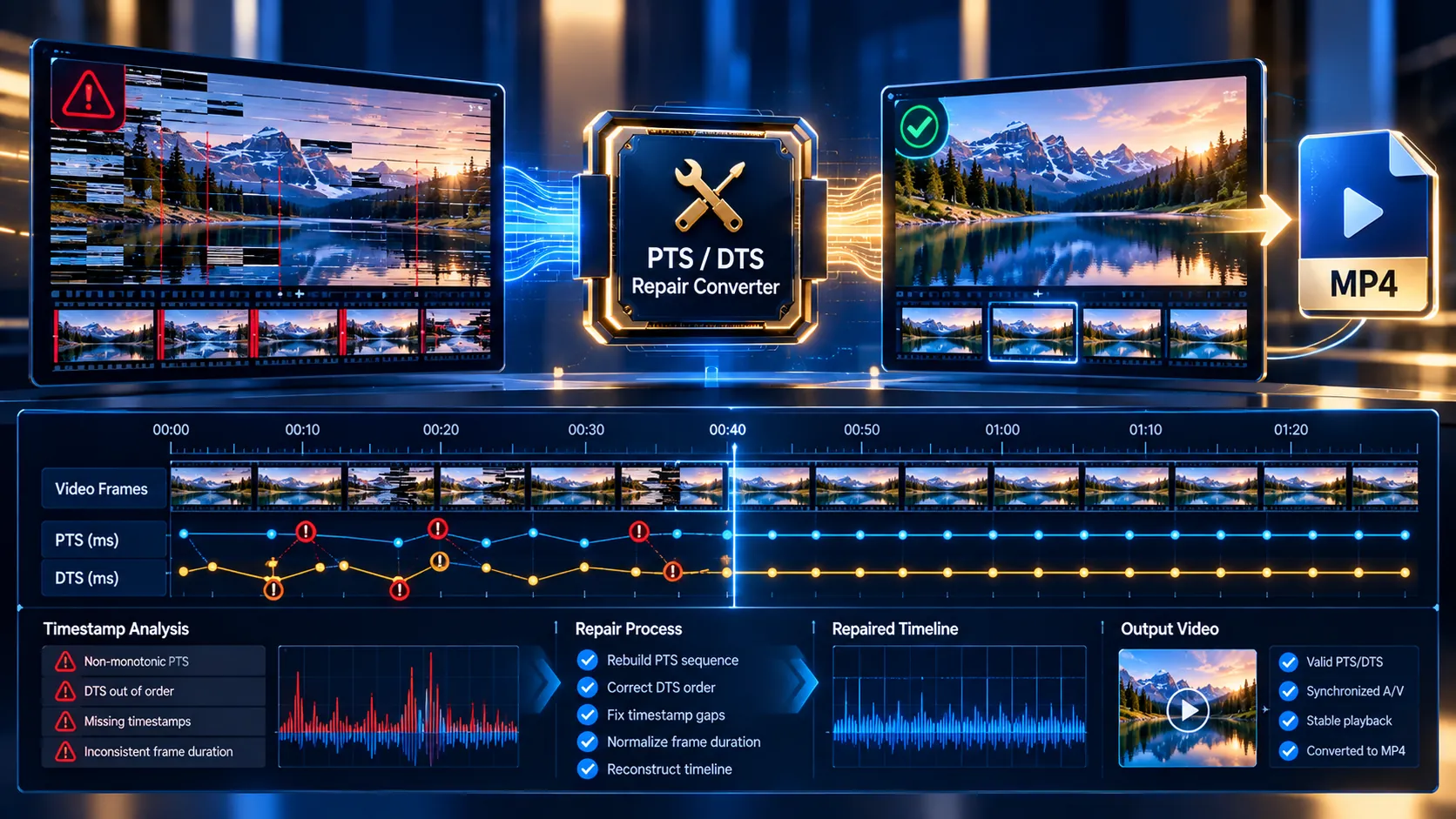
Video PTS/DTS Repair Converter
Inspect presentation and decoding timestamp signals, detect common timestamp warnings, and rebuild a video timeline with deterministic FFmpeg timestamp expressions.
Source Timeline
Choose the timestamp operation
Timestamp repair re-encodes the affected video and/or audio stream so the output muxer receives deterministic PTS and can generate consistent DTS. Stream-copy remuxing is intentionally not used as the primary repair path because copying malformed timestamps cannot reliably reconstruct them.
MP4 ready
—
Video PTS/DTS Repair Converter
Repair problematic video timestamps directly in your browser. The Video PTS/DTS Repair Converter analyzes the source timeline first, reports the first video PTS/DTS values, detects timestamp warning patterns, and then lets you normalize, rebuild, or shift video and audio timestamps before exporting a new MP4. Processing is performed in the browser rather than through a PKCapra media-upload endpoint.
How to Use the Video PTS/DTS Repair Converter in Simple Steps
- Upload your video file.
Select an MP4, MOV, MKV, WebM, AVI, MXF, MTS, M2TS, TS, M4V, 3GP, OGV, WMV, or FLV file. - Wait for timestamp analysis.
The tool performs a forensic scan before showing the repair controls. The readout can include video first PTS, video first DTS, audio first PTS, audio first DTS, time base, frame rate, source duration, stream dimensions, codec information, and timestamp warning patterns. - Review the Source Timeline.
Check whether the first timestamps begin at an unexpected offset or whether the analysis reports warning patterns. A negative first DTS does not automatically mean that the entire file is broken; the surrounding stream timing also matters. - Select a repair operation.
Available operations are:- Normalize video PTS to start at 0
- Normalize audio PTS to start at 0
- Rebuild video PTS from detected frame cadence
- Rebuild video + audio timestamps
- Shift video PTS by a custom offset
- Shift audio PTS by a custom offset
- Set a custom shift when required.
Negative values move the selected stream earlier. Positive values move it later. A value of1shifts the selected timestamp timeline by one second. - Choose the audio output mode.
You can keep the source audio, re-encode audio as AAC, or remove audio when the workflow requires it. - Click Repair & Export MP4.
The repair engine re-encodes the affected stream so the output muxer receives deterministic timestamps and can generate a consistent MP4 timeline. - Validate the exported file.
Check the output duration, playback, frame continuity, resolution, frame rate, audio behavior, and start timestamp before using the repaired file in another editor, player, upload system, or media pipeline.
Technical breakdown of the tool’s competitive edge
The core problem addressed by this tool is timestamp structure rather than ordinary video conversion. A video can have valid image frames and still behave incorrectly when its presentation or decoding timestamps contain unexpected offsets, irregular cadence, or incompatible timing relationships.
PTS means Presentation Timestamp. It controls when a decoded frame should be presented on the playback timeline.
DTS means Decoding Timestamp. It represents the timestamp used for decoding order and can differ from PTS when codec frame reordering is involved.
The converter therefore analyzes both values instead of treating a video file as nothing more than a sequence of images.
Source Timeline Forensics
The analysis stage exposes the first video PTS and DTS, audio PTS and DTS when an audio stream exists, the stream time base, detected frame rate, duration, resolution, codec, and timestamp warning patterns.
This makes the repair decision inspectable before an export begins.
For example, a source may show:
- Video first PTS:
+0.000 s - Video first DTS:
-0.067 s - Frame rate:
29.970 fps - Time base:
30k
A negative first DTS should be interpreted in the context of the codec and frame ordering rather than treated as proof that every timestamp is invalid.
Normalize Video PTS
The normalize operation rebuilds the video presentation timeline from its starting point so the first video presentation timestamp begins at zero.
The underlying FFmpeg video operation is equivalent to:
ffmpeg -i flower.mp4 -vf "setpts=PTS-STARTPTS" -c:v libx264 -c:a copy flower-pts-normalized.mp4This is useful when a video carries an unwanted starting offset and the intended presentation timeline should begin at zero.
Rebuild Video PTS From Frame Cadence
The cadence rebuild operation reconstructs video presentation timestamps from the detected frame rate.
For a 29.970 fps source, the intended frame spacing is approximately 1/29.970 seconds. Rebuilding the timeline from frame order can be useful when existing video PTS values are inconsistent with the detected cadence.
A corresponding FFmpeg workflow can be represented as:
ffmpeg -i flower.mp4 -vf "setpts=N/(29.970*TB)" -c:v libx264 -c:a copy flower-pts-cadence.mp4The converter determines the cadence from the analyzed source instead of blindly assuming a universal frame rate.
Custom PTS Shifting
A timestamp shift changes the position of the selected stream on the presentation timeline without treating the operation as a generic video trim.
For a one-second video shift:
ffmpeg -i flower.mp4 -vf "setpts=PTS+1/TB" -c:v libx264 -c:a copy flower-video-shifted.mp4Positive values move the selected timeline later. Negative values move it earlier.
Audio Timestamp Handling
Audio can be handled separately from video. The converter supports keeping source audio, re-encoding audio as AAC, or removing audio.
For audio timestamp normalization, the relevant FFmpeg concept is:
ffmpeg -i input.mp4 -af "asetpts=PTS-STARTPTS" -c:v copy output.mp4Video and audio should not automatically be forced onto identical timestamp operations because each stream has its own time base and timing structure.
Why the repair path re-encodes affected streams
Stream-copy remuxing can move packets between containers, but it does not reliably reconstruct a malformed presentation timeline. This converter therefore uses re-encoding for the affected repair path so the output muxer receives deterministic timestamps.
The trade-off is that repair can require substantially more CPU, memory, and processing time than a simple stream-copy operation.
Browser-side processing architecture
The selected media file is read by the browser and processed through the tool’s browser-based FFmpeg WebAssembly engine. The selected media is not sent to a PKCapra upload endpoint for the repair operation.
The browser still needs network access to load the required application/processing assets when they are not already available locally. Browser processing also means the user’s device performs the actual media work.
Heavy media operations can therefore behave differently across desktop computers, phones, tablets, browsers, and available system resources.
Tested behavior
A 960×540 H.264 flower.mp4 test source was successfully processed through:
- Normalize video PTS to start at 0
- Rebuild video PTS from detected frame cadence
The resulting files preserved the 960×540 resolution, H.264 video, 29.970 fps signal, 150-frame count, approximately 5.005-second video duration, 1:1 SAR, 16:9 DAR, and no-audio state.
Audio-specific repair remains dependent on testing a source that actually contains an audio stream.
Developer Snippets (Automate This Tool Offline)
The same timestamp concepts can be automated with FFmpeg in a local media-processing workflow.
Normalize video PTS to zero
ffmpeg -i flower.mp4 -vf "setpts=PTS-STARTPTS" -c:v libx264 -c:a copy flower-pts-normalized.mp4Rebuild video PTS from a known 29.970 fps cadence
ffmpeg -i flower.mp4 -vf "setpts=N/(29.970*TB)" -c:v libx264 -c:a copy flower-pts-cadence.mp4Shift video PTS by one second
ffmpeg -i flower.mp4 -vf "setpts=PTS+1/TB" -c:v libx264 -c:a copy flower-video-plus-one-second.mp4Normalize audio PTS
ffmpeg -i input.mp4 -af "asetpts=PTS-STARTPTS" -c:v copy -c:a aac output-audio-normalized.mp4Rebuild video and audio timelines together
ffmpeg -i input.mp4 -vf "setpts=PTS-STARTPTS" -af "asetpts=PTS-STARTPTS" -c:v libx264 -c:a aac output-timestamps-normalized.mp4Inspect timestamps after processing
ffprobe -v error -select_streams v:0 -show_entries stream=start_time,duration,time_base,r_frame_rate,avg_frame_rate -of default=noprint_wrappers=1 flower-pts-normalized.mp4For automated pipelines, validate the resulting timestamps after encoding rather than assuming that the filter expression alone guarantees a valid final container timeline.
Native software workaround integration tutorial
FFmpeg command-line workflow
FFmpeg is the most direct native workaround when browser processing is too slow for a large source or when a media pipeline needs repeatable command-line processing.
For a simple video PTS normalization:
ffmpeg -i flower.mp4 -vf "setpts=PTS-STARTPTS" -c:v libx264 -c:a copy flower-pts-normalized.mp4For cadence reconstruction:
ffmpeg -i flower.mp4 -vf "setpts=N/(29.970*TB)" -c:v libx264 -c:a copy flower-pts-cadence.mp4For a one-second video timestamp shift:
ffmpeg -i flower.mp4 -vf "setpts=PTS+1/TB" -c:v libx264 -c:a copy flower-video-plus-one-second.mp4After every repair, inspect the output with ffprobe and verify that the resulting timeline matches the intended workflow.
DaVinci Resolve workaround
DaVinci Resolve can be used when the timestamp problem is part of a larger editing workflow.
Import the source into the Media Pool, place it on a timeline, inspect the clip timing, and render a new MP4 from the corrected timeline. Use the exported file as the new delivery asset rather than relying on the original timestamp structure.
This approach is useful when the video also needs editing, trimming, color work, audio correction, or delivery encoding.
Adobe Premiere Pro workaround
Premiere Pro can also provide a native editing-based workaround. Import the source, place it on a sequence with the intended frame rate, check the clip’s timing and playback behavior, and export a new MP4 using the required delivery settings.
A dedicated timestamp repair utility is more focused when the actual requirement is timestamp normalization or reconstruction rather than editorial work.
Frequently Asked Questions
What does a video PTS timestamp mean?
PTS is the presentation timestamp that determines when a decoded video frame should appear on the playback timeline.
What does a video DTS timestamp mean?
DTS is the decoding timestamp associated with the order in which encoded media is decoded, and it can differ from PTS when frame reordering is involved.
Does a negative DTS automatically mean my video is broken?
A negative DTS is not by itself proof of a broken video. Codec frame reordering and container timing can produce differences between decoding and presentation timestamps, so the complete stream timeline should be evaluated.
What does “Normalize video PTS to start at 0” do?
PTS normalization rebuilds the selected video presentation timeline so its starting presentation timestamp is zero.
What does “Rebuild video PTS from detected frame cadence” do?
Frame-cadence reconstruction generates video presentation timestamps from the detected frame rate and frame sequence rather than relying entirely on the original video PTS values.
Can I shift a video’s timestamps by one second?
Yes. The custom video PTS shift operation accepts positive or negative seconds, allowing the selected video timeline to be moved later or earlier.
Can this tool repair audio timestamps?
Yes. The tool includes separate audio PTS normalization, audio shifting, and combined video-plus-audio timestamp repair operations. A meaningful audio test requires a source file containing an audio stream.
Does the tool upload my video to PKCapra?
No PKCapra media-upload endpoint is used for the browser repair workflow. The selected file is processed in the browser. The browser may still need to load the processing engine and application assets over the network.
Does timestamp repair preserve the original video quality?
Timestamp repair requires re-encoding for the affected repair path, so it is not a lossless stream-copy operation. Output quality depends on the encoding settings used by the repair engine.
Is there a file-size limit?
The browser tool currently uses a 500 MB input limit. Actual processing capacity can be lower on devices with limited memory or CPU resources.
Why can timestamp repair take a long time?
Video re-encoding is computationally intensive. Processing time depends on source duration, resolution, codec, browser memory, device CPU/GPU resources, and the selected repair operation.
What should I check after exporting a repaired MP4?
Check that the file opens correctly, playback starts normally, duration is expected, frame rate and resolution are preserved when required, audio remains synchronized when present, and the timestamp readout no longer contains the timing problem you intended to correct.
Privacy and Processing
Video timestamp repair is performed in the browser using the selected local media file. The repair workflow does not send the selected media to a PKCapra upload endpoint.
The browser may download the required processing engine and application assets over the network. This means “browser-side processing” does not mean that every byte involved in loading the application comes exclusively from the local device.
For privacy-sensitive media, review your browser environment and network configuration before processing the file.
Limitations
- Maximum browser input size is 500 MB.
- Processing performance depends on the user’s device and browser.
- Large or high-resolution videos can require substantial memory.
- Timestamp repair is not the same as lossless stream-copy remuxing.
- Re-encoding can change compression characteristics and output file size.
- Audio repair cannot be meaningfully validated on a video with no audio stream.
- The detected frame cadence must be usable for cadence-based PTS reconstruction.
- Browser codec and media-processing behavior can vary between browsers and devices.
- A timestamp warning or unusual first timestamp does not automatically prove that every stream timestamp is corrupt.
- Always validate the exported file before using it in a production media pipeline.
Timestamp repair is often only one step in a larger media workflow. After correcting a video’s timeline, you may need another utility for a different media task, so you can continue exploring the PKCapra All Tools collection or browse the broader PKCapra Categories to find the appropriate workflow without starting your search again. If your next task involves working with authorized online video media, the YouTube WASM Downloader Pro provides a separate browser-based media workflow for supported direct-media sources.