
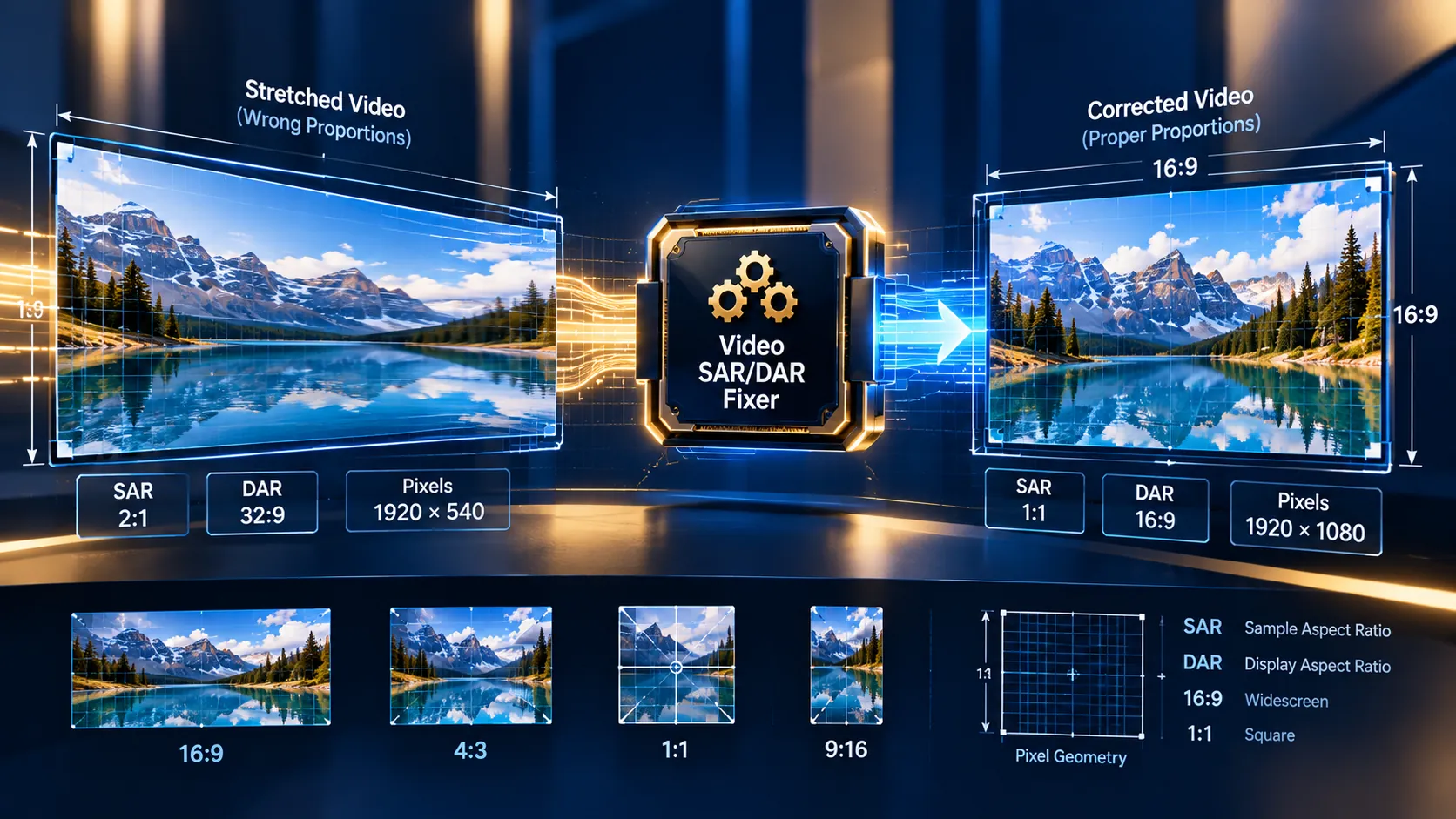
Fix incorrect video pixel aspect ratio (SAR) or display aspect ratio (DAR) without changing the intended display geometry. Upload a video, inspect its detected dimensions and aspect-ratio metadata, then choose whether to set a specific SAR, set a specific DAR, or bake the intended geometry into square pixels.
Video SAR/DAR Fixer
Inspect the stored pixel geometry of a video, calculate its real display geometry, and repair Sample Aspect Ratio (SAR) or Display Aspect Ratio (DAR) without uploading the media to PKCapra.
Source Geometry
Choose the geometry you want the output to declare
A SAR/DAR metadata repair changes aspect-ratio signalling without changing coded frame dimensions. Square-pixel bake changes frame dimensions so the output carries SAR 1:1. Both paths re-encode video for deterministic output.
MP4 ready
—
How to Use the Video SAR/DAR Fixer in Simple Steps
- Upload your video. Select the source video in the tool. The analyzer reads the video stream and identifies the dimensions and aspect-ratio information needed for the repair.
- Review the detected geometry. Check the reported width, height, SAR, DAR, display geometry and other available stream information before applying a correction. This helps distinguish a metadata problem from a genuinely incorrect frame shape.
- Choose the repair method.
- Set SAR changes the sample/pixel aspect ratio while keeping the coded frame dimensions.
- Set DAR sets the intended display aspect ratio and derives the required SAR from the existing frame dimensions.
- Bake to Square Pixels creates square-pixel output when you need the display geometry represented by ordinary 1:1 pixels rather than non-square pixel metadata.
- Process and download the repaired video. Use the generated output as the corrected media file and verify it in the target player, editor, browser, or production workflow.
Technical breakdown of the tool’s competitive edge
The important distinction in aspect-ratio repair is between coded frame dimensions, sample/pixel aspect ratio, and display aspect ratio.
A video can be stored at one raster size and still be intended to display at another shape because its pixels are not necessarily square. FFmpeg defines the relationship as:
DAR = (width / height) × SAR
That means a 960×540 video with SAR 1:1 has a 16:9 display aspect ratio. If the same 960×540 raster is assigned an SAR of 9:16, its display aspect ratio becomes 1:1.
The Video SAR/DAR Fixer is designed around this relationship rather than treating aspect ratio as a simple width/height resize operation. FFmpeg’s setdar filter changes the display aspect ratio by changing the resulting sample aspect ratio, while setsar directly sets the sample/pixel aspect ratio. Neither operation inherently changes the coded frame dimensions. FFmpeg filter documentation
SAR and DAR solve different problems
SAR (Sample Aspect Ratio) describes the proportional shape of an individual encoded pixel.
DAR (Display Aspect Ratio) describes the overall shape at which the video should be displayed.
For square-pixel video:
SAR = 1:1
For a 16:9 1920×1080 video:
DAR = 1920 / 1080 × 1/1 = 16:9
For a 960×540 video forced to display as 1:1:
SAR = 1/((960/540)) = 9:16
So:
960 / 540 × 9/16 = 1:1
This is why changing SAR can change the displayed shape without changing the stored frame dimensions.
Set SAR
Use Set SAR when the coded dimensions are correct but the pixel-shape metadata is wrong.
Typical cases include:
- An anamorphic source being interpreted with the wrong pixel shape.
- A video that should use square pixels but contains an incorrect non-square SAR.
- A legacy or professional workflow that requires a specific pixel aspect ratio.
- A file whose visual distortion is caused by incorrect aspect-ratio metadata rather than incorrect image dimensions.
This operation is fundamentally different from resizing. The frame can remain 720×480, 960×540, 1440×1080, or another existing raster while its pixel interpretation changes.
Set DAR
Use Set DAR when you know the intended display shape but do not want to manually calculate the corresponding SAR.
The target DAR is translated into the appropriate SAR for the existing frame dimensions.
For example, if a 960×540 source needs to display as square 1:1:
SAR = DAR ÷ (width / height)
SAR = 1 ÷ (960 / 540)
SAR = 9:16
The coded raster therefore remains 960×540 while the display geometry becomes 1:1.
Bake to Square Pixels
Bake to Square Pixels is different from simply changing SAR metadata.
Square-pixel output means:
SAR = 1:1
If the intended display shape is not already represented by the existing raster, the video must be rescaled to a suitable coded geometry so that the displayed result remains correct with square pixels.
This distinction matters when moving media between applications that handle non-square pixels differently. A metadata-only correction can be preferable when the target workflow understands SAR correctly; square-pixel output can be preferable when the downstream workflow expects ordinary 1:1 pixels.
Why the distinction matters
A video that looks stretched, squeezed, too wide, or too narrow is not automatically a resolution problem.
The distortion can originate from:
- Incorrect SAR metadata.
- Incorrect DAR metadata.
- An application interpreting the source incorrectly.
- A genuinely incorrect raster.
- A workflow that does not handle non-square pixels as expected.
FFmpeg’s own documentation specifically notes that aspect-ratio information can be stored as either display or pixel/sample aspect information and recommends examining the original video before deciding whether the problem is caused by the image itself or its aspect-ratio metadata. FFmpeg FAQ
Developer Snippets (Automate This Tool Offline)
The same SAR/DAR concepts can be automated locally with FFmpeg. These examples operate on files you control and do not depend on a web service.
Set a specific SAR
The following Python script calls the locally installed FFmpeg executable and sets the video SAR to 1:1 while copying the audio stream when one exists.
import subprocess
from pathlib import Path

input_file = Path("input.mp4")
output_file = Path("output-square-pixel-metadata.mp4")

command = [
    "ffmpeg",
    "-y",
    "-i", str(input_file),
    "-vf", "setsar=1/1",
    "-map", "0:v:0",
    "-map", "0:a?",
    "-c:v", "libx264",
    "-crf", "18",
    "-preset", "medium",
    "-c:a", "copy",
    str(output_file),
]

subprocess.run(command, check=True)

print(f"Created: {output_file}")
Set a target DAR
If the frame dimensions should remain unchanged but the file should display as 16:9, FFmpeg can calculate the required SAR through the setdar filter.
import subprocess
from pathlib import Path

input_file = Path("input.mp4")
output_file = Path("output-16-9.mp4")

command = [
    "ffmpeg",
    "-y",
    "-i", str(input_file),
    "-vf", "setdar=16/9",
    "-map", "0:v:0",
    "-map", "0:a?",
    "-c:v", "libx264",
    "-crf", "18",
    "-preset", "medium",
    "-c:a", "copy",
    str(output_file),
]

subprocess.run(command, check=True)

print(f"Created: {output_file}")
Inspect the result
Use ffprobe after processing when you need to verify the actual stored stream values.
import json
import subprocess

file_name = "output-16-9.mp4"

command = [
    "ffprobe",
    "-v", "error",
    "-select_streams", "v:0",
    "-show_entries",
    "stream=width,height,sample_aspect_ratio,display_aspect_ratio",
    "-of", "json",
    file_name,
]

result = subprocess.run(
    command,
    check=True,
    capture_output=True,
    text=True,
)

print(json.dumps(json.loads(result.stdout), indent=2))
The verification step is important because the intended display ratio should be checked from the resulting stream rather than inferred only from the filename or player appearance.
Native software workaround integration tutorial
Adobe Premiere Pro provides a practical manual workflow when the problem is that an imported clip is being interpreted with the wrong pixel aspect ratio.
- Import the video into the Project panel.
- Right-click the source clip.
- Select Modify → Interpret Footage.
- Locate the Pixel Aspect Ratio section.
- Use the appropriate source interpretation or choose Conform To when you need to override the detected ratio.
- Confirm the change and inspect the clip before placing it into the final sequence.
Adobe documents this workflow specifically for correcting incorrectly interpreted pixel aspect ratios. Premiere also exposes frame size, frame rate and pixel aspect ratio information for selected media. Adobe Premiere Pro pixel aspect ratio documentation
This Premiere workflow is primarily an interpretation correction inside the editing project. It should not be confused with physically rescaling the video or necessarily rewriting the source file’s SAR/DAR metadata. If the requirement is a corrected standalone media file for another application, an actual export or a dedicated metadata/transcoding workflow is required.
Frequently Asked Questions
What is SAR in video?
SAR is Sample Aspect Ratio, also called Pixel Aspect Ratio. It describes the width-to-height relationship of the individual pixels represented by the video stream. A value of 1:1 represents square pixels.
What is DAR in video?
DAR is Display Aspect Ratio. It describes the overall width-to-height shape at which the video should appear on screen. DAR is calculated from the coded frame dimensions and SAR.
Does changing SAR change the video resolution?
Changing SAR does not inherently change the coded frame dimensions. A 960×540 video can remain 960×540 while its SAR changes and therefore its displayed geometry changes.
Does changing DAR crop the video?
Changing DAR does not inherently crop the video. A DAR correction can change the aspect-ratio metadata while leaving the underlying frame dimensions unchanged.
When should I use Set SAR instead of Set DAR?
Set SAR is appropriate when the required pixel aspect ratio is known. Set DAR is useful when the desired final display shape is known and you want the required SAR derived from the existing frame dimensions.
What does Bake to Square Pixels do?
Bake to Square Pixels produces video whose pixels use a 1:1 SAR. When the target display shape differs from the existing square-pixel geometry, the video must be rescaled so the intended display shape survives without relying on non-square pixel metadata.
Why does my video look stretched even though the resolution is correct?
Incorrect aspect-ratio interpretation can make a correctly sized video appear distorted. The stored width and height may be valid while SAR or DAR metadata causes a player or editor to display the image with the wrong geometry.
Can SAR/DAR correction fix a genuinely wrong video frame?
SAR/DAR correction cannot restore image content that was physically cropped, stretched, or encoded at the wrong raster. It is appropriate when the display problem is caused by aspect-ratio interpretation or metadata rather than missing or altered image pixels.
Will every video player interpret non-square pixels identically?
Video applications differ in how they interpret and preserve media metadata. A workflow that handles SAR correctly can display anamorphic footage properly, while another workflow may require square-pixel output for predictable downstream handling.
Should I verify the output after fixing SAR or DAR?
Output verification is the correct final check. Inspect the resulting video stream for width, height, SAR and DAR, then open the file in the application where it will actually be used.
Aspect-ratio repair is often only one step in a larger media workflow. After correcting the geometry of a video, you may need another utility for a different media task, so you can continue exploring the PKCapra All Tools collection or browse the broader PKCapra Categories to find the appropriate workflow without starting your search again. If your next task involves working with authorized online video media, the YouTube WASM Downloader Pro provides a separate browser-based media workflow for supported direct-media sources.