
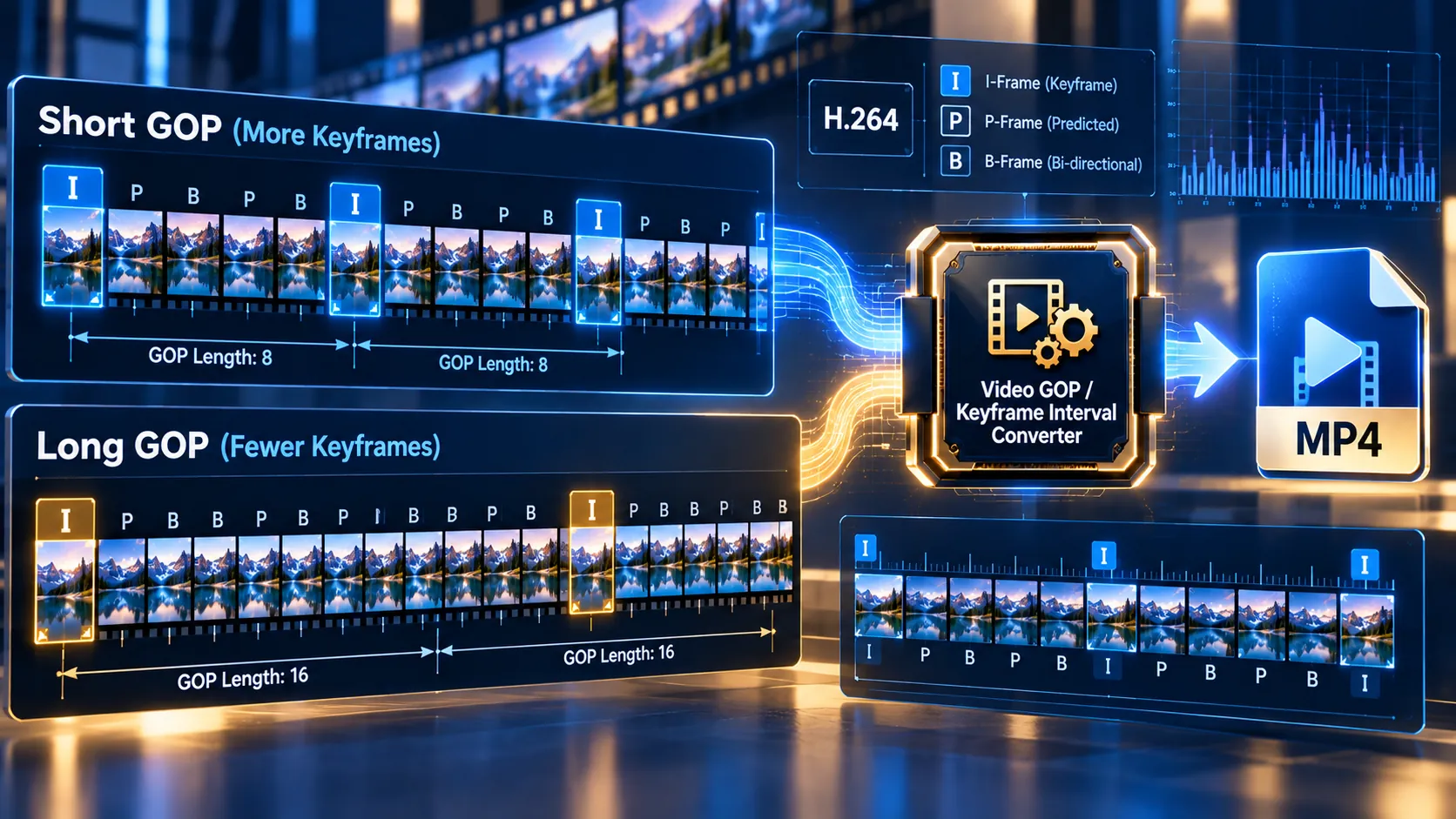
Analyze the keyframe structure of a video, inspect its observed GOP pattern, choose a target keyframe interval, and rebuild the video as an H.264 MP4 directly in your browser.
This tool is designed for workflows where predictable intra-frame spacing matters for seeking, editing, playback behavior, or downstream video processing. The tool first analyzes the source video, then lets you choose a target GOP interval from 12, 24, 30, 48, 60, 90, 120 frames or enter a custom value from 2–300 frames.
Video GOP / Keyframe Interval Converter
Inspect the source keyframe pattern, choose a target GOP interval, and rebuild the video with a controlled intra-frame cadence for editing, seeking, or streaming workflows.
Source GOP readout
Choose the target keyframe interval
The converter re-encodes the video with a fixed maximum keyframe interval, matching minimum keyframe interval, and scene-cut detection disabled. This makes the requested GOP cadence deterministic instead of relying on the source encoder's scene-cut decisions.
MP4 ready
—
How to Use the Video GOP / Keyframe Interval Converter in Simple Steps
1. Upload your video
Select a local video file using the file picker or drag-and-drop interface.
The current browser input safety limit is 500 MB. The source media is processed locally in the browser rather than being sent to a PKCapra upload endpoint by this module.
2. Review the source GOP analysis
After the video is loaded, the tool performs an FFmpeg analysis of the video stream.
The analysis reports:
- Video codec
- Coded dimensions
- Frame-rate signal
- Duration
- Audio presence
- Audio codec
- Detected I-frame positions
- Observed keyframe gaps
- First detected keyframe
- Whether the observed GOP pattern appears fixed or variable
The analysis is an interval diagnostic based on the detected keyframe pattern. It is not an exhaustive codec-level certification of every possible GOP implementation.
3. Select the target GOP interval
Choose one of the available target intervals:
- 12 frames
- 24 frames
- 30 frames
- 48 frames
- 60 frames
- 90 frames
- 120 frames
You can also enter a custom value between 2 and 300 frames.
The selected value becomes the target GOP interval used during the H.264 video rebuild.
4. Choose the audio policy
The converter provides three audio options:
- Keep source audio
- AAC
- Remove audio
Keep source audio uses explicit audio-stream mapping and attempts direct audio copying first. If MP4 muxing or final validation requires audio re-encoding, the workflow can fall back to AAC.
5. Convert the video
The conversion rebuilds the video using H.264 encoding with the selected GOP interval.
The encoder uses controlled -g and -keyint_min values and disables scene-cut insertion with -sc_threshold 0 so the requested GOP cadence can be applied consistently during the rebuild.
6. Validate and download the result
The generated file is produced as an MP4 with fast-start handling.
The tool validates the generated output before presenting the download state. Temporary browser-local FFmpeg files and generated object URLs are cleaned up when processing is finished or reset.
For other media-processing workflows, you can also explore YouTube WASM Downloader Pro, which is another verified browser-local media tool in the PKCapra workflow.
Technical breakdown of the tool’s competitive edge
FFmpeg-based GOP analysis
The source-analysis stage uses FFmpeg’s showinfo processing path to inspect detected I-frame positions and calculate observed keyframe gaps.
This provides two useful layers of information:
- Source stream information such as codec, coded dimensions, frame-rate signal, duration, and audio configuration.
- The observed distribution of detected I-frames through the video.
That distinction is important because a nominal encoder GOP setting and the actual observed keyframe pattern are not necessarily identical.
Controlled H.264 GOP reconstruction
The conversion stage re-encodes the video with libx264.
The target GOP interval is applied through:
-g TARGET_GOP
-keyint_min TARGET_GOP
-sc_threshold 0
The supported custom range is 2–300 frames, with common presets at 12, 24, 30, 48, 60, 90, and 120 frames.
Why GOP interval is a technical parameter
A GOP, or Group of Pictures, describes a sequence of frames containing intra-coded keyframes and dependent inter-coded frames.
A shorter target interval produces more frequent keyframes. A longer target interval produces longer runs between keyframes.
The practical effect depends on frame rate, codec, content complexity, encoder behavior, and the downstream playback or editing workflow. Changing GOP length is therefore a video rebuild operation rather than a simple metadata edit.
Audio preservation is handled separately
Changing the video GOP interval does not inherently require the audio stream to be rebuilt.
For the Keep source audio path, the module explicitly maps the detected audio stream, attempts direct copying first, and can fall back to AAC when required for successful MP4 muxing or final validation.
The generated output is checked before the download is exposed.
Browser-local processing architecture
The module uses browser-local FFmpeg WebAssembly loaded on demand.
The selected source remains within the browser-side processing workflow rather than being sent to a PKCapra upload endpoint by this module.
Processing capacity therefore depends on the user’s browser, available memory, CPU resources, source size, duration, resolution, codec, and other characteristics of the input file.
Output format
The converter produces an H.264 MP4 output.
The MP4 output uses fast-start handling for progressive-playback-oriented delivery.
Because the process is a real video re-encode, output size and processing time can differ substantially from the source file.
Relationship to other video repair workflows
GOP control addresses keyframe cadence. Other video repair tools address different stream properties such as aspect-ratio signaling, timestamp structure, codec compatibility, container handling, and pixel format.
PKCapra’s broader video roadmap is organized through Categories and All Tools.
The individual SAR/DAR Fixer and PTS/DTS Repair Converter page URLs are intentionally not linked here yet because their public WordPress URLs are not currently recorded as verified in the internal URL registry. Those links should be added only after the exact live page URLs are verified.
Developer Snippets (Automate This Tool Offline)
FFmpeg: Rebuild an MP4 with a 30-frame GOP
ffmpeg -i input.mp4 -map 0:v:0 -map 0:a? -c:v libx264 -crf 18 -g 30 -keyint_min 30 -sc_threshold 0 -pix_fmt yuv420p -c:a copy -movflags +faststart output-gop30.mp4This rebuilds the first video stream using H.264 with a 30-frame target GOP and copies an available audio stream when compatible with the output.
FFmpeg: Rebuild with a 60-frame GOP and AAC audio
ffmpeg -i input.mp4 -map 0:v:0 -map 0:a? -c:v libx264 -crf 18 -g 60 -keyint_min 60 -sc_threshold 0 -pix_fmt yuv420p -c:a aac -b:a 192k -movflags +faststart output-gop60.mp4This rebuilds the video with a 60-frame target GOP and encodes the audio as AAC.
FFprobe: Inspect video and audio streams
ffprobe -v error -show_entries stream=index,codec_type,codec_name,width,height,r_frame_rate,avg_frame_rate,time_base,start_pts,start_time,duration -of json input.mp4This records useful source-stream information before and after a GOP conversion.
FFmpeg: Inspect detected keyframes
ffmpeg -i input.mp4 -vf "showinfo" -an -f null -Look for the reported I-frame positions and compare the frame gaps between them.
Python: Calculate keyframe gaps
keyframes = [0, 30, 60, 90, 120, 150]

gaps = [
    current - previous
    for previous, current in zip(keyframes, keyframes[1:])
]

print("Keyframe gaps:", gaps)
print("Average GOP interval:", sum(gaps) / len(gaps))
Replace the example frame positions with positions obtained from your own FFmpeg analysis.
Native software workaround integration tutorial
The browser tool provides a guided GOP-analysis and conversion workflow without requiring a local FFmpeg installation. The same core processing can be reproduced with native FFmpeg.
Step 1: Inspect the source
Run:
ffprobe -v error -show_entries stream=index,codec_type,codec_name,width,height,r_frame_rate,avg_frame_rate,time_base,start_pts,start_time,duration -of json input.mp4Confirm the video stream, dimensions, frame-rate information, and audio stream before modifying the file.
Step 2: Inspect the existing keyframe pattern
Run:
ffmpeg -i input.mp4 -vf "showinfo" -an -f null -Record the detected I-frame positions and compare the gaps between them.
Step 3: Rebuild at the required GOP interval
For a 30-frame target:
ffmpeg -i input.mp4 -map 0:v:0 -map 0:a? -c:v libx264 -crf 18 -g 30 -keyint_min 30 -sc_threshold 0 -pix_fmt yuv420p -c:a copy -movflags +faststart output-gop30.mp4For a 60-frame target:
ffmpeg -i input.mp4 -map 0:v:0 -map 0:a? -c:v libx264 -crf 18 -g 60 -keyint_min 60 -sc_threshold 0 -pix_fmt yuv420p -c:a copy -movflags +faststart output-gop60.mp4Step 4: Validate the output
Run:
ffprobe -v error -show_entries stream=index,codec_type,codec_name,width,height,r_frame_rate,avg_frame_rate,time_base,start_pts,start_time,duration -of json output-gop30.mp4Then run the showinfo inspection again to verify the resulting keyframe pattern.
Step 5: Check audio separately
A GOP change should not silently remove an existing audio stream.
Use:
ffprobe -v error -select_streams a -show_entries stream=index,codec_name,channels,sample_rate,duration -of json output-gop30.mp4Compare the resulting audio stream with the source.
For broader supporting material, visit PKCapra Resources.
Frequently Asked Questions
What is a GOP?
A GOP is a Group of Pictures containing an intra-coded keyframe and subsequent dependent frames until the next intra-coded frame.
What does a GOP interval control?
A GOP interval controls the target number of frames between intra-coded keyframes during the video rebuild.
Does changing the GOP interval re-encode the video?
Yes. This converter rebuilds the video using H.264 encoding rather than changing only container metadata.
What GOP intervals does the tool support?
The tool provides 12, 24, 30, 48, 60, 90, and 120-frame presets plus a custom range from 2 to 300 frames.
Does the converter preserve audio?
Audio preservation is supported through the Keep source audio option. The tool explicitly maps the audio stream, attempts direct copying first, and can fall back to AAC when required for successful MP4 output or validation.
Can I remove the audio?
Yes. The Remove audio option creates the output without the source audio stream.
Is the source video uploaded to PKCapra?
The GOP module uses browser-local FFmpeg WebAssembly processing, and the selected media is not sent to a PKCapra upload endpoint by this module.
What is the maximum input size?
The current browser input safety limit is 500 MB.
Does a 30-frame GOP always mean exactly one keyframe every second?
No. A 30-frame interval corresponds to one second only when the relevant video frame rate is 30 frames per second. The actual timing depends on the source frame-rate characteristics.
Does the tool certify that the source has a fixed GOP?
No. The analysis reports whether the observed keyframe pattern appears fixed or variable based on detected I-frame positions. It is an interval diagnostic rather than exhaustive codec-level certification.
Will the output file always be smaller?
No. GOP conversion is a video re-encode, so the output can be smaller, similar in size, or larger depending on source encoding, content complexity, frame rate, resolution, and encoding behavior.
Why would I use a shorter GOP?
A shorter GOP provides more frequent intra-coded frames, which can be useful when a workflow benefits from more frequent random-access points. The trade-off is that additional keyframes can affect compression efficiency and output size.
Why would I use a longer GOP?
A longer GOP reduces the frequency of intra-coded frames and can change compression behavior. Its suitability depends on the playback, editing, delivery, or processing workflow.
Where can I find more PKCapra tools?
The All Free Online Tools page provides the broader free-tool collection, while All Tools and Categories provide wider navigation.
How is uploaded-file privacy handled?
The GOP module processes the selected source locally in the browser rather than sending it to a PKCapra upload endpoint. For the site’s broader privacy terms, see the PKCapra Privacy Policy.
Where can I review the site’s legal terms?
The Terms of Service and Disclaimer contain the site’s general legal and usage information.