
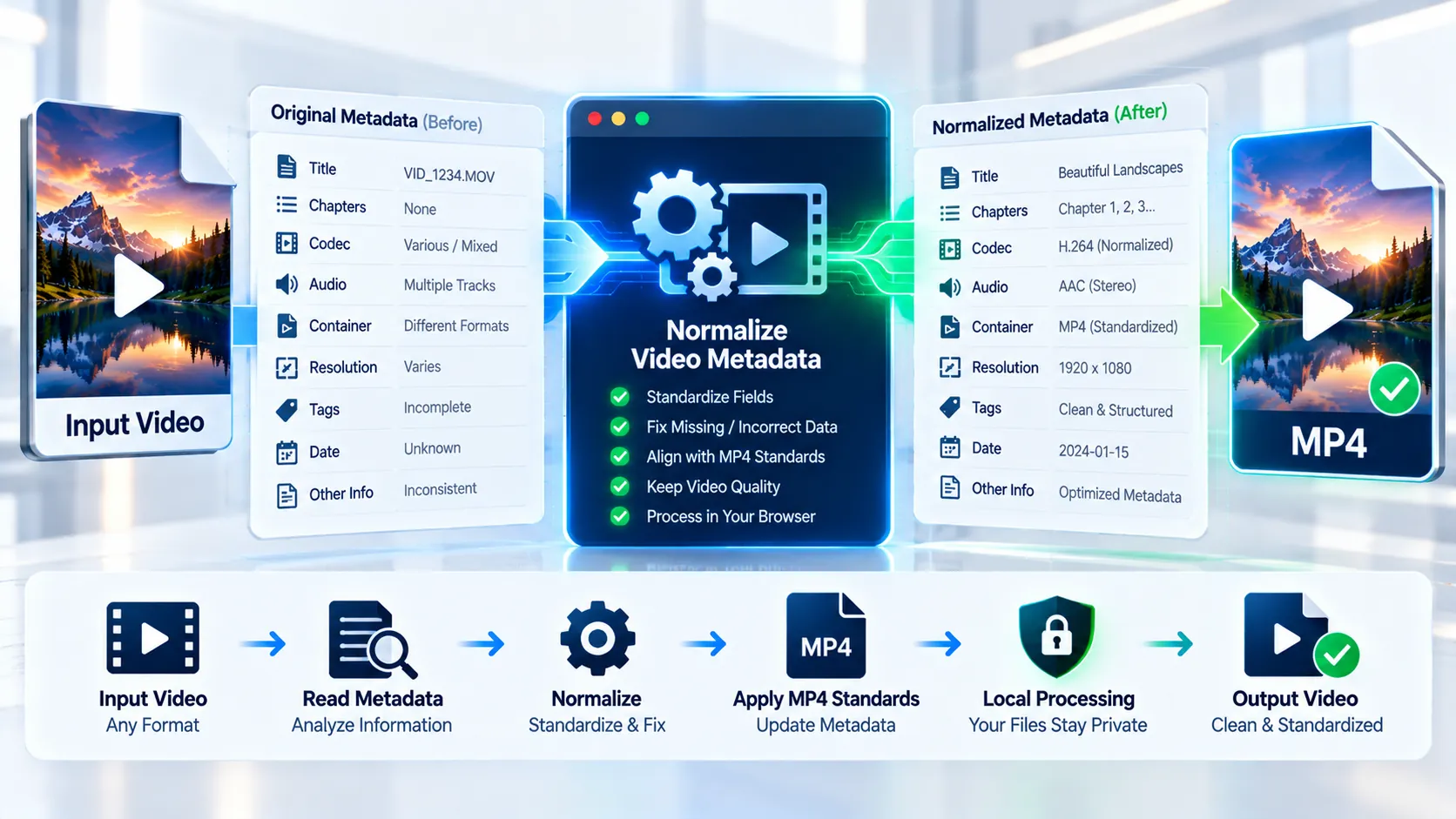
Video files often carry descriptive and container metadata that becomes inconsistent after editing, transcoding, screen recording, or media conversion. The Video Metadata Normalizer provides a browser-local way to inspect and normalize supported video metadata without sending the source media to a PKCapra upload endpoint. It analyzes the source first, then applies the selected metadata-cleanup policy while keeping the media-processing workflow explicit and locally controlled.
How to Use the Video Metadata Normalizer in Simple Steps
- Upload your video
Select a supported video file or drag it into the tool. The browser-local workflow has a 500 MB input limit. - Review the source metadata
The tool analyzes the source before processing and presents the relevant media information so you can see what is actually present before normalization. - Choose a metadata policy
Select the normalization mode according to the result you need:- Clean Metadata — normalize descriptive metadata while retaining the technical media information needed for the output.
- Privacy Clean — remove unnecessary descriptive metadata that you may not want to carry into the exported file.
- Preserve Technical Metadata — keep the technical stream information while cleaning applicable descriptive fields.
- Set the title when needed
If you want the resulting file to carry a specific title, enter the desired title before conversion. - Choose chapter and audio handling
Chapters can be stripped when required. For audio, choose Keep source audio, AAC, or Remove audio. - Normalize the file
Start the process and let the browser-local FFmpeg engine create the normalized MP4. - Wait for output validation
PKCapra validates the generated media before exposing the download. The output is checked as a valid media file and expected audio is validated when audio preservation is selected. - Download the normalized video
Download the validated MP4 and use it in your next editing, publishing, archiving, or delivery workflow.
Technical breakdown of the tool’s competitive edge
The Video Metadata Normalizer is designed around a simple technical principle: metadata cleanup should not automatically mean unnecessary video re-encoding.
The tool first analyzes the source and then applies metadata normalization through the browser-local FFmpeg pipeline. Where the source and requested output permit it, the video stream can be preserved rather than being needlessly recompressed. This makes metadata normalization a different operation from a conventional video converter that always decodes and re-encodes the picture.
The workflow supports three practical normalization directions: general metadata cleaning, privacy-oriented cleanup, and preservation of technical metadata while removing applicable descriptive information. A custom title can also be supplied when the normalized file needs a controlled title value.
Chapter removal is handled as an explicit operation rather than being hidden inside a generic metadata reset. This matters when a file contains chapter information that should not travel with the normalized output.
Audio handling is also explicit. Keep source audio maps the detected primary audio stream and attempts direct stream copying first. If the target MP4 container rejects the source audio format, the workflow can fall back to AAC encoding. When audio is expected, the exported file is checked before the download becomes available. Remove audio produces a video-only result.
The processing is browser-local. Source media is placed into the browser-side FFmpeg processing environment rather than being uploaded to a PKCapra server endpoint by the module. Temporary FFmpeg files and generated object URLs are cleaned up after processing or reset.
The 500 MB browser input limit is intentional. Browser-based FFmpeg processing consumes local memory and temporary storage, so the limit helps keep the tool’s processing boundary predictable rather than pretending that arbitrarily large professional video files can be handled reliably in every browser.
The output is written as an MP4 with fast-start optimization and undergoes post-export validation. This separates metadata normalization from simply trusting that FFmpeg completed without an error.
Developer Snippets (Automate This Tool Offline)
The same metadata-normalization concept can be automated locally with FFmpeg. The following command removes common descriptive metadata and chapters while copying the video stream without re-encoding it:
ffmpeg -i input.mp4 \
  -map 0:v:0 \
  -map 0:a? \
  -map_metadata -1 \
  -map_chapters -1 \
  -c:v copy \
  -c:a copy \
  -movflags +faststart \
  normalized.mp4
If the source audio codec is not suitable for the MP4 container, use AAC instead of copying the audio stream:
ffmpeg -i input.mp4 \
  -map 0:v:0 \
  -map 0:a? \
  -map_metadata -1 \
  -map_chapters -1 \
  -c:v copy \
  -c:a aac \
  -b:a 192k \
  -movflags +faststart \
  normalized.mp4
To set a controlled title while cleaning the remaining global metadata:
ffmpeg -i input.mp4 \
  -map 0:v:0 \
  -map 0:a? \
  -map_metadata -1 \
  -map_chapters -1 \
  -metadata title="Normalized Video" \
  -c:v copy \
  -c:a copy \
  -movflags +faststart \
  normalized.mp4
The -c:v copy approach is important when the goal is metadata normalization rather than visual conversion. It avoids a generation-loss cycle when the existing video stream is already appropriate for the target container.
For automated workflows, always inspect the resulting file rather than assuming that a successful FFmpeg exit code guarantees that every desired stream and metadata field survived exactly as intended.
Native software workaround integration tutorial
A desktop FFmpeg workflow can reproduce the core metadata-normalization process without using a web interface.
First, inspect the source:
ffprobe -v error \
  -show_entries format=format_name:format_tags \
  -show_entries stream=index,codec_type,codec_name,width,height,pix_fmt \
  -of json \
  input.mp4
This gives an automation script a machine-readable representation of the container, streams, and selected metadata.
Next, decide whether the video stream itself needs conversion. If the existing video codec is acceptable for the target MP4, stream copying is preferable for a metadata-only operation.
For a privacy-oriented cleanup:
ffmpeg -i input.mp4 \
  -map 0:v:0 \
  -map 0:a? \
  -map_metadata -1 \
  -map_chapters -1 \
  -c:v copy \
  -c:a aac \
  -b:a 192k \
  -movflags +faststart \
  normalized-private.mp4
Finally, inspect the output again:
ffprobe -v error \
  -show_entries format=format_name:format_tags \
  -show_entries stream=index,codec_type,codec_name,width,height,pix_fmt \
  -of json \
  normalized-private.mp4
This two-stage approach—inspect → normalize → inspect again—is safer for batch processing because it lets an automation system verify the actual output instead of treating the conversion command itself as the validation step.
For browser-based workflows, the PKCapra implementation applies the same general engineering principle while handling FFmpeg WebAssembly loading, local file management, progress reporting, output validation, cleanup, and download-state management inside the page.
Frequently Asked Questions
What is a Video Metadata Normalizer?
A Video Metadata Normalizer is a media-processing tool that cleans or standardizes applicable video metadata without making metadata cleanup synonymous with visual video conversion.
Does metadata normalization reduce video quality?
Metadata normalization does not inherently reduce visual quality when the video stream is copied rather than re-encoded. The actual output behavior depends on the selected workflow and whether the source audio requires AAC conversion for MP4 compatibility.
Does the tool upload my video to PKCapra?
The Video Metadata Normalizer processes source media in browser-local FFmpeg memory rather than sending the source video to a PKCapra upload endpoint. Temporary browser-side processing data is cleaned up when the workflow finishes or is reset.
What does Privacy Clean remove?
Privacy Clean is a metadata-cleanup mode intended to remove unnecessary descriptive metadata from the exported media. It should not be interpreted as a guarantee that every possible hidden characteristic of a media file is removed.
Can I keep the original audio?
Keep source audio is an available audio policy. The tool attempts to preserve the primary source audio directly and can fall back to AAC when direct copying is not suitable for the MP4 output.
Can I remove chapters?
Chapter stripping is supported as an explicit normalization operation. This is useful when chapter markers should not be carried into the normalized MP4.
Will the tool re-encode my video?
Video metadata normalization does not require visual re-encoding when the existing video stream can be copied into the target MP4. Avoiding unnecessary video re-encoding is one of the core design goals of this workflow.
What happens if the source audio is incompatible with MP4?
The audio workflow can fall back from direct stream copying to AAC encoding when the target MP4 container cannot accept the original audio stream. The resulting audio stream is then validated before download.
What is the maximum input size?
The browser-local workflow has a 500 MB input limit. Actual processing performance can also vary with browser memory, device resources, video duration, resolution, codec, and the amount of temporary processing data required.
Is the normalized file automatically validated?
The output is validated after processing before the download is exposed. Video and expected audio stream checks are part of the post-export workflow rather than relying only on FFmpeg’s process completion status.
Can metadata normalization fix a broken video?
Metadata normalization is not a general video-repair operation. It can clean or standardize metadata, but corruption, timestamp problems, codec incompatibility, interlacing, HDR conversion, or other media defects may require a specialized video workflow instead.