
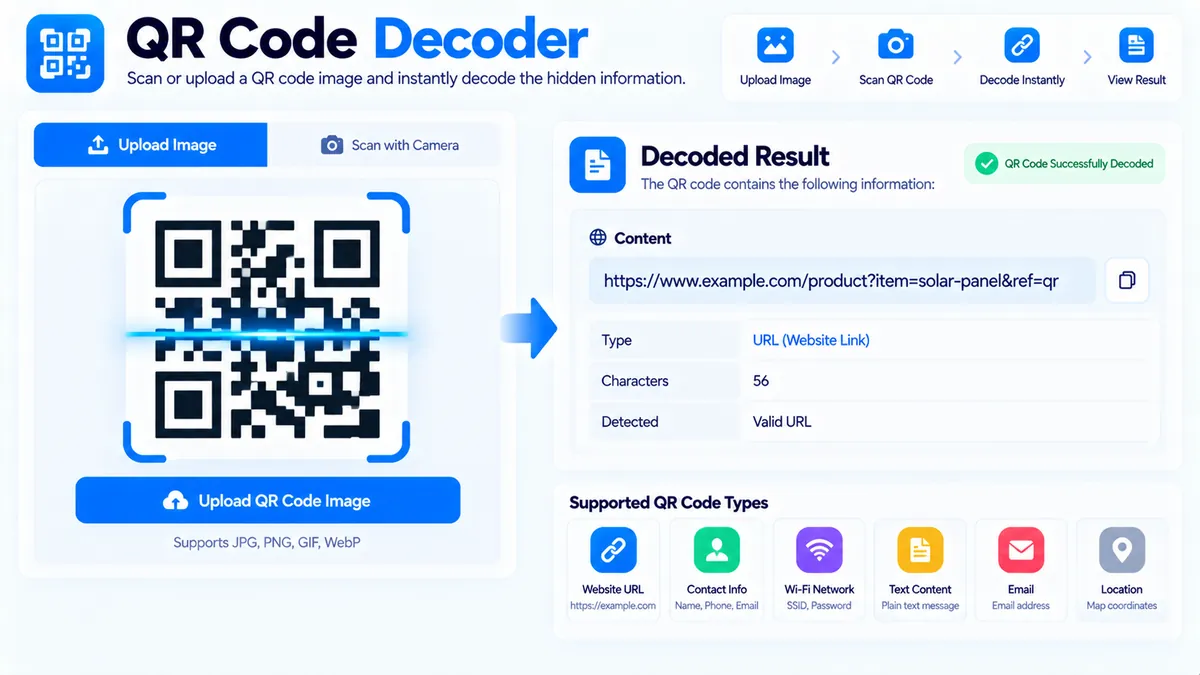
Decode QR codes from images, screenshots, or your camera directly in your browser. The PKCapra QR Code Decoder reads supported QR codes locally, shows the decoded content, identifies common data types such as URLs, email addresses, phone numbers, Wi-Fi information, and contact details, and lets you copy or export the result.
QR Code Decoder
Upload, paste, drag, or scan a QR code with your camera and decode its contents directly in your browser.
Upload or scan a QR code
QR result
QR Code Summary
How to Use the QR Code Decoder in Simple Steps
- Provide a QR code. Upload a QR image, drag and drop an image into the tool, paste a QR image from your clipboard, or use the camera scanner where your browser supports camera access.
- Scan the code. Click the scan/decode action or allow the camera scanner to read the QR code. The tool processes the image in your browser and attempts to decode the embedded data.
- Review the decoded result. The tool displays the decoded content and identifies recognizable formats such as URLs, email addresses, phone numbers, SMS data, Wi-Fi information, vCards, calendar content, or plain text where the decoded data matches those patterns.
- Copy or export the result. Use Copy Result, Open Link where a valid URL is detected, Copy Report, Copy JSON, Download JSON, or the direct PDF report when you need to save or share the scan information.
What the QR Code Decoder Actually Does
A QR code stores data in a two-dimensional visual pattern. The QR Code Decoder reads the visual pattern from a supported image or camera frame and converts the encoded information back into text or structured data.
The decoded result may be a simple text message, a website URL, contact information, wireless-network details, an email address, a phone number, an SMS instruction, or another supported payload.
The important distinction is that the decoder reads the data stored inside the QR code. It does not automatically verify that the decoded content is trustworthy or safe.
For example, if a QR code contains:
the decoder can show that URL as the result. You should still evaluate the destination before opening it.
Decode a QR Code From an Image
Upload a QR code image when you already have a screenshot, photograph, downloaded image, or saved QR graphic.
The tool can process supported image input directly in the browser.
This is useful for:
- Screenshots containing QR codes
- QR codes saved from websites
- Product packaging photographs
- Printed QR codes photographed with a phone
- Marketing materials
- Event tickets
- Wi-Fi QR images
- Contact QR codes
- Shared QR screenshots
For best results, use a clear image where the QR code is large enough to identify and the surrounding code is not heavily cropped.
Drag and Drop a QR Image
Instead of browsing for a file, you can drag a QR image into the upload area.
This is convenient when the image is already visible in your file manager or desktop workspace.
If the QR code is embedded inside a larger screenshot, make sure the code is sufficiently clear and not obscured by interface elements.
Paste a QR Image From the Clipboard
You can also paste a QR image from your clipboard when your browser provides the required clipboard image data.
This can be useful when you have just taken a screenshot or copied an image from another application.
The browser’s clipboard permissions and supported image formats can affect whether pasted images are available to the tool.
Scan a QR Code With Your Camera
On supported browsers and devices, the QR Code Decoder can use your camera to scan a QR code without first saving an image.
Camera scanning is particularly useful on mobile devices when the QR code is physically printed or displayed on another screen.
Your browser may ask for camera permission before scanning begins.
If camera access is unavailable or denied, use image upload, drag and drop, or clipboard paste instead.
Recognize Common QR Data Types
A QR code does not have to contain only a normal web URL. The decoded payload can represent different kinds of information.
The tool can identify common patterns and present useful information for recognizable data types.
URLs
If the QR code contains a URL, the result can identify it as a web address and provide an Open Link action.
For example:
Before opening an unfamiliar QR destination, inspect the domain carefully.
Email Addresses
QR codes can contain email-related information.
A decoded email payload can be useful for quickly transferring contact or communication details without manually typing the address.
Phone Numbers
A QR code can contain a phone number or telephone-related payload.
The decoder can identify recognizable phone data so you can review the value before using it.
SMS Data
Some QR codes contain SMS information such as a destination phone number and message content.
Review the decoded information before sending a message.
Wi-Fi Information
Wi-Fi QR codes can store network information such as:
- Network name
- Security type
- Password
This allows compatible devices to obtain network connection details without manually typing them.
Because Wi-Fi QR codes can contain passwords, review the decoded output carefully and avoid sharing exported results publicly when they contain private network credentials.
vCard and Contact Data
QR codes can store contact information using formats such as vCard.
A contact QR code may contain fields such as:
- Name
- Organization
- Telephone number
- Email address
- Website
- Address
The decoder can identify recognizable contact payloads and show the decoded information for review.
Calendar Data
QR codes can also contain calendar-related information.
A decoded calendar payload may include event details such as a title, date, time, location, or other event information depending on how the QR code was generated.
Review the information before importing or using it in a calendar application.
Plain Text
Some QR codes contain ordinary text rather than a URL or recognized structured format.
The decoder can display the decoded text directly so you can copy or inspect it.
Review URL Information Before Opening It
A QR code can hide a URL behind a visual pattern. Decoding it first gives you an opportunity to inspect the destination before opening it.
For example, a QR code might contain:
or:
The second example contains another encoded URL inside a query parameter.
The decoder can help you see the actual text stored in the QR code, but it does not establish that the destination is safe.
Look for unexpected domains, suspicious redirects, unusual spelling, and unexpected URL parameters before opening unfamiliar links.
QR Code Decoder vs QR Code Generator
A QR decoder reads an existing QR code and extracts its stored data.
A QR generator does the opposite: it takes information such as text or a URL and creates a QR code image.
Use a decoder when you already have a QR code and want to know what it contains.
Use a generator when you want to create a new QR code for a URL, message, contact record, or other supported data.
Technical Breakdown and Competitive Edge
The PKCapra QR Code Decoder is designed as a browser-side utility for practical QR inspection.
Its workflow includes:
- QR image upload
- Drag-and-drop image input
- Clipboard image paste
- Camera scanning where supported
- Browser-side QR decoding
- Native
BarcodeDetectorsupport where available jsQRdecoding support- URL detection
- Email detection
- Phone detection
- SMS detection
- Wi-Fi data detection
- vCard/contact detection
- Calendar data detection
- Plain-text detection
- URL structure inspection
- Query parameter counting
- Decoded result preview
- JSON export
- PDF reporting
Browser-Side Processing
The QR decoding workflow is designed to run in the browser rather than sending the QR image to a remote decoding service.
This is useful when the QR image contains information that you want to inspect locally.
However, browser-side processing does not make the decoded information automatically safe. If a QR code contains a password, private contact information, an internal URL, or other sensitive data, treat the decoded result accordingly.
Camera Support Depends on the Browser
Camera scanning requires browser support and permission.
A browser may require a secure page context and user permission before allowing camera access. Device hardware, browser configuration, and privacy settings can also affect camera availability.
If camera scanning does not work, image upload remains a practical alternative.
QR Quality Affects Detection
A decoder cannot reliably recover information from every damaged or poorly captured QR image.
Scanning can fail when the QR code is:
- Too small
- Blurry
- Heavily distorted
- Partially hidden
- Low contrast
- Covered by another object
- Severely cropped
- Reflected by glare
- Obscured by compression artifacts
Try a clearer image, move the camera closer, improve lighting, or crop the image around the QR code while preserving the complete code and its surrounding margin.
Practical QR Code Review Workflow
For a QR code received from another person or organization, decode it before opening the destination.
A useful workflow is:
- Scan or upload the QR code.
- Read the decoded payload.
- Check whether the data type matches what you expected.
- Inspect the URL or other destination information.
- Check the domain carefully when a URL is present.
- Copy or export the result if you need an audit record.
- Open the destination only after reviewing it.
For website development and SEO work, a decoded URL can then be inspected with the URL Encoder Decoder when encoded parameters need investigation.
If the URL contains campaign parameters, the UTM Builder can help you construct or review UTM-based tracking URLs.
For URL and redirect troubleshooting, the Redirect Checker and HTTP Status Checker can be used as follow-up tools.
Developer Snippets (Automate This Tool Offline)
The following examples demonstrate basic QR decoding workflows using local libraries. They are intended for offline automation and are separate from the WordPress tool interface.
Python
from PIL import Image
from pyzbar.pyzbar import decode

image = Image.open("qr-code.png")

results = decode(image)

for result in results:
    print("Type:", result.type)
    print("Data:", result.data.decode("utf-8", errors="replace"))
This example requires a local QR decoding environment and the relevant Python packages. The QR decoding library may also require system-level dependencies depending on the operating system.
PowerShell
$imagePath = "C:\QR\qr-code.png"

if (-not (Test-Path $imagePath)) {
    throw "QR image was not found: $imagePath"
}

Write-Output "QR image found: $imagePath"
Write-Output "Use a locally installed QR decoding library or command-line decoder to process the image."
PowerShell itself does not provide a universal built-in QR decoder, so a local QR decoding utility or library is required for the actual decoding step.
Node.js
import Jimp from "jimp";
import jsQR from "jsqr";
import fs from "fs";

const buffer = fs.readFileSync("qr-code.png");
const image = await Jimp.read(buffer);

const { data, width, height } = image.bitmap;

const result = jsQR(
  new Uint8ClampedArray(data),
  width,
  height
);

if (result) {
  console.log("Decoded:", result.data);
} else {
  console.log("No QR code detected.");
}
The Node.js example uses local image data and a QR decoding library. It does not require an external QR decoding API.
Excel Power Query Workaround
Excel and Power Query are useful for organizing decoded QR results after the QR data has already been extracted.
Create a table with columns such as:
| QR Type | Decoded Data | Domain | Notes |
|---|---|---|---|
| URL | https://example.com/ | example.com | Website |
mailto:hello@example.com | — | Contact | |
| Wi-Fi | Network payload | — | Private network |
Load the table into Power Query when you need to clean, filter, or categorize a large collection of QR results.
A practical workflow is:
- Export decoded QR results as JSON or text.
- Import the results into Excel.
- Separate the QR type from the decoded payload.
- Extract domains from URL results where required.
- Filter or group records by type.
- Add review notes.
- Export the cleaned dataset for further processing.
Power Query is useful for managing the results of a QR audit, but it does not replace the QR image-decoding process itself.
Frequently Asked Questions
What is a QR Code Decoder?
A QR Code Decoder reads an existing QR code image or camera frame and extracts the information stored inside it.
Can I upload a QR code image?
Yes. You can upload a QR image and decode it directly in the browser.
Can I drag and drop a QR code?
Yes. Drag and drop is supported for QR image input.
Can I paste a QR screenshot?
Yes, where your browser provides clipboard image data. You can paste a copied QR image or screenshot into the tool.
Can I scan a QR code with my camera?
Yes, on supported browsers and devices. Camera access requires browser permission and may depend on the device and browser environment.
What types of QR data can the tool recognize?
The tool can identify common URL, email, phone, SMS, Wi-Fi, vCard/contact, calendar, and plain-text payloads when the decoded data matches those formats.
Does the QR decoder open links automatically?
No. When a URL is detected, the tool provides an Open Link option so you can review the decoded destination before opening it.
Can I decode a QR code containing Wi-Fi information?
Yes. Supported Wi-Fi QR payloads can be decoded and displayed. Because these payloads may contain network passwords, treat the result as potentially sensitive information.
Why is my QR code not being detected?
Poor image quality, small QR dimensions, blur, distortion, low contrast, cropping, glare, or an incomplete QR code can prevent successful decoding. Try a clearer image or a closer camera view.
Does the tool send my QR image to an external server?
The QR decoding workflow is designed for browser-side processing and does not require an external QR decoding API for the core scan.
Can I save the decoded result?
Yes. You can copy the result, copy the report, copy JSON, download JSON, or generate a direct PDF report.