
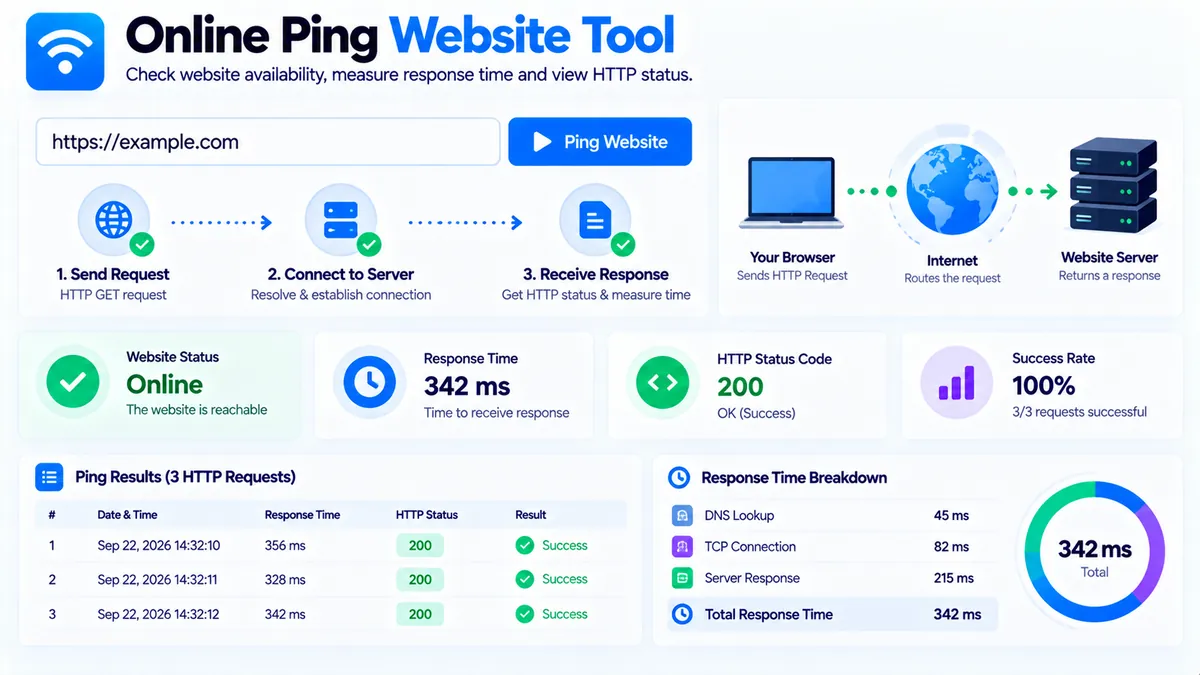
Check whether a website responds to HTTP requests and measure how quickly it responds. The PKCapra Online Ping Website Tool sends three HTTP requests through the WordPress server, records each response time and HTTP status, calculates average, minimum, and maximum response time, and reports the overall success rate.
Online Ping Website Tool
Check whether a public website responds over HTTP/HTTPS and measure response time with three server-side requests.
Enter a website URL
Website response
Individual Requests
How to Use the Online Ping Website Tool in Simple Steps
- Enter a website URL. Paste the website address into the URL field. You can enter a complete
https://orhttp://URL, and the tool can addhttps://when it is omitted. - Start the check. Click the main ping/check button. The tool performs three independent HTTP requests to the supplied website.
- Review the response data. Check the HTTP status code, individual request times, average response time, minimum and maximum response time, success rate, and resolved public IPv4 information when available.
- Copy or export the report. Use Copy Report, Copy JSON, Download JSON, or the direct PDF report when you need to retain or share the results. Use Clear to remove the current test and Load Example to restore the example URL.
What the Online Ping Website Tool Actually Does
The Online Ping Website Tool performs an HTTP website availability check, not a traditional ICMP network ping.
This distinction matters because a browser-based website tool cannot directly perform arbitrary ICMP echo requests in the same way that an operating-system command such as ping can.
Instead, the PKCapra tool sends HTTP requests through the WordPress server and measures how long the remote website takes to respond.
For example, a check against:
can report information such as:
- Whether the HTTP request succeeded
- HTTP status code
- Response time for each request
- Average response time
- Minimum response time
- Maximum response time
- Overall success rate
- Resolved public IPv4 address when available
Why Three Requests Are Used
One request gives you only one timing sample.
Network conditions can vary from one request to another because of server load, routing, connection setup, caching, network congestion, and other factors.
The tool therefore performs three independent HTTP requests.
For example:
| Request | Status | Response Time |
|---|---|---|
| Request 1 | 200 | 180 ms |
| Request 2 | 200 | 165 ms |
| Request 3 | 200 | 172 ms |
From these measurements, the tool can calculate:
- Minimum: 165 ms
- Maximum: 180 ms
- Average: approximately 172 ms
- Success rate: 100%
The average provides a simple summary, while the individual measurements show whether the responses were relatively consistent.
Understanding HTTP Status Codes
The HTTP status code tells you how the server responded to the request.
Common examples include:
200 OK
A 200 response generally means the server successfully returned the requested resource.
301 or 302 Redirect
A redirect response means the requested resource points somewhere else.
The PKCapra Online Ping Website Tool intentionally does not follow redirects during the check. This allows the report to show the response returned by the requested URL rather than silently replacing it with a destination response.
If you need to investigate redirect behavior, use the Redirect Checker.
403 Forbidden
A 403 response means the server understood the request but refused access.
This can happen because of server rules, security systems, authentication requirements, bot protection, or other access controls.
A 403 response is different from a network timeout or a completely unreachable server.
404 Not Found
A 404 response means the server responded but could not find the requested resource.
The website itself may still be online even when the specific URL returns 404.
For broader broken-link investigation, use the Broken Link Checker.
500-Level Responses
A 500-series response indicates that the server reported a server-side error.
The exact cause depends on the specific status code and the website’s server configuration.
For example, 500, 502, 503, and 504 can represent different server or gateway conditions.
Understanding Response Time
Response time measures how long the HTTP request takes to receive a response from the website.
For example:
185 ms
means the measured request took approximately 185 milliseconds.
Lower response time can indicate a quicker HTTP response for that particular test, but a single measurement should not be treated as a complete assessment of website performance.
Response time can vary because of:
- Server workload
- Network routing
- Geographic distance
- DNS behavior
- TLS connection setup
- Hosting configuration
- CDN behavior
- Temporary congestion
- Firewall or security systems
- Application processing
The PKCapra tool reports the measurements it receives rather than presenting them as a permanent performance characteristic.
Average, Minimum, and Maximum Response Time
The three measurements provide a small sample of the website’s HTTP response behavior.
Minimum response time shows the fastest measured request.
Maximum response time shows the slowest measured request.
Average response time summarizes the three measurements.
For example:
| Metric | Result |
|---|---|
| Minimum | 140 ms |
| Average | 168 ms |
| Maximum | 205 ms |
A large difference between minimum and maximum can indicate that the three requests did not respond consistently during the test.
A small difference means the three measurements were closer together.
Three requests are useful for a quick check, but they are not enough to characterize long-term uptime or performance.
Understanding Success Rate
Success rate shows how many of the three HTTP requests received an acceptable response according to the tool’s request handling.
For example:
- 3 successful requests = 100%
- 2 successful requests = approximately 67%
- 1 successful request = approximately 33%
- 0 successful requests = 0%
A partial result is worth investigating because it can indicate intermittent connectivity, server-side instability, filtering, or another condition affecting individual requests.
The success rate applies only to the requests performed during that specific test.
It is not a historical uptime percentage.
Resolved Public IPv4
When the server can resolve a public IPv4 address for the requested hostname, the tool can report that address in the results.
This can help when you are troubleshooting:
- DNS configuration
- Hosting changes
- Migration issues
- Unexpected server destinations
- CDN or proxy configuration
- Domain resolution
An IP address is not necessarily the same thing as the physical location of the website or its server because modern websites can use CDNs, reverse proxies, load balancers, and distributed infrastructure.
Reachable, Partial, and No Response Results
The tool provides an overall interpretation based on the HTTP requests.
A reachable result indicates that the test requests received the expected type of HTTP response.
A partial result indicates that some requests succeeded while others did not.
A no response result indicates that the requests did not produce a usable HTTP response during the test.
These labels describe the current test rather than permanent website availability.
A temporary failure does not automatically mean that a website is down for everyone.
HTTP Ping vs ICMP Ping
Traditional command-line ping tools generally use ICMP Echo Request and Echo Reply packets.
The PKCapra Online Ping Website Tool uses HTTP instead.
That means it answers a practical website question:
“Can an HTTP request reach this website and receive an HTTP response?”
It does not answer every network-level question that an ICMP ping can answer.
A server can also be configured to block ICMP while continuing to serve HTTP traffic normally.
Likewise, an HTTP endpoint can fail while other network services remain reachable.
For website troubleshooting, HTTP response checking is often more directly relevant than ICMP availability because the actual website service uses HTTP or HTTPS.
Technical Breakdown and Competitive Edge
The Online Ping Website Tool is designed around a simple and reproducible HTTP health-check workflow.
Its analysis includes:
- URL normalization
- HTTPS default when the scheme is omitted
- Three independent HTTP requests
- Individual response timing
- HTTP status codes
- Average response time
- Minimum response time
- Maximum response time
- Success rate
- Public IPv4 resolution where available
- Request-by-request results
- Overall response interpretation
- JSON export
- PDF reporting
Server-Side HTTP Checking
The HTTP requests are performed through the WordPress server rather than directly from the visitor’s browser.
This is necessary because browsers apply cross-origin restrictions that make arbitrary server-to-server website checking difficult to perform reliably from frontend JavaScript alone.
The workflow is therefore:
- You enter a URL.
- Your browser sends the request to the PKCapra WordPress endpoint.
- WordPress validates the requested destination.
- The server performs the HTTP checks.
- The results are returned to the browser.
- The tool displays the measurements.
Redirects Are Not Followed
Redirects are intentionally not followed during the ping test.
This means a URL returning a 301 or 302 can be identified as a redirect instead of automatically producing the status of the final destination.
This is useful when you specifically want to know how the requested URL itself responds.
Use the Redirect Checker when you need a more detailed redirect-chain investigation.
URL and Network Safety
The tool applies destination validation before making the remote request.
Local, private, reserved, or otherwise restricted destinations are blocked, and standard HTTP/HTTPS ports are used.
Credentials embedded directly in a URL are not accepted.
These restrictions reduce the risk of using the website checker as a general-purpose request proxy against internal or private network destinations.
Common Online Ping Problems
The Website Returns a 403
A 403 response means the server responded but refused the request.
Security systems, firewalls, bot protection, access rules, or authentication requirements can cause this result.
The server may still be working normally for regular visitors.
The Website Returns a 301 or 302
This indicates that the requested URL redirects elsewhere.
Because the tool does not follow redirects, the result shows the redirect response.
Use the Redirect Checker to investigate the destination and redirect chain.
The Website Returns 200 but Feels Slow
A successful HTTP response does not automatically mean that the complete webpage loads quickly.
A website can return an HTTP response while still taking additional time to load:
- Images
- JavaScript
- CSS
- Fonts
- Third-party resources
- API requests
- Other page assets
For broader page performance analysis, use the Page Speed Analyzer.
The Result Changes Between Tests
Response times naturally fluctuate.
A website may respond differently depending on server load, network conditions, caching, routing, and other temporary factors.
Run another check if you need to determine whether a result is repeatable.
The Website Cannot Be Checked
A failed check can result from DNS resolution problems, network restrictions, server timeouts, blocked requests, invalid URLs, or other connection conditions.
Check that the URL is valid and publicly accessible over HTTP or HTTPS.
Practical Website Troubleshooting Workflow
Use the Online Ping Website Tool as an initial HTTP health check rather than as a complete monitoring system.
A practical workflow is:
- Enter the exact URL you want to test.
- Run the three-request HTTP check.
- Review the HTTP status code.
- Compare minimum, average, and maximum response times.
- Check whether all three requests succeeded.
- Review the resolved public IPv4 when available.
- Investigate redirects if the response is
301or302. - Investigate broken URLs if the response is
404. - Investigate server errors if the response is
500-series. - Use the HTTP Status Checker for focused status-code analysis.
- Use the Redirect Checker for redirect investigation.
- Use the Page Speed Analyzer when the question is broader page performance rather than simple HTTP response time.
Developer Snippets (Automate This Tool Offline)
The following examples demonstrate basic HTTP response checking with standard tools. They are intended for development and server administration workflows.
Python
import time
import urllib.request

url = "https://example.com/"

start = time.perf_counter()

try:
    request = urllib.request.Request(
        url,
        method="GET",
        headers={"User-Agent": "Mozilla/5.0"}
    )

    with urllib.request.urlopen(request, timeout=10) as response:
        elapsed = (time.perf_counter() - start) * 1000

        print("Status:", response.status)
        print("Response time:", round(elapsed, 2), "ms")

except Exception as error:
    elapsed = (time.perf_counter() - start) * 1000

    print("Request failed:", error)
    print("Elapsed:", round(elapsed, 2), "ms")
PowerShell
$url = "https://example.com/"

$watch = [System.Diagnostics.Stopwatch]::StartNew()

try {
    $response = Invoke-WebRequest `
        -Uri $url `
        -Method GET `
        -TimeoutSec 10

    $watch.Stop()

    Write-Output "Status: $($response.StatusCode)"
    Write-Output "Response time: $([Math]::Round($watch.Elapsed.TotalMilliseconds, 2)) ms"
}
catch {
    $watch.Stop()

    Write-Output "Request failed: $($_.Exception.Message)"
    Write-Output "Elapsed: $([Math]::Round($watch.Elapsed.TotalMilliseconds, 2)) ms"
}
Node.js
const { performance } = require("node:perf_hooks");

async function checkUrl(url) {
  const start = performance.now();

  try {
    const response = await fetch(url, {
      method: "GET",
      redirect: "manual"
    });

    const elapsed = performance.now() - start;

    console.log({
      status: response.status,
      responseTimeMs: Number(elapsed.toFixed(2)),
      location: response.headers.get("location")
    });
  } catch (error) {
    const elapsed = performance.now() - start;

    console.error({
      error: error.message,
      responseTimeMs: Number(elapsed.toFixed(2))
    });
  }
}

checkUrl("https://example.com/");
These examples demonstrate HTTP response measurement rather than ICMP network ping. For production monitoring, use appropriate timeouts, retry policies, logging, alerting, and monitoring infrastructure instead of treating a single request as a complete availability measurement.
Excel Power Query Workaround
Excel and Power Query can be useful when you need to maintain a spreadsheet of websites and organize their HTTP check results.
Create a table such as:
| URL | Status | Response Time | Result |
|---|---|---|---|
https://example.com/ | 200 | 180 ms | Reachable |
https://example.org/ | 301 | 120 ms | Redirect |
https://example.net/missing | 404 | 160 ms | Not Found |
Load the data into Power Query when you need to:
- Filter websites by status code
- Group URLs by response category
- Sort by response time
- Identify redirects
- Find URLs returning errors
- Build internal QA reports
- Combine website-check results from multiple sources
For a larger operational workflow, you can periodically import HTTP check results into Excel and create a history table.
A basic process is:
- Store the URLs in an Excel table.
- Run the HTTP checks through your preferred process.
- Record status and timing results.
- Import the results into Power Query.
- Normalize status categories.
- Filter failures and redirects.
- Sort slow responses.
- Export or report the findings.
Power Query can organize and analyze the results, but it is not a replacement for a dedicated uptime-monitoring service.
Frequently Asked Questions
What is an online ping website tool?
An online ping website tool checks whether a website responds to HTTP requests and measures the time taken to receive those responses.
Is this the same as the Windows or Linux ping command?
No. The PKCapra tool performs HTTP website checks rather than ICMP echo requests. It is designed to test the website service itself.
How many requests does the tool send?
The tool sends three independent HTTP requests for each check.
What does average response time mean?
Average response time is the mean timing of the three HTTP requests performed during that test.
Does a 200 status mean the website is fast?
No. A 200 status indicates a successful HTTP response, but it does not by itself measure complete webpage loading performance.
What does a 301 or 302 result mean?
It means the requested URL returned a redirect response. The PKCapra tool does not follow the redirect during the ping test.
Does the tool follow redirects?
No. Redirects are intentionally not followed so the response from the exact requested URL remains visible.
Does the tool show the website’s IP address?
It can show the resolved public IPv4 address when the hostname can be resolved successfully.
Does a failed ping always mean the website is down?
No. A failed HTTP test can result from network restrictions, DNS problems, timeouts, security controls, server configuration, or other temporary conditions. A single test does not establish historical uptime.
Can I test a private or local IP address?
No. Local, private, reserved, and restricted destinations are blocked by the tool’s safety validation.
Can I export the ping results?
Yes. You can copy the report, copy JSON, download JSON, or generate a direct PDF report.
Does the tool continuously monitor a website?
No. It performs an on-demand three-request HTTP check. It is not a continuous uptime-monitoring service.