
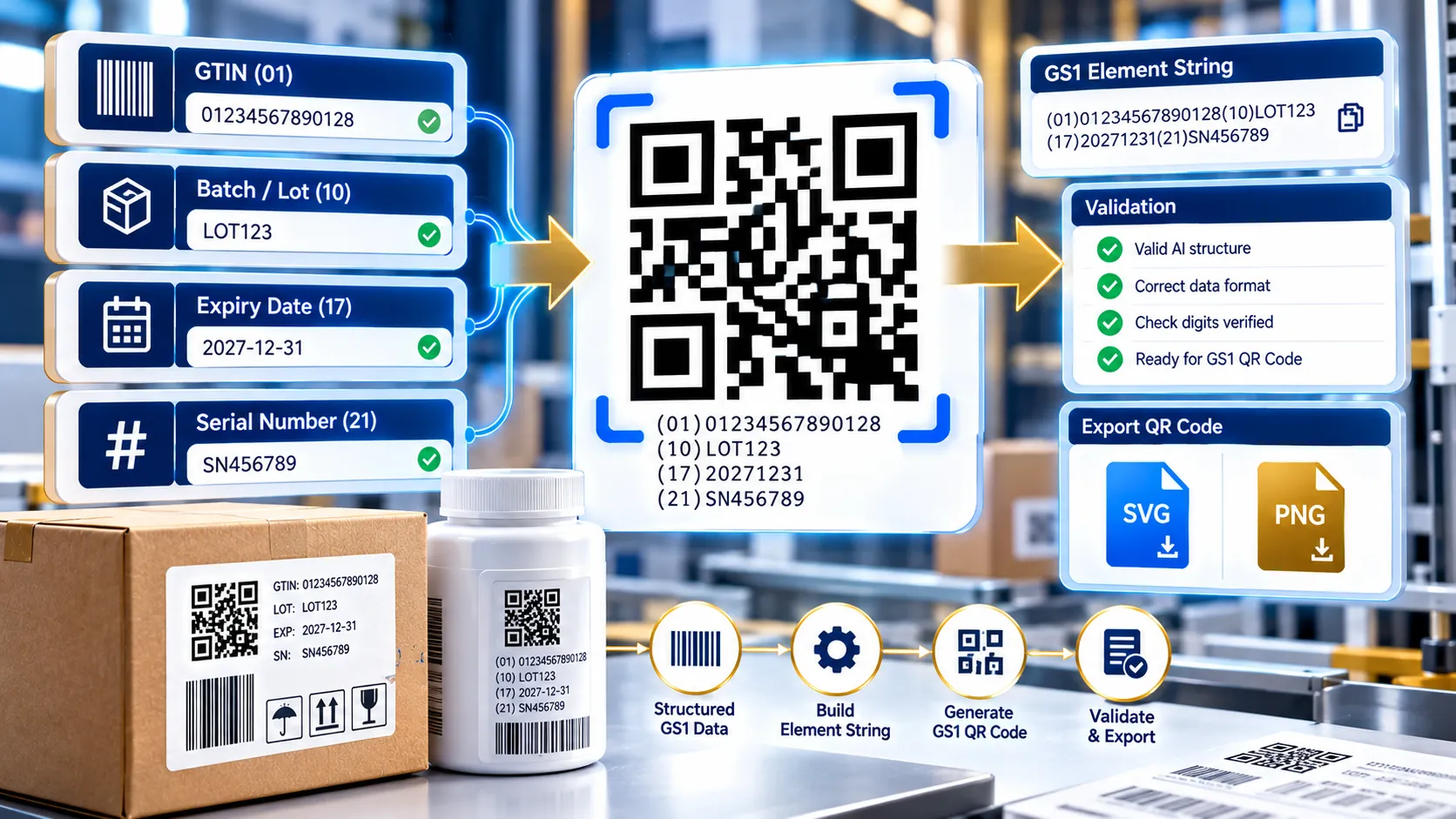
The GS1 QR Application Identifier Builder helps you create structured GS1 Application Identifier data and generate a corresponding GS1 QR Code directly in your browser. Build and review AI-based product data, check supported values and relationships, preview the QR Code live, and export your result as SVG, high-resolution PNG, or JSON for further use.
GS1 QR Application Identifier Builder
Build and validate a GS1 element string for a GS1 QR Code, with live FNC1 handling and browser-side QR rendering.
1. Application Identifiers
2. Live Payload Output LIVE
3. QR Code Preview
4. Validation Review
5. Export & Actions
How to Use the GS1 QR Application Identifier Builder in Simple Steps
- Add an Application Identifier. Use Add AI to select the required GS1 Application Identifier and enter its value. The builder supports multiple AI rows so related data such as GTIN, batch or lot, expiry, and serial information can be assembled into one barcode payload.
- Build and review the element string. As the AI values are entered, the tool builds the human-readable GS1 element string and the corresponding barcode message representation. Parentheses are used in the human-readable representation to make individual AIs easier to identify.
- Review validation and the live QR preview. The builder checks the implemented AI profiles, field lengths, basic character rules, GTIN check digits, and selected AI relationships. When the payload is valid, the generated GS1 QR Code appears directly in the live preview.
- Copy or download the result. Use the available copy controls for the HRI element string, barcode message, and JSON data. You can also download the structured JSON, SVG QR Code, or high-resolution PNG QR Code for further use.
Technical breakdown of the tool’s competitive edge
The GS1 QR Application Identifier Builder is designed around the GS1 Application Identifier element-string model. An AI identifies the meaning and format of the data that follows it. For example, AI (01) identifies a GTIN, (10) identifies a batch or lot number, (17) identifies an expiration date, and (21) identifies a serial number.
The tool separates the human-readable representation from the barcode payload representation. A value may therefore appear as:
(01)09506000134352(10)LOT123(17)271231(21)SN456789
The parentheses make the AIs easy for a person to read. They are not simply treated as visible data characters in the same way as the displayed HRI.
Variable-length Application Identifiers require particular care when another element follows them. For example, batch/lot AI (10) can contain a variable-length value. A separator is therefore required when another element string follows it. The builder represents that separator in its barcode-message output using the ^ notation.
The QR renderer uses the dedicated GS1 QR Code encoder rather than treating the payload as an ordinary unrestricted text QR Code. This keeps the generated symbol aligned with the GS1 QR rendering path implemented by the tool.
The tool performs its AI construction and validation in the browser. Its implemented validation includes the configured AI profiles, value-length checks, basic character restrictions, GTIN check-digit verification, and selected AI relationship checks. The browser tool does not certify an entire commercial GS1 application or replace production barcode verification.
The live preview is generated from the same QR data used by the export workflow. The preview is therefore intended to give the user an immediate visual representation before downloading the SVG or high-resolution PNG.
SVG provides a vector representation that can be useful for downstream label or document workflows, while the PNG export provides a fixed high-resolution raster representation.
A generated QR symbol should still be checked against the requirements of the final application. Data validity and symbol-generation validity are different from physical print quality, scanner performance, application-specific rules, and production verification.
Developer Snippets (Automate This Tool Offline)
Developers can reproduce the QR-generation workflow offline with Node.js and bwip-js. The example below uses the dedicated gs1qrcode encoder and generates an SVG file.
import fs from 'node:fs';
import bwipjs from 'bwip-js';

const hri = '(01)09506000134352(10)LOT123(17)271231(21)SN456789';

const svg = bwipjs.toSVG({
    bcid: 'gs1qrcode',
    text: hri,
    scale: 7,
    eclevel: 'M',
    padding: 12,
    backgroundcolor: 'FFFFFF',
    barcolor: '111111'
});

fs.writeFileSync('gs1-qr.svg', svg, 'utf8');

console.log('Created gs1-qr.svg');
Install the dependency locally with:
npm install bwip-jsThen run the script with:
node gs1-qr-builder.mjsFor automated production pipelines, the AI/value records can be read from CSV or JSON, validated before rendering, and passed to the same GS1 QR encoder. The important implementation detail is that the final QR generation should use the dedicated gs1qrcode encoder rather than treating GS1 data as a generic QR payload.
Native software workaround integration tutorial
Microsoft Excel can be used to prepare GS1 Application Identifier data before it is passed into a barcode-generation workflow.
Create an Excel table with columns such as:
| AI | Data Value |
|---|---|
| 01 | 09506000134352 |
| 10 | LOT123 |
| 17 | 271231 |
| 21 | SN456789 |
Then:
- Select the table and choose Data → From Table/Range.
- In Power Query, set the AI and Data Value columns to Text.
- Add a custom column to create the human-readable element string for each row.
- Keep the AI rows in the required sequence for the product record.
- For variable-length AIs, account for the required separator when another element string follows.
- Load the prepared data back into Excel with Home → Close & Load.
- Use the resulting element-string data as the input for the GS1 QR generation workflow.
Excel can prepare and combine the data, but the spreadsheet itself does not create a GS1 QR Code or certify the resulting symbol. The completed payload should still be checked in an appropriate barcode-generation and verification workflow.
Frequently Asked Questions
What is a GS1 Application Identifier?
A GS1 Application Identifier is a numeric identifier that defines the meaning and format of the data that follows it. Examples include (01) for GTIN, (10) for batch or lot, (17) for expiration date, and (21) for serial number.
Why does the builder show parentheses around the AIs?
Parentheses are human-readable notation for identifying Application Identifiers. They make the element string easier to read and understand when reviewing the generated data.
What is FNC1 used for?
FNC1 provides separator functionality for variable-length GS1 element strings. When a variable-length AI is followed by another element string, the separator allows the receiving system to determine where the variable-length value ends.
Why can AI (10) require a separator?
AI (10) is a variable-length batch or lot field. If another element string follows the batch or lot value, a separator is needed so that the next Application Identifier can be identified correctly.
Does the builder validate every GS1 rule?
The builder validates the GS1 rules implemented in its current AI profiles and validation logic. This includes configured field lengths, basic character rules, GTIN check digits, and selected AI relationships. It does not certify every industry-specific application rule, production process, printer output, or scanner implementation.
Is a GS1 QR Code the same as a GS1 Digital Link QR Code?
A GS1 QR Code carrying Application Identifier element strings and a GS1 Digital Link QR Code use different data structures. A Digital Link QR workflow uses GS1 Digital Link URI syntax rather than the element-string structure assembled by this builder.
For Digital Link workflows, use the GS1 Digital Link QR Generator or the GS1 Digital Link Data Builder.
Can the generated QR Code be downloaded as SVG?
Yes, the tool provides an SVG download. SVG keeps the QR symbol in a vector format that can be useful for downstream design and document workflows.
Can the generated QR Code be downloaded as PNG?
Yes, the tool provides a high-resolution PNG download. The current implementation generates the downloadable PNG at 2400 × 2400 pixels.
Why is the live QR preview useful if I can download the QR Code?
The live preview provides immediate visual confirmation of the generated symbol. It lets users see that a valid payload has produced a QR symbol before they copy or download the result.
Does a valid QR preview mean the symbol is production-certified?
A valid browser preview does not constitute production certification. Final deployment can require application-specific GS1 checks, appropriate symbol sizing and quiet zones, print-quality verification, contrast requirements, and scanner testing.
Privacy
The builder constructs the AI data and QR payload in the browser. The implemented tool does not use a PKCapra server-side endpoint to submit the entered AI values for barcode generation.
The entered values are therefore handled by the page’s client-side JavaScript and barcode-rendering workflow. Users should still follow their own organizational policies when entering commercially sensitive or confidential product information into any browser-based application.
Limitations
The builder validates the Application Identifier profiles and rules implemented in the current tool. It does not provide universal certification for every GS1 application.
The tool does not replace:
- Application-specific GS1 implementation requirements.
- Physical barcode print-quality verification.
- ISO/IEC symbol grading.
- Scanner and reader testing.
- Packaging or label production checks.
- Industry-specific data governance.
- Commercial GS1 certification or conformance assessment.
The human-readable AI string, barcode-message representation, and generated QR symbol are related outputs but should not be treated as interchangeable formats.
For GS1 Digital Link URI workflows, use the GS1 Digital Link QR Generator.
For checking an existing GS1 Digital Link payload, use the GS1 Digital Link Validator.
For building structured GS1 Digital Link data, use the GS1 Digital Link Data Builder.
For general QR creation that does not require GS1 Application Identifier handling, use the QR Code Generator.