
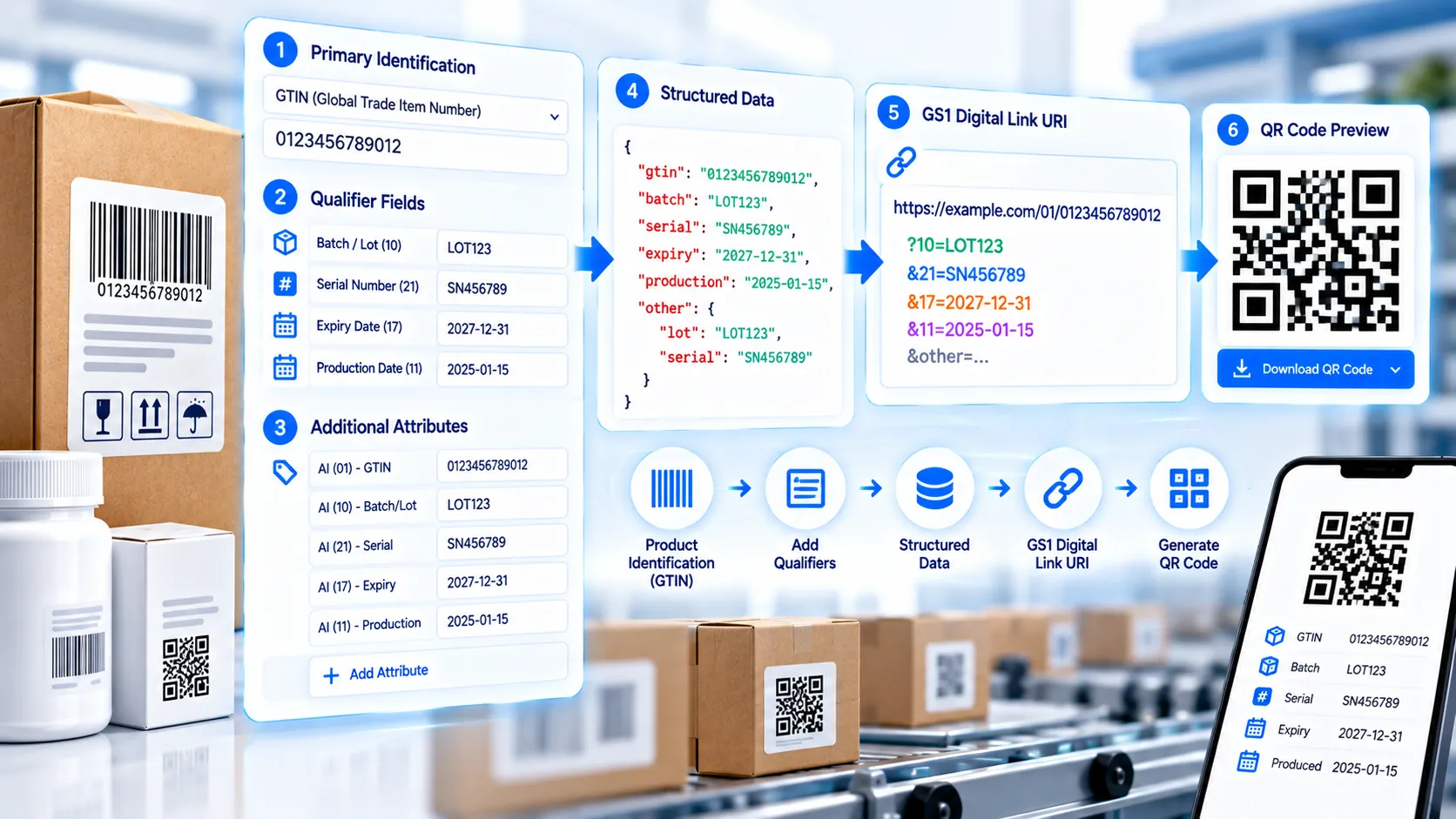
The GS1 Digital Link Data Builder creates structured GS1 Digital Link URIs from primary identification keys, key qualifiers, and data attributes. Choose the GS1 identification key, enter its value and HTTPS domain, add ordered qualifiers such as batch or serial information, and add supported data attributes such as expiry or production dates. The builder updates the Digital Link, validation review, and QR preview as you work, with SVG, high-resolution PNG, JSON, and URI export options.
GS1 Digital Link Data Builder
Build a structured GS1 Digital Link URI from GS1 identification data without manually assembling path components and query parameters.
1. Primary Identification Key
LIVE2. Key Qualifiers
3. Data Attributes & Extensions
Generated GS1 Digital Link
QR Preview
Build Review
Export
How to Use the GS1 Digital Link Data Builder in Simple Steps
- Choose the Primary Identification Key, enter its value, and provide the HTTPS domain that will host the Digital Link. For GTIN, the builder validates the identifier and check digit.
- Add Key Qualifiers when the Digital Link needs additional identification context, such as batch/lot or serial information. Use Add qualifier to add another field.
- Add Data Attributes & Extensions for information such as expiry date, production date, packaging date, best-before date, count, or supported extension data. Use Add attribute when additional data is required.
- Review the generated Digital Link, Build Review, and QR Preview. When the build passes validation, copy the URI or JSON, download JSON, SVG, or PNG, or use Load Example and Clear for additional workflows.
Technical Breakdown: How the GS1 Digital Link Data Builder Works
The GS1 Digital Link Data Builder separates the main components of a Digital Link so that users do not have to manually construct the URI syntax.
The first section handles the Primary Identification Key. The available key type determines the GS1 identification structure used in the generated URI. The tool supports the identification-key options exposed by its interface, including GTIN, ITIP, GMN, CPID, GLN, GSRN, GCN, SSCC, GDTI, GINC, GSIN, GRAI, and GIAI-related workflows.
The key value is validated according to the selected identification-key type. For GTIN, the builder normalizes the identifier to the required 14-digit representation and checks its check digit before allowing the final build to pass.
The HTTPS domain supplies the host portion of the generated Digital Link. This allows an organization to prepare a URI around its own web domain rather than manually editing a generated URL afterward.
The Key Qualifiers section handles ordered qualifier information associated with the primary identification key. Examples include batch or lot information, serial information, GLN extension values, consumer product variants, payment references, and other supported qualifier types.
The builder preserves the distinction between key qualifiers and data attributes. This is important because these two types of information occupy different positions in a GS1 Digital Link URI.
The Data Attributes & Extensions section handles additional information represented after the main Digital Link path. Supported examples include expiry date, expiry date/time, production date, packaging date, best-before date, count, and supported extension keys.
The builder also protects reserved and invalid custom extension-key patterns. A custom extension key cannot simply be an arbitrary numeric string when that would conflict with GS1 Application Identifier handling. Recognized GS1 data attributes are treated as GS1 attributes rather than incorrectly being flagged as custom extension keys.
The generated URI updates live as fields change. The Build Review then checks the supplied domain, identification key, qualifiers, attributes, and other relevant construction rules before enabling the export workflow.
The QR Preview encodes the generated Digital Link URI as a QR Code directly in the browser. The QR represents the final URI rather than independently storing the underlying product database information.
SVG export provides vector artwork for design and print workflows. High-resolution PNG export provides a raster alternative. JSON export preserves the structured builder configuration and generated data for downstream development or record keeping.
The builder performs its normal data preparation and QR generation in the browser. The entered identification values, domain, qualifiers, and attributes do not need to be uploaded to PKCapra for the normal build process.
For checking an already-created Digital Link, use the GS1 Digital Link Validator. For creating a simpler GTIN-based Digital Link directly, use the GS1 Digital Link QR Generator. For conventional QR Codes without GS1 Digital Link structure, use the QR Code Generator.
Developer Snippets (Automate This Tool Offline)
The following examples demonstrate how to construct structured GS1 Digital Link data offline. They are useful for development pipelines but do not replace complete GS1 validation or conformance testing.
Python: Build a GTIN Digital Link with Qualifiers
from urllib.parse import quote

domain = "https://example.com"
gtin = "09506000134352"
lot = "LOT123"
serial = "SERIAL456"

uri = (
    f"{domain}/01/{gtin}"
    f"/10/{quote(lot, safe='')}"
    f"/21/{quote(serial, safe='')}"
    f"?17=271231"
)

print(uri)
PowerShell: Prepare Digital Link Components
$domain = "https://example.com"
$gtin = "09506000134352"
$lot = [uri]::EscapeDataString("LOT123")
$serial = [uri]::EscapeDataString("SERIAL456")

$uri = "$domain/01/$gtin/10/$lot/21/$serial`?17=271231"

Write-Host $uri
Node.js: Build a Structured Digital Link
const domain = "https://example.com";
const gtin = "09506000134352";
const lot = "LOT123";
const serial = "SERIAL456";
const expiry = "271231";

const uri =
  `${domain}/01/${gtin}` +
  `/10/${encodeURIComponent(lot)}` +
  `/21/${encodeURIComponent(serial)}` +
  `?17=${encodeURIComponent(expiry)}`;

console.log(uri);
For production applications, keep the primary identification key, qualifiers, and data attributes as separate structured fields until the final URI is generated. This makes validation, batch processing, and error handling easier than assembling complete Digital Link strings manually.
Native Software Workaround: Build GS1 Digital Link Data
Native spreadsheet and database software can organize the source information before it is passed into a Digital Link workflow.
In Microsoft Excel, create separate columns for the identification-key type, key value, HTTPS domain, qualifier values, and data attributes. This structure makes it possible to prepare large product datasets without manually editing complete URLs.
In Microsoft Access, store the primary key and each qualifier or attribute in separate database fields. Queries can then select the exact data required for a particular Digital Link generation process.
In Visual Studio Code, store Digital Link records as JSON objects with separate properties for the primary identification key, qualifiers, attributes, and domain. This approach is useful when the data will later be processed by a Node.js or other development pipeline.
In Adobe Illustrator or InDesign, use the generated SVG when placing the final QR artwork into packaging, labels, documents, or marketing layouts. Preserve the QR’s aspect ratio and avoid effects that blur or distort the modules.
For production packaging, inspect the final physical QR Code rather than relying exclusively on the browser preview. Printing method, module size, contrast, substrate, curvature, and scanner conditions can affect decoding.
Frequently Asked Questions
What is a GS1 Digital Link Data Builder?
A GS1 Digital Link Data Builder is a structured tool for creating Digital Link URIs from GS1 identification keys, key qualifiers, data attributes, and an HTTPS domain.
What is a Primary Identification Key?
A Primary Identification Key identifies the main GS1 entity represented by the Digital Link. The builder provides multiple GS1 key types through its key-type selector.
What are Key Qualifiers?
Key qualifiers provide additional information that helps distinguish or further identify the entity represented by the primary identification key. Examples include batch/lot and serial information.
What are Data Attributes?
Data attributes provide additional information associated with the identified entity, such as expiry date, production date, packaging date, best-before date, or count.
Does the builder validate GTINs?
GTIN validation includes normalization to the required 14-digit representation and check-digit verification when GTIN is selected as the primary identification key.
Does the builder automatically create the Digital Link?
The builder constructs the Digital Link automatically from the selected key, domain, qualifiers, and attributes. The generated URI updates as the input changes.
Does the tool generate a QR Code?
The builder generates a QR Preview from the completed Digital Link and provides SVG and high-resolution PNG export options.
Can I add multiple qualifiers?
Multiple key qualifiers can be added through the Add qualifier control, subject to the supported GS1 qualifier types and validation rules implemented by the builder.
Can I add multiple data attributes?
Multiple data attributes can be added through the Add attribute control, subject to the supported GS1 attributes and extension rules implemented by the builder.
What happens if I enter an invalid extension key?
The Build Review identifies unsupported or structurally invalid extension-key patterns and prevents the build from being treated as fully valid until the highlighted issue is corrected.
Does the builder create a resolver?
The builder creates the Digital Link URI and QR representation. It does not create or host the resolver, product database, or web application associated with the HTTPS domain.
Does the tool upload my GS1 data?
Normal Digital Link construction and QR generation occur in the browser, so the entered data does not need to be uploaded to PKCapra for the standard workflow.
Can I download the complete configuration?
The builder provides JSON export for the structured configuration, along with URI, SVG, and high-resolution PNG export for the generated Digital Link and QR workflow.
What should I do after building the Digital Link?
Use the GS1 Digital Link Validator to inspect the generated URI, then test the final QR artwork and the associated web or resolver infrastructure before using it in production.