
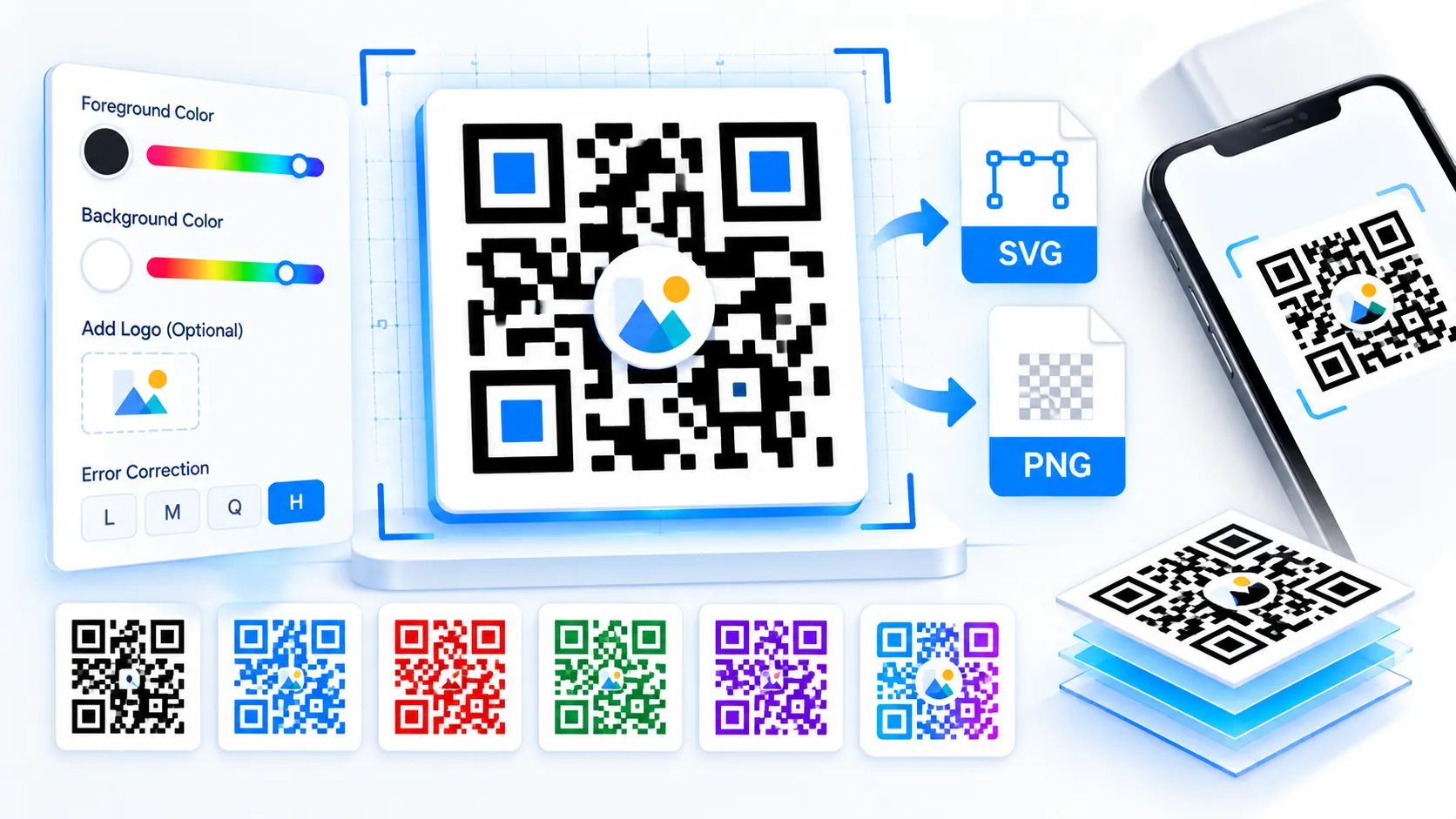
Generate standard QR codes directly in your browser with the PKCapra QR Code Generator. Enter a URL, text, contact information, payment data, or another supported payload and the QR code updates live as you type. Choose the QR version, error-correction level, colors, quiet zone, and optional center logo, then export the finished code as SVG or high-resolution PNG without sending the payload to a server.
QR Code Generator
Create standard QR Codes for text, URLs, identifiers, and other payloads with live rendering, version control, error correction, branding, SVG, and high-resolution PNG export.
QR Content
QR Settings
Branding & Appearance
Live Preview
LIVEExport & Share
QR Generation Checks
How to Use the QR Code Generator in Simple Steps
- Enter the content you want to encode in the QR Data field. The generator processes the payload live and shows the resulting QR code without requiring a Generate button.
- Choose the QR Version and Error Correction Level when you need specific control. Automatic version selection can be used when you want the generator to determine a suitable symbol size for the payload.
- Customize the foreground color, background color, quiet zone, and optional center branding logo. Keep strong contrast and sufficient clear space around the QR modules for practical scanning.
- Review the live preview and export the result using Download SVG for vector workflows or Download High-Res PNG for raster workflows. The tool also provides SVG and JSON copy/download options.
Technical Breakdown and Production Features
A standard QR Code can store substantially more information than a Micro QR symbol and is suitable for general-purpose web, print, packaging, signage, contact, and information-sharing workflows. The generator supports QR versions from 1 through 40 and provides error-correction choices appropriate to the selected symbol configuration.
The complete generation workflow runs in the browser. Your QR payload does not need to be uploaded to a PKCapra processing server to create the symbol. This makes the tool useful for ordinary URLs as well as private text and other data that you prefer to keep within the current browser session.
The generator includes the following controls:
- Automatic QR sizing: The generator can determine a suitable QR version based on the payload instead of requiring manual version selection.
- QR Version control: Versions 1–40 are available for workflows where a specific symbol size is required.
- Error correction: L, M, Q, and H levels provide different recovery capacities. Higher correction consumes more symbol capacity, so the largest correction level is not automatically appropriate for every payload.
- Foreground and background colors: Customize the visual appearance while retaining a readable module/background contrast.
- Quiet zone: Maintain clear space around the QR symbol so surrounding design elements do not interfere with detection.
- Center branding logo: A logo can be placed in the center of the QR symbol with conservative coverage controls designed to reduce unnecessary obstruction of QR modules.
- SVG output: Vector output is suitable for print, packaging, signage, design applications, and scalable web artwork.
- High-resolution PNG: Raster output is available when the destination requires a bitmap image.
- JSON export: Generation settings and relevant QR configuration data can be copied or downloaded for reproducible workflows.
QR Version and Data Capacity
QR versions range from Version 1 through Version 40. Larger versions contain more modules and therefore provide greater data capacity, but they also create a physically larger symbol when the module size remains constant.
Payload capacity depends on the selected encoding mode, version, and error-correction level. A simple character count should therefore not be treated as a universal QR capacity measurement.
When a payload becomes too large, the practical solutions are to shorten the encoded content, use a compact URL, or select a larger QR version. For web links, encoding a concise destination URL is generally more space-efficient than placing a long block of descriptive text into the QR payload.
Error Correction Levels
QR error correction provides recovery capability when part of a symbol is obscured or damaged. The available levels are:
- L: approximately 7% recovery capability
- M: approximately 15% recovery capability
- Q: approximately 25% recovery capability
- H: approximately 30% recovery capability
These percentages describe QR error-correction characteristics rather than a guarantee that a damaged code will scan successfully.
Higher error correction also reduces the amount of payload capacity available within a given QR version. For this reason, error correction should be selected according to the physical environment rather than simply choosing the highest value every time.
Logo and Branding Safety
A center logo can make a QR code visually consistent with a brand, but it also covers part of the encoded symbol. Error correction helps recover from some module loss, but it does not make unlimited logo coverage safe.
The generator therefore uses conservative center-logo handling rather than treating a large logo as automatically safe. A branded QR should still be tested using the final output, physical dimensions, lighting conditions, and the scanning devices expected in the real deployment environment.
For extremely compact QR requirements, compare the workflow with the Micro QR Code Generator. Micro QR is designed for smaller payloads and constrained symbol footprints, while this tool targets standard QR Code generation.
SVG vs High-Resolution PNG
SVG is the preferred format when the QR code will be scaled, edited in vector software, placed into packaging artwork, or sent to a print workflow. The QR modules remain geometrically sharp when the artwork is resized.
High-resolution PNG is useful for documents, presentations, websites, social graphics, and other raster workflows. Even with a large pixel dimension, the QR should be evaluated at its actual intended display or print size.
Developer Snippets (Automate This Tool Offline)
These examples prepare and inspect QR payloads locally. They do not call the PKCapra tool or transmit the payload to an external API.
Python — Validate a URL Payload
from urllib.parse import urlparse

payload = "https://example.com/product"

parsed = urlparse(payload)

if parsed.scheme not in ("http", "https") or not parsed.netloc:
    raise ValueError("Enter a valid HTTP or HTTPS URL.")

print({
    "type": "url",
    "payload": payload,
    "character_count": len(payload)
})
PowerShell — Inspect a QR Payload
$payload = "https://example.com/product"
$bytes = [System.Text.Encoding]::UTF8.GetBytes($payload)

[PSCustomObject]@{
    Payload = $payload
    CharacterCount = $payload.Length
    UTF8ByteCount = $bytes.Length
}
Node.js — Calculate UTF-8 Payload Size
const payload = "https://example.com/product";
const byteLength = Buffer.byteLength(payload, "utf8");

console.log({
  payload,
  characterCount: payload.length,
  utf8ByteCount: byteLength
});
These snippets help with preprocessing and payload inspection. They do not calculate the exact QR capacity for every version and error-correction combination because QR capacity depends on encoding mode, version, and correction level.
Native Software Workaround and Integration
Adobe Illustrator
Use the downloaded SVG when the QR code is part of packaging, labels, posters, business cards, signage, or other vector artwork.
- Open Adobe Illustrator.
- Select File → Open and choose the downloaded SVG.
- Keep the QR artwork as vector geometry.
- Scale the symbol proportionally without stretching it.
- Preserve a clear quiet zone around the QR code.
- Keep nearby text, borders, images, and decorative elements outside the quiet zone.
- Export the final production artwork according to the requirements of the intended print process.
Inkscape
For a free vector workflow:
- Open Inkscape.
- Choose File → Open and load the downloaded SVG.
- Position the QR code within the artwork.
- Resize it proportionally.
- Keep the quiet zone unobstructed.
- Save the final artwork as SVG or export a raster copy when required by the destination.
Microsoft Word
For documents and simple printable materials:
- Download the high-resolution PNG.
- Open Microsoft Word.
- Choose Insert → Pictures → This Device.
- Insert the QR image.
- Resize it proportionally.
- Leave clear space around the symbol.
- Print a physical sample at the intended size before producing multiple copies.
A QR code that works on a large monitor may behave differently when printed very small, so final-size testing is important for physical applications.
Frequently Asked Questions
What is a QR Code Generator?
A QR Code Generator creates a machine-readable two-dimensional QR symbol from data such as URLs, text, contact information, or other supported payloads.
Is this QR Code Generator free?
The PKCapra QR Code Generator is designed as a free browser-based tool and does not require an API key or account for QR generation.
Does the QR code generation happen in the browser?
Browser-side processing generates the QR preview and export during the normal tool workflow, so the payload does not need to be uploaded to a PKCapra server for QR creation.
Which QR versions are supported?
QR Versions 1 through 40 are supported, with automatic sizing available when you do not need to select a specific version manually.
Which error-correction levels are available?
The generator supports L, M, Q, and H error-correction levels. Each level changes the recovery capability and available payload capacity.
Can I add a logo to a QR code?
A center branding logo can be added through the logo controls. Logo coverage should remain conservative because covering too many QR modules can reduce scan reliability.
Can I customize QR code colors?
Foreground and background colors can be customized. Strong contrast between the modules and background remains important for reliable detection.
Can I download the QR code as SVG?
SVG download is supported and provides a scalable vector representation suitable for design and print workflows.
Can I download a high-resolution PNG?
High-resolution PNG export is supported for workflows that require raster images.
Why did the QR code become larger after changing error correction?
Higher error correction can require a larger QR version for the same payload because additional redundancy consumes symbol capacity.
What should I encode for a website link?
A concise HTTP or HTTPS URL is normally the most practical payload for a website QR code. Shorter URLs can reduce the amount of QR symbol space required.
Should I test a QR code before printing it?
Physical testing is recommended for printed QR codes. Test the final symbol at its actual intended size, distance, lighting conditions, surface, and scanning environment.