
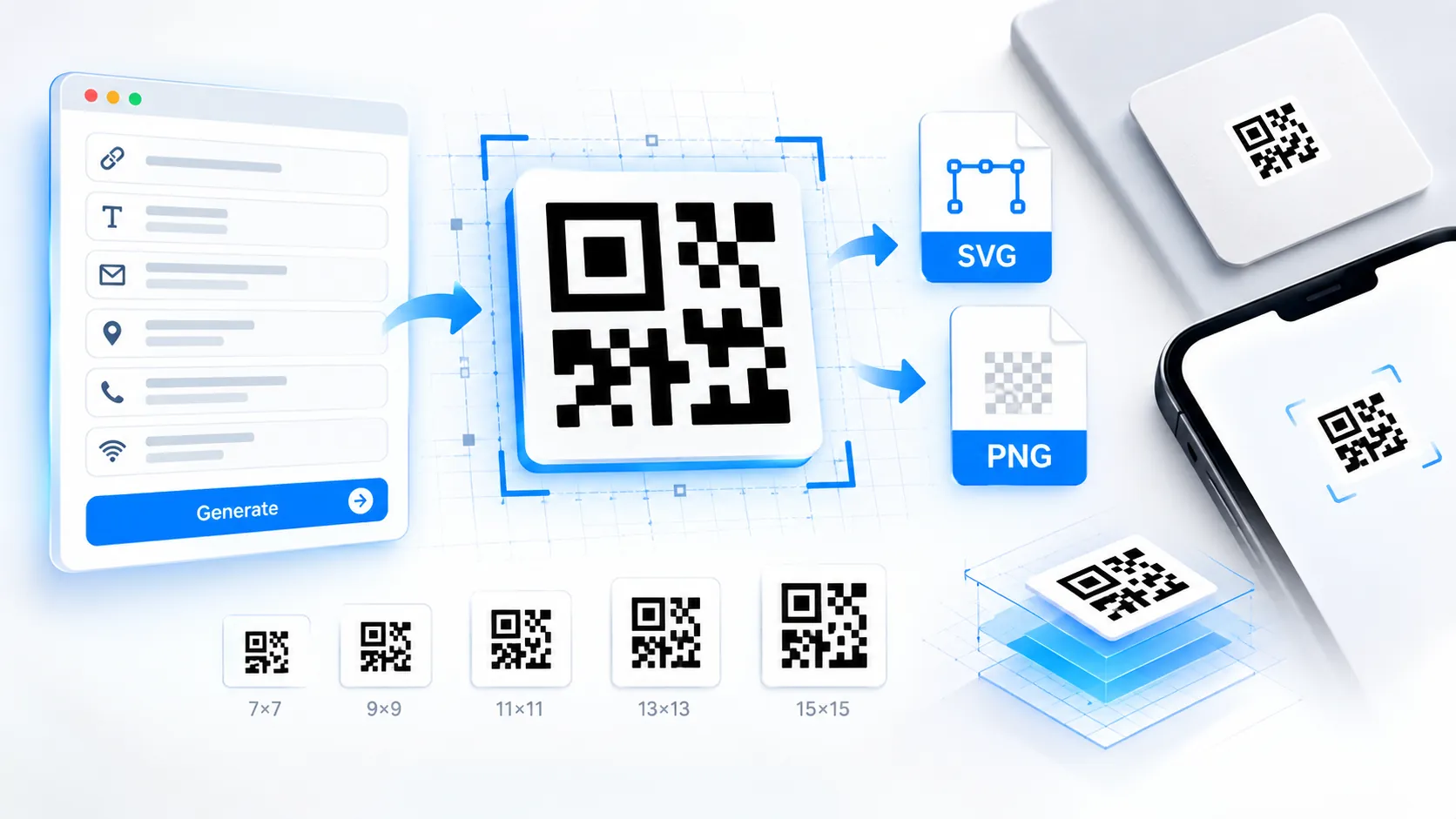
Micro QR Code Generator creates compact Micro QR symbols directly in your browser for short numeric, alphanumeric, or byte-based payloads. Enter your content, choose the supported Micro QR version and error-correction level, adjust the visual settings, and the vector preview updates in real time. The tool is useful when a standard QR code would be unnecessarily large and you need a smaller 2D symbol for labels, compact product information, embedded identifiers, or space-constrained print layouts.
Micro QR Code Generator
Generate compact M1–M4 Micro QR codes with live rendering, error-correction controls, custom colors, SVG export, and high-resolution PNG export.
QR Content
Symbol Settings
Appearance
Live Preview
LIVEExport & Share
Generation Checks
How to Use the Micro QR Code Generator in Simple Steps
- Enter your payload in the QR Data field. Use the content you actually want encoded, keeping the payload short enough for the selected Micro QR version and mode.
- Choose the Micro QR Version and Error Correction Level when you want direct control. The tool applies the supported Micro QR combinations and reports invalid combinations instead of silently generating a different symbol.
- Customize the foreground color, background color, and quiet-zone settings if required. Keep strong foreground/background contrast for reliable scanning, especially when the symbol will be printed at a small physical size.
- Use the live SVG preview to check the result, then choose Download SVG for a scalable vector asset or Download High-Res PNG for a raster image. You can also copy the SVG or JSON representation directly from the result controls.
Technical Breakdown and Why Micro QR Matters
Micro QR is a compact QR-family format designed for situations where a conventional QR symbol would occupy more physical space than necessary. Instead of treating every payload as a normal QR code, this tool works with Micro QR versions and their corresponding capacity and error-correction constraints.
The generator runs in the browser. Your entered payload does not need to be uploaded to a PKCapra processing server for generation. The visual result is produced client-side and the original input remains in the browser during the generation workflow.
The tool provides direct controls for the Micro QR characteristics that matter most in production:
- Micro QR version: Select a supported M1, M2, M3, or M4 symbol size where applicable.
- Data mode: Payload handling supports the data types required by the Micro QR implementation, including numeric, alphanumeric, and byte-oriented content where supported.
- Error correction: The interface exposes the supported error-correction choices for the selected Micro QR version and prevents unsupported combinations from being treated as valid.
- Contrast: Foreground and background colors can be customized while the interface provides a contrast-safety indication.
- Quiet zone: The surrounding clear area can be controlled for layouts where precise symbol placement matters.
- Vector output: SVG keeps the modules mathematically sharp when the symbol is scaled for print or production artwork.
- High-resolution raster output: PNG export provides a large raster alternative when an SVG asset is not suitable for the destination workflow.
Micro QR should not automatically be treated as a smaller replacement for every standard QR code. Its compact structure comes with tighter capacity and version-specific constraints. A payload that fits comfortably in a conventional QR code may not fit in the selected Micro QR version.
For broader QR generation, use the QR Code Generator when you need a conventional QR symbol with substantially greater capacity. For visual and machine-readability checks, the QR Readability Checker can be used as a separate validation step when that tool is available on your PKCapra installation.
Micro QR Version Selection
Micro QR versions increase in symbol size and capability from M1 through M4. The smallest version is appropriate only for very constrained payloads and supported data conditions. Larger Micro QR versions provide more room for data and additional error-correction options.
The practical workflow is to start with the smallest suitable version and increase the version when the payload or selected correction level requires additional capacity. The generator’s validation layer is designed to prevent an unsupported configuration from producing a misleading result.
Error Correction and Small Symbols
Error correction improves a code’s ability to recover from some damage or interference, but it also consumes symbol capacity. On a compact Micro QR symbol, this trade-off is particularly important because available data space is limited.
Higher correction does not mean that any damaged or poorly printed Micro QR will remain scannable. Physical module size, contrast, print quality, quiet zone, camera focus, lighting, and surface conditions still affect real-world scanning.
Color and Quiet-Zone Safety
A customized Micro QR should retain a clear distinction between the data modules and the surrounding background. Very similar foreground and background colors reduce the visual separation that scanners depend on.
The quiet zone should also remain visually clear. Decorative backgrounds, nearby graphics, borders, or text placed too close to the symbol can make detection harder even when the encoded data itself is valid.
SVG vs High-Resolution PNG
SVG is the preferred output when the Micro QR will be resized, placed into print artwork, or passed through a vector-based production workflow. Its modules remain sharp because the output is vector-based.
High-resolution PNG is useful for applications that require raster graphics. It should still be evaluated at the intended physical display or print size rather than assuming that a large pixel dimension automatically guarantees reliable scanning.
Developer Snippets (Automate This Tool Offline)
The following examples show how to reproduce common Micro QR preparation tasks offline without sending payloads to an external API. They are independent examples for developers who want to validate or prepare data before using the browser generator.
Python — Validate a Compact Numeric Payload
import re

payload = "1234567890"

if not re.fullmatch(r"\d+", payload):
    raise ValueError("Micro QR numeric payload must contain digits only.")

print({
    "mode": "numeric",
    "payload": payload,
    "length": len(payload)
})
PowerShell — Prepare a UTF-8 Payload
$payload = "PKCapra Micro QR"

$bytes = [System.Text.Encoding]::UTF8.GetBytes($payload)

[PSCustomObject]@{
    Mode = "byte"
    CharacterCount = $payload.Length
    UTF8ByteCount = $bytes.Length
    Payload = $payload
}
Node.js — Inspect UTF-8 Payload Size
const payload = "PKCapra Micro QR";
const bytes = Buffer.byteLength(payload, "utf8");

console.log({
  mode: "byte",
  characterCount: payload.length,
  utf8ByteCount: bytes,
  payload
});
These snippets do not replace the Micro QR encoder itself. They are useful for preprocessing, validation, or estimating whether a payload needs to be shortened before generation. Capacity depends on the selected Micro QR version and encoding mode, so character count alone is not a universal capacity measurement.
Native Software Workaround and Integration
Adobe Illustrator
Use the downloaded SVG when the Micro QR needs to become part of packaging, labels, signage, or other vector artwork.
- Open Adobe Illustrator.
- Choose File → Open and select the downloaded SVG.
- Keep the Micro QR as vector artwork rather than rasterizing it.
- Scale the symbol proportionally without distorting its width or height.
- Keep the surrounding quiet zone clear of nearby artwork.
- Export the final production artwork using the color mode and document settings required by your printer or production workflow.
Inkscape
For an open-source vector workflow:
- Open Inkscape.
- Choose File → Open and select the Micro QR SVG.
- Position the symbol on the required label or document.
- Preserve the symbol’s proportions.
- Avoid placing text, borders, or decorative elements inside the quiet zone.
- Save the final artwork as SVG or export a raster copy only when the destination requires it.
Microsoft Word
For documents, reports, or simple printable labels:
- Download the high-resolution PNG.
- In Word, choose Insert → Pictures → This Device.
- Insert the PNG.
- Resize it proportionally.
- Keep sufficient clear space around the code.
- Print a physical test at the intended size before producing a large batch.
A Word document can rescale an image during editing, so the final physical size should be checked rather than relying only on the image’s pixel dimensions.
Frequently Asked Questions
What is a Micro QR Code?
Micro QR Code is a compact QR-family 2D symbol designed for smaller payloads and space-constrained applications. It uses smaller symbol structures than conventional QR codes.
How is Micro QR different from a normal QR code?
Micro QR uses smaller symbol versions and has lower data capacity than conventional QR. It is intended for compact applications where the smaller symbol footprint is useful.
Can I generate a Micro QR Code without uploading my data?
Browser-side generation keeps the payload in the browser during the generation workflow. No API key or account is required.
Which Micro QR versions does the tool support?
The generator supports M1, M2, M3, and M4 Micro QR versions where the selected data mode and error-correction combination is valid.
Can I customize Micro QR colors?
Foreground and background colors can be customized. Strong contrast should be maintained so the modules remain visually distinct from the background.
Can I download Micro QR as SVG?
SVG download is supported. SVG is useful when the symbol needs to remain sharp during vector scaling or print production.
Can I download a high-resolution PNG?
High-resolution PNG download is supported for workflows that require raster images rather than SVG.
Does a higher error-correction level always make a Micro QR safer to scan?
Higher error correction provides additional recovery capability within the supported symbol structure, but it does not guarantee successful scanning under poor contrast, insufficient module size, blur, damage, lighting problems, or an inadequate quiet zone.
Why does my payload not fit into a Micro QR version?
Micro QR versions have limited capacity and different encoding constraints. A payload may need a larger Micro QR version, a different supported encoding mode, or a shorter representation.
Can I use a Micro QR for printed labels?
Printed labels are a suitable use case when the symbol has enough physical module size, adequate contrast, a clear quiet zone, and sufficient print quality. Always test the final printed size with the intended scanning devices before mass production.