
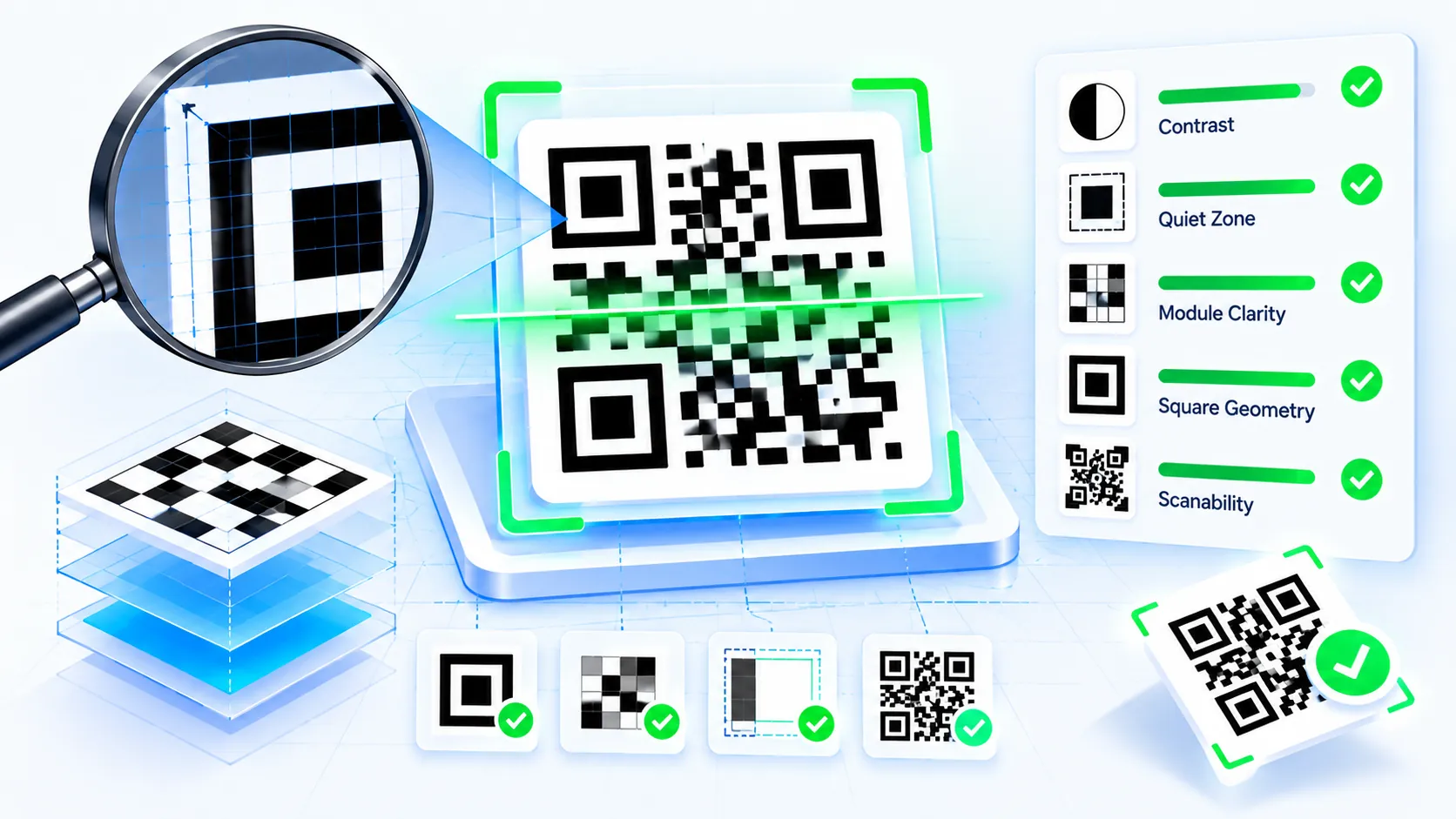
QR Readability Checker
Check whether a QR image has strong visual conditions for reliable scanning with browser-side decode, contrast, quiet-zone, geometry, sharpness, and image-scale checks.
QR Image Input
Readability Checks
Readability Result
LOCALReport & Export
What This Check Means
A high result indicates favorable image-level conditions detected by this browser preflight. It does not certify print quality under ISO/IEC 15415 or replace a calibrated barcode verifier.
Check a QR code before publishing or printing it with the PKCapra QR Readability Checker. Upload a QR image, drop it into the tool, or paste an image from your clipboard to run a browser-side readability preflight. The checker evaluates visual factors such as contrast, quiet-zone evidence, QR geometry, module sharpness, image scale, and tone separation, then provides a Readability Score and detailed findings without sending the image to a server.
How to Use the QR Readability Checker in Simple Steps
- Upload your QR image using the Image Input area, drag and drop the image into the tool, or paste an image from your clipboard.
- Start the readability check and wait for the browser-side analysis to inspect the QR image and attempt local decoding.
- Review the Readability Score, detected QR information, preview, and individual checks for contrast, quiet zone, geometry, sharpness, scale, and tone separation.
- Use Copy Report, Copy JSON, Download JSON, or Download PDF when you need to save or share the analysis. Use Clear to remove the current image and start another check.
Technical Breakdown and Practical Readability Analysis
The QR Readability Checker is a browser-side preflight tool for evaluating whether a QR image has visual characteristics associated with practical scanning. It does not claim to replace calibrated barcode-verification equipment or a formal standards-compliant print-quality verification process.
The uploaded image is processed locally in the browser. The tool does not require an API key, account, or server-side image-processing workflow for the normal analysis.
The checker combines decoding and visual inspection rather than relying only on whether a decoder succeeds. A QR code can sometimes decode under favorable conditions even when its artwork contains characteristics that make it less robust in other scanning environments. Conversely, a visual warning does not necessarily mean that every scanner will fail.
The analysis includes:
- Decode evidence: Attempts to determine whether a QR decoder can recognize the supplied image.
- Contrast: Examines the separation between QR module tones and the surrounding background.
- Quiet-zone evidence: Checks the clear area surrounding the detected QR region.
- Geometry: Evaluates whether the detected QR region has a usable square structure rather than obvious distortion.
- Module/detail sharpness: Looks for sufficiently defined local QR structure instead of excessive softness or blur.
- Image scale: Considers the available image dimensions and detected symbol scale.
- Tone separation: Examines whether the visual tones provide useful separation for QR detection.
- Overall score: Combines the available browser-side signals into a practical readability preflight score.
The result should be interpreted as a readability preflight, not as a laboratory measurement.
Why Contrast Matters
QR scanners need to distinguish dark and light modules reliably. A heavily customized QR can become harder to detect when the foreground and background are too similar, when gradients reduce module separation, or when lighting and print conditions further reduce contrast.
A QR image that looks attractive on a monitor can therefore behave differently in a printed or photographed environment. Strong module-to-background separation gives the scanner a clearer visual signal.
Why the Quiet Zone Matters
The quiet zone is the clear area surrounding the QR symbol. It separates the code from nearby text, borders, graphics, and other visual structures.
The checker looks for evidence of this surrounding clear space because crowded artwork can interfere with detection. The analysis is based on the supplied image and cannot guarantee that a particular physical implementation meets every formal production specification.
When preparing a QR for print, keep surrounding design elements outside the intended clear area and test the final artwork at its actual physical size.
Geometry and Distortion
A QR symbol is based on a square module grid. Significant stretching, perspective distortion, rotation combined with poor image quality, or other geometric problems can make detection more difficult.
The checker therefore considers the detected QR region’s geometry as part of the overall preflight. A favorable geometry result means the supplied image presents a relatively usable QR structure; it does not certify the physical dimensions or print registration of the final product.
Sharpness and Module Integrity
Small QR modules need sufficiently defined boundaries. Blur, aggressive image compression, resizing artefacts, or poor focus can merge neighboring modules and reduce the visual distinction between them.
For production graphics, use vector output whenever possible and avoid repeatedly resizing an already-compressed raster QR image. If a raster image is required, export it at an appropriate resolution for its final physical size.
Readability Score Interpretation
The Readability Score is a PKCapra browser-side preflight indicator rather than a standardized barcode verification grade.
A higher score indicates that more of the tool’s inspected visual signals are favorable. A lower score indicates that one or more factors deserve attention.
The score should be used to identify issues before deployment, not as a guarantee that a QR code will scan with every phone, camera, scanner, print process, or lighting condition.
For QR creation, use the QR Code Generator. For extremely compact payloads and smaller QR-family symbols, use the Micro QR Code Generator.
Developer Snippets (Automate This Tool Offline)
The following examples provide simple offline preflight checks for developers. They do not reproduce the complete PKCapra analysis engine or replace a QR decoder.
Python — Check Basic Image Dimensions
from PIL import Image

image_path = "qr-code.png"

with Image.open(image_path) as image:
    width, height = image.size

print({
    "width": width,
    "height": height,
    "is_square": width == height
})
PowerShell — Inspect a QR Image File
Add-Type -AssemblyName System.Drawing

$path = "qr-code.png"
$image = [System.Drawing.Image]::FromFile($path)

[PSCustomObject]@{
    Width = $image.Width
    Height = $image.Height
    IsSquare = ($image.Width -eq $image.Height)
}

$image.Dispose()
Node.js — Inspect Image File Size
const fs = require("fs");

const path = "qr-code.png";
const stats = fs.statSync(path);

console.log({
  file: path,
  sizeBytes: stats.size
});
These snippets are useful for basic asset checks, but QR readability depends on substantially more than file dimensions or file size. Decoder success, module structure, contrast, quiet zone, physical size, print quality, focus, lighting, and the scanning environment can all affect practical results.
Native Software Workaround and Integration
Adobe Illustrator
Use the original vector QR artwork when possible rather than repeatedly scaling a raster copy.
- Open Adobe Illustrator.
- Choose File → Open and load the QR SVG.
- Keep the QR artwork as vector geometry.
- Place the QR within the final artwork.
- Preserve clear space around the symbol.
- Avoid applying effects that soften, distort, or obscure the QR modules.
- Export the production artwork according to the requirements of the intended print process.
- Open the final exported image in the QR Readability Checker and run a preflight before publishing.
Inkscape
For an open-source vector workflow:
- Open Inkscape.
- Import the QR SVG.
- Position the symbol in the document.
- Resize it proportionally.
- Keep surrounding artwork away from the quiet zone.
- Avoid filters or effects that blur module boundaries.
- Export the final raster version only when required.
- Check the exported file with the QR Readability Checker.
Microsoft Word
For documents, reports, and simple printable materials:
- Insert the high-resolution QR PNG using Insert → Pictures → This Device.
- Resize it proportionally.
- Keep sufficient clear space around it.
- Avoid placing borders or text directly against the QR.
- Print a sample at the intended physical size.
- Photograph or scan the final printed result if necessary.
- Run the resulting image through the QR Readability Checker for an additional visual preflight.
A successful on-screen scan does not automatically prove that the printed version will perform identically. The final physical output should be tested in the environment where the QR will actually be used.
Frequently Asked Questions
What is a QR Readability Checker?
A QR Readability Checker is a preflight tool that evaluates an image containing a QR code for visual and decoding-related signals associated with practical scanning.
Does the checker upload my QR image?
Browser-side processing handles the supplied image during the normal analysis workflow, so the image does not need to be uploaded to a PKCapra server for the checker to perform its analysis.
Does a successful decode mean the QR is production-ready?
Successful decoding is useful evidence, but it is not a complete production-quality certification. Physical size, contrast, print quality, quiet zone, damage, lighting, focus, and the final scanning environment can still affect performance.
What does the Readability Score mean?
The Readability Score is a PKCapra browser-side preflight indicator based on the visual and decoding signals inspected by the tool. It is not an ISO/IEC barcode-verification grade.
Why is the quiet zone checked?
The quiet zone separates the QR symbol from surrounding artwork and helps the scanner identify the code boundary. Nearby graphics, borders, or text can interfere with detection.
Why can a QR code look clear but receive warnings?
A QR image can appear clear to a person while still having weak module contrast, insufficient surrounding space, limited resolution, compression artefacts, or geometric irregularities that affect machine detection.
Can I check a QR code before printing it?
Pre-print checking is a useful workflow. Run the digital artwork through the checker before production and, for important physical deployments, test the final printed output at its intended size.
Can I use the checker for branded QR codes?
Branded QR codes can be checked, including designs with customized colors or center artwork. The checker evaluates the supplied image, but it cannot guarantee reliable scanning under every physical condition.
Does the checker replace professional barcode verification equipment?
Professional verification equipment provides calibrated measurements and standardized quality grades that a browser-based image preflight does not provide. The PKCapra checker is intended for practical digital and pre-production screening.
What image formats can I check?
The tool accepts supported common image formats through the browser image workflow. The supplied image must remain within the tool’s configured file-size limit.
Can I export the readability report?
The checker provides Copy Report, Copy JSON, Download JSON, and Download PDF controls so the analysis can be retained or shared.