
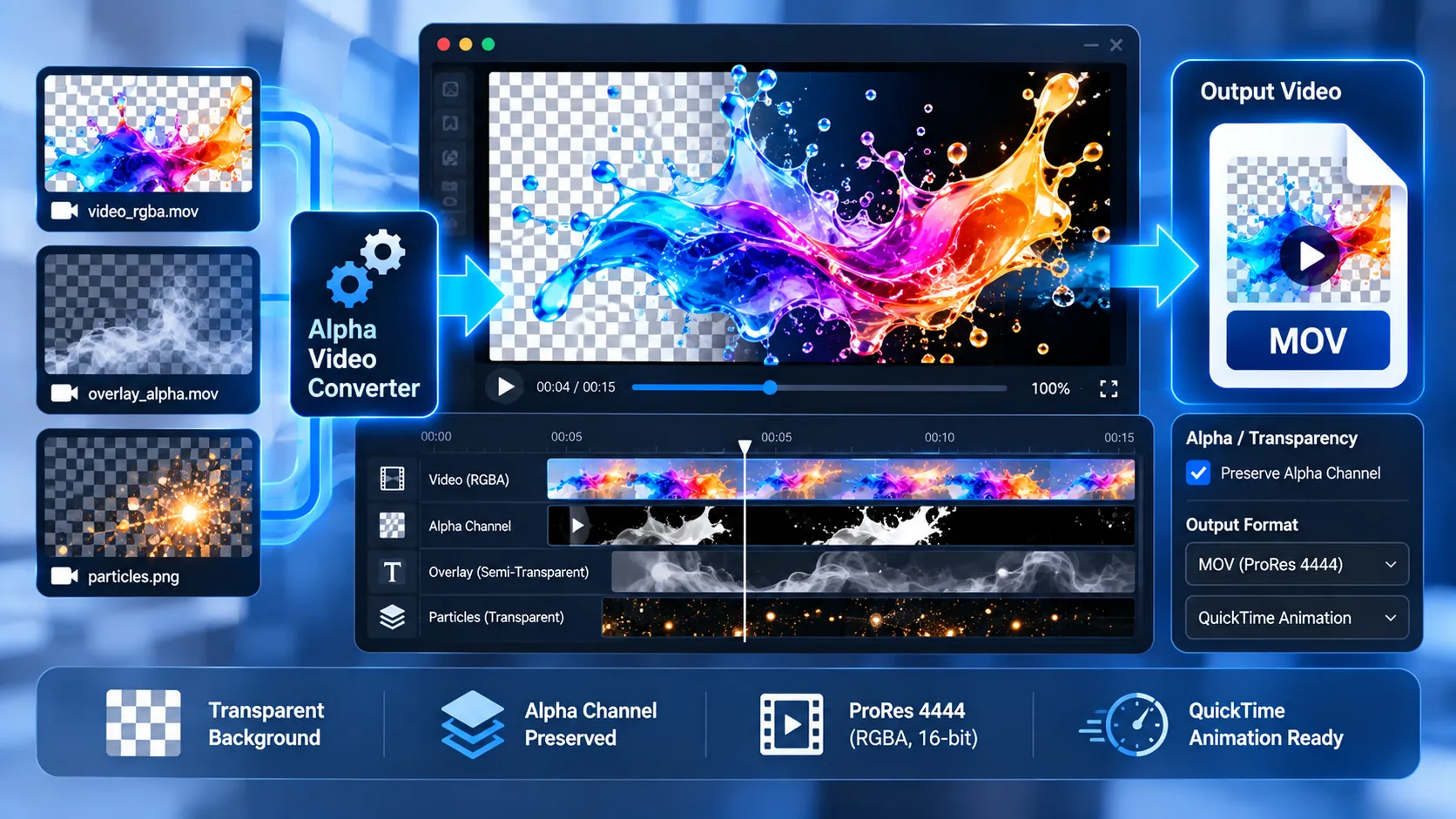
Convert videos with transparency into alpha-preserving MOV files directly in your browser. The PKCapra Transparent / Alpha Video Converter analyzes the source alpha channel, preserves transparency during conversion, and validates the exported alpha data before making the finished video available for download.
Transparent / Alpha Video Converter
Convert videos that contain transparency into alpha-preserving MOV ProRes 4444 or QuickTime Animation video directly in your browser.
Source transparency detected
Choose an alpha-preserving format
The converter verifies the source alpha channel and validates the exported alpha channel before offering the file for download.
Alpha-preserving video is ready
Convert Videos With Transparency to Alpha-Preserving Formats
Convert videos that contain transparency into alpha-preserving MOV files directly in your browser with the PKCapra Transparent / Alpha Video Converter. The tool analyzes the source alpha channel, preserves transparency during conversion, and validates the exported alpha channel before making the output available for download.
All processing takes place locally in your browser using FFmpeg WebAssembly, so your video does not need to be uploaded to a PKCapra processing server.
What Is an Alpha Video?
An alpha video contains transparency information in addition to visible color information. The alpha channel determines how transparent or opaque each pixel is:
0= fully transparent- Intermediate values = partially transparent
- Maximum alpha value = fully opaque
Alpha video is commonly used for logos, overlays, motion graphics, visual effects, animated elements, lower thirds, and other video assets that need to appear over another background.
How the Transparent / Alpha Video Converter Works
- Select a video containing an actual alpha channel.
- PKCapra analyzes the decoded video and samples its transparency information.
- Choose an alpha-preserving output format.
- Choose whether supported audio should be preserved.
- Start the conversion.
- The browser processes the video locally.
- PKCapra decodes and verifies the exported alpha channel.
- The download becomes available after the alpha-preservation validation succeeds.
The converter validates the actual exported transparency data rather than relying only on the file extension or codec name.
Supported Alpha-Preserving Output Formats
MOV — ProRes 4444 With Alpha
ProRes 4444 is designed for professional video and graphics workflows where an alpha channel needs to be retained.
It is useful for:
- Motion graphics
- Compositing
- Video overlays
- Professional editing workflows
- Transparent animation assets
- Visual effects
ProRes 4444 can produce substantially larger files than conventional delivery codecs because it is designed for high-quality production workflows.
MOV — QuickTime Animation
QuickTime Animation is another option for workflows that require transparency in a MOV container.
It can be useful for certain professional and legacy editing workflows where alpha-enabled QuickTime media is supported.
Alpha Channel Analysis
Before conversion, the tool analyzes the source video and reports information such as:
- Video dimensions
- Source codec
- Alpha minimum
- Alpha maximum
- Detected transparency range
The alpha range helps determine whether the decoded source contains transparency information.
A source with meaningful transparent, partially transparent, and opaque pixels provides a useful alpha-preservation workflow.
Why Alpha Validation Matters
A video can technically use an alpha-capable codec or pixel format without proving that useful transparency information survived the conversion.
For this reason, PKCapra validates the exported alpha channel after encoding.
The validation checks decoded output rather than simply checking whether an output file exists.
This helps distinguish between:
- An alpha-capable output format
- An output that actually contains preserved alpha information
Source Transparency Detection
The converter analyzes the decoded alpha channel before conversion.
A source whose sampled alpha values contain only one transparency state may not contain useful transparency variation, even if its codec or pixel format supports alpha.
For meaningful alpha workflows, the source should contain the transparency information required by your project.
Alpha Values Explained
Fully Transparent
An alpha value of 0 represents a completely transparent pixel.
Partially Transparent
Intermediate alpha values represent partial transparency. These values allow an object to blend with the background beneath it.
Fully Opaque
The maximum alpha value represents a fully opaque pixel.
An alpha video can contain all three types of pixels within the same frame.
Audio Options
When supported by the selected output workflow, you can choose whether to keep audio when the input video contains an audio stream.
The converter treats the alpha video as the primary output and provides an audio option for supported source media.
If the source contains no audio stream, the interface indicates that there is no audio stream to preserve.
Browser-Side Processing
The Transparent / Alpha Video Converter processes media directly in your browser using FFmpeg WebAssembly.
The browser handles the conversion workflow without requiring a remote media-processing server.
Processing speed depends on:
- Video duration
- Resolution
- Frame rate
- Source codec
- Output format
- Device performance
- Available browser memory
Privacy-Friendly Processing
Your video is processed locally in the browser rather than being uploaded to a PKCapra conversion server.
For more information about privacy and data handling, see the PKCapra Privacy Policy.
Common Uses for Alpha Video
Transparent Logos
Create video logo assets that can be placed over other footage without a rectangular background.
Motion Graphics
Export animated graphics with transparency for use in professional editing and compositing applications.
Video Overlays
Create transparent overlays that can be placed above another video layer.
Lower Thirds
Prepare transparent title and lower-third animations for video production.
Visual Effects
Preserve transparent effects such as animated graphics and compositing elements.
Alpha Video vs Normal Video
A conventional video normally contains visible color information but does not necessarily contain transparency.
An alpha video contains an additional transparency component, allowing the video to be composited over another visual layer without first placing it against a permanent background.
Alpha Video vs Subtitle Burn-In
Alpha video and subtitle burn-in serve different purposes.
With alpha video, transparency is preserved so the video can be composited over another background.
With subtitle burn-in, subtitle text is permanently rendered into the visible video frames.
If you need to permanently render subtitles into a video, use the PKCapra Subtitle Burn-In Video Converter.
Alpha Video vs Subtitle Muxing
Subtitle muxing stores subtitles as a separate media stream rather than changing the video pixels.
Alpha video processing is different because transparency is part of the video image data.
If you need selectable subtitle tracks instead of permanently rendered subtitles, use the PKCapra Subtitle Muxer.
Related PKCapra Video Tools
Alpha-video workflows often involve other video-processing tasks. PKCapra provides several related tools for preparing and checking video files.
Use the Video Compatibility Checker + Auto-Fixer when you need to inspect a video for common compatibility problems before using it in another workflow.
If your video contains metadata that needs to be standardized or cleaned up, use the Video Metadata Normalizer.
For H.264 compatibility work, use the H.264 Compatibility Converter.
If your project involves HDR footage that needs to be converted to standard dynamic range, use the HDR → SDR Converter.
For aspect-ratio signaling problems, the Video SAR/DAR Fixer can be used to correct sample and display aspect-ratio information.
If a video has timestamp or synchronization problems, use the Video PTS/DTS Repair Converter.
For GOP and keyframe interval adjustments, use the Video GOP / Keyframe Interval Converter.
Interlaced footage can be converted to progressive video with the Interlaced → Progressive Converter.
Tips for Working With Alpha Video
Start With a Genuine Alpha Source
Make sure your source video actually contains transparency information. A normal opaque video cannot become genuinely transparent simply by changing its file extension or selecting an alpha-capable output format.
Use Alpha-Preserving Formats
Choose an output format designed to retain transparency, such as ProRes 4444 or QuickTime Animation.
Expect Larger Files
Production-oriented alpha formats can create significantly larger files than standard web-delivery formats.
Check the Export Before Production Use
Always preview the generated file in the application where you intend to use it. Different video players and editing applications have different levels of support for alpha video.
Use Desktop Hardware for Large Projects
High-resolution alpha video can require substantial memory, processing power, and storage. A modern desktop browser is generally more suitable for large files than a low-memory mobile device.
Frequently Asked Questions
What is an alpha video?
An alpha video contains transparency information that allows parts of the video to appear transparent or partially transparent when composited over another layer.
Can this tool convert a normal MP4 into a transparent video?
No. A normal opaque video does not contain the missing transparency information. The source must contain an actual alpha channel for transparency to be preserved.
Which output formats preserve alpha?
The converter provides MOV output options including ProRes 4444 with alpha and QuickTime Animation.
Does the tool preserve the original alpha channel?
The converter is designed to preserve the source transparency information and validates the exported alpha channel after conversion.
How does the tool verify alpha preservation?
The exported video is decoded and its alpha channel is analyzed. The converter verifies the actual exported transparency data before presenting the output as successfully completed.
What does alpha 0 mean?
An alpha value of 0 represents a fully transparent pixel.
What does maximum alpha mean?
The maximum alpha value represents a fully opaque pixel.
Can a video contain both transparent and opaque areas?
Yes. An alpha video can contain fully transparent, partially transparent, and fully opaque pixels within the same frame.
Can I keep audio?
The converter provides an audio option for supported source media. If the source has no audio stream, the interface indicates that there is no audio stream to preserve.
Does the tool upload my video?
No. Processing is performed locally in your browser using FFmpeg WebAssembly.
Why is my alpha video file large?
Alpha-preserving production formats are designed to retain high-quality video and transparency information. They can therefore be considerably larger than compressed web-delivery formats.
Can I use the output in video editing software?
Alpha-preserving MOV formats such as ProRes 4444 are commonly intended for professional editing and compositing workflows. Actual compatibility depends on the application and version you use.
What if my source has no real transparency?
The converter analyzes the decoded alpha information and can identify sources that do not contain useful transparency variation.
Can I convert a fully transparent video?
A source may technically contain an alpha channel while having no visible opaque content. The alpha analysis helps distinguish the presence of an alpha plane from a useful transparency range.
Important Notice
Alpha video support varies between browsers, media players, operating systems, editing applications, and production software. An application may recognize the video codec while still providing limited support for displaying or compositing its alpha channel.
Always verify the exported video in the software where it will ultimately be used.
PKCapra provides this tool for general media-processing purposes and does not guarantee compatibility with every third-party application or playback environment.
Explore More PKCapra Tools
Explore the complete PKCapra free online tools collection for additional browser-based utilities.
You can also browse the full PKCapra All Tools directory to discover other media and productivity tools.
Start Converting Your Alpha Video
Select a video containing transparency, review the detected alpha information, choose an alpha-preserving output format, and start the conversion.
PKCapra will process the video locally in your browser and validate the exported alpha channel before making the completed file available for download.