
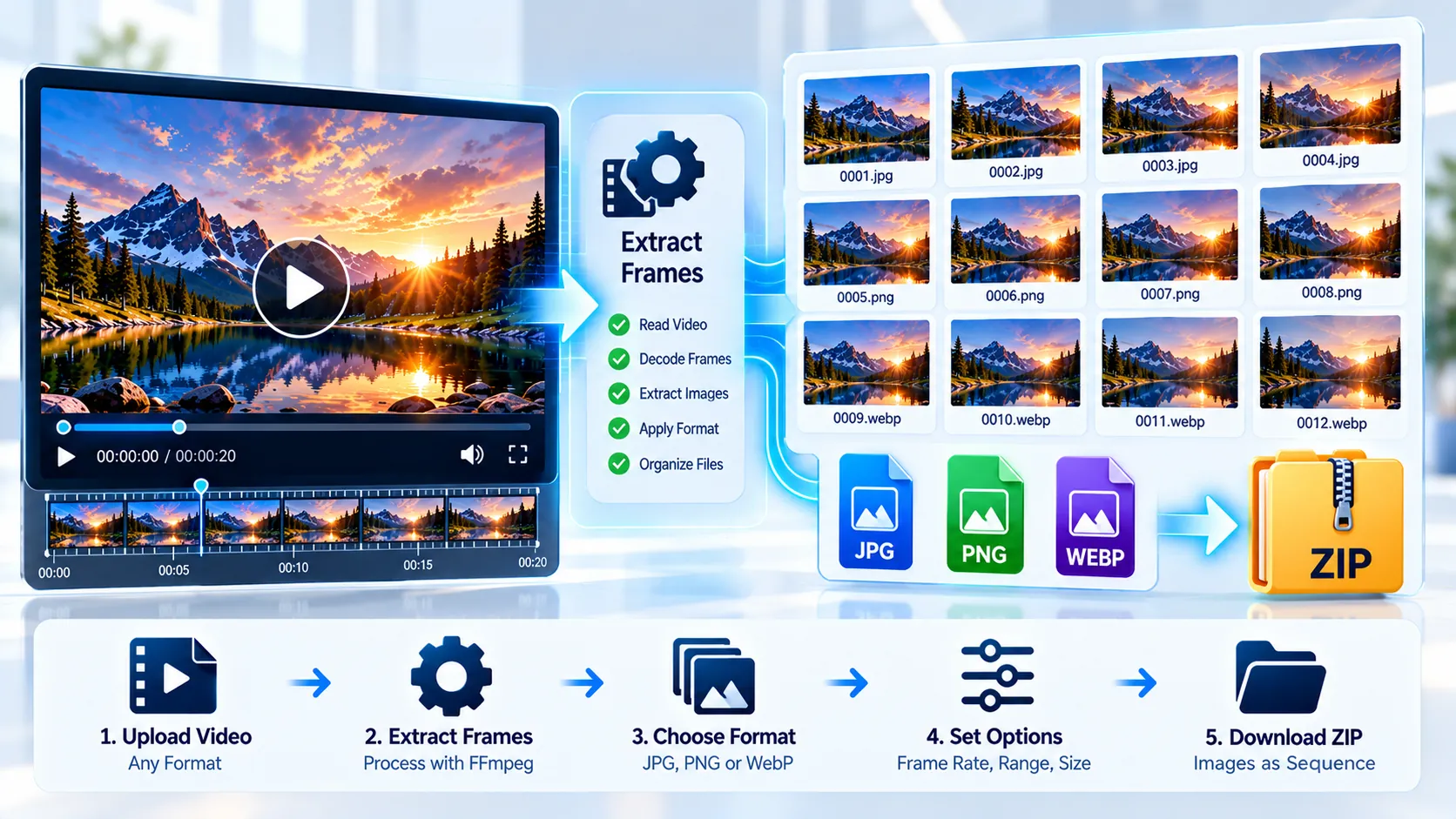
Video → Image Sequence Converter extracts still frames from a video and packages the generated image sequence into a validated ZIP archive. The tool processes the selected video locally in your browser with FFmpeg WebAssembly, analyzes the primary video stream before extraction, and lets you choose JPEG, PNG, or WebP output, frame sampling, image quality, and filename padding. The generated ZIP is reopened and checked before its download is exposed. Files are processed in browser-local FFmpeg memory and are not sent to a PKCapra upload endpoint.
Video → Image Sequence Converter
Extract video frames as numbered PNG, JPEG, or WebP images and package the generated sequence into one ZIP file.
What the source can produce
Choose the extraction profile
The browser input cap is 500 MB. Large videos, lossless PNG output, and high frame counts can require substantial browser memory and storage.
Image sequence ZIP ready
—
How to Use the Video → Image Sequence Converter in Simple Steps
- Upload or drag and drop your video file into the tool. The browser checks the file against the tool’s 500 MB input limit and begins analyzing the primary video stream.
- Review the source information and choose the extraction settings. The tool reports the video codec, pixel format, coded dimensions, frame-rate signal, duration, audio information, and an estimated source-frame count when enough timing information is available.
- Select the image format and frame sampling mode. Choose JPEG, PNG, or WebP, then select every source frame or a sampling rate of 1, 2, 5, 10, 15, 24, or 30 frames per second. JPEG and WebP provide quality controls, and generated filenames can use selectable zero-padding.
- Start the extraction and download the validated ZIP. FFmpeg renders the selected frames locally, the images are numbered and packaged into a ZIP archive, and the archive is reopened and checked before the download becomes available.
Technical breakdown of the tool’s competitive edge
The Video → Image Sequence Converter uses browser-local FFmpeg WebAssembly rather than sending the selected video to a PKCapra upload endpoint. The source media is written into browser-local FFmpeg memory, processed there, and then read back into the browser for ZIP packaging.
Before extraction, the tool analyzes the primary video stream and reports the available technical information needed to make the extraction settings meaningful. This includes the source codec, pixel format, coded width and height, frame-rate signal, duration, audio presence and audio codec, plus an estimated source-frame count when duration and frame-rate evidence allow that estimate.
The extraction engine supports three image output formats:
- JPEG for compact photographic frame exports.
- PNG for lossless image output.
- WebP for a modern image format with selectable quality control.
Frame extraction can operate in two modes. Every-frame mode follows the source frame cadence, while sampled modes use an FFmpeg FPS filter to generate frames at the selected rate of 1, 2, 5, 10, 15, 24, or 30 frames per second.
The output is not presented as a collection of uncontrolled temporary browser downloads. Frames are numbered, collected into one ZIP archive using JSZip, and accompanied by sequence information. The generated archive is then reopened and checked so the tool can verify that the expected frame entries exist before exposing the download.
The browser workflow also applies a 3,000-frame per-export safety cap. This protects practical browser memory usage when a long video or high sampling rate would otherwise generate an excessive number of image files.
The input safety limit is 500 MB. Actual extraction time and output size depend on the source video’s duration, dimensions, frame rate, selected sampling rate, image format, and quality settings.
The tool is designed for frame extraction rather than video editing. It does not claim to reconstruct a video, perform scene detection, or provide a semantic selection of the most important frames. Its purpose is to turn video frames into a numbered image sequence that can be downloaded as one validated ZIP archive.
For related video diagnostics and repair workflows, you can also use the Video Compatibility Checker + Auto-Fixer, Video GOP / Keyframe Interval Converter, Video SAR/DAR Fixer, or Video PTS/DTS Repair Converter.
Developer Snippets (Automate This Tool Offline)
The following PowerShell workflow provides a local FFmpeg equivalent for extracting frames from a video and packaging them into a ZIP archive. It requires FFmpeg to be installed and available on your PATH.
param(
    [Parameter(Mandatory = $true)]
    [string]$InputPath,

    [ValidateSet("jpeg", "png", "webp")]
    [string]$Format = "jpeg",

    [ValidateSet("every", "1", "2", "5", "10", "15", "24", "30")]
    [string]$FPS = "2",

    [ValidateRange(1, 100)]
    [int]$Quality = 90,

    [ValidateRange(1, 12)]
    [int]$Padding = 4,

    [string]$OutputDirectory = ".\image-sequence-output"
)

$ErrorActionPreference = "Stop"

if (-not (Test-Path -LiteralPath $InputPath -PathType Leaf)) {
    throw "Input video was not found: $InputPath"
}

if (-not (Get-Command ffmpeg -ErrorAction SilentlyContinue)) {
    throw "FFmpeg was not found on PATH."
}

$OutputDirectory = [System.IO.Path]::GetFullPath($OutputDirectory)

if (Test-Path -LiteralPath $OutputDirectory) {
    Remove-Item -LiteralPath $OutputDirectory -Recurse -Force
}

New-Item -ItemType Directory -Path $OutputDirectory | Out-Null

$extension = switch ($Format) {
    "jpeg" { "jpg" }
    "png"  { "png" }
    "webp" { "webp" }
}

$pattern = Join-Path $OutputDirectory ("frame_%0{0}d.{1}" -f $Padding, $extension)

$arguments = @("-hide_banner", "-loglevel", "error", "-i", $InputPath)

if ($FPS -ne "every") {
    $arguments += @("-vf", "fps=$FPS")
}

switch ($Format) {
    "jpeg" {
        $q = [Math]::Max(2, [Math]::Min(31, [Math]::Round(31 - ($Quality * 29 / 100))))
        $arguments += @("-q:v", $q)
    }
    "png" {
        $arguments += @("-compression_level", "6")
    }
    "webp" {
        $arguments += @("-c:v", "libwebp", "-q:v", $Quality)
    }
}

$arguments += @("-fps_mode", "passthrough", $pattern)

& ffmpeg @arguments

if ($LASTEXITCODE -ne 0) {
    throw "FFmpeg frame extraction failed with exit code $LASTEXITCODE."
}

$frames = Get-ChildItem -LiteralPath $OutputDirectory -File -Filter "*.$extension" |
    Sort-Object Name

if ($frames.Count -eq 0) {
    throw "FFmpeg completed without producing image frames."
}

if ($frames.Count -gt 3000) {
    throw "The export contains $($frames.Count) frames. Reduce the sampling rate or shorten the source video."
}

$zipPath = Join-Path (Split-Path -Parent $OutputDirectory) "video-image-sequence.zip"

if (Test-Path -LiteralPath $zipPath) {
    Remove-Item -LiteralPath $zipPath -Force
}

Compress-Archive -Path (Join-Path $OutputDirectory "*") -DestinationPath $zipPath -CompressionLevel Optimal

if (-not (Test-Path -LiteralPath $zipPath -PathType Leaf)) {
    throw "ZIP creation failed."
}

Write-Host "Frames created: $($frames.Count)"
Write-Host "ZIP archive: $zipPath"
A simple two-second extraction at 2 FPS can therefore be reproduced locally with:
ffmpeg -hide_banner -i "input.mp4" -t 2 -vf "fps=2" -q:v 3 "frame_%04d.jpg"For lossless PNG output:
ffmpeg -hide_banner -i "input.mp4" -vf "fps=2" -compression_level 6 "frame_%04d.png"For WebP output:
ffmpeg -hide_banner -i "input.mp4" -vf "fps=2" -c:v libwebp -q:v 90 "frame_%04d.webp"Native software workaround integration tutorial
FFmpeg provides the closest native desktop workflow when browser processing is not practical.
- Install FFmpeg and confirm that
ffmpeg -versionworks from PowerShell or Command Prompt. - Create a dedicated output folder so extracted frames do not mix with the source video or unrelated files.
- Run an FFmpeg extraction command using either every-frame extraction or an FPS filter. For example, this command creates JPEG frames at 5 FPS: ffmpeg -hide_banner -i “input.mp4” -vf “fps=5” -q:v 3 “frames\frame_%04d.jpg”
- Inspect the generated sequence and confirm that the number of frames is appropriate for the video duration and selected sampling rate.
- Package the resulting frames into a ZIP archive. On Windows PowerShell: Compress-Archive -Path “.\frames*” -DestinationPath “.\video-image-sequence.zip” -CompressionLevel Optimal
For lossless PNG extraction, replace the JPEG output with:
ffmpeg -hide_banner -i "input.mp4" -vf "fps=5" -compression_level 6 "frames\frame_%04d.png"This native workflow is useful when you need to process files larger than the browser tool’s 500 MB input limit or when a desktop FFmpeg installation is more appropriate for a large extraction job. The PKCapra browser tool remains focused on a controlled, browser-local extraction workflow with built-in frame-count safety and ZIP validation.
If the source video needs a technical compatibility repair before frame extraction, the H.264 Compatibility Converter can be used as a separate conversion step. For interlaced footage, the Interlaced → Progressive Video Converter provides a dedicated deinterlacing workflow. For HDR footage, the HDR → SDR Video Converter provides a dedicated SDR conversion workflow.
Frequently Asked Questions
What does a Video → Image Sequence Converter do?
A Video → Image Sequence Converter extracts still frames from a video and saves them as numbered image files. PKCapra packages the extracted frames into a single ZIP archive for download.
Which image formats does the tool support?
JPEG, PNG, and WebP are the supported image output formats. PNG provides lossless image output, while JPEG and WebP support selectable quality policies.
Can I extract every frame from a video?
Every-frame extraction is supported when the resulting export stays within the tool’s 3,000-frame per-export safety cap. Long or high-frame-rate videos may therefore require a lower sampling rate.
What frame rates can I choose?
The sampling options are every source frame, 1 FPS, 2 FPS, 5 FPS, 10 FPS, 15 FPS, 24 FPS, and 30 FPS. Sampled modes use an FFmpeg FPS filter to generate the requested rate.
What is the 3,000-frame limit?
The 3,000-frame limit is a per-export browser safety cap designed to keep memory usage practical. If an extraction would exceed the cap, the sampling rate or source duration needs to be reduced.
Are my videos uploaded to PKCapra?
The tool processes the selected media with browser-local FFmpeg WebAssembly and does not send the source video to a PKCapra upload endpoint. The source is written into browser-local FFmpeg memory for processing.
Why is my ZIP file validated before download?
ZIP validation confirms that the generated archive can be reopened and that the expected frame entries are present. The download is exposed only after this browser-side archive check completes.
Does the tool extract audio from the video?
Audio is analyzed as part of the source information, but the extraction output is an image sequence. Audio is not included as an output track in the generated ZIP.
What happens if my video is larger than 500 MB?
The browser tool has a 500 MB input safety limit. For larger files, a native FFmpeg workflow can be used on the desktop instead.
Can I use the extracted frames to make another video?
Yes. A numbered image sequence is a common input structure for video encoding workflows, but converting the sequence back into a video is a separate operation from this tool.