
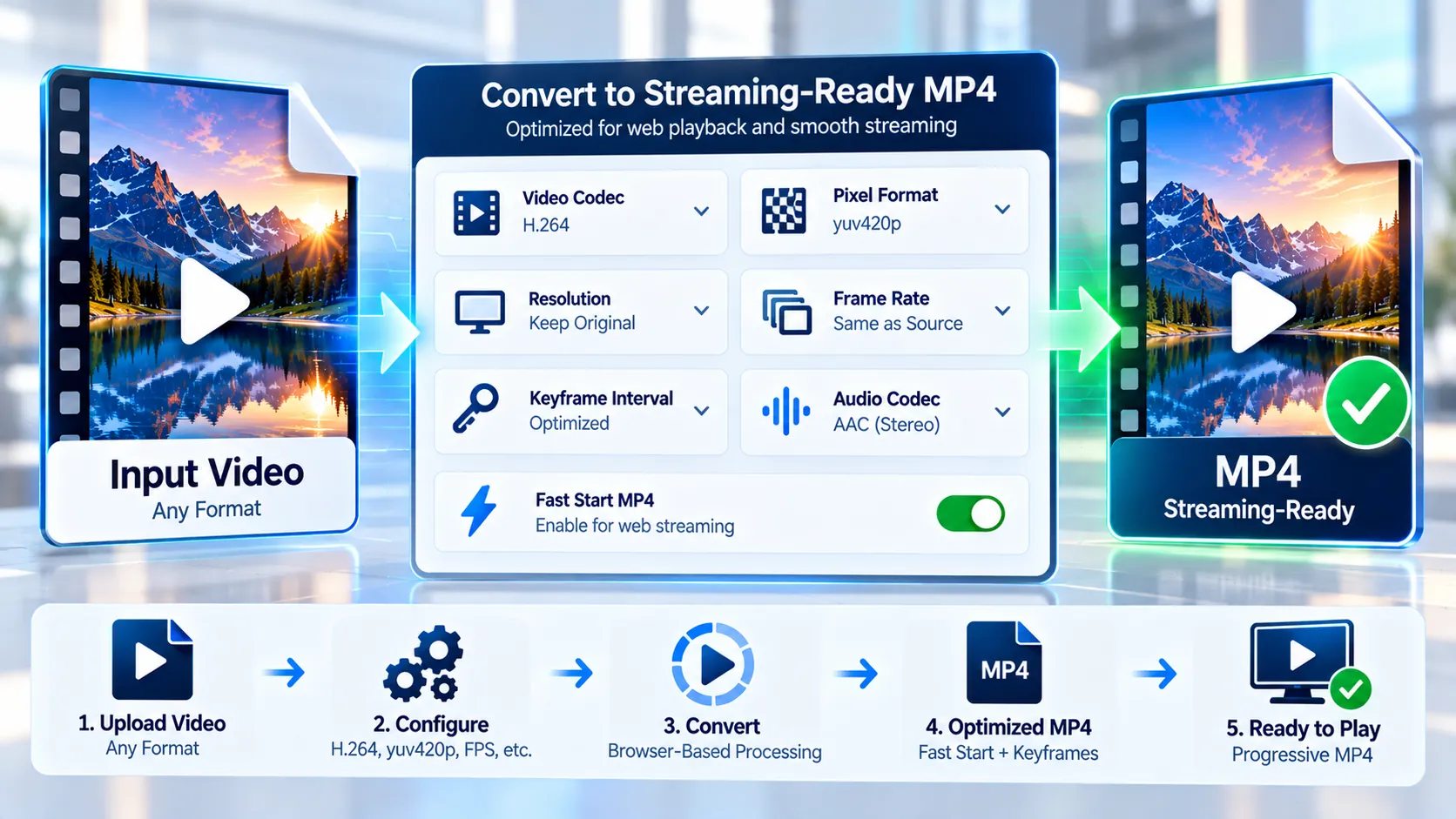
Streaming-Ready MP4 Converter prepares video files for progressive web delivery by rebuilding them as a controlled MP4 profile with H.264 video, yuv420p pixel format, fast-start packaging, selectable keyframe cadence, and optional AAC audio normalization. The tool analyzes the source media first, reports important video and audio properties, processes the selected file locally in your browser with FFmpeg WebAssembly, and validates the generated MP4 before making the download available. Files are processed in browser-local FFmpeg memory and are not sent to a PKCapra upload endpoint.
Streaming-Ready MP4 Converter
Analyze a local video for practical progressive web-streaming requirements, then rebuild it as a validated fast-start MP4 with browser-friendly H.264 video and AAC audio.
What the source is doing
Choose the target delivery profile
This tool prepares a single MP4 for progressive web delivery. It does not create adaptive HLS/DASH manifests, multiple bitrate renditions, or a streaming server.
Streaming-ready MP4 ready
—
How to Use the Streaming-Ready MP4 Converter in Simple Steps
- Upload your video
Select a video file with the file picker or drag and drop it into the converter. The browser-based tool accepts files up to 500 MB. - Review the streaming-readiness analysis
The tool analyzes the primary video and audio streams and reports information such as codec, pixel format, dimensions, frame-rate signal, audio codec, sample rate, channels, container evidence, and observed I-frame/keyframe spacing. - Choose the target settings and convert
Select the CRF quality level, 1-, 2-, or 4-second keyframe cadence, frame-rate policy, and audio mode. The available frame-rate choices are Preserve, 24 fps, 25 fps, and 30 fps. Audio can be kept with the source-audio path, normalized to AAC 48 kHz stereo, or removed. - Download the validated MP4
After conversion, the tool validates the video and audio streams, checks the MP4 fast-start structure, and checks the resulting keyframe spacing. The download is exposed after the required validation checks succeed.
Technical breakdown of the tool’s competitive edge
The Streaming-Ready MP4 Converter is designed around a defined progressive-MP4 target rather than treating every MP4 file as automatically suitable for web delivery. Its analysis examines the primary streams and combines codec, pixel format, dimensions, frame-rate signal, audio properties, container evidence, and observed keyframe spacing into a practical streaming-readiness assessment.
The target video profile uses H.264 High Profile, Level 4.1, and 8-bit yuv420p video inside an MP4 container. The converter supports 1-, 2-, and 4-second keyframe cadence choices and can normalize retained audio to AAC 48 kHz stereo.
The quality control uses CRF 18, 20, or 23. The frame-rate control can preserve the source frame-rate signal or normalize it to 24, 25, or 30 fps.
The audio workflow supports three practical paths: keep the source audio, convert audio to AAC, or remove audio. When source audio is kept, the converter attempts direct audio copy first and can use AAC fallback when required by the output workflow.
The generated video is encoded with libx264 and yuv420p. The conversion explicitly maps the primary video and primary audio streams when audio is selected, applies the chosen frame-rate policy, applies the selected keyframe cadence, strips metadata and chapters from the rebuilt output, and packages the result as a fast-start MP4.
The output is also validated instead of assuming that FFmpeg completion means the file is ready. The final MP4 is decoded through FFmpeg, the primary video must expose H.264 yuv420p, retained audio must decode successfully, AAC mode must produce AAC audio, and the MP4 structure is checked for the expected moov before mdat arrangement. The output keyframe scan is also checked against the selected cadence tolerance.
This local processing model is useful when the source video needs a predictable progressive MP4 structure without sending the selected media to a PKCapra upload endpoint. The browser workflow has a 500 MB input limit and cleans up temporary FFmpeg files and generated object URLs after processing.
For a general browser-oriented compatibility diagnosis and repair workflow, Video Compatibility Checker + Auto-Fixer can identify and rebuild common compatibility problems.
For dedicated GOP and keyframe interval control, use Video GOP / Keyframe Interval Converter.
If the source has incorrect sample/display aspect-ratio information, Video SAR/DAR Fixer provides the dedicated SAR/DAR repair workflow.
For timestamp and synchronization problems, Video PTS/DTS Repair Converter is the dedicated repair tool.
If the main requirement is a specific H.264 profile or level, H.264 Compatibility Converter provides a focused H.264 conversion workflow.
Interlaced sources can be processed with Interlaced → Progressive Video Converter, while HDR sources that need SDR output can use HDR → SDR Video Converter.
The tool does not generate HLS or DASH manifests and does not create adaptive-bitrate renditions. Its streaming scope is progressive MP4 preparation and validation.
Developer Snippets (Automate This Tool Offline)
The same general progressive-MP4 target can be automated locally with FFmpeg. The following PowerShell script converts one input file to H.264 High Profile, Level 4.1, yuv420p, AAC 48 kHz stereo, fast-start MP4, and an approximately 2-second GOP for a 25 fps source.
$input = "input.mp4"
$output = "streaming-ready.mp4"

ffmpeg -i $input `
  -map 0:v:0 -map 0:a:0? `
  -c:v libx264 `
  -profile:v high `
  -level 4.1 `
  -pix_fmt yuv420p `
  -crf 20 `
  -g 50 `
  -keyint_min 50 `
  -sc_threshold 0 `
  -c:a aac `
  -ar 48000 `
  -ac 2 `
  -b:a 160k `
  -movflags +faststart `
  -map_metadata -1 `
  -map_chapters -1 `
  $output
For a 30 fps source, an approximately 2-second GOP can use 60 frames:
$input = "input.mp4"
$output = "streaming-ready-30fps.mp4"

ffmpeg -i $input `
  -map 0:v:0 -map 0:a:0? `
  -c:v libx264 `
  -profile:v high `
  -level 4.1 `
  -pix_fmt yuv420p `
  -crf 20 `
  -r 30 `
  -g 60 `
  -keyint_min 60 `
  -sc_threshold 0 `
  -c:a aac `
  -ar 48000 `
  -ac 2 `
  -b:a 160k `
  -movflags +faststart `
  -map_metadata -1 `
  -map_chapters -1 `
  $output
You can inspect the resulting stream structure with FFprobe:
ffprobe -v error `
  -show_entries stream=index,codec_name,profile,level,pix_fmt,width,height,r_frame_rate,avg_frame_rate,sample_rate,channels `
  -show_entries format=format_name,duration,size `
  -of json `
  streaming-ready.mp4
To inspect video keyframes:
ffprobe -v error `
  -select_streams v:0 `
  -skip_frame nokey `
  -show_entries frame=best_effort_timestamp_time,pict_type `
  -of csv `
  streaming-ready.mp4
These commands are local FFmpeg/FFprobe workflows and do not depend on the PKCapra browser interface.
Native software workaround integration tutorial
A native desktop workflow can reproduce the main conversion policy with FFmpeg installed on the computer.
First, inspect the source with FFprobe:
ffprobe -v error -show_streams -show_format input.mp4Review the video codec, pixel format, dimensions, frame-rate, audio codec, sample rate, channel count, and container information before choosing the target settings.
Next, encode the video as H.264 High Profile, Level 4.1, yuv420p and package it as MP4 with +faststart. Choose the GOP/keyframe interval according to the target frame rate. For example, approximately two seconds corresponds to 48 frames at 24 fps, 50 frames at 25 fps, and 60 frames at 30 fps.
If standardized web audio is required, encode the audio as AAC at 48 kHz stereo. If the original audio is already suitable and you want to preserve it, a direct-copy workflow can be used instead, subject to MP4/container compatibility.
After encoding, run FFprobe again and verify the resulting video and audio streams. The final file should also be checked for the expected fast-start MP4 structure and keyframe cadence before publishing it.
This native workflow is useful for batch jobs, server-side media pipelines, desktop automation, or cases where browser memory limits make local command-line processing more practical.
Frequently Asked Questions
What is a streaming-ready MP4?
A streaming-ready MP4 is a progressive MP4 prepared against a defined web-delivery profile. In this tool, that profile includes H.264 High Profile/Level 4.1 video, yuv420p pixel format, fast-start MP4 packaging, controlled keyframe spacing, and the selected audio configuration.
Does the tool create HLS or DASH streaming?
The tool creates progressive MP4 output rather than HLS or DASH packages. It does not generate HLS/DASH manifests or adaptive-bitrate renditions.
Why does the converter check the MP4 structure?
The converter checks the MP4 structure to verify fast-start packaging. The validation looks for the expected moov before mdat arrangement before the download is exposed.
What does the 1-, 2-, or 4-second keyframe setting do?
The keyframe setting controls the requested time-based spacing of forced keyframes in the converted video. Shorter intervals create more frequent keyframes, while longer intervals reduce their frequency.
Can I keep my original audio?
The converter can keep the source audio through its source-audio path. It attempts direct audio copy first and has an AAC fallback when the output workflow requires it.
Can I convert the audio to AAC?
AAC conversion is a supported audio mode. The AAC target uses 48 kHz stereo, with selectable 128, 160, 192, or 256 kbps bitrate options.
Can I remove audio completely?
Audio removal is a supported conversion option. When selected, the output contains the converted video without a retained audio stream.
Can I preserve the original frame rate?
The converter supports preserving the source frame-rate signal or normalizing the output to 24, 25, or 30 fps.
Is my video uploaded to PKCapra?
The selected source media remains in browser-local FFmpeg processing and is not sent to a PKCapra upload endpoint. The browser workflow has a 500 MB input limit.
Does successful FFmpeg conversion automatically mean the file is valid?
FFmpeg completion alone is not the final validation condition in this tool. The generated MP4 is decoded and checked for the expected video and audio properties, fast-start atom order, and keyframe spacing before the download is exposed.