
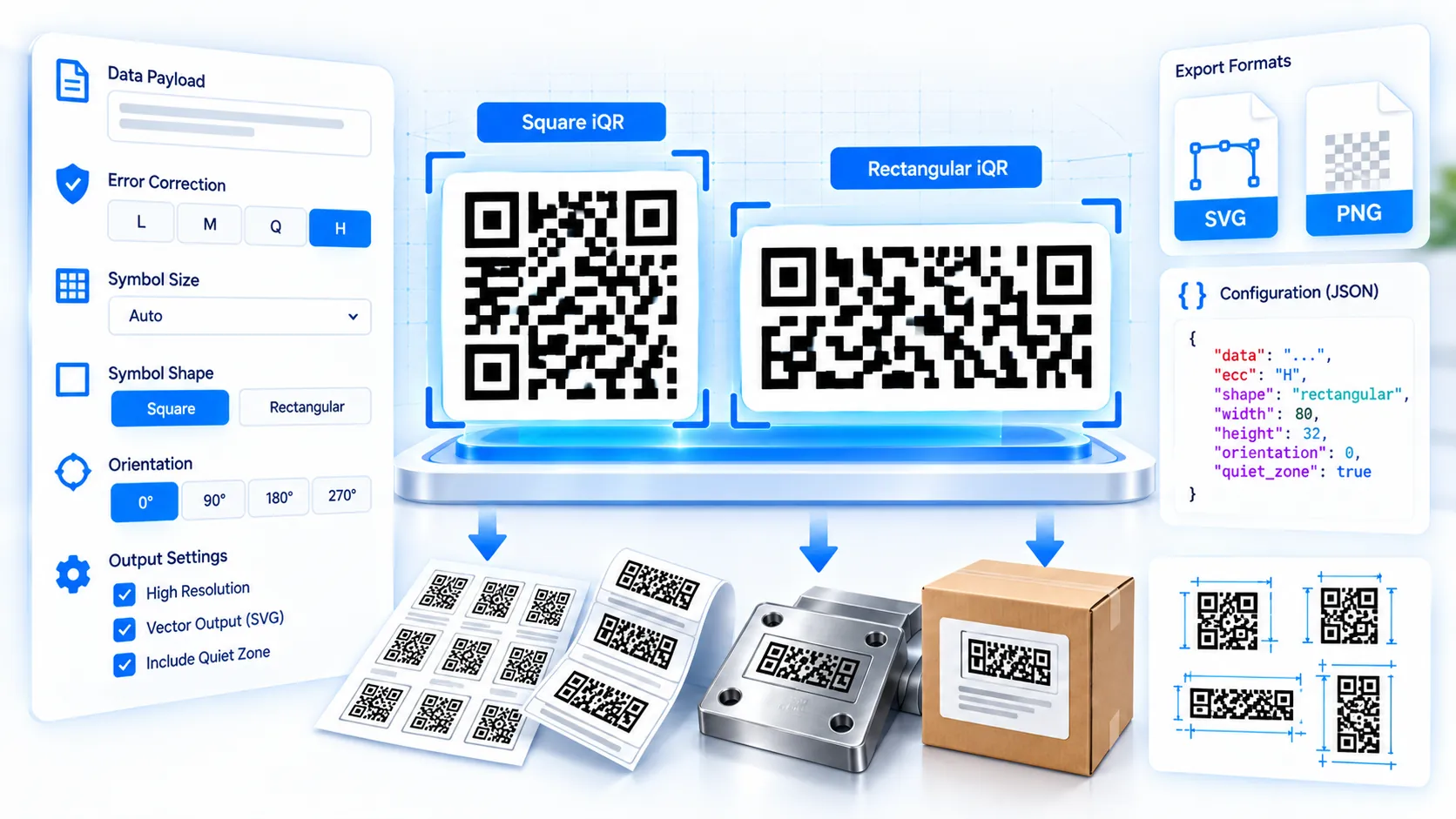
The iQR Code Generator prepares a structured iQR production specification for workflows that require DENSO WAVE’s iQR Code format. Enter the payload, choose the symbol configuration, error-correction level, encoding mode, and production options, then review the generated specification, capacity guidance, compatibility checks, and production brief. The tool runs in the browser and prepares implementation-ready JSON; it does not pretend to encode a proprietary iQR symbol when a licensed or supported iQR encoder is required.
iQR Code Generator
Prepare an iQR generation specification for DENSO-compatible workflows, including shape, version range, error correction, polarity, margin, and payload settings.
Payload
iQR Configuration
Output Options
Generation Specification
LIVEExport & Share
Compatibility Checks
How to Use the iQR Code Generator in Simple Steps
- Enter the data you want to encode in the payload field. Use Auto mode when you want the tool to determine a suitable data mode, or select the appropriate numeric, text, Kanji, or binary mode for your workflow.
- Choose a square or rectangular iQR configuration, or use the available automatic configuration options. Select the required error-correction level from the supported choices.
- Review the live capacity, configuration, compatibility checks, and production options. Options such as inverted output, turned-over orientation, dot-pattern marking, and GS1 workflow preparation should match the requirements of the final production system.
- Copy the generated JSON or production brief, download the JSON specification, use Load Example to inspect a sample configuration, or select Clear to begin a new specification.
Technical Breakdown: How the iQR Code Generator Works
iQR Code is a 2D code format developed by DENSO WAVE. It extends the QR-code concept with square and rectangular symbol configurations intended for applications where different physical layouts, capacities, or marking requirements are needed.
The PKCapra tool focuses on iQR production specification and payload planning. It does not substitute a proprietary iQR encoding engine with an ordinary QR or rMQR encoder. This distinction matters because generating a visually QR-like matrix is not the same as generating a standards-compatible iQR symbol.
The configuration interface exposes square and rectangular iQR choices, error-correction settings, encoding modes, orientation options, and production-related flags. The generated specification records these choices so the configuration can be transferred to a compatible downstream iQR implementation.
The tool supports the documented iQR configuration families represented by the interface, including square version planning and rectangular R-series configurations. The selected configuration is evaluated against the entered payload so that obvious capacity or compatibility problems can be surfaced before production.
Error correction is treated as a configuration parameter rather than a guarantee of successful scanning. Higher correction can improve tolerance to certain types of symbol damage, but actual performance still depends on module size, contrast, printing or marking quality, surface conditions, distortion, scanner characteristics, and the physical application.
The inverted output option is useful for workflows where the required marking convention uses reversed foreground/background treatment. The turned-over orientation option records the intended orientation for the downstream production process. These settings should be validated against the actual iQR encoder and reader used in production.
The dot-pattern option is intended for applications involving direct marking or other dot-oriented production methods. It does not automatically prove that a particular printer, laser marker, substrate, or surface will produce a readable code.
The GS1 workflow flag helps prepare an iQR configuration for a GS1-oriented data workflow. It does not independently validate every GS1 Application Identifier, business rule, or trading-partner requirement.
All normal payload preparation and specification generation occurs in the browser. The tool does not require an API key or server-side payload encoding for its normal workflow.
For standard square QR creation, use the QR Code Generator. For rectangular Micro QR creation, use the rMQR Code Generator. For compact square Micro QR symbols, use the Micro QR Code Generator.
Developer Snippets (Automate This Tool Offline)
The following examples create an iQR-style production specification for downstream processing. They do not implement the proprietary iQR encoding algorithm.
Python: Create an iQR Production Specification
import json
from datetime import datetime, timezone

payload = "PRODUCT-123456"

specification = {
    "format": "iQR",
    "payload": payload,
    "mode": "auto",
    "error_correction": "M",
    "symbol_type": "square",
    "version": "auto",
    "inverted": False,
    "turned_over": False,
    "dot_pattern": False,
    "gs1_workflow": False,
    "generated_at": datetime.now(timezone.utc).isoformat()
}

print(json.dumps(specification, indent=2))
PowerShell: Save an iQR Specification
$specification = @{
    format = "iQR"
    payload = "PRODUCT-123456"
    mode = "auto"
    error_correction = "M"
    symbol_type = "square"
    version = "auto"
    inverted = $false
    turned_over = $false
    dot_pattern = $false
    gs1_workflow = $false
}

$specification |
    ConvertTo-Json -Depth 5 |
    Set-Content -Path ".\iqr-production-spec.json" -Encoding UTF8

Write-Host "iQR specification saved."
Node.js: Prepare a Downstream iQR Job
const specification = {
  format: "iQR",
  payload: "PRODUCT-123456",
  mode: "auto",
  error_correction: "M",
  symbol_type: "square",
  version: "auto",
  inverted: false,
  turned_over: false,
  dot_pattern: false,
  gs1_workflow: false
};

console.log(JSON.stringify(specification, null, 2));
These snippets are intentionally specification-oriented. A production application should pass the resulting configuration to an iQR encoder that explicitly supports the required iQR format rather than converting the data into an ordinary QR Code.
Native Software Workaround: Prepare iQR Production Data
Native software can organize the payload and production requirements before the specification is transferred to an iQR-compatible encoding system.
In Microsoft Excel, keep the payload, symbol type, version, error correction, orientation, and production flags in separate columns. This structure is useful for preparing batches of product or inventory records before downstream encoding.
In Microsoft Access, store the payload and production parameters as separate fields in the source table. Queries can then select records that meet a particular iQR production configuration.
In Visual Studio Code, save the generated specification as a .json file and validate the JSON structure before passing it to your downstream application.
In Adobe Illustrator or InDesign, treat the resulting specification as source configuration rather than artwork. Generate the actual iQR vector artwork through a compatible iQR encoder, then place that approved artwork into the final packaging, label, or document layout.
For direct-part-marking workflows, validate the final physical symbol on the actual substrate and with the intended scanner. Digital configuration alone cannot account for material reflectivity, marking depth, dot formation, surface curvature, or production tolerances.
Frequently Asked Questions
What is an iQR Code?
An iQR Code is a 2D code format developed by DENSO WAVE that supports square and rectangular symbol configurations for applications requiring flexible symbol shapes and capacities.
Does this tool generate the actual iQR symbol?
The tool generates an iQR production specification rather than claiming to implement proprietary iQR matrix encoding. The specification can be used as structured input for a compatible downstream iQR encoder.
Why does PKCapra not draw an ordinary QR matrix and call it iQR?
An ordinary QR matrix is not automatically an iQR symbol. Treating different barcode formats as interchangeable can create artwork that looks plausible but is not compatible with the required encoder or reader.
Which iQR configurations can I plan?
The generator provides the supported square and rectangular configuration choices exposed by the tool, including the available iQR version and R-series planning options.
Which error-correction levels are available?
The generator provides the supported iQR error-correction choices exposed in its interface, including L, M, Q, H, and S where applicable to the selected configuration.
What does Auto mode do?
Auto mode helps determine an appropriate encoding mode and configuration based on the entered payload and the selected production requirements.
Can I use binary data?
Binary-oriented payloads can be prepared using the binary mode available in the tool. The downstream iQR encoder must support the corresponding data representation.
What does the inverted option mean?
The inverted option records a reversed foreground/background configuration for workflows where the final iQR production system supports that marking arrangement.
What does turned-over orientation mean?
Turned-over orientation records an intended orientation state for downstream production or reading workflows. The actual interpretation must match the compatible encoder and reader used by the application.
Is the dot-pattern option a guarantee for direct-part marking?
Dot-pattern selection is not a guarantee of production quality. Direct marking depends on the marking technology, substrate, symbol dimensions, contrast, surface properties, and scanner requirements.
Does the GS1 option validate my GS1 data?
The GS1 workflow option prepares the specification for a GS1-oriented workflow, but it is not a complete replacement for GS1 Application Identifier validation, data-quality checks, or trading-partner requirements.
Does the tool upload my payload?
The normal specification-generation workflow runs in the browser and does not require server-side payload processing by PKCapra.
Can I download the iQR configuration?
The generated specification can be downloaded as JSON for transfer to another application or for later processing.
Can I use this tool for ordinary QR Codes?
The iQR Code Generator is intended for iQR planning. Use the QR Code Generator when you need a conventional QR Code.
What should I do before using an iQR code commercially?
Validate the final encoded symbol with the intended iQR encoder, reader, production equipment, substrate, physical dimensions, and applicable industry requirements before deploying it in a production workflow.