
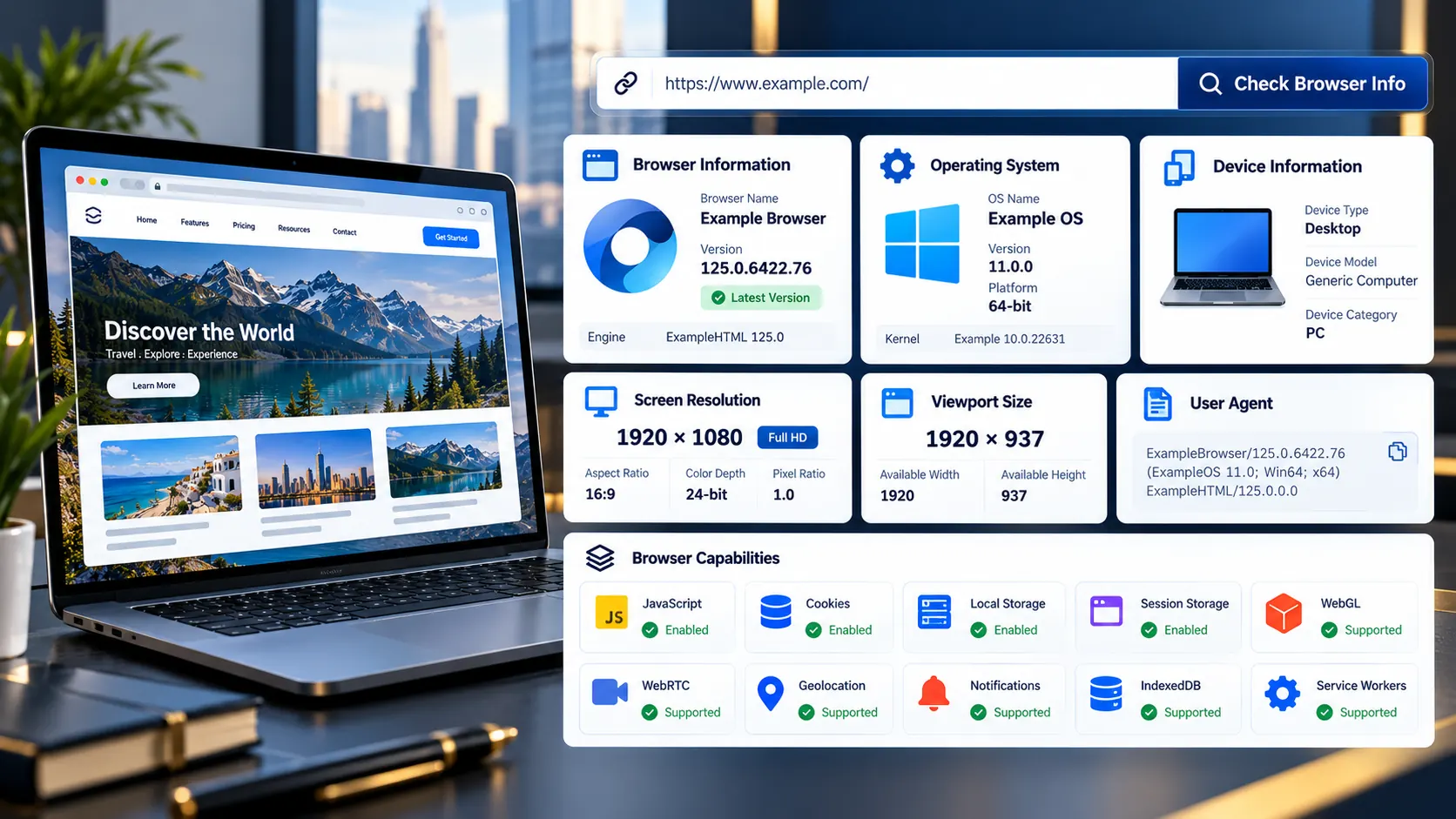
Find Out What Browser You Are Using
If you are wondering “what is my browser?”, you do not need to search through browser settings or guess from the appearance of a website.
PKCapra’s What Is My Browser tool reads the information your current browser makes available to web pages and turns it into an easy-to-understand report.
You can see your:
- Browser name and version
- Rendering engine
- Operating system
- Device type
- Screen resolution
- Browser viewport
- Device pixel ratio
- Language and timezone
- User-agent string
- CPU and memory information where available
- Browser capabilities and supported APIs
- Storage and web platform features
- Graphics capabilities
- Privacy and browser preference signals
The detection happens directly in your browser. The tool is designed to show you what your current browser environment reports without requiring you to enter your IP address, install software, or provide personal information.
What Is My Browser?
Instantly identify your browser, version, operating system, device, screen, language, timezone, browser capabilities, and useful technical details.
Browser & system details
Read from standard browser APIsBrowser capabilities
Feature availability, without requesting permissionsConnection hints
Browser-reported network information when availableModern browser identification
Client Hints when the browser exposes themWhat Is My Browser Tool?
A browser is the software you use to open and interact with websites. Common examples include Chrome, Safari, Firefox, Edge and other Chromium- or WebKit-based browsers.
The browser checker answers the practical question behind searches such as:
“What browser am I using right now?”
Instead of relying on memory, the tool reads available browser signals and presents them in a structured report.
This is useful when a website asks which browser you are using, when troubleshooting a compatibility problem, or when you need to provide technical details to a developer or support team.
Modern browsers can expose different levels of information depending on the browser, operating system, privacy settings and available APIs. For that reason, PKCapra reports what the browser actually exposes rather than pretending that every device provides the same information.
What Information Does the Browser Checker Detect?
Browser Name and Version
The tool identifies the browser family and the version information available to the page.
This can help when troubleshooting browser-specific problems or checking whether a feature may be available in your current browser.
Browser identification is not always perfectly equivalent to the exact software installed on the device. Privacy protections, compatibility modes, extensions and user-agent changes can affect what websites see.
Rendering Engine
The rendering engine is the technology responsible for interpreting web content and displaying it.
Examples include:
- Blink
- WebKit
- Gecko
Knowing the rendering engine can be useful for developers investigating differences between browsers.
Two browsers can have different brand names while sharing the same underlying browser engine.
Operating System
The checker reports the operating-system information that the browser makes available.
Depending on the browser and platform, this may identify a system such as:
- Windows
- macOS
- Linux
- Android
- iOS or iPadOS
- Other supported platforms
The reported value should be treated as browser-visible information rather than a guaranteed complete operating-system inventory.
Device Type
The tool can classify the current environment as a desktop, mobile device or tablet when the available browser signals are sufficient to make that distinction.
This is particularly useful when testing responsive websites because the same page can behave very differently across device classes.
Screen Resolution
Screen resolution describes the display dimensions exposed to the browser.
For example, a display may report a width and height in pixels, but that does not necessarily mean a website receives the same dimensions as its CSS layout viewport.
That distinction is important when testing responsive designs.
Browser Viewport
The viewport is the area available for displaying the webpage inside the browser.
It is different from the physical or reported screen resolution.
Browser controls, operating-system interface elements, window size, zoom and device characteristics can all affect the viewport.
For web developers, viewport dimensions are often more useful than the monitor’s advertised resolution because CSS responsive layouts operate around the browser’s available layout space.
Device Pixel Ratio
Device Pixel Ratio, commonly called DPR, describes the relationship between CSS pixels and physical display pixels.
A high-density display can have a DPR greater than 1, meaning multiple physical pixels may represent a single CSS pixel.
This is one reason why a phone’s advertised screen resolution and the viewport dimensions reported to a website can look very different.
Language and Timezone
Your browser can expose language preferences and timezone information to websites.
These signals help websites:
- Display appropriate language
- Format dates and times
- Format numbers and currencies
- Select localized content
- Provide region-appropriate experiences
They can also form part of the collection of browser signals used for compatibility and analytics.
User-Agent String
The User-Agent is a browser-provided identification string traditionally sent with web requests.
It can contain information associated with the browser, rendering engine, operating system and platform.
Developers commonly request the user-agent string when diagnosing:
- Browser compatibility problems
- Incorrect browser detection
- Device-specific bugs
- Server-side browser handling
- Responsive or feature-detection issues
Modern browser privacy protections can reduce or standardize some user-agent information, so it should not be treated as a perfect fingerprint of the underlying device.
CPU and Memory Information
Where supported, the browser may expose limited information about processor concurrency or device memory.
These values are useful as hints for web performance and application adaptation, but they are not equivalent to a complete hardware specification.
A browser may intentionally reduce, round or omit hardware-related information.
Browser Capabilities and Feature Detection
Knowing your browser name is only part of understanding your web environment.
Different browsers and configurations support different web APIs.
PKCapra can report available browser capabilities such as support for technologies including:
- WebGL
- WebGL2
- WebGPU where available
- WebAssembly
- Service Workers
- Storage APIs
- Notifications
- Media capabilities
- Clipboard APIs
- Web Share
- Other browser-exposed features
This is useful when a website or web application requires a particular browser capability.
A browser version alone does not guarantee that every API will be available. Operating-system restrictions, privacy settings, permissions, security policies and browser configuration can also affect feature availability.
Browser Version vs. Browser Capability
These two concepts should not be confused.
A browser version tells you which software version the browser reports.
Feature detection tells you whether a particular capability is actually available in the current environment.
For developers, feature detection is often more useful than assuming that a particular browser version automatically supports everything.
For example, a browser may expose a feature differently depending on:
- Browser settings
- Operating system
- Security context
- Permission state
- Experimental features
- Privacy protections
- Hardware availability
That is why PKCapra separates browser identification from capability information.
Screen Resolution vs. Viewport Size
This is one of the most common sources of confusion.
Screen resolution describes the display dimensions reported to the browser.
Viewport size describes the available webpage area.
They are not necessarily the same.
A laptop may have a large display resolution while the browser window occupies only part of the screen.
On mobile devices, device pixel ratio and browser UI can create an even larger difference between physical pixels and CSS pixels.
If you are testing responsive design, the viewport is usually the more important measurement.
For broader website performance work, you can also use the PKCapra Page Speed Analyzer to investigate how the page performs under browser conditions.
Why Do Websites Need Browser Information?
Websites use browser information for legitimate technical purposes.
Responsive Design
A website can adapt its layout to the available viewport.
Browser Compatibility
Developers can investigate whether a feature behaves differently across browser engines.
Localization
Language and timezone information can help websites display dates, numbers and content appropriately.
Feature Detection
Web applications can determine whether specific browser APIs are available.
Troubleshooting
Support teams often need browser and operating-system information before diagnosing a technical problem.
Web Development
Developers can use browser and viewport information while testing responsive layouts and browser-specific behavior.
When Should You Use What Is My Browser?
This tool is especially useful when:
- A support team asks which browser you are using.
- A website does not work correctly.
- You need your browser version.
- You need to provide a user-agent string.
- A developer asks for your device and browser environment.
- You are testing responsive layouts.
- You want to compare browser capabilities.
- You want to check your viewport dimensions.
- You are troubleshooting a browser-specific issue.
- You want to understand what information your browser exposes to websites.
Instead of searching through settings menus, you can open the checker and inspect the current environment directly.
How to Use the Browser Checker
There is no complicated setup.
1. Open the tool
Open PKCapra What Is My Browser in the browser you want to inspect.
2. Let the detection run
The tool reads browser-accessible information from the current environment.
3. Review the results
Check the browser, version, operating system, device, screen, viewport and capability sections.
4. Copy the report when needed
If you are contacting technical support or a developer, copy the relevant browser details or the complete report.
5. Compare the information with your problem
If a website works in one browser but not another, the detected browser engine, version and supported capabilities can help narrow down the cause.
What Does a User-Agent String Tell You?
A user-agent string is one of the traditional ways browsers identify themselves to websites.
It can contain tokens associated with:
- Browser family
- Browser version
- Operating system
- Platform
- Rendering technology
However, modern browsers increasingly reduce or standardize user-agent information for privacy and compatibility reasons.
That means a user-agent string may not reveal every detail about the actual device.
For this reason, PKCapra does not treat the user-agent string as the entire browser identity. It combines the available browser signals where possible and clearly separates reported information from inferred information.
Can a Browser Checker Be 100% Accurate?
No browser-information tool should promise that every value is a perfect hardware or software inventory.
The most accurate statement is:
The tool reports what the current browser exposes to the webpage.
Some information may be:
- Generalized
- Reduced for privacy
- Unavailable
- Browser-specific
- Permission-dependent
- Operating-system dependent
- Influenced by browser settings
This distinction matters.
A browser checker can accurately report an available browser signal without claiming that the signal represents every underlying detail of the device.
Does the Tool Know My Exact Computer?
No.
Browser-accessible information is not the same as a complete hardware inventory.
For example, a browser may provide an approximate or limited memory value rather than the exact physical RAM installed in the computer.
Likewise, operating-system information may be generalized.
The purpose of this tool is to show the environment visible to websites, not to secretly inspect your device.
Is My IP Address Shown?
PKCapra’s browser-information approach is intentionally privacy-conscious.
The tool focuses on information available directly through browser APIs rather than requiring an IP-address lookup.
This is an important distinction from tools that combine browser detection with server-side IP and geolocation databases.
A browser checker does not need your precise location to answer the question “What browser am I using?”
Does the Tool Upload My Browser Information?
The browser-information results are designed to be generated locally from browser-accessible APIs.
The tool does not need you to submit a form containing your browser details to answer the basic question.
This privacy-first design also avoids turning a simple browser check into an unnecessary IP or geolocation lookup.
You should still remember that visiting any website inherently involves normal network communication required to load the page itself.
The key distinction is between loading the tool and deliberately sending your collected browser report to a separate service.
Browser Information and Fingerprinting
Browser information can also have a privacy dimension.
Individual signals such as:
- Browser
- Screen dimensions
- Timezone
- Language
- Device characteristics
- Graphics capabilities
- Supported APIs
may appear harmless individually.
When many signals are combined, however, they can contribute to a browser fingerprint.
That does not mean that simply viewing your browser information means you have been fingerprinted or tracked by PKCapra.
It means these signals are part of the broader technical information that websites can potentially use to distinguish browser environments.
Understanding the signals is therefore useful from both a development and privacy perspective.
Why Browser Detection Can Sometimes Look Wrong
If the detected browser or operating system does not match what you expected, there are several possible reasons.
User-Agent Reduction
Modern browsers may intentionally reduce or standardize information exposed through the user-agent string.
Browser Extensions
Some extensions or privacy tools can modify browser-visible behavior.
Compatibility Modes
A browser can sometimes identify itself differently for compatibility reasons.
Privacy Settings
Anti-fingerprinting features may intentionally reduce available information.
Embedded Browsers
An application may use an embedded browser environment rather than the normal standalone browser.
Desktop-Site Mode
Mobile browsers can sometimes request desktop versions of websites, changing how the environment is presented.
Therefore, a mismatch does not automatically mean that the browser checker is broken.
Browser Checker vs. Browser Settings
You can always find browser information manually through the browser’s own About page.
The advantage of an online browser checker is convenience.
It puts the information that is relevant to websites into one technical report, including values that are more useful for web development and troubleshooting, such as viewport dimensions, device pixel ratio and API availability.
This makes it easier to send the same information to a developer or support team.
What Is the Difference Between Browser Detection and User-Agent Detection?
User-agent detection looks primarily at the user-agent information supplied by the browser.
Browser detection can use additional browser APIs and signals.
That distinction is important because the user-agent string is not always enough to describe the current environment.
PKCapra therefore treats the user-agent as one diagnostic signal rather than the entire source of truth.
What Is the Difference Between Browser Detection and Device Detection?
Browser detection identifies the software environment used to access the web.
Device detection attempts to classify the hardware environment or device category.
These are related but different questions.
For example, two different devices can use the same browser, while the same device can run multiple browsers.
A useful browser report therefore separates:
- Browser
- Operating system
- Device type
- Screen
- Viewport
- Capabilities
rather than combining everything into one label.
Practical Uses for Developers
Developers can use the report when reproducing bugs or checking responsive behavior.
A support ticket becomes much more useful when it includes details such as:
- Browser and version
- Operating system
- Device type
- Viewport dimensions
- Device pixel ratio
- User-agent
- Relevant feature support
Instead of asking a user several technical questions manually, the browser report can provide much of this information in one place.
For website diagnostics, you can also pair this tool with PKCapra’s Get Source Code of Webpage tool when you need to inspect the HTML source returned by a webpage.
Practical Uses for Website Owners
Website owners can use browser information to understand compatibility issues reported by visitors.
For example, if a visitor reports:
“The menu does not work on my phone.”
The browser environment can help determine whether the issue is associated with a particular browser, operating system, device class or missing web capability.
This does not automatically identify the cause, but it gives developers a much better starting point for investigation.
Browser Information Is Not the Same as Website Performance
Knowing your browser does not tell you whether a website is fast.
Browser identification answers:
“What environment am I using?”
Performance testing answers:
“How does this webpage perform?”
These are different diagnostic questions.
For performance analysis, use the PKCapra Page Speed Analyzer and, when investigating the size of the initial HTML response, the PKCapra Page Size Checker.
Privacy and Security Notes
PKCapra follows a simple principle for this tool: show useful browser information without asking for unnecessary personal data.
The browser checker does not need:
- A login
- An account
- Your name
- Your email address
- Your IP address as an input
- Your precise location
- Installed software
- Access to your files
Some browser APIs may be unavailable because of browser security restrictions or permission requirements.
The tool should never interpret unavailable information as evidence that a feature does not exist. In some cases, the browser simply does not expose the value to the page.
Frequently Asked Questions
What browser am I using?
PKCapra detects the browser information exposed by your current browser and reports the browser family and available version information.
How do I check my browser version?
Open the PKCapra What Is My Browser tool. Your browser and available version information are detected automatically.
What is a user-agent string?
A user-agent string is browser-provided identification information traditionally used by websites to understand the browser and platform making a request.
Can I check my browser without installing anything?
Yes. The browser checker runs through the webpage and does not require a browser extension or desktop application.
Can the tool detect my operating system?
It can report operating-system information exposed by the current browser.
Can it detect whether I am on mobile or desktop?
It can classify the device environment when sufficient browser signals are available.
What is the difference between screen size and viewport size?
Screen size refers to the display dimensions exposed to the browser. Viewport size refers to the webpage area available inside the browser window. They are not necessarily the same.
What is device pixel ratio?
Device pixel ratio describes the relationship between CSS pixels and physical display pixels. High-density displays commonly expose a DPR greater than 1.
Why does my browser version sometimes look different from the installed version?
Browsers can reduce or standardize user-agent information, and privacy or compatibility features can affect what websites see.
Does browser detection reveal my exact hardware?
No. Browser APIs expose selected information rather than a complete hardware inventory.
Does PKCapra need my IP address to identify my browser?
No. The basic browser-identification task does not require an IP lookup.
Can browser information be used for fingerprinting?
Some browser signals can contribute to fingerprinting when combined with other signals. The tool explains these signals so users can understand what information their browser makes available.
Why are some values unavailable?
Browser APIs differ across browsers and operating systems. Privacy settings, security restrictions, permissions and unsupported APIs can also prevent a value from being exposed.
Is browser detection the same as user-agent detection?
No. User-agent detection focuses on the user-agent string. Broader browser detection can use additional browser APIs and capabilities.
A Better Way to Answer “What Browser Am I Using?”
You should not have to remember your browser name, search through settings, or copy technical information manually when troubleshooting a website.
PKCapra What Is My Browser gives you a practical snapshot of the browser environment currently visible to the web.
It separates browser identity from operating system, device, screen, viewport and capability information so the result is easier to understand and more useful for troubleshooting.
If you are investigating a broader website issue, combine the browser report with relevant technical checks such as page speed, page size, source code and other website diagnostics.
Open the tool, check your browser environment, and use the report whenever you need a clear technical snapshot of your current web setup.