
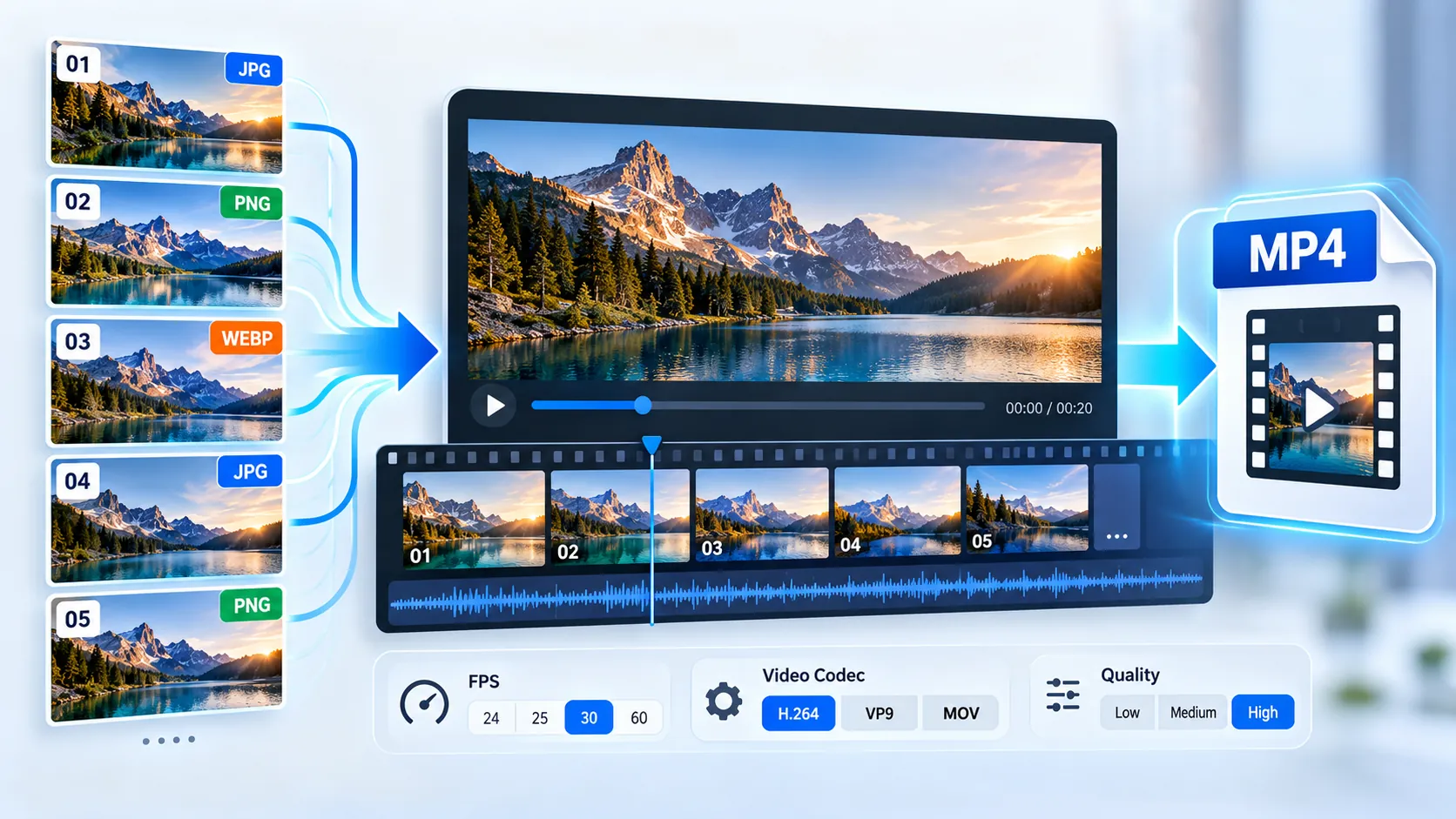
Turn a sequence of JPG, JPEG, PNG, or WebP images into a playable video directly in your browser. The Image Sequence to Video Converter lets you control filename ordering, frame rate, output format, and CRF quality while processing the selected frames locally through FFmpeg WebAssembly. Create MP4 (H.264), WebM (VP9), or MOV (H.264) video from up to 3,000 image frames within the tool’s 500 MB browser input limit, then review and download the validated result without sending the source images to a PKCapra upload endpoint.
Image Sequence → Video Converter
Turn JPG, PNG, or WebP images into a frame-accurate video sequence or a timed slideshow directly in your browser.
Detected image sequence
Choose the encoding profile
The browser input cap is 500 MB and each export is limited to 3,000 images. Very large frames or long slideshow timings can require substantial browser memory and processing time.
Video ready
—
How to Use the Image Sequence to Video Converter in Simple Steps
- Add your JPG, JPEG, PNG, or WebP images to the converter. The tool accepts multiple image frames and can arrange them using natural filename ordering or lexical ordering.
- Choose the frame rate, output format, and CRF quality preset. Available frame rates are 12, 15, 24, 25, 30, 50, and 60 FPS. Output formats include MP4 (H.264), WebM (VP9), and MOV (H.264).
- Start the conversion and monitor the processing status. The conversion runs locally in your browser through FFmpeg WebAssembly, without sending the selected source images to a PKCapra upload endpoint.
- Review and download the generated video. The converter validates the exported file by decoding a frame after encoding before making the local result available.
Technical breakdown of the tool’s competitive edge
The Image Sequence to Video Converter is a browser-based image-sequence encoder built around FFmpeg WebAssembly. The selected images are processed locally in the browser rather than being uploaded to a PKCapra media-processing endpoint.
The tool supports JPG, JPEG, PNG, and WebP input. Before encoding, the selected files are ordered according to the selected ordering method. Natural filename ordering is useful for numbered sequences because values such as frame2 and frame10 are interpreted numerically rather than purely character by character.
The converter applies a 500 MB total browser input limit and a maximum export limit of 3,000 image frames. These limits keep large client-side encoding jobs within a practical browser-processing range.
The available video outputs are:
- MP4 using H.264
- WebM using VP9
- MOV using H.264
The encoded video uses the yuv420p pixel format. MP4 and MOV use H.264 encoding, while WebM uses VP9 encoding.
The available CRF presets are 18, 23, 28, and 32. CRF controls the encoder’s quality/compression level, allowing the user to choose between stronger compression and higher visual quality.
The converter also performs first-frame analysis and provides sequence information such as frame count, image format, dimensions, source codec, pixel format, and estimated duration.
During encoding, the selected frames are normalized into numbered input names and supplied to FFmpeg through a numbered image-sequence pattern. The frame count is explicitly applied to the export so the generated video contains the selected sequence rather than an uncontrolled number of frames.
After encoding, the output is read from FFmpeg’s browser memory and exposed through a local Blob/object URL. The generated video is then checked by decoding a frame with FFmpeg. Temporary FFmpeg files and generated object URLs are cleaned up after processing.
If your workflow goes in the opposite direction and you need to extract individual frames from an existing video, the All Tools directory provides access to the relevant PKCapra video and image utilities.
For video files that need additional compatibility work after sequence conversion, the Video Compatibility Checker & Auto-Fixer can be used to analyze and correct supported compatibility issues.
Developer Snippets (Automate This Tool Offline)
The same general image-sequence-to-video process can be automated locally with FFmpeg. These examples operate on files already stored on your computer and do not use a PKCapra API.
Python
from pathlib import Path
import re
import subprocess

input_dir = Path("frames")
output_file = Path("output.mp4")
fps = 30

files = [
    p for p in input_dir.iterdir()
    if p.suffix.lower() in {".jpg", ".jpeg", ".png", ".webp"}
]

def natural_key(path):
    return [
        int(part) if part.isdigit() else part.lower()
        for part in re.split(r"(\d+)", path.name)
    ]

files.sort(key=natural_key)

if not files:
    raise SystemExit("No supported image files were found.")

for index, source in enumerate(files, start=1):
    print(f"{index}: {source.name}")

print(f"Frames: {len(files)}")
print(f"Frame rate: {fps} FPS")

subprocess.run(
    [
        "ffmpeg",
        "-y",
        "-framerate",
        str(fps),
        "-i",
        str(input_dir / "frame-%04d.png"),
        "-c:v",
        "libx264",
        "-pix_fmt",
        "yuv420p",
        "-crf",
        "23",
        "-movflags",
        "+faststart",
        str(output_file),
    ],
    check=True,
)

print(f"Created: {output_file}")
The Python example expects the source sequence to have been normalized to a consistent numbered image pattern such as frame-0001.png, frame-0002.png, and frame-0003.png. Mixed image formats should be normalized before passing them to one FFmpeg image-sequence input.
PowerShell
$InputDir = "frames"
$OutputFile = "output.mp4"
$Fps = 30

$Files = Get-ChildItem -Path $InputDir -File |
    Where-Object {
        $_.Extension -match '^\.(jpg|jpeg|png|webp)$'
    } |
    Sort-Object Name

if ($Files.Count -eq 0) {
    throw "No supported image files were found."
}

Write-Host "Frames found: $($Files.Count)"
Write-Host "Frame rate: $Fps FPS"

ffmpeg `
    -y `
    -framerate $Fps `
    -i "$InputDir\frame-%04d.png" `
    -c:v libx264 `
    -pix_fmt yuv420p `
    -crf 23 `
    -movflags +faststart `
    $OutputFile

Write-Host "Created: $OutputFile"
This PowerShell workflow expects the images to already use the same numbered PNG sequence. If the source folder contains JPG, JPEG, PNG, and WebP files together, normalize them into one consistent image format and numbering scheme before encoding.
Node.js
const { execFileSync } = require("node:child_process");
const fs = require("node:fs");
const path = require("node:path");

const inputDir = path.resolve("frames");
const outputFile = path.resolve("output.mp4");
const fps = "30";

const files = fs.readdirSync(inputDir)
  .filter((name) => /\.(jpg|jpeg|png|webp)$/i.test(name))
  .sort((a, b) =>
    a.localeCompare(b, undefined, {
      numeric: true,
      sensitivity: "base"
    })
  );

if (files.length === 0) {
  throw new Error("No supported image files were found.");
}

files.forEach((name, index) => {
  console.log(`${index + 1}: ${name}`);
});

execFileSync(
  "ffmpeg",
  [
    "-y",
    "-framerate",
    fps,
    "-i",
    path.join(inputDir, "frame-%04d.png"),
    "-c:v",
    "libx264",
    "-pix_fmt",
    "yuv420p",
    "-crf",
    "23",
    "-movflags",
    "+faststart",
    outputFile,
  ],
  { stdio: "inherit" }
);

console.log(`Created: ${outputFile}`);
The Node.js example follows the same local processing model: establish a deterministic numbered sequence, provide that sequence to FFmpeg, encode it at the selected frame rate, and save the resulting video locally.
Native software workaround integration tutorial
FFmpeg provides a direct native alternative when a sequence is too large for practical browser-side processing or when additional encoding parameters are required.
First, place the image frames in a dedicated directory and make sure they have consistent dimensions. Rename them into a sequential pattern such as frame-0001.png, frame-0002.png, and frame-0003.png.
For an MP4 sequence at 30 FPS, run:
ffmpeg -framerate 30 -i "frame-%04d.png" -c:v libx264 -pix_fmt yuv420p -crf 23 -movflags +faststart output.mp4The -framerate value determines how quickly the frames are played. For example, 30 frames at 30 FPS represent approximately one second of video, while the same 30 frames at 15 FPS represent approximately two seconds.
For WebM using VP9:
ffmpeg -framerate 30 -i "frame-%04d.png" -c:v libvpx-vp9 -pix_fmt yuv420p -crf 28 output.webmFor MOV using H.264:
ffmpeg -framerate 30 -i "frame-%04d.png" -c:v libx264 -pix_fmt yuv420p -crf 23 -movflags +faststart output.movIf the source images have different dimensions, normalize them before creating the final sequence. Consistent frame dimensions prevent image-sequence encoding problems caused by incompatible frame sizes.
After creating a video, additional PKCapra workflows can be used when the resulting file needs specific video adjustments. The Video GOP / Keyframe Interval Converter is relevant when keyframe spacing needs to be changed. The Video H.264 Compatibility Converter is relevant when H.264 compatibility conversion is required. The Video SAR/DAR Fixer is relevant when display or sample aspect-ratio handling needs correction.
Frequently Asked Questions
What image formats does the converter support?
The converter supports JPG, JPEG, PNG, and WebP image files as input.
Does the converter upload my images to PKCapra?
The converter processes the selected images locally in the browser through FFmpeg WebAssembly and does not use a PKCapra upload endpoint for the source images.
How many images can I convert?
The converter supports up to 3,000 image frames per export and applies a 500 MB total browser input limit.
Which video formats can the converter create?
The converter creates MP4 with H.264, WebM with VP9, and MOV with H.264.
Which frame rates are available?
The available frame rates are 12, 15, 24, 25, 30, 50, and 60 FPS.
What does the CRF setting control?
CRF controls the encoder’s quality/compression level. The converter provides presets of 18, 23, 28, and 32.
How does natural filename ordering work?
Natural filename ordering treats embedded numbers numerically, so filenames such as frame2 and frame10 are ordered according to their numeric values rather than simple lexical character order.
Why does the same number of images produce different video durations?
Video duration depends on both the number of frames and the selected FPS. A higher FPS plays the same number of frames faster, while a lower FPS produces a longer duration.
Why can a large sequence take a long time to process?
Browser-side video encoding is computationally intensive. Large frame counts, high-resolution images, and slower devices can increase processing time because FFmpeg WebAssembly performs the encoding on the local device.
What happens after encoding finishes?
The converter validates the generated video by decoding a frame with FFmpeg before exposing the local output for download.
For additional PKCapra utilities, continue through the All Tools directory.