
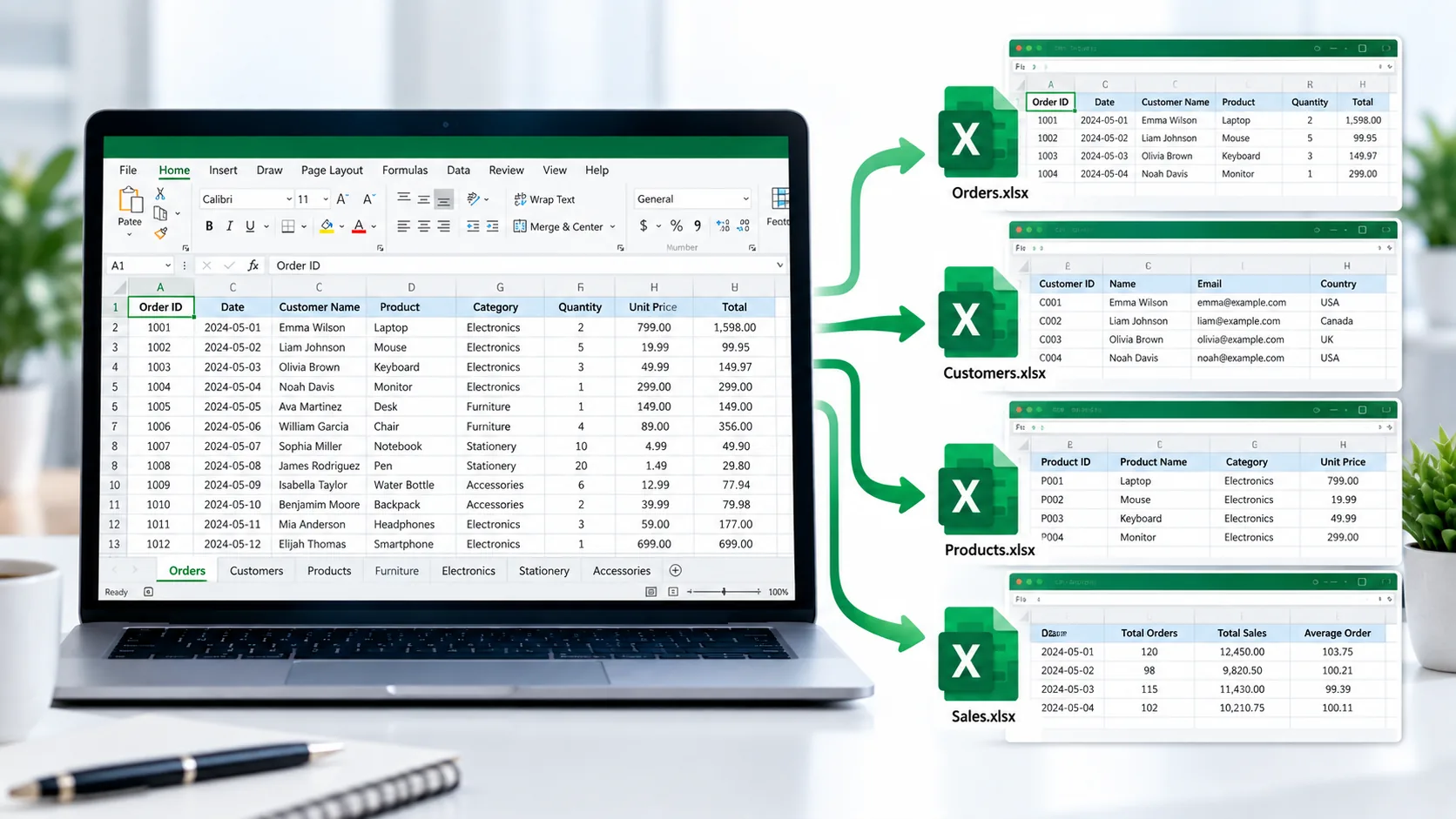
Split Excel Workbooks Online
Have an Excel workbook with more worksheets than you need? Instead of copying each sheet manually, PKCapra’s Excel Splitter lets you separate selected worksheets into individual Excel files.
Upload your workbook, choose the sheets you want to split, and let the tool create separate .xlsx files for you. You can download the files individually or download them together as a ZIP archive.
For more spreadsheet and file utilities, visit All Free Online Tools or explore the PKCapra Categories.
Excel Splitter
Split an Excel workbook into separate Excel files, one file for each worksheet.
How to Split an Excel File
Splitting a workbook only takes a few steps:
- Open the Excel Splitter.
- Upload your Excel workbook.
- Wait while the available worksheets are detected.
- Select the worksheets you want to split.
- Start the splitting process.
- Download the individual Excel files or download everything as a ZIP file.
Each selected worksheet is saved as its own .xlsx workbook.
What Is an Excel Splitter?
An Excel Splitter separates worksheets from an Excel workbook and creates individual Excel files from them.
For example, imagine you have one workbook containing separate sheets for:
- January Sales
- February Sales
- March Sales
- Inventory
- Customers
Instead of keeping everything in one large workbook, you can split the selected sheets into separate files.
This can save time when different worksheets need to be shared with different people or handled separately.
Why Split an Excel Workbook?
Separate Different Datasets
A workbook may contain several unrelated datasets. Splitting the sheets lets you work with each dataset independently.
Share Individual Worksheets
If someone only needs one worksheet, there’s no need to send them the entire workbook.
Organize Large Workbooks
Large workbooks can become difficult to manage. Separating worksheets can make individual files easier to handle.
Save Time
Manually copying worksheets into new workbooks can be repetitive. An Excel splitter automates that basic task.
Split Excel Sheets Into Separate Files
The main purpose of this tool is simple: one worksheet becomes one Excel file.
If you select three worksheets, the converter creates three separate .xlsx files.
The generated filenames are based on the worksheet names, making it easier to identify each output file.
When several files are created, you can download them individually or download them together as a ZIP archive.
Excel Splitter for Business Workbooks
Businesses often keep multiple types of information inside one workbook.
For example, a company might maintain a workbook containing:
- Sales
- Inventory
- Customers
- Orders
- Employees
- Expenses
- Monthly reports
If different teams need different worksheets, splitting the workbook can make sharing much simpler.
You can also use PKCapra’s Excel to CSV Converter when you need to export a worksheet as CSV instead of creating another Excel workbook.
What Happens to the Original Workbook?
The original workbook isn’t modified.
The splitter reads the workbook and creates new .xlsx files for the worksheets you select.
Your original Excel file remains unchanged on your device.
Can I Split Only Selected Sheets?
Yes.
You don’t have to split every worksheet. The tool lets you select individual worksheets or select all available worksheets.
This is useful when a workbook contains several sheets but you only need to separate a few of them.
Download Multiple Split Files as ZIP
Splitting a workbook with many worksheets can produce several individual files.
Rather than downloading each file one by one, PKCapra lets you download the generated files together as a ZIP archive.
This makes it easier to move or share the complete set of split worksheets.
Supported Excel Formats
The Excel Splitter is designed to work with common Excel workbook extensions, including:
.xlsx.xls.xlsm.xltx.xltm
The generated files are provided in .xlsx format.
For technical information about Microsoft’s Office file formats, see Microsoft’s Office file format documentation.
Features of the Excel Splitter
PKCapra’s Excel Splitter includes:
- Excel workbook upload
- Drag-and-drop support
- Automatic worksheet detection
- Worksheet selection
- Select-all option
- Separate XLSX files for selected sheets
- Worksheet-based filenames
- Duplicate filename handling
- Individual file downloads
- ZIP download for multiple files
- Browser-based processing
- Mobile-friendly interface
The current tool uses practical limits for browser-based processing, including a 25 MB file-size limit.
Is My Excel File Uploaded?
No. The workbook is processed directly in your browser.
The source Excel file is not uploaded to PKCapra’s server for the splitting operation.
This browser-based approach means the splitting work happens locally within your browser.
For confidential or regulated files, you should still follow your organization’s own security and data-handling requirements.
Excel Splitter vs Manual Copying
You can split an Excel workbook manually by opening the workbook, moving or copying individual worksheets into new workbooks, and saving each file.
That approach works, but it becomes tedious when a workbook contains many sheets.
An Excel splitter provides a quicker way to perform the same basic separation while giving you the option to download multiple results together.
Frequently Asked Questions
Can I split an Excel workbook online?
Yes. PKCapra’s Excel Splitter lets you upload a workbook, select worksheets, and create separate Excel files.
Can I split an XLSX file?
Yes. XLSX files are supported.
Does each worksheet become a separate Excel file?
Yes. Each selected worksheet is saved as an individual .xlsx workbook.
Can I select only certain worksheets?
Yes. You can select individual worksheets or select all available worksheets.
Can I download all split Excel files at once?
Yes. When multiple files are generated, you can download them together as a ZIP archive.
Is the original Excel file changed?
No. The original workbook remains unchanged. The tool creates separate output files from the selected worksheets.
Are formulas and formatting preserved?
The splitter is intended to preserve the worksheet content when creating the separate workbook. However, complex Excel features can behave differently depending on the workbook and file format.
Is my Excel file uploaded to PKCapra?
No. The workbook is processed in your browser rather than uploaded to PKCapra’s server.
What is the maximum file size?
The current Excel Splitter supports files up to 25 MB, along with practical browser-side row and column limits.
Split Your Excel Workbook
Need to separate a workbook into individual files?
Open the Excel Splitter and split your selected Excel worksheets directly in your browser.