
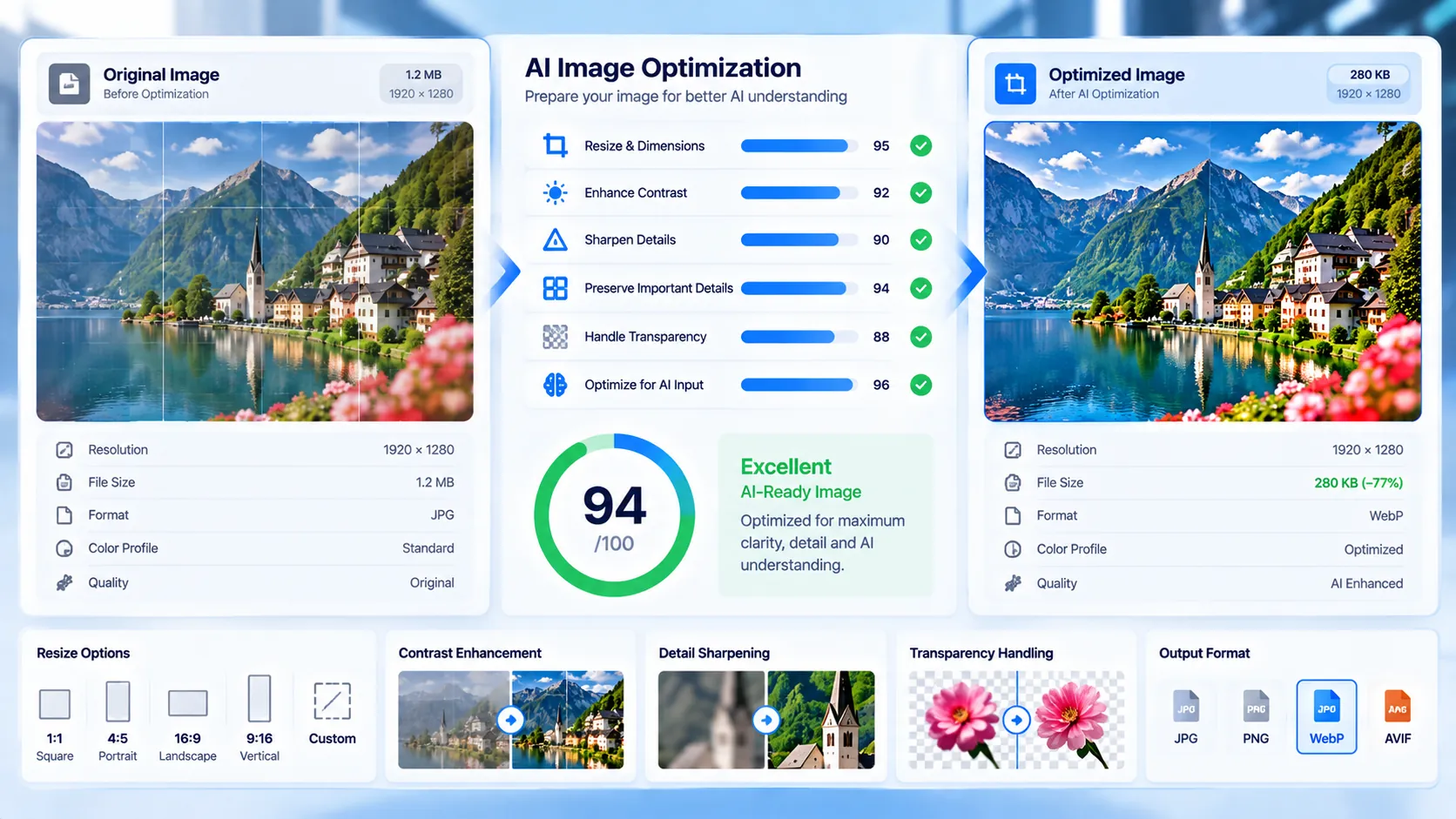
The Image-to-AI Input Optimizer prepares an image for AI-oriented visual processing by applying a selected browser-side optimization profile. It can resize oversized images, adjust luminance and contrast, apply gentle sharpening, preserve transparency when needed, and generate an optimized image that you can download without changing the original file.
Image-to-AI Input Optimizer
Prepare an image for AI vision input with browser-side resizing, contrast normalization and gentle detail sharpening while preserving the original file.
Upload an image to optimize
AI input preparation report
—
Optimization checks
How to Use the Image-to-AI Input Optimizer in Simple Steps
- Upload an image. Drag and drop a JPG, PNG, WebP, GIF, BMP, or AVIF file into the image input area, or choose a file from your device. The maximum supported file size is 20 MB.
- Choose an optimization profile. Select Balanced AI Input for general-purpose preparation, Text-heavy Image when readable text is important, or Visual Detail when preserving image detail is the main priority.
- Click “Optimize Image.” The browser processes the image locally using the selected profile. The original image remains unchanged.
- Review and download the result. Compare the original and optimized file information, review the preparation score and optimization checks, then use Download Optimized Image to save the generated image. You can also Copy Report, Copy JSON, Download JSON, or Download PDF.
Technical Breakdown of the Image-to-AI Input Optimizer
The Image-to-AI Input Optimizer is a browser-side image preparation tool. Its purpose is to create a practical optimized copy rather than simply report whether an image is suitable for AI-oriented visual processing.
Resize optimization
Very large images can contain more pixels than are useful for a particular visual-processing workflow. The optimizer can resize an image so its longest side does not exceed approximately 2,000 pixels.
The resize is applied to the generated copy. Your original image is not overwritten.
Luminance and contrast normalization
The optimizer can adjust image luminance and contrast to improve separation between visually important regions. This is particularly useful when an image has a relatively flat tonal range.
Contrast processing does not guarantee that every text element or object will become readable. It is an image-level enhancement rather than semantic text recognition.
Gentle sharpening
The optimizer applies controlled sharpening to strengthen local visual transitions. The goal is to improve useful detail without treating aggressive sharpening as universally beneficial.
The amount of sharpening depends on the selected optimization profile.
Transparency handling
Images containing transparency require different output handling from ordinary opaque images. When transparency needs to be preserved, the optimizer uses PNG output rather than forcing the image into a format that would discard the transparent background.
This helps preserve the original visual composition when transparency is part of the input.
Output format selection
The optimizer can generate WebP for normal image output and PNG when transparency preservation is required.
The generated format is part of the optimization result and is shown in the result information.
Optimization profiles
The three profiles apply different priorities:
- Balanced AI Input: General-purpose preparation combining practical resizing and visual enhancement.
- Text-heavy Image: Gives greater attention to image conditions around text and fine visual detail.
- Visual Detail: Prioritizes preservation of useful visual detail while applying the available optimization steps.
The profiles are preparation strategies, not model-specific settings for a particular AI provider.
Preparation score
The tool produces a 0–100 preparation score based on the resulting image conditions and optimization checks. The score is intended as a practical preflight indicator rather than a guarantee of performance with a specific AI model.
A higher score does not mean that an AI system will automatically understand every object, word, chart, table, or diagram in the image.
Original versus optimized image
The result section provides information about the source and generated image so you can see what changed. Depending on the input and selected profile, the optimized image can differ in dimensions, format, file size, contrast, detail, and processing characteristics.
The original file remains available to you and is not replaced by the optimizer.
Browser-side processing
The core optimization runs in the browser. No API key or account is required, and the workflow does not depend on an external AI vision API.
The browser loads the selected image, performs the image transformations, creates the optimized output, and presents it for download.
Supported formats and file limit
The tool accepts JPG, PNG, WebP, GIF, BMP, and AVIF files when the browser can decode the selected format. The maximum upload size is 20 MB.
Browser support can vary for unusual encodings even when the file extension belongs to a supported format.
What the optimizer does not do
The optimizer does not semantically understand the image, read all text, verify factual accuracy, identify every object, or guarantee compatibility with a particular AI model.
It prepares the image at the raster and visual-signal level. For a separate assessment of whether an image has useful AI-oriented visual signals, use the AI Image Readiness Checker or AI Vision Extractability Checker.
Developer Snippets (Automate This Tool Offline)
The following examples provide basic offline image-preparation workflows. They are useful when you need repeatable resizing and format conversion outside the PKCapra interface. They do not reproduce the exact PKCapra optimization profiles or preparation score.
Python
from PIL import Image, ImageEnhance, ImageFilter
from pathlib import Path

input_path = Path("input.png")
output_path = Path("optimized.webp")

with Image.open(input_path) as image:
    image = image.convert("RGBA")

    max_side = 2000
    scale = min(1, max_side / max(image.size))

    if scale < 1:
        new_size = (
            round(image.width * scale),
            round(image.height * scale)
        )
        image = image.resize(new_size, Image.Resampling.LANCZOS)

    rgb = Image.new("RGB", image.size, "white")
    rgb.paste(image, mask=image.getchannel("A"))

    rgb = ImageEnhance.Contrast(rgb).enhance(1.05)
    rgb = rgb.filter(ImageFilter.UnsharpMask(radius=1, percent=80, threshold=3))

    rgb.save(output_path, "WEBP", quality=90)

print(f"Saved: {output_path}")
PowerShell
Add-Type -AssemblyName System.Drawing

$inputPath = ".\input.jpg"
$outputPath = ".\optimized.jpg"

$image = [System.Drawing.Image]::FromFile($inputPath)

$maxSide = 2000
$scale = [Math]::Min(1, $maxSide / [double][Math]::Max($image.Width, $image.Height))

$newWidth = [Math]::Round($image.Width * $scale)
$newHeight = [Math]::Round($image.Height * $scale)

$bitmap = New-Object System.Drawing.Bitmap($newWidth, $newHeight)

$graphics = [System.Drawing.Graphics]::FromImage($bitmap)
$graphics.InterpolationMode = [System.Drawing.Drawing2D.InterpolationMode]::HighQualityBicubic
$graphics.DrawImage($image, 0, 0, $newWidth, $newHeight)
$graphics.Dispose()

$bitmap.Save($outputPath, [System.Drawing.Imaging.ImageFormat]::Jpeg)

$bitmap.Dispose()
$image.Dispose()

Write-Output "Saved: $outputPath"
Node.js
const fs = require("fs");
const path = require("path");

const inputPath = "./input.jpg";
const outputPath = "./optimized.jpg";

const stats = fs.statSync(inputPath);
const sizeMB = stats.size / (1024 * 1024);

console.log(`Input size: ${sizeMB.toFixed(2)} MB`);

if (sizeMB > 20) {
    throw new Error("Input exceeds the 20 MB PKCapra web-tool limit.");
}

console.log(`Input: ${path.resolve(inputPath)}`);
console.log(`Output target: ${path.resolve(outputPath)}`);
console.log("Use an image-processing library such as sharp to perform resizing and enhancement.");
These snippets demonstrate offline preparation concepts. They are not an implementation of the PKCapra browser optimizer and do not reproduce its profile-specific processing or score.
Native Software Workaround: Prepare an Image Before AI Processing
Windows Photos and common desktop image editors can handle basic preparation when you do not want to use a web tool.
- Open the original image in an image editor and keep the original file unchanged.
- Use the Resize or equivalent image-size command to reduce an unnecessarily large image while preserving its aspect ratio.
- Review the image at its intended viewing size and check whether small text or fine details remain visible.
- Use the editor’s Brightness, Contrast, or tonal adjustment controls when the foreground and background are too similar.
- Apply only moderate sharpening if the source appears soft.
- Preserve transparency when the image uses a transparent background; PNG is generally appropriate when transparency must remain intact.
- Export a separate optimized copy instead of replacing the source file.
- Upload the optimized copy to the Image-to-AI Input Optimizer if you want to compare another profile or verify the resulting preparation signals.
For a general readiness check without generating an optimized copy, use the AI Image Readiness Checker. For images containing significant text, the Image OCR Readiness Analyzer can provide a more specialized OCR-oriented preflight.
Frequently Asked Questions
What does the Image-to-AI Input Optimizer do?
The Image-to-AI Input Optimizer creates an optimized copy of an image by applying browser-side resizing, visual adjustment, sharpening, transparency handling, and output-format processing according to the selected profile.
Does the optimizer modify my original image?
The original image remains unchanged. The tool creates a separate optimized output for download.
Does the tool use an AI model?
The optimizer does not require an external AI vision model or AI API. Its core processing uses browser-side image transformations.
Which optimization profile should I use?
Balanced AI Input is intended for general-purpose preparation, Text-heavy Image prioritizes conditions around text and fine detail, and Visual Detail prioritizes useful visual detail.
What is the maximum image size?
The maximum supported upload size is 20 MB. The optimizer can also resize oversized image dimensions so the generated copy has a longest side of approximately 2,000 pixels.
Does the optimizer improve image quality?
The optimizer can improve certain measurable visual conditions through resizing, contrast-related adjustment, and gentle sharpening. It does not recreate missing pixels or guarantee that a low-quality source will become high-quality.
Does the optimizer preserve transparent backgrounds?
Transparency can be preserved by using PNG output when the input requires transparency preservation.
Can I compare the original and optimized image?
The result provides original and optimized image information along with an optimized preview and processing checks. The original file is not replaced.
Can I download the optimized image?
The optimized image can be downloaded directly from the result section using the Download Optimized Image action.
Can I save the optimization report?
The tool provides Copy Report, Copy JSON, Download JSON, and Download PDF options for saving or sharing the optimization result.
Is the image uploaded to an external AI service?
The core optimization is performed locally in the browser and does not require an external AI vision API or account.
Does optimization guarantee better results with every AI model?
AI-model compatibility is not guaranteed. Different AI systems can process the same image differently, so the optimizer should be treated as an image-preparation workflow rather than a universal model-specific guarantee.