
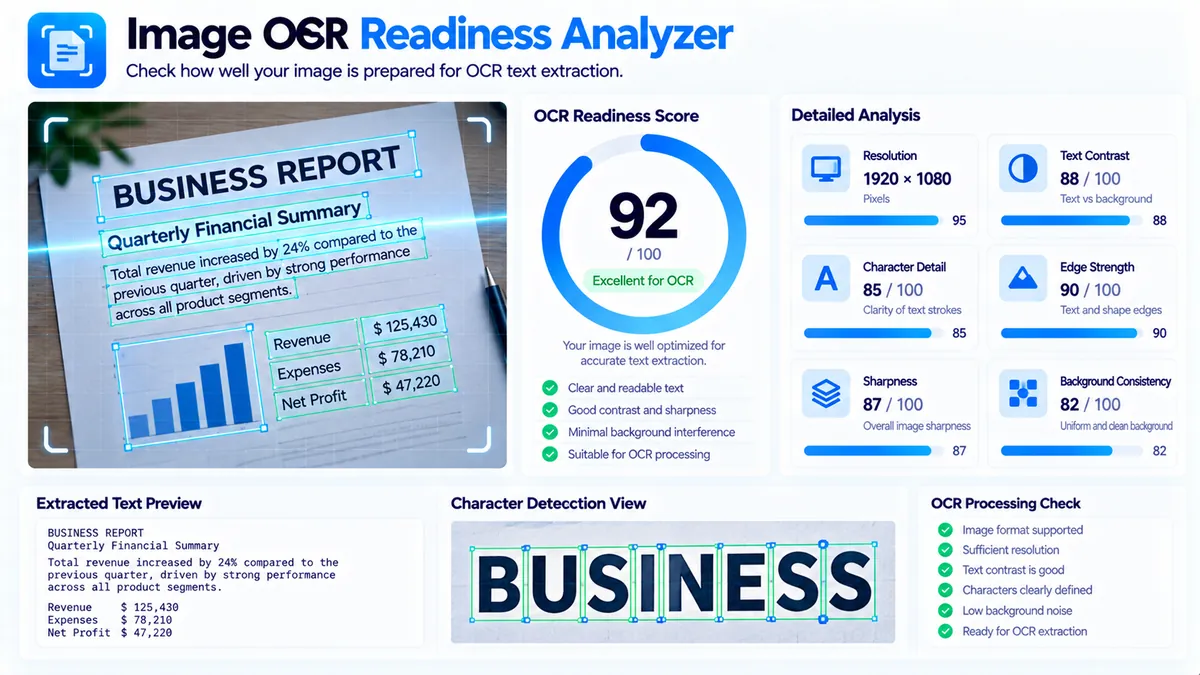
The Image OCR Readiness Analyzer checks whether an image has practical visual characteristics that can support optical character recognition. It analyzes the image locally in your browser and evaluates measurable signals such as resolution, text/background contrast, text-like stroke structure, edge detail, character-boundary sharpness, character-scale detail, and background consistency. The result is an OCR readiness score from 0 to 100 with individual checks showing which image characteristics may help or limit OCR.
Image OCR Readiness Analyzer
Estimate how suitable an image is for OCR by checking text-like structure, contrast, character-scale detail, crispness, resolution and visual clutter.
Upload an image to check OCR readiness
OCR readiness assessment
—
OCR readiness checks
How to Use the Image OCR Readiness Analyzer in Simple Steps
- Upload or drag and drop a JPG, PNG, WebP, GIF, BMP, or AVIF image into the analyzer. The browser-processing limit is 20 MB.
- Click Analyze OCR Readiness to process the image locally in your browser.
- Review the OCR readiness score, image dimensions, format, file size, megapixels, aspect ratio, contrast, text-like stroke signal, edge/detail signal, character-boundary sharpness, character-scale detail, and background consistency.
- Use Copy Report, Copy JSON, Download JSON, or Download PDF to save the analysis. Use Load Example to test the tool or Clear to remove the current image and result.
Technical Breakdown: What the Analyzer Measures
The Image OCR Readiness Analyzer is a browser-side heuristic preflight tool. It does not send your image to an OCR API, AI service, or external processing endpoint.
The analyzer decodes the selected image and samples its visual characteristics to estimate whether text-like information has measurable properties that are useful for OCR workflows.
Resolution for Text Detail
The analyzer checks image dimensions and megapixels because characters need sufficient pixel area to preserve their shapes. A high-resolution image can provide more character detail, while a very small image can lose thin strokes and small text during recognition.
Resolution is only one factor. A large but blurred or low-contrast image can still be difficult for OCR.
Text and Background Contrast
OCR systems generally need visible separation between characters and their surrounding background. The analyzer measures luminance variation and related local differences to identify whether the image contains useful contrast.
Weak contrast can occur when gray text sits on a similar gray background, when a photograph contains text over a busy scene, or when compression and lighting reduce character separation.
Text-Like Stroke Signal
Character shapes contain repeated edges and narrow transitions. The analyzer looks for visual structure that can act as a text-like signal rather than simply rewarding every type of detail.
This is a heuristic signal. It does not identify words, letters, fonts, or languages.
Edge and Detail Signal
Character recognition depends on boundaries between foreground strokes and their surroundings. The analyzer samples local edge activity to estimate whether the image contains enough measurable structure.
Very low edge activity may indicate softness or limited detail. Extremely high activity can also occur in noisy or highly textured backgrounds, so edge activity should not be interpreted as text detection by itself.
Character-Boundary Sharpness
Sharp character boundaries help preserve the shape of letters and numbers. The analyzer evaluates stronger local transitions as a practical signal for character clarity.
Blur, motion, resizing artifacts, and aggressive compression can weaken these transitions.
Character-Scale Detail
Text needs enough local detail to remain distinguishable from surrounding pixels. The analyzer considers fine-scale visual variation rather than relying only on the total image dimensions.
This matters particularly for screenshots, scanned documents, photographs of signs, receipts, labels, and small UI text.
Background Consistency
A relatively consistent background can make foreground text easier to separate. A busy photographic background, patterned surface, or strong texture behind characters can increase visual ambiguity.
The analyzer therefore considers local luminance consistency as part of its OCR readiness assessment.
OCR Readiness Score
The final score is a 0–100 heuristic derived from the measurable image signals. It is designed as a preflight indicator rather than an OCR accuracy guarantee.
A high score means the image has several favorable measurable characteristics. It does not mean that every word will be recognized correctly.
OCR performance can still depend on language, font, handwriting, rotation, perspective, character spacing, document layout, model quality, preprocessing, and the actual OCR engine being used.
For broader AI-image preparation, use the AI Image Readiness Checker. For general visual extraction characteristics, use the AI Vision Extractability Checker. For PDF-based OCR workflows, use the OCR PDF tool.
Developer Snippets (Automate This Tool Offline)
The following examples provide practical offline image measurements that can be used as part of an OCR preflight workflow. They are companion implementations and do not reproduce the PKCapra browser scoring algorithm byte-for-byte.
Python with Pillow
Install Pillow with python -m pip install Pillow.
from pathlib import Path
from PIL import Image, ImageStat, ImageFilter, ImageOps

MAX_BYTES = 20 * 1024 * 1024

def analyze_ocr_readiness(path):
    file_path = Path(path)

    if not file_path.is_file():
        raise FileNotFoundError(file_path)

    size_bytes = file_path.stat().st_size

    if size_bytes > MAX_BYTES:
        raise ValueError("Image exceeds the 20 MB processing limit.")

    with Image.open(file_path) as image:
        width, height = image.size

        if width <= 0 or height <= 0:
            raise ValueError("Image has no usable dimensions.")

        grayscale = ImageOps.grayscale(image)

        stats = ImageStat.Stat(grayscale)
        mean_luminance = stats.mean[0]
        contrast = stats.stddev[0]

        edges = grayscale.filter(ImageFilter.FIND_EDGES)
        edge_stats = ImageStat.Stat(edges)
        edge_signal = edge_stats.mean[0]

        # A simple local high-pass representation for fine detail.
        blurred = grayscale.filter(ImageFilter.GaussianBlur(radius=1))
        detail = ImageStat.Stat(
            Image.eval(
                ImageChops.difference(grayscale, blurred),
                lambda value: value
            )
        ).mean[0]

        megapixels = (width * height) / 1_000_000
        aspect_ratio = width / height

        return {
            "file": file_path.name,
            "format": image.format,
            "width": width,
            "height": height,
            "megapixels": round(megapixels, 2),
            "aspect_ratio": round(aspect_ratio, 4),
            "file_size_bytes": size_bytes,
            "mean_luminance": round(mean_luminance, 2),
            "contrast_stddev": round(contrast, 2),
            "edge_signal": round(edge_signal, 2),
            "fine_detail_signal": round(detail, 2)
        }

if __name__ == "__main__":
    import json
    import sys
    from PIL import ImageChops

    if len(sys.argv) != 2:
        raise SystemExit("Usage: python ocr_preflight.py image.jpg")

    result = analyze_ocr_readiness(sys.argv[1])
    print(json.dumps(result, indent=2))
PowerShell
This example performs local image dimension and file-size checks using Windows PowerShell and .NET image handling.
param(
    [Parameter(Mandatory = $true)]
    [string]$Path
)

if (-not (Test-Path -LiteralPath $Path -PathType Leaf)) {
    throw "Image file was not found."
}

$file = Get-Item -LiteralPath $Path

if ($file.Length -gt 20MB) {
    throw "Image exceeds the 20 MB processing limit."
}

Add-Type -AssemblyName System.Drawing

$image = $null

try {
    $image = [System.Drawing.Image]::FromFile($file.FullName)

    if ($image.Width -le 0 -or $image.Height -le 0) {
        throw "Image has no usable dimensions."
    }

    $megapixels = ($image.Width * $image.Height) / 1000000
    $aspectRatio = $image.Width / $image.Height

    [pscustomobject]@{
        FileName = $file.Name
        Width = $image.Width
        Height = $image.Height
        Megapixels = [math]::Round($megapixels, 2)
        AspectRatio = [math]::Round($aspectRatio, 4)
        FileSizeBytes = $file.Length
    } | ConvertTo-Json -Depth 3
}
finally {
    if ($null -ne $image) {
        $image.Dispose()
    }
}
Node.js with Sharp
Install Sharp with npm install sharp.
const fs = require("fs/promises");
const path = require("path");
const sharp = require("sharp");

const MAX_BYTES = 20 * 1024 * 1024;

async function analyzeImage(filePath) {
  const absolutePath = path.resolve(filePath);
  const stat = await fs.stat(absolutePath);

  if (!stat.isFile()) {
    throw new Error("Image file was not found.");
  }

  if (stat.size > MAX_BYTES) {
    throw new Error("Image exceeds the 20 MB processing limit.");
  }

  const metadata = await sharp(absolutePath).metadata();

  if (!metadata.width || !metadata.height) {
    throw new Error("Image has no usable dimensions.");
  }

  const megapixels = (metadata.width * metadata.height) / 1000000;
  const aspectRatio = metadata.width / metadata.height;

  return {
    file: path.basename(absolutePath),
    format: metadata.format || null,
    width: metadata.width,
    height: metadata.height,
    megapixels: Number(megapixels.toFixed(2)),
    aspectRatio: Number(aspectRatio.toFixed(4)),
    fileSizeBytes: stat.size,
    hasAlpha: metadata.hasAlpha === true
  };
}

analyzeImage(process.argv[2])
  .then(result => {
    console.log(JSON.stringify(result, null, 2));
  })
  .catch(error => {
    console.error(error.message);
    process.exitCode = 1;
  });
Native Software Workaround: OCR Image Inventory with Excel Power Query
Excel Power Query cannot reproduce pixel-level OCR readiness scoring, but it can create a useful inventory of image files before an OCR workflow.
- Place the images into one folder.
- Open Excel and select Data → Get Data → From File → From Folder.
- Select the folder and choose Transform Data.
- Keep the Name, Extension, Date modified, and Content columns.
- Add custom classification columns for image type, source, review status, or OCR workflow.
- Filter for large files, unsupported extensions, or images requiring manual inspection.
- Load the resulting table into Excel and use it as an OCR preflight queue.
Power Query is useful for organizing the files, but it does not calculate the browser analyzer’s contrast, edge, character-detail, and background-consistency signals. Use the Image OCR Readiness Analyzer when you need the actual image-level preflight assessment.
Frequently Asked Questions
What is an Image OCR Readiness Analyzer?
An Image OCR Readiness Analyzer is a preflight tool that measures image characteristics that can affect the visibility and separation of text for optical character recognition.
Does this tool perform OCR?
No. The analyzer measures OCR-related image characteristics but does not extract or return the actual text contained in the image.
Does the image leave my browser?
No. The analyzer performs its image analysis locally in the browser and does not send the selected image to an external OCR or AI service.
Which image formats are supported?
The analyzer accepts JPG, PNG, WebP, GIF, BMP, and AVIF images when the browser can decode them.
What is the maximum file size?
The browser-processing limit is 20 MB per image.
What does the OCR readiness score mean?
The score is a 0–100 heuristic based on measurable signals including resolution, contrast, text-like structure, edge detail, character-boundary sharpness, character-scale detail, and background consistency.
Does a high score guarantee accurate OCR?
No. The score does not predict the accuracy of a particular OCR engine. OCR results also depend on language, font, orientation, handwriting, perspective, layout, preprocessing, and the OCR engine itself.
Why can a high-resolution image still have poor OCR readiness?
Resolution is only one factor. Blur, weak contrast, busy backgrounds, compression artifacts, or insufficient character-scale detail can make text difficult to distinguish even when the overall image dimensions are large.
Why does background consistency matter?
Background consistency affects how easily foreground characters can be separated from their surroundings. Variable or highly textured backgrounds can make text boundaries harder to distinguish.
Can the analyzer recognize a specific language?
No. The analyzer evaluates image characteristics and does not identify or validate the language of the text.
Can I save the OCR readiness report?
Yes. The analyzer provides Copy Report, Copy JSON, Download JSON, and Download PDF options.