
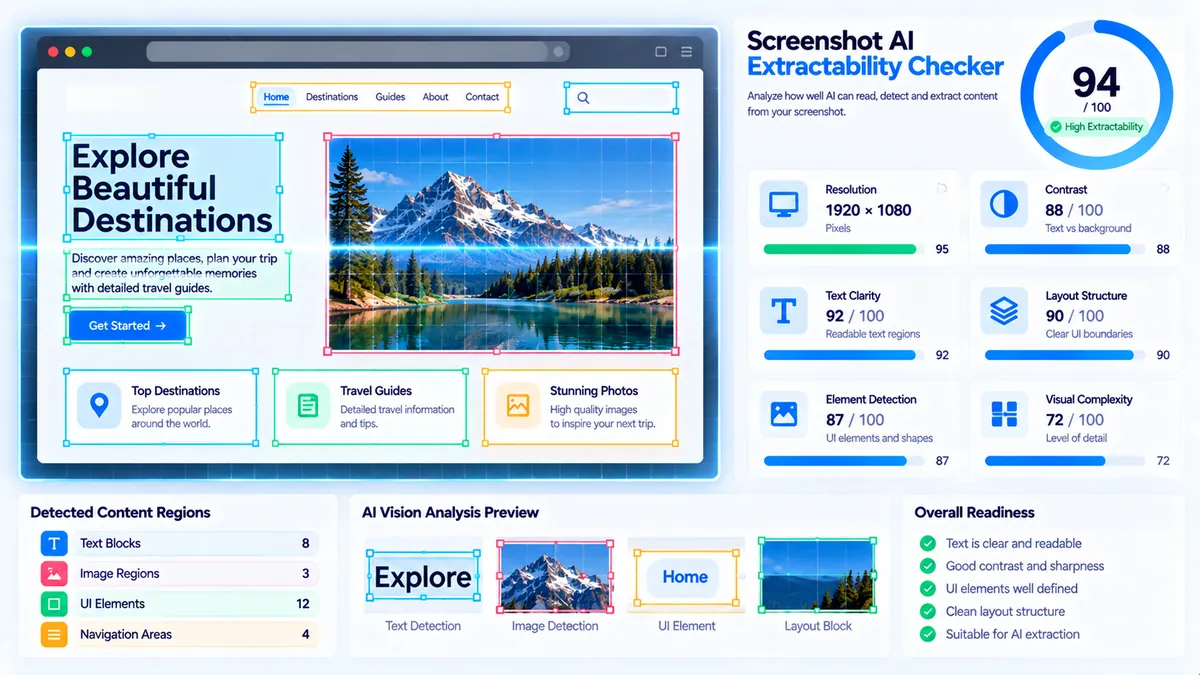
Screenshot AI Extractability Checker helps you check whether a screenshot is visually prepared for AI systems to interpret important text, structure, and interface details. It performs browser-side analysis of screenshot resolution, text contrast, fine-detail signals, visual boundaries, layout structure, framing, and raster format without sending the image to a server.
Screenshot AI Extractability Checker
Estimate how easily an AI vision system may extract useful information from a screenshot by checking resolution, text visibility, layout structure, edge clarity, visual clutter and crop completeness.
Upload a screenshot to check AI extractability
AI vision extractability assessment
—
Screenshot extractability checks
How to Use the Screenshot AI Extractability Checker in Simple Steps
- Upload a screenshot by dragging it into the tool or selecting an image file from your device.
- Click Check AI Extractability to analyze the screenshot in your browser.
- Review the overall extractability score, summary, image details, and individual checks.
- Use Copy Report, Copy JSON, Download JSON, or Download PDF when you need to save or share the analysis.
The tool accepts JPG, PNG, WebP, GIF, BMP, and AVIF images up to 20 MB. The analysis is performed locally in the browser, so the image does not need to be uploaded to a remote AI vision service.
Technical Breakdown: What the Screenshot AI Extractability Checker Measures
The Screenshot AI Extractability Checker is designed as a visual preflight tool rather than a full AI vision model. It evaluates measurable image characteristics that can affect how clearly screenshot content can be interpreted.
Resolution for Small UI Text
The tool checks screenshot dimensions and looks for limited scale that can make small interface text difficult to distinguish. A screenshot with very low dimensions may lose important character and interface detail when analyzed or resized.
Text and Background Contrast
Contrast between text-like regions and surrounding areas is evaluated because weak separation can reduce the visibility of labels, buttons, navigation items, and other interface elements.
Text-Like Detail Signal
The browser-side analysis samples image luminance and neighboring pixel differences to identify fine visual detail associated with text and small interface elements.
Crisp Visual Boundaries
Strong visual transitions can indicate clearer boundaries around text, panels, buttons, icons, and other screenshot components. Soft or weak boundaries may reduce extractability.
Layout Structure Signal
The tool evaluates structural variation within the screenshot to identify whether the visual arrangement provides useful separation between interface regions.
Visual Detail Balance
Screenshots containing excessive visual complexity can make important information harder to isolate. The analysis therefore considers the balance between useful detail and overall visual complexity.
Crop and Framing
The screenshot is checked for framing characteristics that can affect how much of the relevant interface is visible. A poorly framed screenshot may contain insufficient context or unnecessary surrounding content.
AI-Friendly Raster Format
The tool checks whether the uploaded image uses one of the supported raster formats and includes the format as part of the final analysis.
The analysis uses a browser canvas with a maximum analysis dimension of approximately 1,800 pixels on the longest side. The tool samples image pixels and derives visual signals from them; it does not send the screenshot to an external AI vision API.
For text-heavy screenshots, you can also compare the image with the Image OCR Readiness Analyzer. For broader image preparation checks, use the AI Image Readiness Checker, while the AI Vision Extractability Checker provides a broader visual extractability assessment.
Understanding the Score
The tool reports an AI Extractability Score on a 0–100 scale and provides individual checks so you can see which visual characteristics may need attention.
A higher score indicates a stronger screenshot extractability baseline based on the measurable visual signals used by the browser-side analyzer. A middle-range score indicates that some characteristics may limit reliable interpretation. A lower score indicates that several visual characteristics may reduce the screenshot’s extractability baseline.
The score should be treated as a preflight signal rather than a prediction of how a specific AI model will interpret the image. Different vision systems can use different preprocessing, resolution limits, OCR methods, and visual reasoning techniques.
Common Screenshot Problems
Small screenshots can make interface text too fine to distinguish.
Low text/background contrast can reduce separation between characters and surrounding elements.
Soft or compressed screenshots can weaken character and interface boundaries.
Highly cluttered screenshots can make important elements harder to isolate.
Excessive surrounding whitespace or poor framing can reduce the useful visual context available to an image-analysis system.
Developer Snippets (Automate This Tool Offline)
The following examples provide simple offline checks that can be used when you want to preflight screenshots before submitting them to another workflow. They do not call the PKCapra web interface or an external AI API.
Python
from PIL import Image
import os

path = "screenshot.png"
max_file_size = 20 * 1024 * 1024

size = os.path.getsize(path)

if size > max_file_size:
    raise ValueError("Image exceeds the 20 MB preflight limit.")

image = Image.open(path)
width, height = image.size

megapixels = (width * height) / 1_000_000
aspect_ratio = width / height if height else 0

print("Format:", image.format)
print("Dimensions:", width, "x", height)
print("Megapixels:", round(megapixels, 2))
print("Aspect ratio:", round(aspect_ratio, 3))
print("File size:", round(size / 1024 / 1024, 2), "MB")
PowerShell
$Path = "screenshot.png"
$MaxBytes = 20MB

$File = Get-Item $Path

if ($File.Length -gt $MaxBytes) {
    throw "Image exceeds the 20 MB preflight limit."
}

Add-Type -AssemblyName System.Drawing
$Image = [System.Drawing.Image]::FromFile($Path)

$Width = $Image.Width
$Height = $Image.Height
$Megapixels = ($Width * $Height) / 1000000

Write-Output "Dimensions: $Width x $Height"
Write-Output ("Megapixels: {0:N2}" -f $Megapixels)

$Image.Dispose()
Node.js
const fs = require("fs");

const file = "screenshot.png";
const maxBytes = 20 * 1024 * 1024;

const stats = fs.statSync(file);

if (stats.size > maxBytes) {
  throw new Error("Image exceeds the 20 MB preflight limit.");
}

console.log("File:", file);
console.log("Size MB:", (stats.size / 1024 / 1024).toFixed(2));

// Use an image library such as sharp locally when
// you also need dimensions and pixel-level analysis.
These offline snippets are useful for basic file and dimension checks. The PKCapra tool additionally performs browser-side visual sampling for contrast, detail, boundaries, layout structure, framing, and related screenshot signals.
Native Software Workaround: Create a Screenshot Inventory with Excel Power Query
Excel Power Query can be used to maintain a screenshot inventory before running visual preflight checks.
Open Excel and select Data → Get Data → From File → From Folder.
Choose the folder containing your screenshots and select Transform Data.
Keep the file name, extension, folder path, and file size columns. You can then filter the extension column to identify JPG, PNG, WebP, GIF, BMP, or AVIF files.
Add a calculated classification column for file size, such as Under 5 MB, 5–20 MB, or Over 20 MB.
Use the resulting table as a screenshot review queue. Open individual files that need visual inspection and run them through the Screenshot AI Extractability Checker.
This workflow is useful for teams that keep large collections of product screenshots, software documentation images, tutorials, dashboards, or support screenshots in shared folders.
Frequently Asked Questions
What is the Screenshot AI Extractability Checker?
The Screenshot AI Extractability Checker is a browser-side image preflight tool that evaluates screenshot characteristics related to AI-readable text, visual detail, boundaries, layout structure, framing, and image format.
Does the tool send screenshots to an AI service?
The tool performs its image analysis in the browser and does not require an external AI vision API or API key.
What is the maximum image size?
The maximum supported file size is 20 MB.
Which image formats are supported?
The supported formats are JPG, PNG, WebP, GIF, BMP, and AVIF.
What does the score represent?
The score represents a 0–100 screenshot extractability baseline derived from the visual signals measured by the browser-side analyzer.
Does a high score guarantee that an AI will understand the screenshot?
A high score does not guarantee a particular AI model’s interpretation. The score is a visual preflight indicator based on measurable screenshot characteristics rather than a test against every AI vision system.
Can I use this tool for OCR preparation?
OCR preparation is a related but different task. The Image OCR Readiness Analyzer focuses specifically on image characteristics associated with extracting text through OCR.
Can I save the analysis?
The tool provides Copy Report, Copy JSON, Download JSON, and Download PDF actions so the analysis can be saved or shared.
Does the tool require an account or API key?
The tool does not require an account or API key for its browser-side screenshot analysis.
What should I change if the score is low?
Low scores can indicate issues such as insufficient screenshot resolution, weak text/background contrast, soft visual boundaries, excessive visual complexity, limited layout structure, or unsuitable framing. Improving the original screenshot and checking it again can help identify whether those characteristics have changed.