
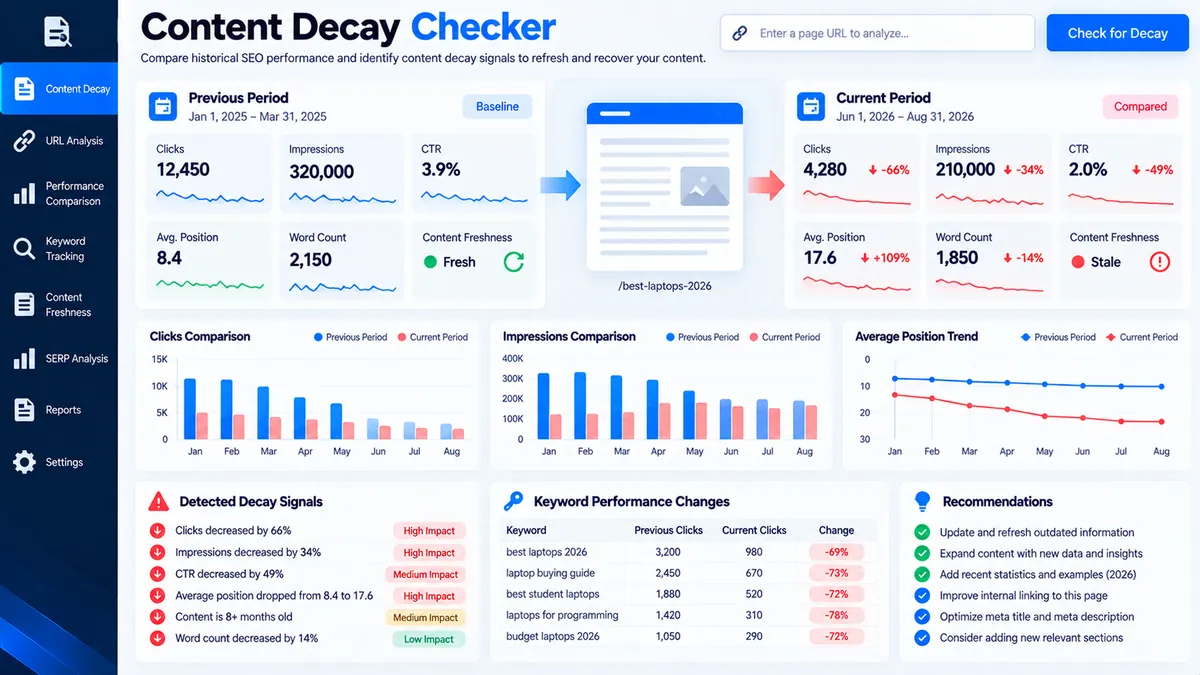
The Content Decay Checker compares two performance periods for the same page and identifies changes in clicks, impressions, CTR, average position, freshness, and content depth. Enter comparable historical metrics to determine which signals deserve investigation before updating or rewriting the page.
Content Decay Checker
Compare two performance periods to identify traffic, visibility, CTR, position, freshness, and content-depth signals that may indicate content decay.
Latest performance
Comparison baseline
Content Decay Assessment
Calculated from the two performance snapshots and optional page signals you supplied.
View JSON report
How to Use the Content Decay Checker in Simple Steps
- Enter the page details. Add the page URL and primary topic when available. The URL identifies the content in the report, while the topic provides editorial context. The checker does not fetch or crawl the URL.
- Add optional content signals. Enter the last major update date and current and previous word counts when you want freshness and content-change signals included.
- Enter the two performance snapshots. Add clicks, impressions, CTR, and average position for the Current Period and Previous Period. Use comparable date ranges and the same measurement source for both periods.
- Run the analysis and review the report. Click Check Content Decay to calculate the signal score, review individual decay signals, and inspect the recommended investigation actions. Use Copy Report, Copy JSON, Download JSON, or Download PDF to preserve the result.
For a basic content-size check before comparing periods, use the Word Count Tool. For search-result presentation changes that may help explain CTR movement, use the SERP Snippet Preview.
Technical Breakdown: How the Content Decay Checker Detects Performance Signals
The Content Decay Checker uses deterministic calculations on the values supplied through its interface. It compares the current and previous snapshots, calculates percentage changes and position movement, applies fixed heuristic thresholds, and combines the resulting signals into a reproducible decay-signal score.
Performance Period Comparison
The checker compares clicks, impressions, CTR, and average position between two supplied periods. Using equivalent periods matters because seasonal demand, publishing cycles, promotions, algorithm changes, and other external factors can affect performance independently of content quality.
Clicks and Impressions
Clicks measure the change in recorded visits from the supplied performance data, while impressions measure the change in recorded search visibility. A decline in clicks does not identify its cause by itself, so the checker treats the change as a diagnostic signal rather than proof of content decay.
CTR and Average Position
CTR change shows how the supplied click rate changed between the two periods. Average-position movement provides a separate visibility signal because a page can experience traffic changes while its average position moves differently. The checker evaluates these measurements independently before combining them into the overall signal assessment.
Freshness Signal
The freshness option uses the supplied last major update date as an additional review signal. An older update date can indicate that the page deserves a freshness review, but age alone does not prove that outdated content caused a performance decline.
Word-Count Change
The word-count option compares the current and previous word counts when both values are supplied. A reduction or increase in word count is treated as a content-change signal, not as an automatic quality judgment. Content relevance, completeness, structure, and search intent remain separate editorial considerations.
Signal Score
The signal score is a deterministic heuristic summary of the supplied performance and optional page signals. It is not a Google ranking score, a Search Console score, a traffic forecast, or a prediction of future rankings.
Browser-Side Processing
The checker processes the supplied values in the browser and does not automatically connect to Google Search Console, Google Analytics, Bing, Ahrefs, Semrush, or an external AI API. The page URL is used as report information and is not automatically fetched or crawled.
Developer Snippets (Automate This Tool Offline)
The same basic period-comparison workflow can be automated locally with Python and Pandas. The following script accepts a CSV containing current and previous metrics, calculates the percentage changes, and produces a decay-review CSV without sending the data to an external service.
import pandas as pd
import numpy as np

INPUT_FILE = "content_decay_input.csv"
OUTPUT_FILE = "content_decay_report.csv"

df = pd.read_csv(INPUT_FILE)

required_columns = [
    "url",
    "current_clicks",
    "previous_clicks",
    "current_impressions",
    "previous_impressions",
    "current_ctr",
    "previous_ctr",
    "current_position",
    "previous_position",
]

missing = [column for column in required_columns if column not in df.columns]

if missing:
    raise ValueError(
        "Missing required columns: " + ", ".join(missing)
    )

def percent_change(current, previous):
    if previous == 0:
        return np.nan
    return ((current - previous) / previous) * 100.0

df["clicks_change_percent"] = df.apply(
    lambda row: percent_change(
        row["current_clicks"],
        row["previous_clicks"]
    ),
    axis=1
)

df["impressions_change_percent"] = df.apply(
    lambda row: percent_change(
        row["current_impressions"],
        row["previous_impressions"]
    ),
    axis=1
)

df["ctr_change_percent"] = df.apply(
    lambda row: percent_change(
        row["current_ctr"],
        row["previous_ctr"]
    ),
    axis=1
)

df["position_change"] = (
    df["current_position"] - df["previous_position"]
)

def classify_decay(row):
    signals = 0

    if pd.notna(row["clicks_change_percent"]) and row["clicks_change_percent"] <= -20:
        signals += 1

    if pd.notna(row["impressions_change_percent"]) and row["impressions_change_percent"] <= -20:
        signals += 1

    if pd.notna(row["ctr_change_percent"]) and row["ctr_change_percent"] <= -15:
        signals += 1

    if pd.notna(row["position_change"]) and row["position_change"] >= 2:
        signals += 1

    if signals >= 3:
        return "High signal"

    if signals >= 1:
        return "Moderate signal"

    return "Low signal"

df["decay_signal"] = df.apply(
    classify_decay,
    axis=1
)

columns = [
    "url",
    "clicks_change_percent",
    "impressions_change_percent",
    "ctr_change_percent",
    "position_change",
    "decay_signal",
]

df[columns].to_csv(OUTPUT_FILE, index=False)

print("Content decay report created:", OUTPUT_FILE)
The script is an offline comparison workflow, not a replacement for the full browser tool’s complete heuristic implementation. It demonstrates the underlying metric-change calculations and gives technical teams a repeatable way to screen a larger CSV before performing a manual content review.
Microsoft Excel Power Query Workflow
Excel Power Query can prepare historical page-performance data before it is reviewed with the Content Decay Checker. This is useful when a content team maintains multiple page snapshots in a structured workbook.
- Prepare the source table. Create columns for URL, period, clicks, impressions, CTR, average position, update date, and word count.
- Load the table into Power Query. In Excel, select the table and choose Data > From Table/Range.
- Normalize the data. Trim URL and text fields, convert numeric metrics to numeric types, standardize dates, and remove blank or duplicate records.
- Separate comparable periods. Use the same page URL and consistent date ranges when preparing the current and previous snapshots.
- Close and load the cleaned table. Use the resulting dataset as the structured source for your content-decay review.
let
    Source = Excel.CurrentWorkbook(){[Name="ContentDecayData"]}[Content],
    TrimmedText = Table.TransformColumns(
        Source,
        {
            {"URL", Text.Trim, type text}
        }
    ),
    TypedData = Table.TransformColumnTypes(
        TrimmedText,
        {
            {"URL", type text},
            {"Period", type text},
            {"Clicks", Int64.Type},
            {"Impressions", Int64.Type},
            {"CTR", type number},
            {"Average Position", type number},
            {"Update Date", type date},
            {"Word Count", Int64.Type}
        }
    ),
    RemovedBlankURLs = Table.SelectRows(
        TypedData,
        each [URL] <> null and [URL] <> ""
    ),
    RemovedDuplicates = Table.Distinct(
        RemovedBlankURLs,
        {"URL", "Period"}
    )
in
    RemovedDuplicates
Power Query prepares and normalizes the dataset; it does not determine why a page lost traffic or rankings. Final investigation should consider search demand, competing pages, search intent, SERP changes, technical issues, content accuracy, internal linking, and the page’s actual purpose.
Frequently Asked Questions
What is content decay?
Content decay is a decline in a page’s observed performance over time that may appear through lower traffic, impressions, CTR, rankings, or other measurable signals.
What does the Content Decay Checker measure?
The Content Decay Checker measures changes in clicks, impressions, CTR, average position, freshness, and optional word-count data between two supplied periods.
Does the Content Decay Checker connect to Google Search Console?
The Content Decay Checker does not automatically connect to Google Search Console; you enter the historical metrics manually.
Does the tool crawl the page URL?
The Content Decay Checker does not crawl the supplied page URL; the URL is used to identify the content in the report.
What periods should I compare?
Comparable periods are the appropriate basis for analysis because matching date ranges reduce distortions caused by different seasonal or publishing conditions.
Does a traffic decline prove content decay?
A traffic decline does not prove content decay because demand, rankings, SERP composition, technical problems, seasonality, and other factors can change performance.
What does the freshness signal mean?
The freshness signal identifies an older last-major-update date as a reason to review whether the content still reflects current information and search needs.
Does a lower word count mean the content is worse?
A lower word count does not automatically mean lower content quality because useful coverage depends on relevance, completeness, structure, and search intent rather than word count alone.
What does the decay signal score mean?
The decay signal score is a deterministic heuristic summary of the performance and optional content signals supplied to the checker.
Can I download the Content Decay Checker report?
The Content Decay Checker can export the completed assessment as copied report text, JSON, and a PDF report.
For page-level content measurement, the Word Count Tool can provide a direct word-count check, while the SERP Snippet Preview can help review how title and description changes may affect search-result presentation.