
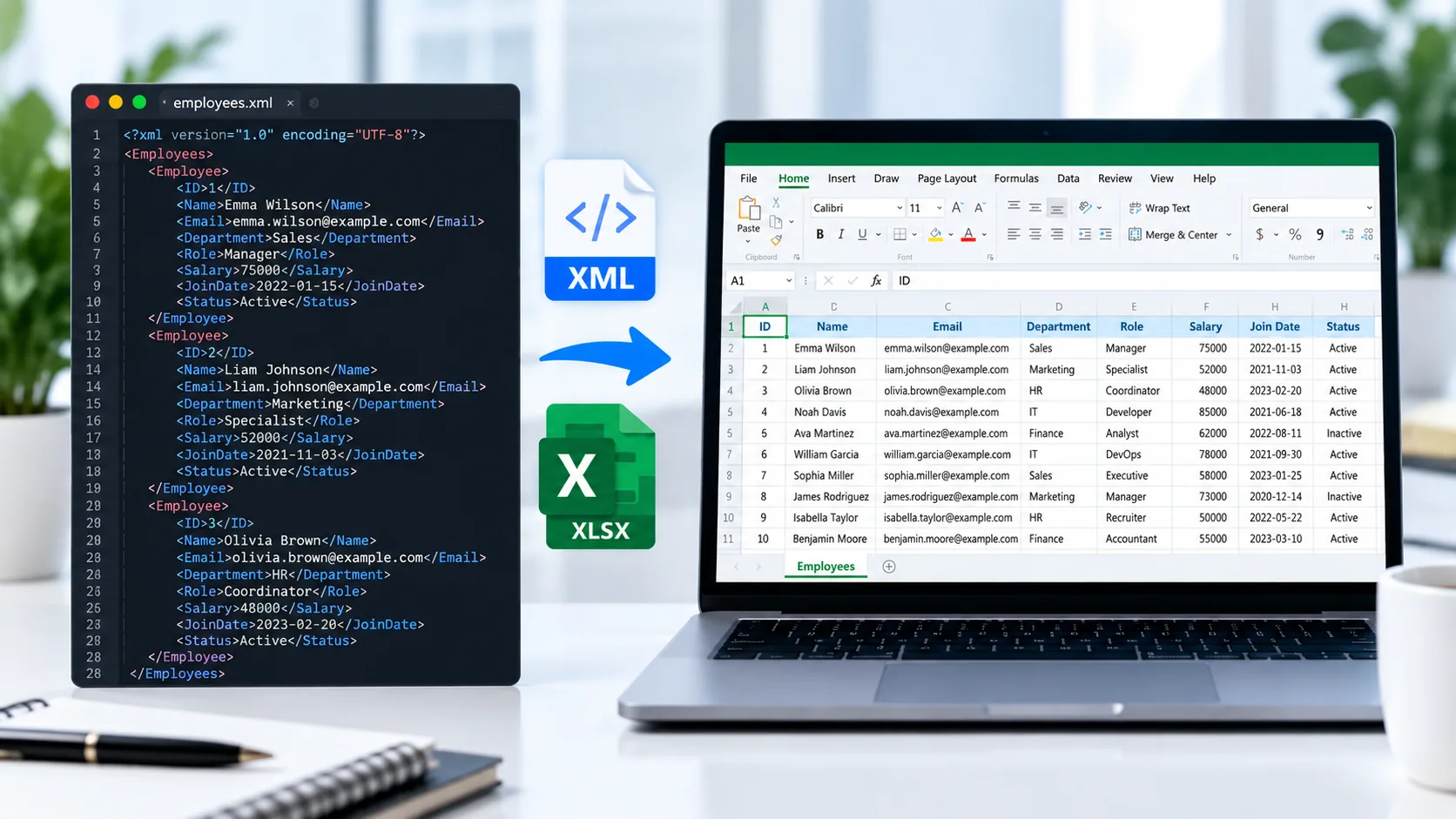
Convert XML to Excel Online
Working with XML data can be a little frustrating when you just want to see it in a normal spreadsheet. PKCapra’s XML to Excel Converter turns structured XML data into an Excel .xlsx file that is much easier to open, review, and work with.
Upload your XML file, let the tool read the data, check the preview, and download the Excel spreadsheet.
If you’re looking for more file conversion tools, have a look at All Free Online Tools or browse the PKCapra Categories.
XML to Excel Converter
Convert structured XML data into an Excel workbook directly in your browser.
XML Data Preview
Repeating XML elements are mapped to spreadsheet rows. Nested objects and arrays are preserved as JSON text inside cells.
How to Convert XML to Excel
You don’t need to manually copy XML data into a spreadsheet.
- Open the XML to Excel Converter.
- Upload your XML file or drag it into the upload area.
- The tool checks and reads the XML structure.
- Review the data in the preview.
- Convert the XML into an Excel workbook.
- Download the
.xlsxfile.
That’s it. You can then open the spreadsheet in compatible Excel software and continue working with the data.
What Is an XML to Excel Converter?
An XML to Excel Converter takes structured information stored in an XML document and organizes it into rows and columns inside an Excel workbook.
XML is commonly used when applications need to store or exchange structured information. The problem is that raw XML isn’t always pleasant to read, especially when the file contains hundreds or thousands of records.
Excel gives that same information a much more familiar table-based layout.
For technical background on XML, see the W3C XML documentation.
Why Convert XML to Excel?
There are plenty of situations where a spreadsheet is simply more convenient.
Easier to Read
XML files can contain lots of tags and nested structures. A spreadsheet gives you a straightforward row-and-column view.
Easier to Review
If you’re checking product data, customer records, inventory, or other structured information, Excel can make the information much easier to scan.
Useful for Data Analysis
Once your XML data is in a spreadsheet, you can use compatible spreadsheet software for sorting, filtering, calculations, and other analysis.
Better for Sharing
A spreadsheet is often easier to share with someone who doesn’t work directly with XML files.
XML to XLSX Conversion
The .xlsx format is commonly used for Excel workbooks, while XML is a markup language used to represent structured data.
The converter takes repeating XML records and organizes them into spreadsheet rows. XML elements and attributes can become columns where the structure allows it.
The result is an Excel workbook rather than a copy of the original XML markup.
For information about Microsoft’s Office file formats, you can refer to Microsoft’s Office file format documentation.
How XML Data Appears in Excel
Imagine an XML file contains product records with information such as:
- Product ID
- Product name
- Category
- Price
- Quantity
- Stock status
Instead of having to read each XML tag, the converted spreadsheet can present that information in a familiar table:
| Product ID | Name | Category | Price | Quantity |
|---|---|---|---|---|
| 1001 | Laptop | Electronics | 850 | 2 |
| 1002 | Wireless Mouse | Accessories | 25 | 5 |
| 1003 | Keyboard | Accessories | 45 | 3 |
This is particularly handy when the XML contains a large number of repeating records.
XML Attributes and Nested Data
XML isn’t always flat. A record can contain attributes, child elements, and nested structures.
PKCapra’s converter is designed to handle XML attributes and repeating records while keeping nested information from being lost.
Where nested information doesn’t naturally fit into separate spreadsheet columns, it can be preserved as structured text within the relevant cell.
This gives you a practical spreadsheet without pretending that every complex XML structure is naturally a flat table.
XML to Excel for Business Data
XML is still used in many systems for exchanging structured information.
You might receive XML containing:
- Product information
- Inventory records
- Customer data
- Orders
- Prices
- Catalog information
- Application exports
- Website data
- Business records
- Structured feeds
Converting that data to Excel can make it considerably easier for a team to review or work with.
If your data is already in JSON, you can use PKCapra’s JSON to Excel Converter.
And if you need the opposite direction, there’s also an Excel to JSON Converter.
XML vs Excel
XML and Excel solve different problems.
XML is designed to represent structured information using elements, attributes, and hierarchical relationships.
Excel is designed around spreadsheets, making it particularly useful for people who need to view, edit, organize, and analyze tabular data.
Converting XML to Excel doesn’t reproduce every part of the original XML structure. Instead, it turns the useful tabular portions of the data into a spreadsheet format.
That’s why this conversion works best when the XML contains repeating records that can reasonably be represented as rows.
Features of the XML to Excel Converter
PKCapra’s converter includes:
- XML file upload
- Drag-and-drop support
- XML structure validation
- XML data preview
- Repeating record detection
- Automatic column creation
- XML attribute handling
- Nested data handling
- Excel
.xlsxoutput - Automatic column-width optimization
- Browser-based processing
- Mobile-friendly interface
The tool currently uses practical limits for browser-based processing, including file size, record count, and column count.
Is My XML File Uploaded?
No. The XML is processed directly in your browser as part of the conversion process.
Your source XML isn’t sent to PKCapra’s server for the conversion.
That makes browser-based processing useful when you don’t want to send the source file to a remote conversion server. As always, follow your organization’s own rules when working with confidential or regulated information.
What Happens to Nested XML?
Not every XML document can be perfectly represented as a flat spreadsheet.
When information is nested, the converter handles it in a way that keeps the nested data available rather than silently throwing it away.
Simple repeating XML records work particularly well because they naturally map to spreadsheet rows.
Frequently Asked Questions
Can I convert XML to Excel online?
Yes. Upload your XML file to PKCapra’s XML to Excel Converter, review the data, and download the resulting Excel workbook.
Can I convert XML to XLSX?
Yes. The converter creates an Excel workbook in .xlsx format from supported XML data.
Does the converter support XML attributes?
Yes. XML attributes are supported and can be included in the resulting spreadsheet data.
Can I convert XML with multiple records?
Yes. Repeating XML records can be organized into separate spreadsheet rows.
What happens to nested XML data?
Nested XML data is handled safely and can be preserved as structured text where it doesn’t naturally fit into a flat spreadsheet layout.
Does the converter preserve the original XML structure?
The output is an Excel spreadsheet, so it does not reproduce the XML hierarchy exactly. The goal is to represent the useful structured data in a practical row-and-column format.
Is the XML processed in my browser?
Yes. The conversion is performed in your browser rather than uploading the source XML to PKCapra’s server.
Can I edit the Excel file after conversion?
Yes. After downloading the .xlsx file, you can open it with compatible spreadsheet software and edit or analyze the data.
What types of XML work best?
XML containing repeating records with relatively consistent fields is generally the easiest to represent as a spreadsheet.
Convert XML to Excel
Have an XML file that you’d rather work with in a spreadsheet?
Open the XML to Excel Converter and turn your structured XML data into an Excel workbook directly in your browser.